Task 03: Discover virtual machines and workloads
Introduction
Terra Firm’s pilot workload is meant to represent what they’ll migrate at scale: Linux servers plus a database tier and supporting components. Discovery (including guest discovery) helps surface the details that matter for migration decisions-what OS and workloads are installed, what depends on what, and what needs extra attention for security and operations once it lands in Azure.
Description
In this task, you’ll configure discovery sources and credentials for your Hyper-V environment and Linux/PostgreSQL guests. You’ll start discovery and confirm the appliance validates access and begins discovering inventory.
Success criteria
- Hyper-V host/cluster discovery source is added and shows Validation successful.
- Guest discovery credentials for Linux and PostgreSQL are saved.
- Discovery has started successfully and the project begins populating discovered inventory.
Key tasks
- Add Hyper-V host credentials and register the Hyper-V host/cluster as a discovery source.
- Add guest discovery credentials for Linux and PostgreSQL workload discovery.
- Start discovery and verify validation/registration messages appear as expected.
-
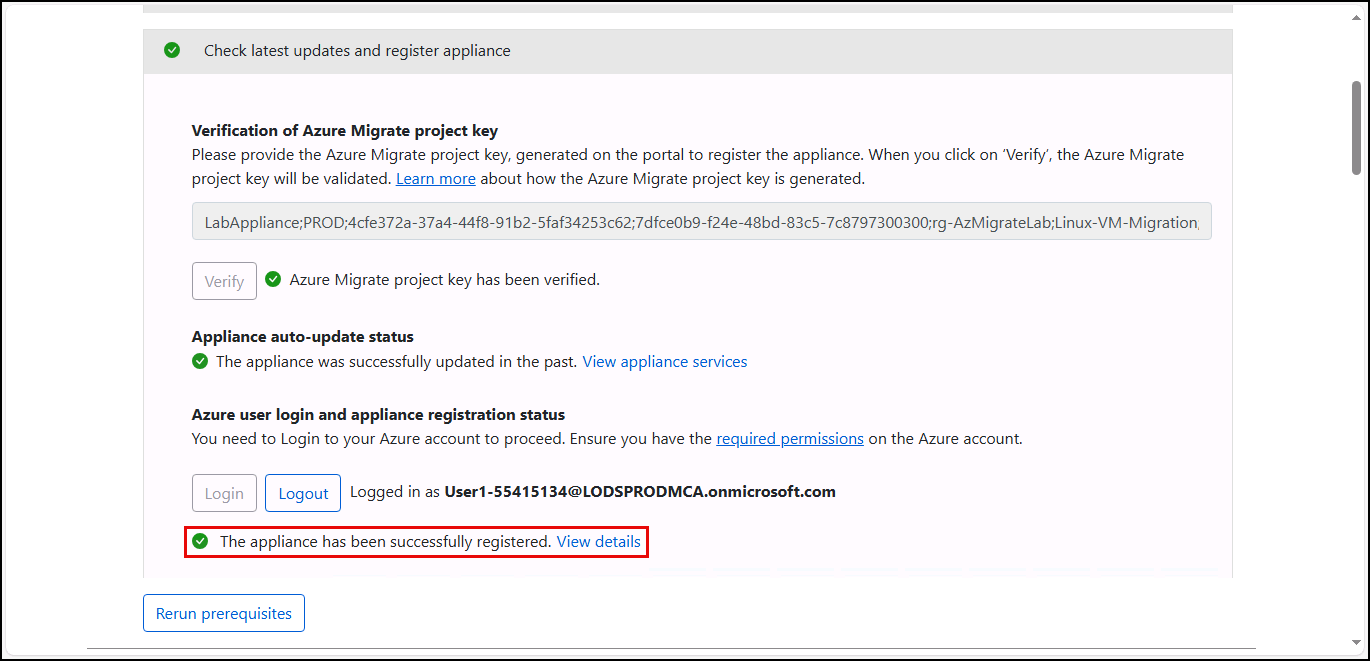
On the Appliance Configuration Manager browser tab, verify you see a message that the appliance has been successfully registered.
-
Under Manage credentials and discovery sources, select Add credentials and then enter the following:
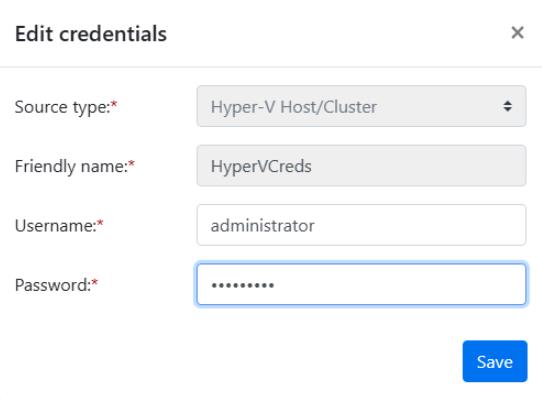
Object Value Source type Hyper-V Host/Cluster Friendly name HyperVCreds Username administrator Password Passw0rd! 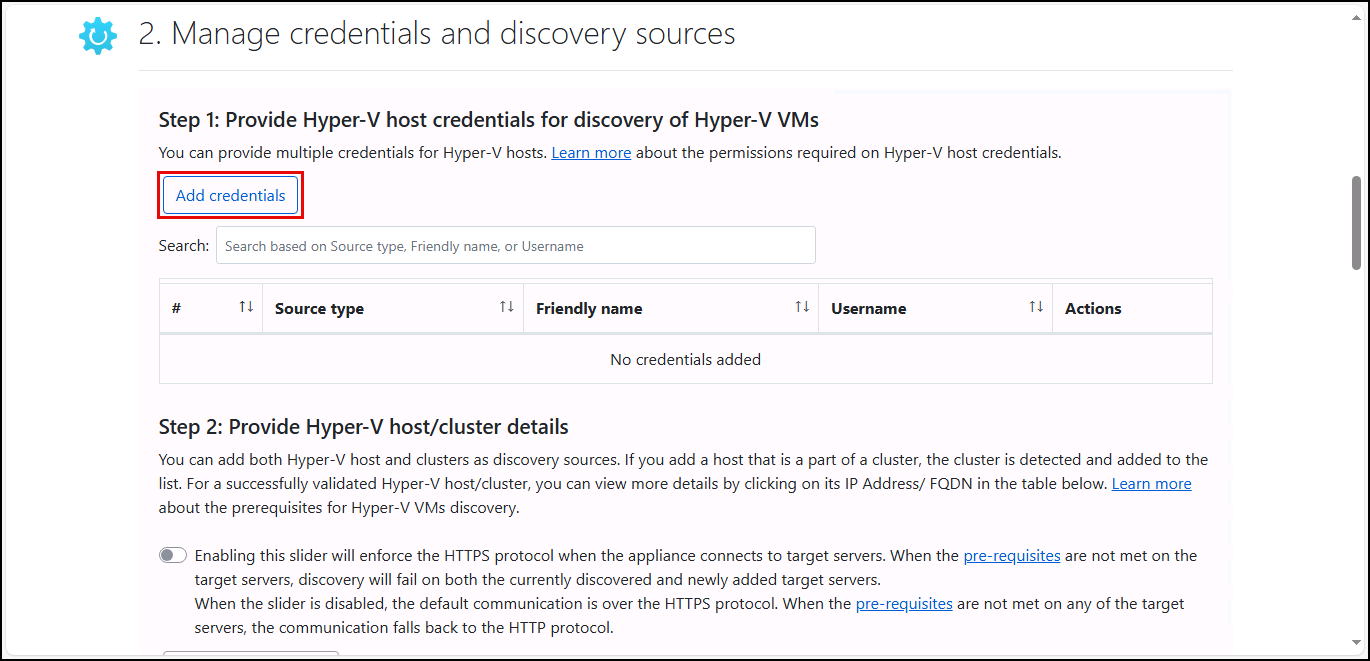
-
Select Save.
-
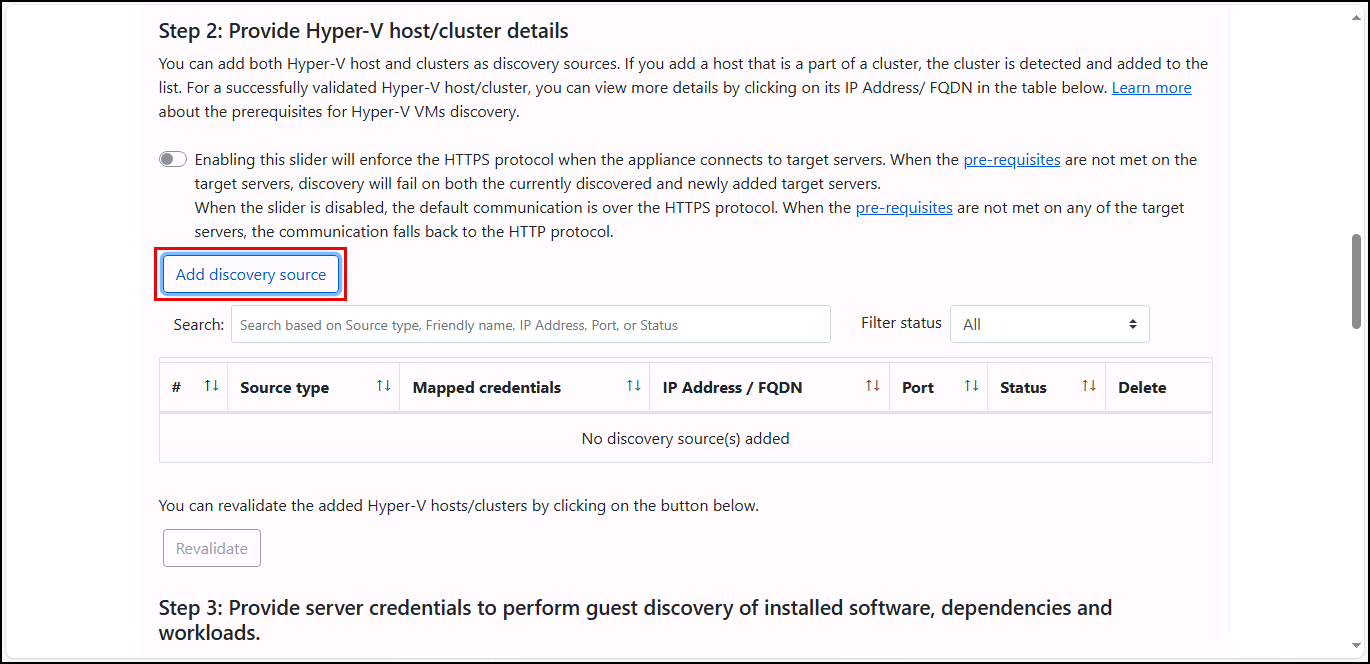
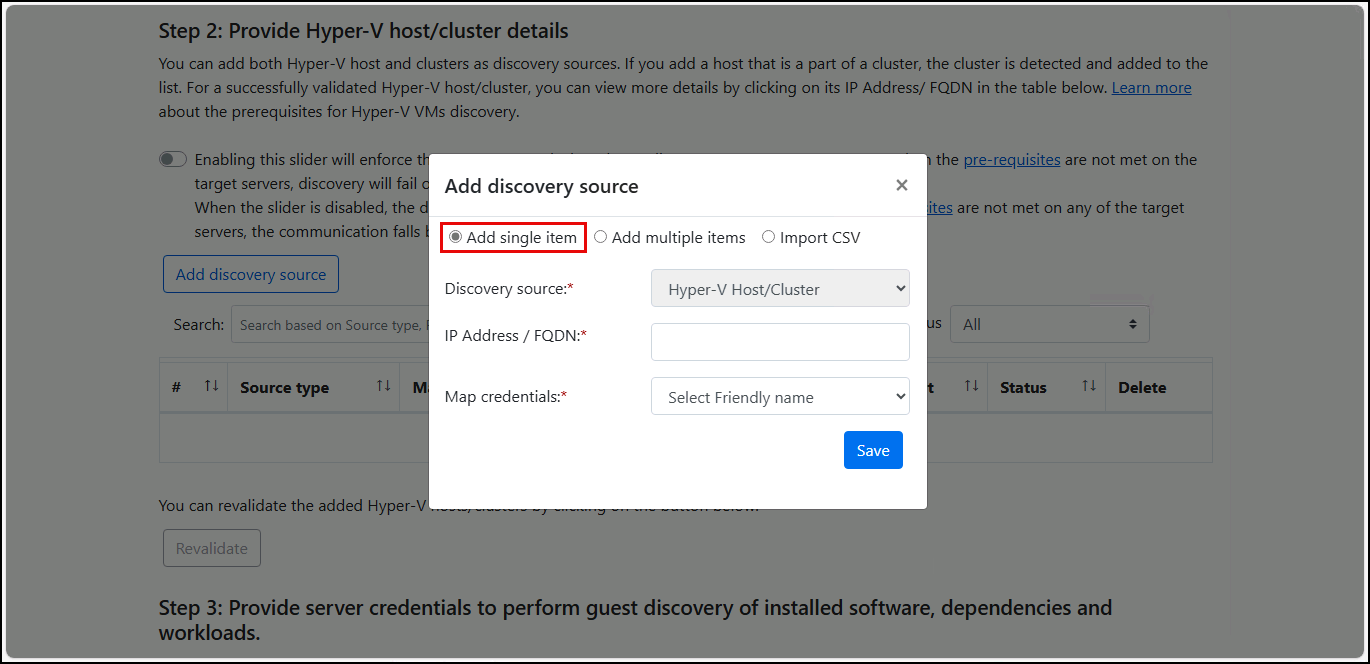
Under Provide Hyper-V host/cluster details, select Add discovery source.
-
In the Add discovery source dialog, select Add single item.
-
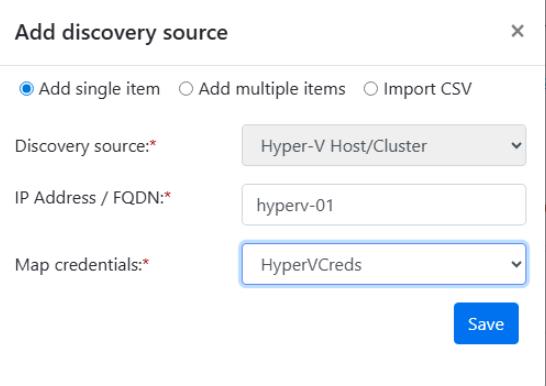
For the IP address/FQDN, enter hyperv-01.
-
Under Map credentials, select HyperVCreds, and then select Save.
-
You should receive a Validation successful message within a minute or so.

-
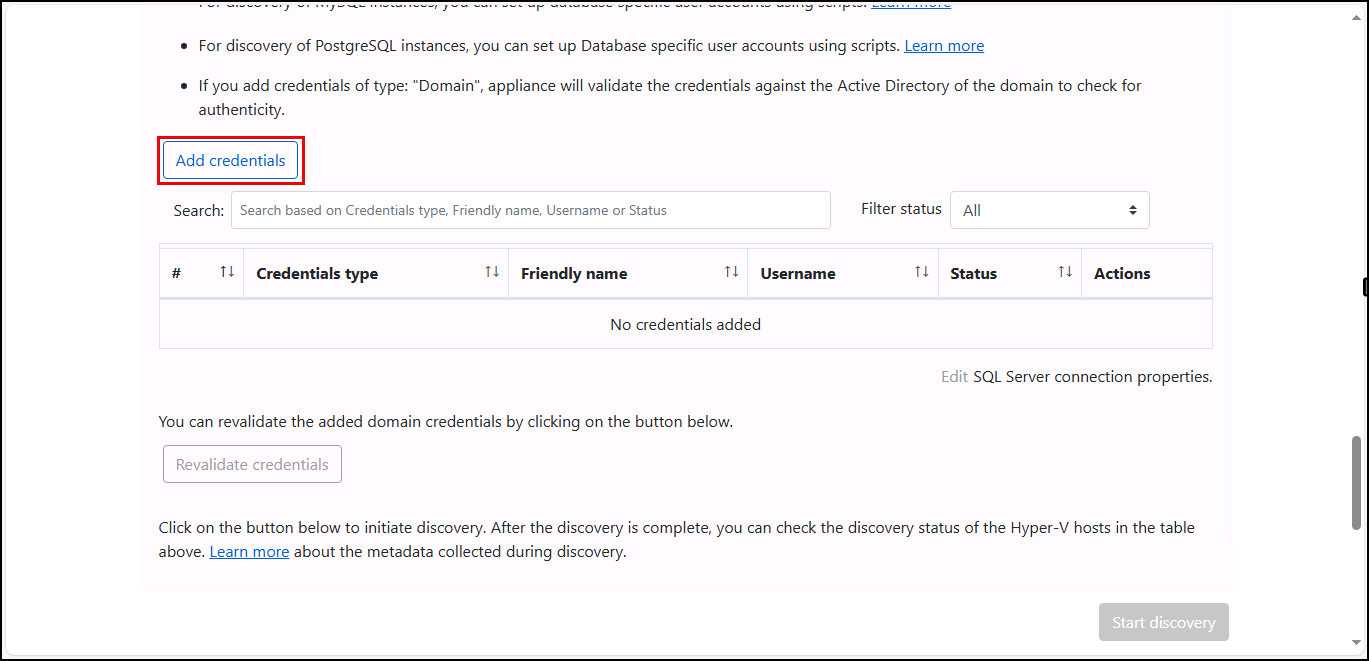
After validation completes, under Provide server credentials to perform guest discovery of installed software, dependencies, and workloads, scroll down and select Add credentials.
-
In the Add credentials popup, enter the following:
Object Value Credentials type Linux (Non-domain) Friendly name Linux Username skilladmin Password PurpleFrog3109! -
Select Add more and add:
Object Value Credentials type PostgreSQL Server (Password based) Friendly name PostgreSQL Username admin Password Password~1 -
Select Save to close the Add credentials dialog.
-
Scroll down and select the Start Discovery button.

Once the Discovery process begins, notify your instructor that you are ready to continue.
Congratulations!
You configured discovery sources and credentials and started discovery so Azure Migrate can populate server inventory and detect workloads (web apps and databases).