Task 03: Add-ins - Enable Defender for Cloud on migrated workloads
Introduction
Terra Firm wants protection that scales as they migrate more workloads-not a manual checklist nobody keeps up with. Turning on Defender for Cloud helps Dennis establish continuous security posture management and threat protection, giving the team a consistent way to spot risks and prioritize fixes after migration.
Task purpose
Turn on security posture management and threat protection so the VM and database are continuously evaluated against Azure security best practices.
Notes
- Recommendations may take several minutes to populate after enabling plans. If none appear yet, continue and return later.
- If needed, adjust filters on the Recommendations page (subscription/resource type) to confirm you’re viewing the correct scope.
-
In the Azure portal, search for and then select Defender for Cloud
-
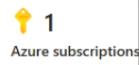
On the overview page, Locate the Azure subscriptions (should show the number 1), and select it.
-
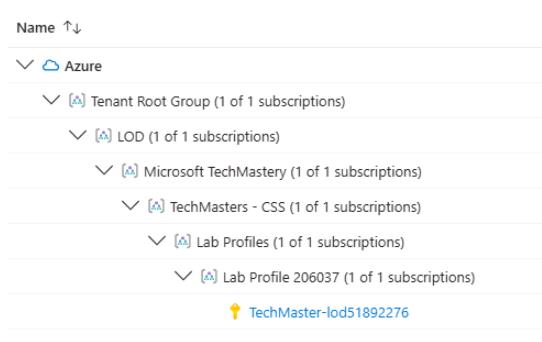
Scroll to the bottom of the screen and Expand the subscription until you see TechMaster-lod subscription.
-
Select the TechMaster-lod subscription, and then toggle On the following Defender plans:
- Defender CSPM
- Servers
- Databases
-
Select Save.
-
Return to the Defender for Cloud page, and then select Recommendations.
-
Evaluate any recommendations that appear.
It may take several minutes before recommendations appear. If you do not see any, you can continue with the lab and return later.
Congratulations!
You enabled Defender for Cloud plans for CSPM, Servers, and Databases and reviewed recommendations that highlight security improvements for the migrated VM and supporting resources.