Task 01: Add-ins - Enable Azure Backup on a migrated VM
Task purpose
Terra Firm wants better business continuity than they had on-prem-and they want it built in, not bolted on later. Enabling Azure Backup for the migrated VM gives Dennis a fast win: recoverability for accidents, bad deployments, or “that patch did what?!” moments.
Notes
- Creating a new Recovery Services vault is fine for a lab. In production, vault strategy is often centralized by environment/app/team.
- Wait for the Enable Backup deployment to complete before selecting Backup now.
-
In the Azure portal, search for and then select Virtual Machines.
-
Select the Airsonic-Frontend VM.
-
On the left menu, under Backup + Disaster recovery, select Backup.
-
On the Welcome to Azure Backup for Azure VMs page, enter the following:
Object Value Recover Services vault Create new Backup vault Backups-@lab.LabInstance.Id Resource group AZMigrateRG Policy sub type Standard -
Select Enable Backup.
Wait for the deployment to complete.
-
In the Azure portal, search for and then select Virtual Machines.
-
Select the Airsonic-Frontend VM.
-
On the left menu, under Backup + Disaster recovery, select Backup.
-
Select Backup now.
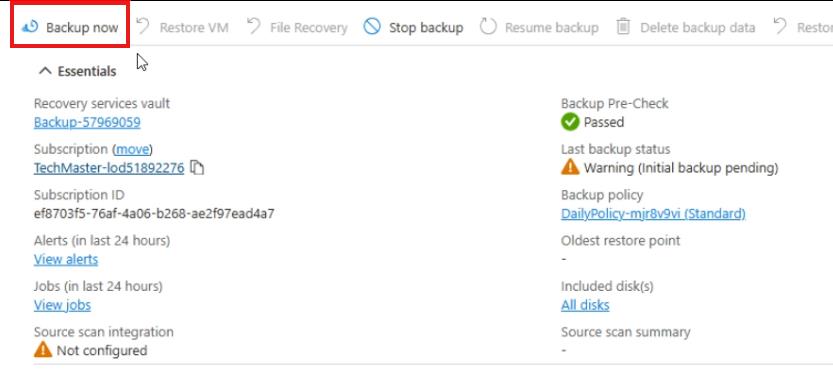
-
In the Retain backups till field, Select the date two days after today’s date, and then select OK.
This triggers an immediate backup of the Airsonic-Frontend VM.
Congratulations!
You enabled Azure Backup for the Airsonic-Frontend VM by creating a Recovery Services vault and triggering an on-demand backup with a short retention window.