Task 01: Configure a service account and secret
Introduction
Using a service principal and secret to access Databricks workspaces ensures secure authentication and authorization for programmatic interactions. The service principal and secret separate sensitive credentials, allow fine-grained control over permissions, and enable applications to securely access Databricks resources while adhering to the principal of least privilege.
In this task, you’ll create a service account and secret for an existing app registration.
Learning resources
Key steps
-
Open a browser and go to Azure Portal. Sign in by using your credentials.
Setting Value Username Your Azure Username Password Your Azure Password -
On the Azure Home page, in the Search field, search for and select
Microsoft Entra ID.
-
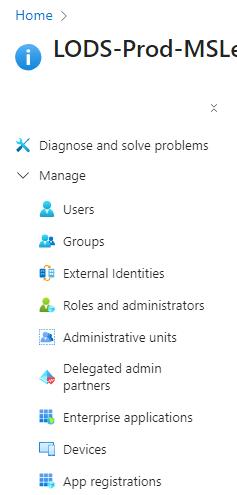
On the Microsoft Entra ID Overview page, in the left pane, select Manage and then select App registrations.
-
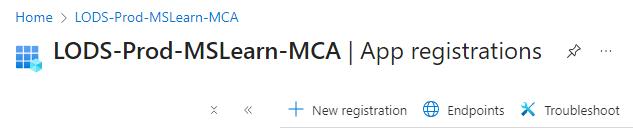
On the command bar, select + New registration.
-
On the Register an Application page, in the Name field, enter
fabric@lab.LabInstance.Id.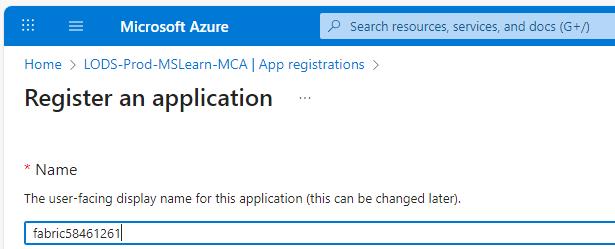
For this lab, we use an 8-digit number as part of the name for any resources that you created. The 8-digit number is unique for this lab instance.
The screenshots use the lab instance number that was generated when we were capturing screenshots. Your lab instance number will differ from the screenshots.
-
At the bottom of the Register an application page, select Register. You are returned to the App registration page for fabric@lab.LabInstance.Id.

-
In the left pane, select Overview.
-
On the Overview page, locate the Essentials section at the top of the page. Paste the values for the following settings into the appropriate text fields:
Default Value Display name The name of your service account (e.g., MyServiceAccount) Application (client) ID The unique identifier for your app (e.g., [Your Application (client) ID]) Directory (tenant) ID The unique identifier for your directory (e.g., [Your Directory (tenant) ID]) Be sure to move the mouse cursor outside of the text field after pasting text. This ensures that the lab environment will save the values for use later in the lab.
-
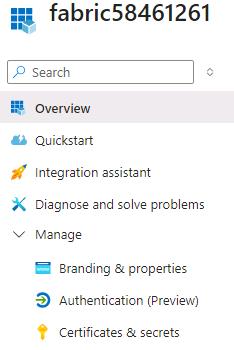
In the left pane, select Manage and then select Certificates & secrets.
-
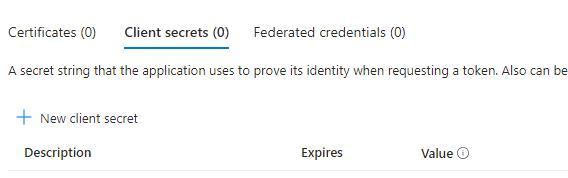
Select the Client secrets tab and then select + New client secret.
-
In the Add a client secret pane, in the Description field, enter
serviceAccountSecret. Then, select Add.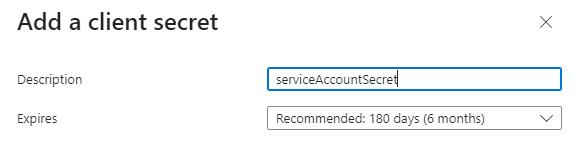

-
On the Certificates & secrets page for fabric@lab.LabInstance.Id, locate the secret that you just created.

-
[]Copy the following values for Description and Value and paste these values into the appropriate text fields:
Default Value Description @lab.TextBox(secretDescription) Value @lab.TextBox(secretValue) After you save the client secret, the value of the client secret is displayed. After you navigate away from the Certificates & secrets page, the value of the secret will no longer be available. Save the value in Notepad or elsewhere.
-
Leave the Azure page open.