Task 02: Add a role assignment to an Azure Storage account
Introduction
Zava plans to acquire Litware, Inc. and must be able to access data from Litware.
Description
In this task, you’ll add a role assignment so that your user account and the app that you registered in the previous task can connect to the storage account where you’ll store Litware data.
Example scenario
Zava’s data engineering team needs controlled access to Litware’s data stored in Azure Data Lake Storage. By assigning roles to both users and applications, Zava ensures that data pipelines and analytics tools can securely read and write data without exposing unnecessary permissions.
Success criteria
You’ve successfully completed this task when both your user account and the registered application can access the Litware storage account using the assigned role.
Learning resources
Key steps
01: Grant storage access to the service principal and user account
-
Return to the Azure web page.
-
in the Search field, search for and select
Storage accounts.Be sure to use Storage accounts and not Storage accounts (classic). The instructions and screenshots will not be correct if you use Storage accounts (classic).
-
Select the litwaredata@lab.LabInstance.Id storage account.
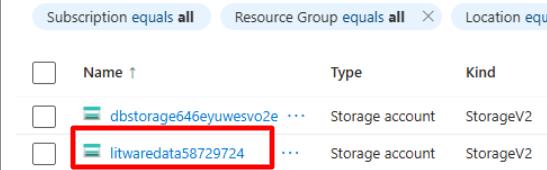
-
In the left pane, select Access Control (IAM).
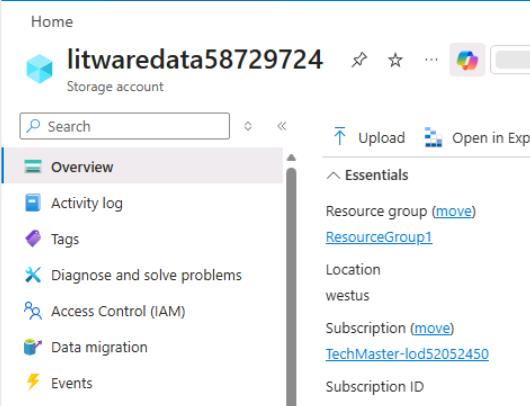
-
In the Grant access to this resource tile, select Add role assignment.
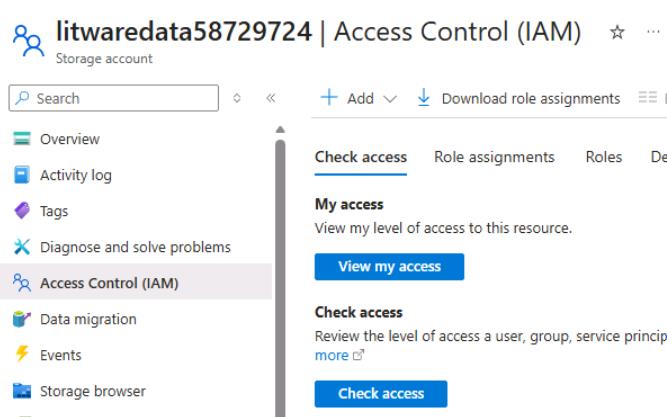
-
At the top of the list of roles, in the Search field, enter
Storage Blob Data Contributor.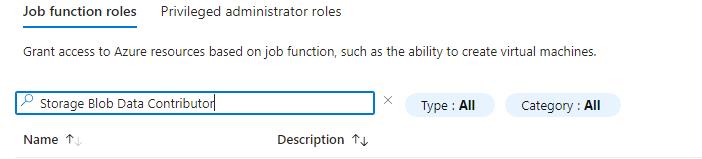
-
Select Storage Blob Data Contributor from the search results and then select Next.
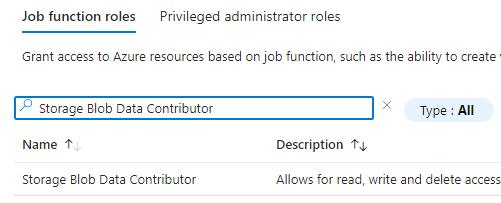

You must select Storage Blob Data Contributor from the list of search results before you select Next to ensure that you add members correctly to the role.
-
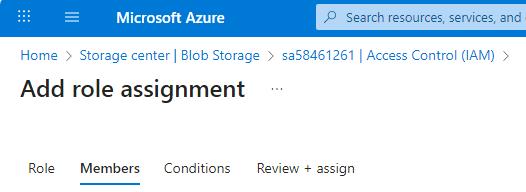
On Add role assignment page, select the Members tab. Then, in the Members section, select + Select members.
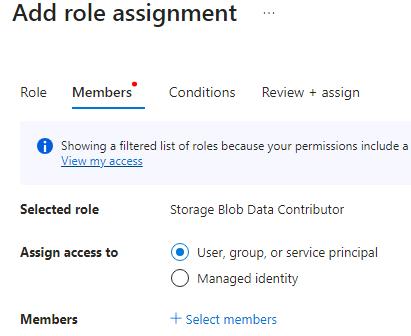
You’ll add two members for this role assignment.
-
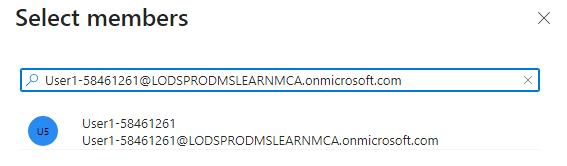
In the Select members pane, in the Search field, enter the following value and then select the member from the search results:
@lab.CloudPortalCredential(User1).Username -
Select Select.
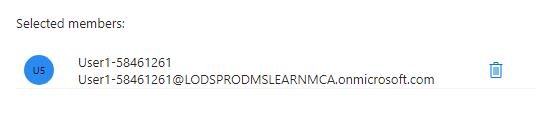

-
On the Add role assignment page, select + Select members to add the second member.
-
In the Select members search box, enter
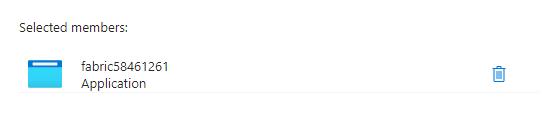
fabric@lab.LabInstance.Idand then select the member from the search results. Select Select.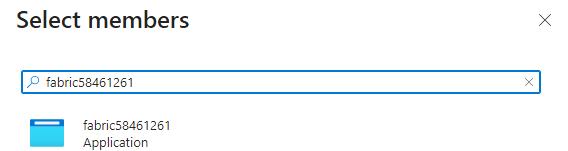

-
On the Add role assignment page, select Review + assign twice.

-
Leave the Azure page open.