Task 02: Create a shortcut to reference external data
Introduction
Shortcuts in a lakehouse allow users to reference data without copying the data. Shortcuts unify data from different lakehouses, eventhouses, workspaces, and external storage. You can quickly make large amounts of data available in your lakehouse locally without the latency of copying data from sources.
In this task, you will create a shortcut that references curated bounce rate data for Litware from ADLS Gen2 storage. Bounce rate is a web analytics metric that measures the percentage of visitors who land on a website and then leave without interacting with any other page or element on the site.
Key tasks
-
Open Microsoft Edge and go to
https://app.powerbi.com/. -
If prompted, sign in.
-
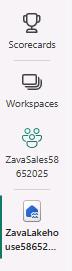
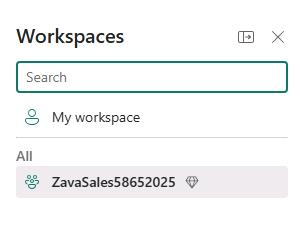
In the left pane, select Workspaces and then select ZavaSales@lab.LabInstance.Id.
-
In the list of resources on the workspace page, select LitwareData@lab.LabInstance.Id.
-
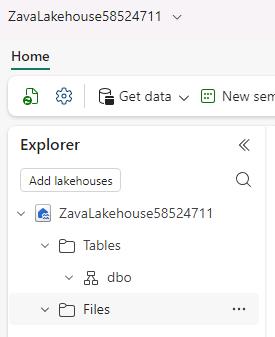
On the lakehouse page, in the Explorer pane, hover your cursor over the Files node and then select the ellipses (…).
-
Select New shortcut.
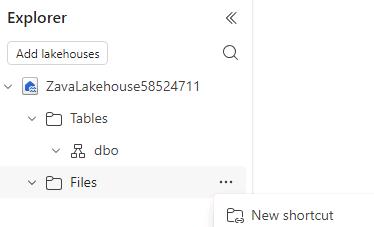
Fabric allows you to create shortcuts for other resources including tables. Be sure to add the shortcut to the Files node.
-
In the New shortcut dialog, in the External sources section, select Azure Data Lake Storage Gen2.
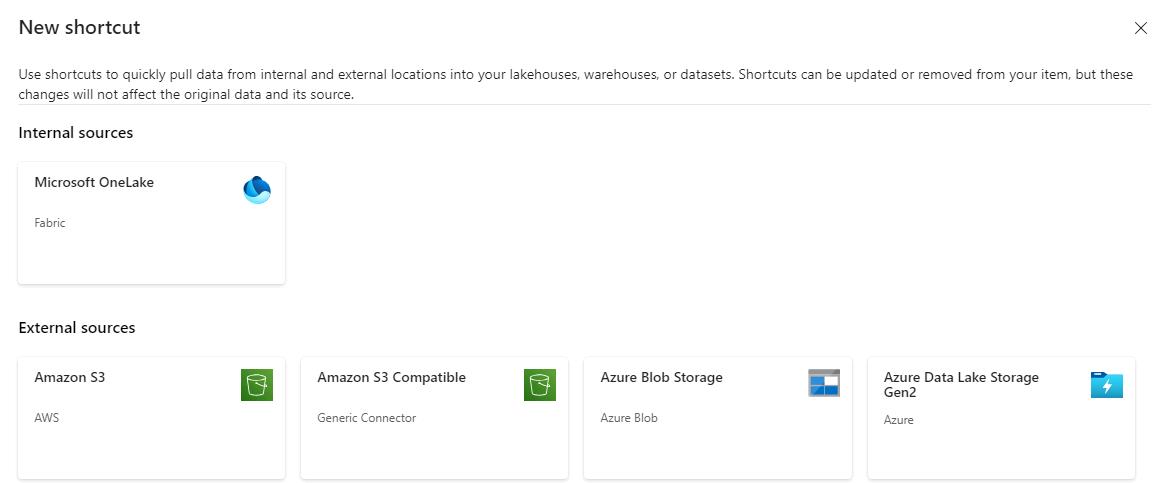
-
In the New shortcut dialog, select New connection.
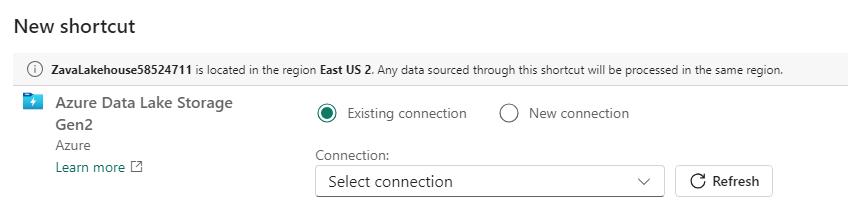
-
In the Authentication kind field, select Account key.
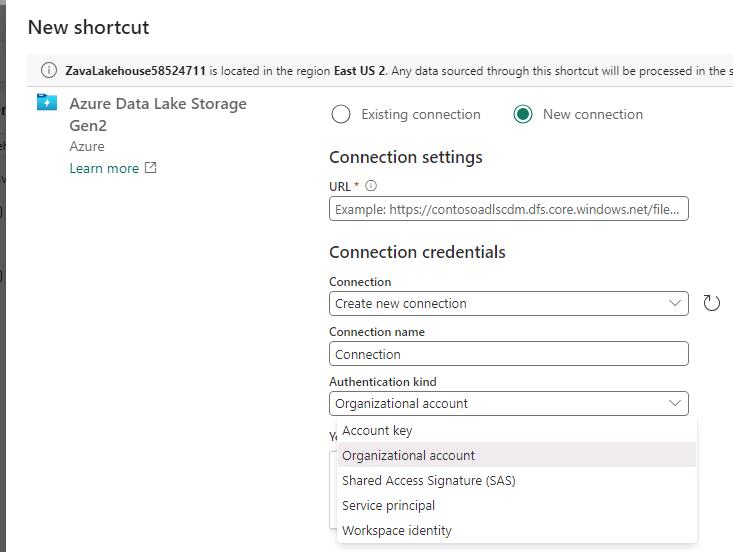
-
Enter connection details by using the values in the following table. Leave all other settings at their default values.
TBC - Below value to be adjusted
Setting Value URL https://litwareuc@lab.LabInstance.Id.dfs.core.windows.net/Authentication kind Account Key Account key @lab.Variable(LitWareDataAccessKey)This is the storage account key that saved to a text field earlier in the instructions when you created the storage account for Litware data.
-
Select Next.
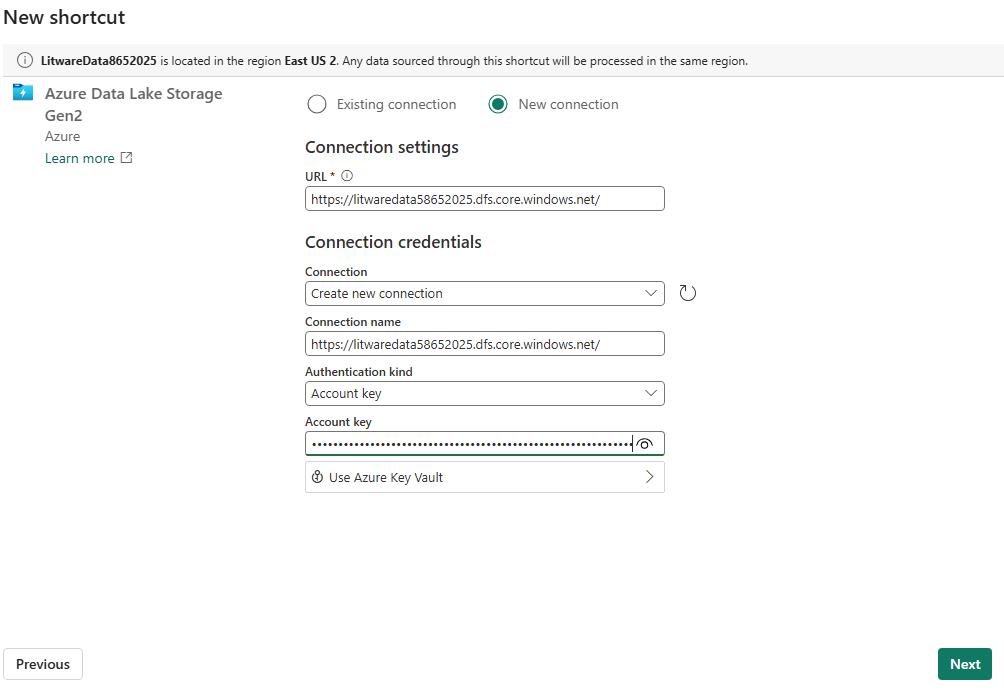
-
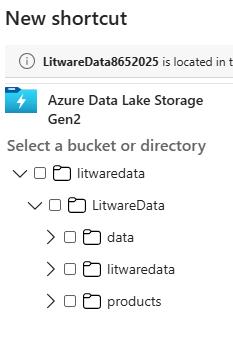
Expand litwaredata so that you can see the data, litwaredata and Products folders.
-
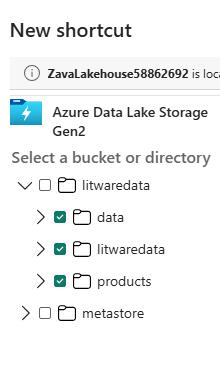
Select the data, litwaredata and Products folders and then select Next.
-
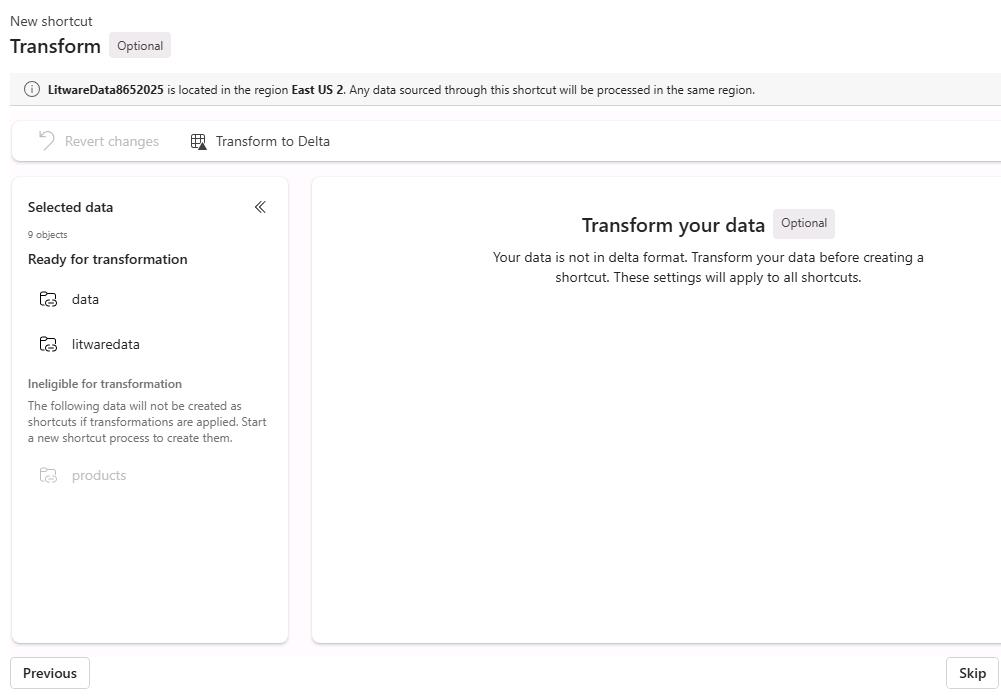
Select Skip.
-
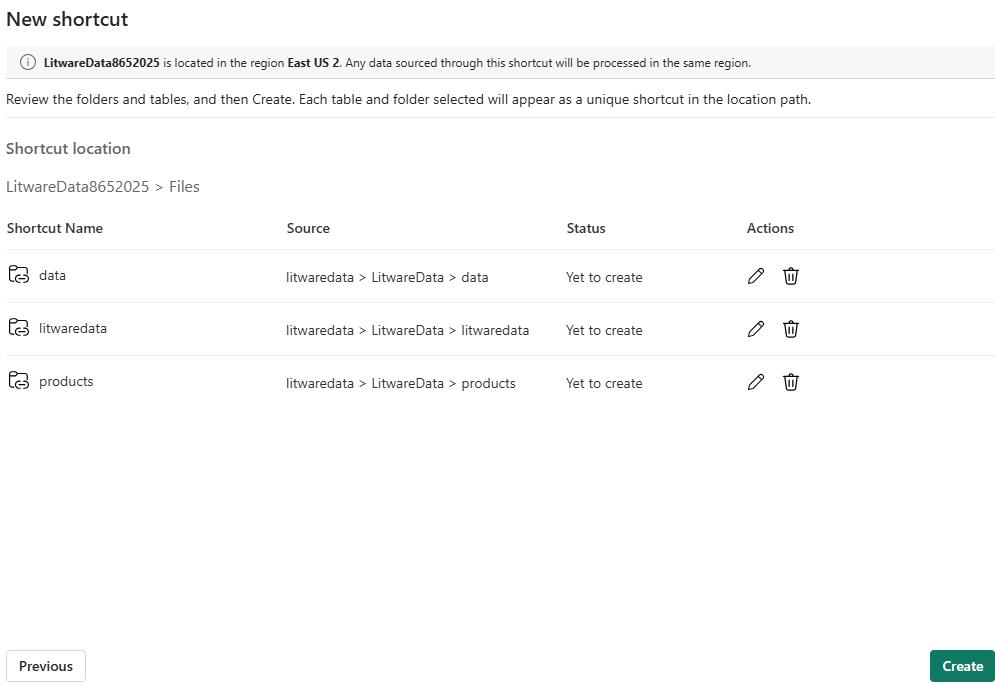
Select Create.
-
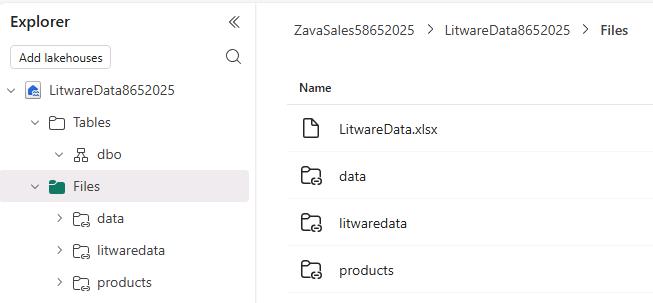
In the lakehouse Explorer pane, verify that the data, litwaredata and Products folders are listed.
-
Leave the Fabric lakehouse page open.