Task 03: Using data pipelines/data flow for data ingestion
Introduction
You can use Spark notebooks to create delta tables. This allows you to bring in additional data into OneLake. Using a Spark notebook to create Delta tables helps ensure reliable, scalable, and efficient data management, which is essential for handling big data workflows.
Key steps
-
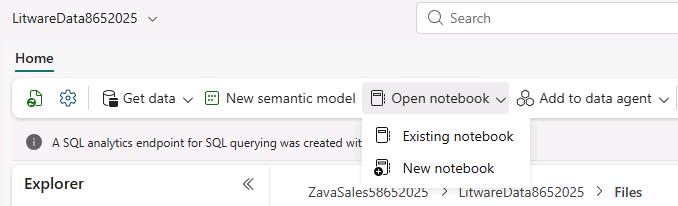
On the lakehouse page, on the command bar, select Open Notebook and then select New Notebook.
-
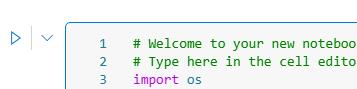
Paste the following code into the existing code cell at line three.
 import os
 import pandas as pd

 # List all CSV files in the 'litwaredata' folder
 file_path = '/lakehouse/default/Files/litwaredata/'
 csv_files = [file for file in os.listdir(file_path) if file.endswith('.csv')]

 # Load each CSV file into a table
 for file in csv_files:
     table_name = file.split('.')[0]
     df = pd.read_csv(file_path + file)
     spark.createDataFrame(df).write.mode("ignore").format("delta").saveAsTable(table_name)
This code creates a reference to the lakehouse folder where the Litware data resides. It then reads the contents of each file and writes the data to a dataframe. Finally, the code writes each dataframe to a delta table.
-
Run the code by selecting Run cell (the triangle icon that appears to the left of the code cell).
-
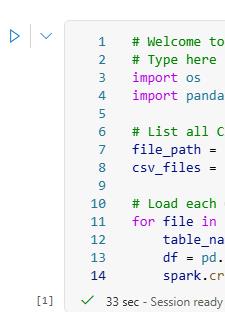
Wait for code execution to complete. When complete, you will see a green check mark at left bottom of the cell.
It generally takes 1-3 minutes for code execution to complete.
-
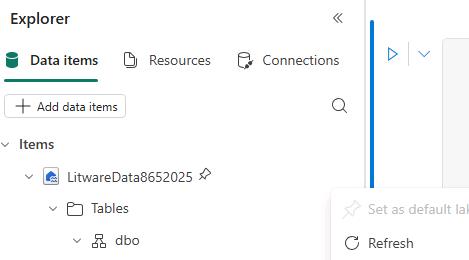
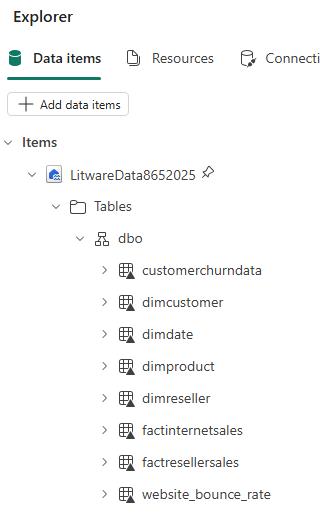
In the Explorer pane, on the Data items tab, expand Tables and then expand dbo. Select the ellipses (…) and then select Refresh.
-
Ensure that there are eight tables listed.
-
Select the website_bounce_rate table.
-
Select Load data and then select Spark.

-
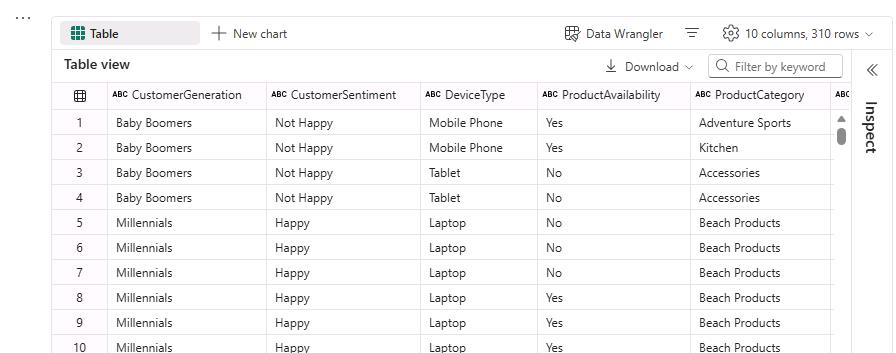
View the code cell that Fabric added and then run the cell.

-
Below the code cell, view the bounce rate data.
-
On the command bar, select Stop session (the square icon).
-
Leave the Fabric page open.