Task 01: Start the thermostat and occupancy simulator
Introduction
To simulate real-time data ingestion, you’ll start an IoT data simulator that streams telemetry into Azure Event Hubs.
Description
In this task, you’ll retrieve Event Hub credentials and configure a simulator to generate streaming data.
Example scenario
Operations teams monitor temperature and occupancy data to detect anomalies during high-traffic events.
Success criteria
Streaming data is successfully sent to Event Hubs.
Learning resources
- Event Hubs overview
- Real-time analytics in Fabric
Key steps
01: Retrieve the for the Eventhouse resources that was deployed for you
-
Open Edge and go to
portal.azure.com. -
If prompted, sign in by using the following credentials:
Setting Value Username @lab.CloudPortalCredential(User1).UsernameTemporary Access Pass (TAP) token @lab.CloudPortalCredential(User1).AccessToken -
Search for and then select
Event Hubs.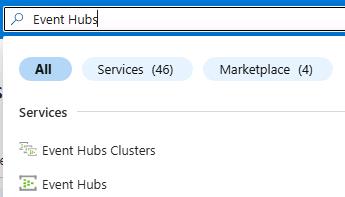
-
Select the evh-@lab.LabInstance.Id resource.
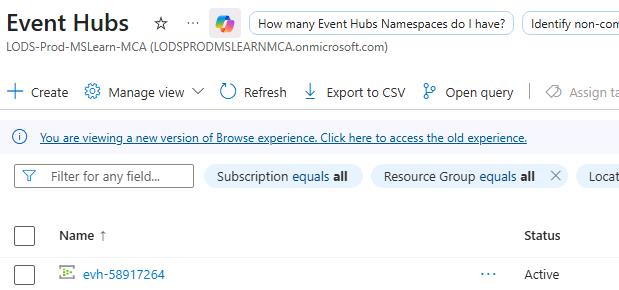
-
In the left pane, search for and select
Shared access policies.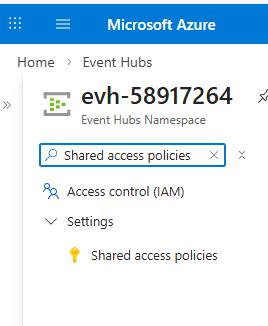
-
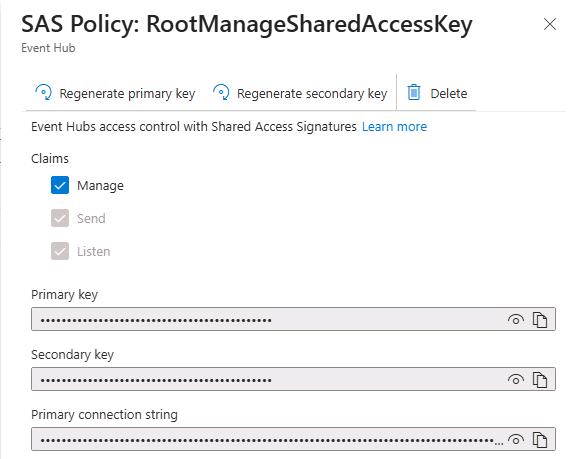
In the list of policies, select RootManageSharedAccessKey.
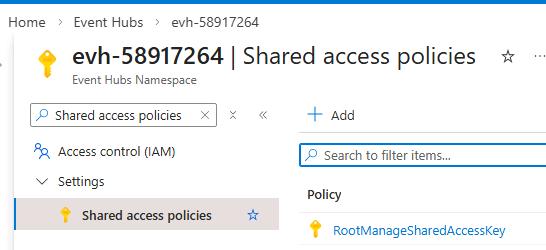
-
In the SAS Policy pane, in the Primary connection string field, select Show content (the eye icon).
-
In the SAS Policy pane, in the Primary connection string field, select Copy.

-
Paste the connection string into a notepad.
02: Configure the simulator
-
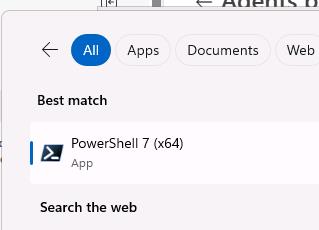
In the @lab.VirtualMachine(Win11-Pro-Base).SelectLink virtual machine, on the Windows Task Bar, in the search field, enter
PowerShell.
-
In the list of search results, select PowerShell 7 (x64).
-
Run the following command:
cd "C:\Lab Assets\app-adx-thermostat-realtime"
This moves you to the folder containing the simulator project.
-
In File Explorer, in the address bar, enter
PowerShell. -
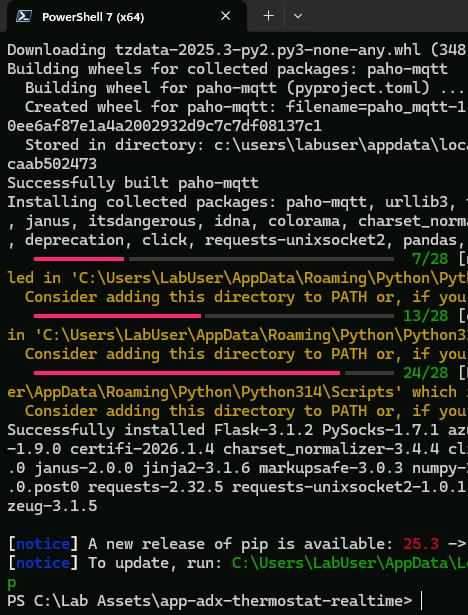
Run the following command to install required components:
python -m pip install --user -r requirements.txtIt may take 1-3 minutes to complete the process.
-
Run the following command:
$therm = '{"main_data_frequency_seconds":3,"urlStringEventhub":"@lab.Variable(EventHubCxString)","EventhubName":"thermostat","urlPowerBI":"https://httpbin.org/post","data":[{"BatteryLevel":{"minValue":0,"maxValue":100}},{"Temp":{"minValue":60.0,"maxValue":74.0}},{"Temp_UoM":{"minValue":["F"],"maxValue":["F"]}}] }' $occ = '{"main_data_frequency_seconds":3,"urlStringEventhub":"","EventhubName":"occupancy","urlPowerBI":"https://httpbin.org/post","data":[{"BatteryLevel":{"minValue":0,"maxValue":100}},{"visitors_cnt":{"minValue":20,"maxValue":30}},{"visitors_in":{"minValue":0,"maxValue":10}},{"visitors_out":{"minValue":0,"maxValue":10}},{"avg_aisle_time_spent":{"minValue":20,"maxValue":30}},{"avg_dwell_time":{"minValue":3,"maxValue":13}}] }' $env:thermostatTelemetryConfig = $therm $env:occupancyDataConfig = $occ -
Run the following command. This starts the simulator.
python app.py -
Open Edge and go to
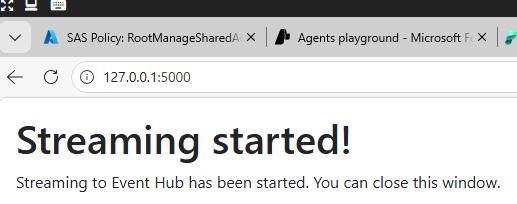
http://127.0.0.1:5000/.If the page takes more than two minutes to load, return to the PowerShell window and press the Ctrl+C combination to stop the process. Then, repeat Steps 6 - 8.
-
Verify that streaming has started.
-
Return to the PowerShell window. Verify that you see streaming data. The output should resemble the following screenshot:

Do not close the PowerShell window until you complete Exercise 06.
After completing all tasks in Exercise 6, return to the PowerShell window and stop the simulator by using the Ctrl + C key combination.