Task 04 - Configure HA/DR
Introduction
Tailspin’s database workloads have been modernized and are running on Azure SQL Managed Instance. The next critical step is to understand how to ensure long‑term resilience and business continuity. In this task, you will review the configuration steps for high availability (HA) and disaster recovery (DR). While you will not fully enable these features in the lab environment due to time constraints, you will gain the knowledge needed to safeguard workloads against both localized failures and regional outages.
Description
In this task, you will:
- Review the steps required to configure high availability (HA) to maintain uptime and protect against local infrastructure failures.
- Examine disaster recovery (DR) options such as geo‑replication and failover groups, focusing on how they provide resilience against regional disruptions.
- Consider how HA/DR configurations can be validated by simulating failover scenarios and confirming application continuity.
Success Criteria
- You have reviewed the configuration steps for high availability and understand how local failover testing validates resilience.
- You have explored disaster recovery strategies such as geo‑replication and failover groups, and can explain how failover to a secondary region is validated.
- You can articulate how Tailspin’s business continuity requirements are addressed through HA/DR configuration and planning.
Step-by-Step Instructions
With Tailspin’s ToyStore database now running in Azure SQL Managed Instance, you are ready to explore how high availability (HA) and disaster recovery (DR) can be configured to meet business continuity requirements. In this lab, you will review the configuration steps rather than fully enable them, due to time and resource constraints. By the end, you will understand the prerequisites, setup process, and validation methods for HA/DR in SQL Managed Instance, as described in the high-availability and disaster recovery checklist for SQL Managed Instance.
High Availability (Zone Redundancy)
IMPORATNT: In this lab, you will review the steps required to enable zone redundancy for high availability (HA) in your SQL MI, but you will not actually enable it due to time constraints.
-
Navigate your lab resource group in the Azure portal and select the
tailspin<uniqueid>-sqlmiSQL managed instance resource in the list of resources.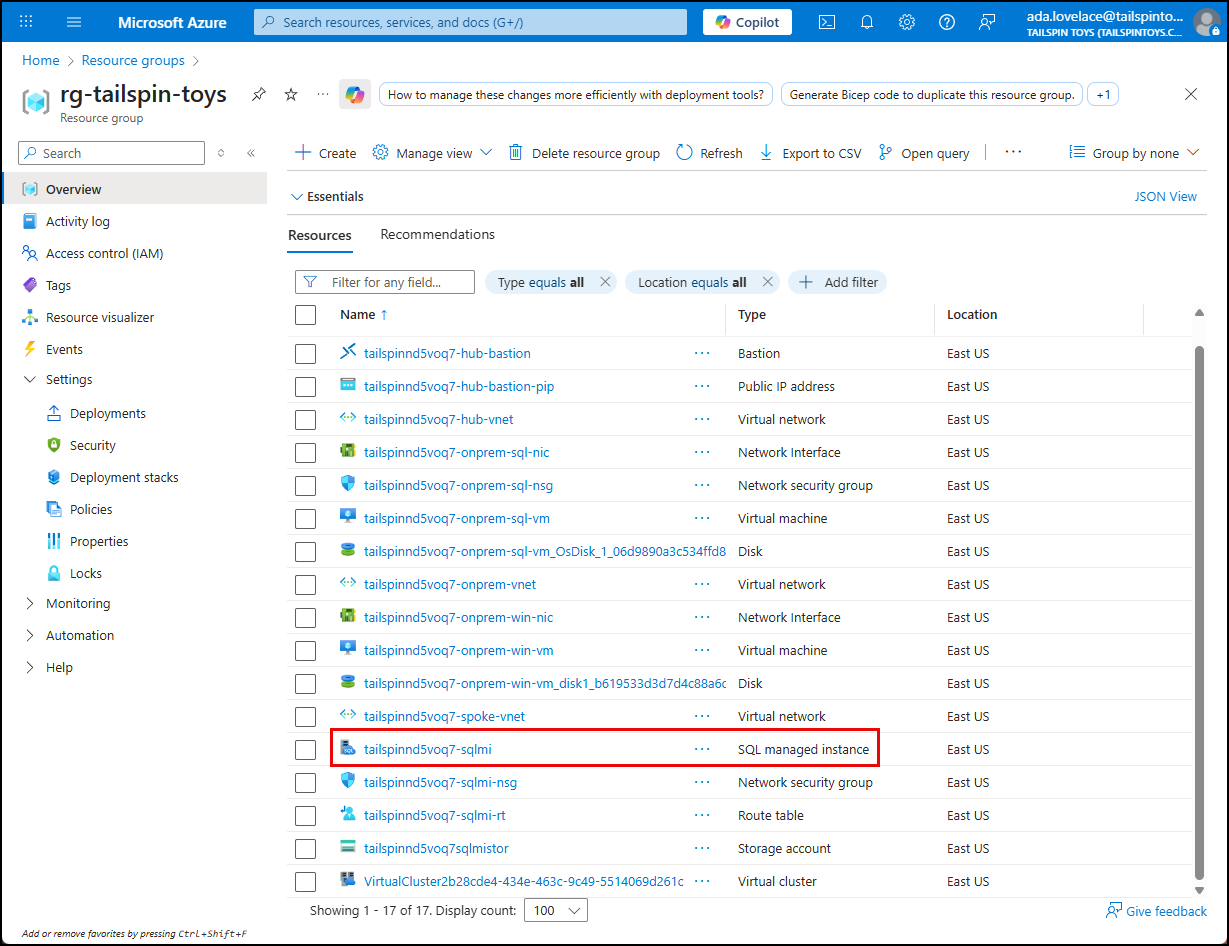
-
Select Compute + storage under Settings in the left menu, scroll down to the Zone redundancy setting.
-
Zone redundancy distributes replicas across three availability zones in the primary region. To enable it, the following must be true:
- The SQL Managed Instance must be deployed in a region that supports Availability Zones.
-
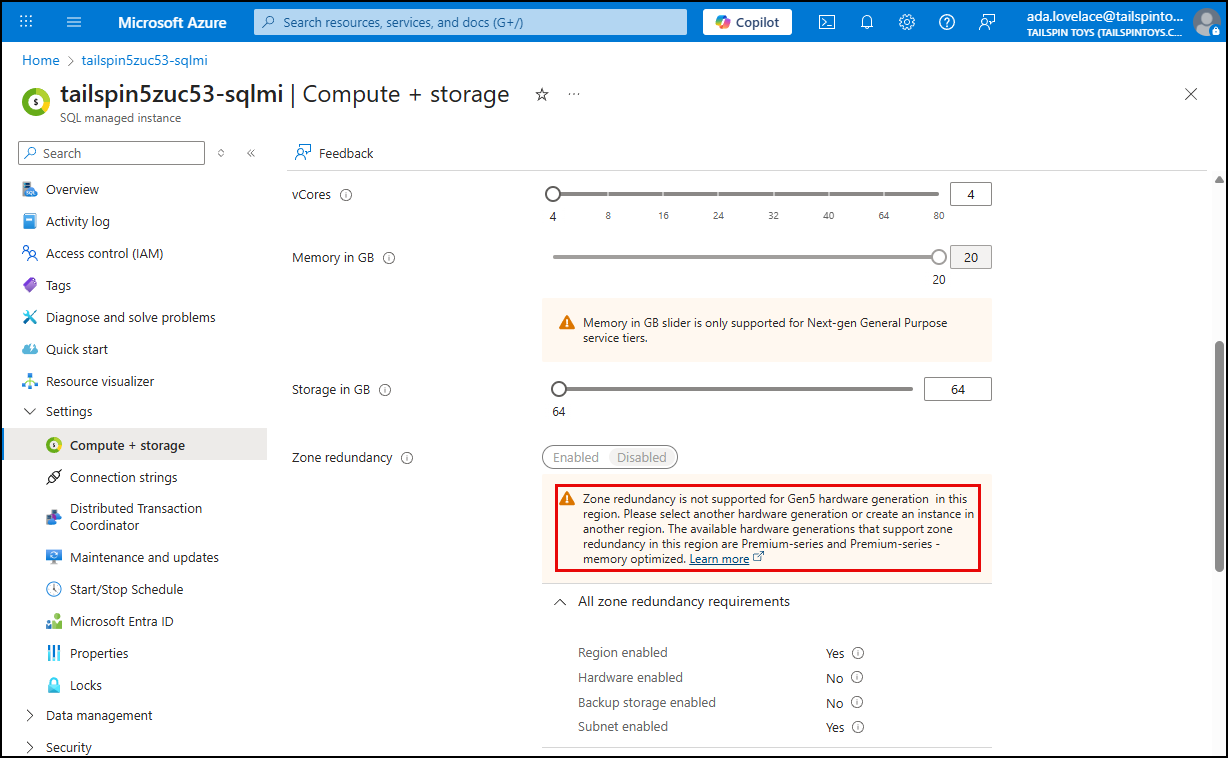
The compute hardware SKU must support zone redundancy (the portal will provide guidance if your current SKU does not support it).
-
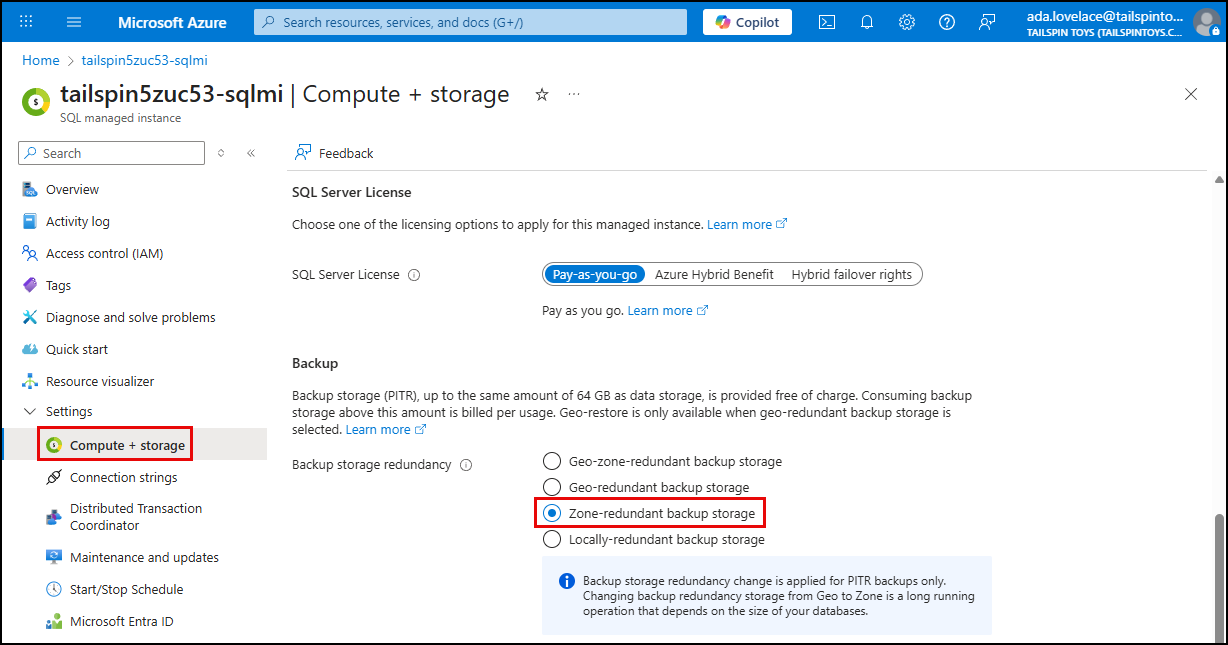
The backup storage redundancy of your SQL MI must be set to Zone-redundant storage (ZRS) or Geo-zone-redundant storage (GZRS).
NOTE:The default Geo‑redundant storage (GRS) does not support zone redundancy. Changing storage redundancy may not be supported in all regions and can take several hours, so you will not perform this change in the lab.
-
Once all prerequisites have been satisfied, you can enable Zone redundancy and select Apply.
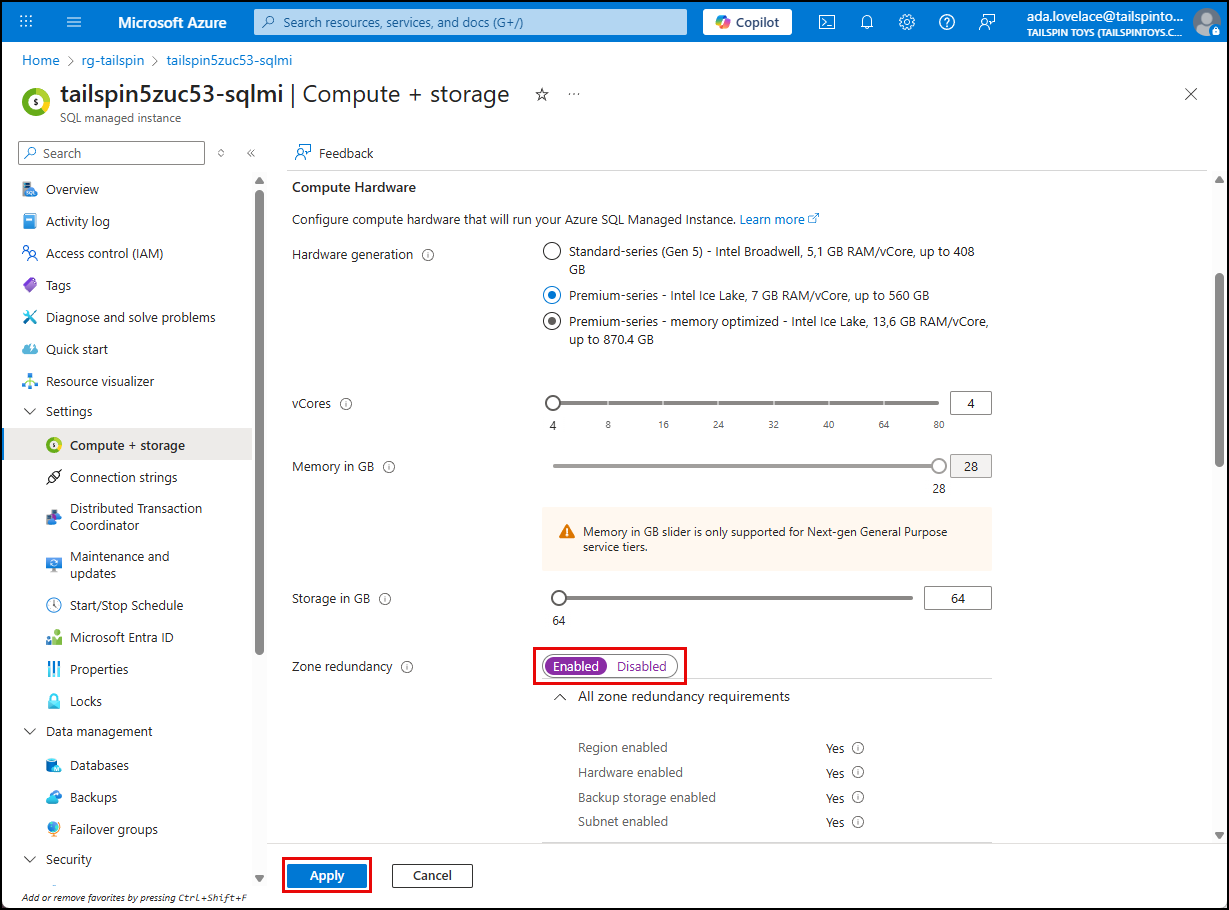
- Zone redundancy provides high availability by distributing the SQL MI replicas across multiple availability zones within the region. This setup helps ensure that if one zone experiences a failure, the SQL MI can continue to operate using replicas in the other zones, minimizing downtime and maintaining data availability.
- Fault resiliency can be tested using a special API endpoint to restart a managed instance. During a true zone failure, the SQL MI automatically fails over to the replicas in the other zones without requiring any manual intervention.
Disaster Recovery (Failover Groups)
You are now ready to move on to review how creating a failover group for your SQL MI provides disaster recovery (DR) capabilities.
IMPORTANT: In this lab, you will not deploy a secondary SQL MI in another region. Instead, you will review the steps required to configure a failover group for DR.
-
Before creating a failover group, you must have a secondary SQL Managed Instance deployed in a different Azure region. This secondary instance will serve as the failover target in case of a regional outage affecting the primary instance.
When creating a secondary SQL Managed Instance for the failover group, ensure the second SQL MI complies with the following requirements:
- It is located in a different Azure region from the primary SQL MI to provide geographic redundancy. Ideally, you should use a paired region to take advantage of Azure’s regional disaster recovery capabilities.
- It has been configured with the same or higher compute and storage capacity as the primary SQL MI to ensure it can handle the workload during a failover.
- It does not contain any user databases initially, as the failover group setup will handle data replication from the primary to the secondary instance.
- It resides in a different virtual network (VNet) and subnet to avoid single points of failure.
-
The vNet hosting the secondary instance must not use an overlapping address range with the Vnet of the primary SQL MI, as it must be peered with the primary SQL MI’s VNet to allow for data replication.
IMPORTANT: Before provisioning the secondary SQL MI, create a VNet in the secondary region with a non-overlapping address space. Otherwise, the vNet and subnet created by the SQL MI provisioning process may overlap with the primary SQL MI’s vNet address space.
-
It uses the same DNS zone as the primary. You can configure this on the Additional settings tab during the SQL MI creation by selected Yes for using as failover secondary and then selecting your primary MI.
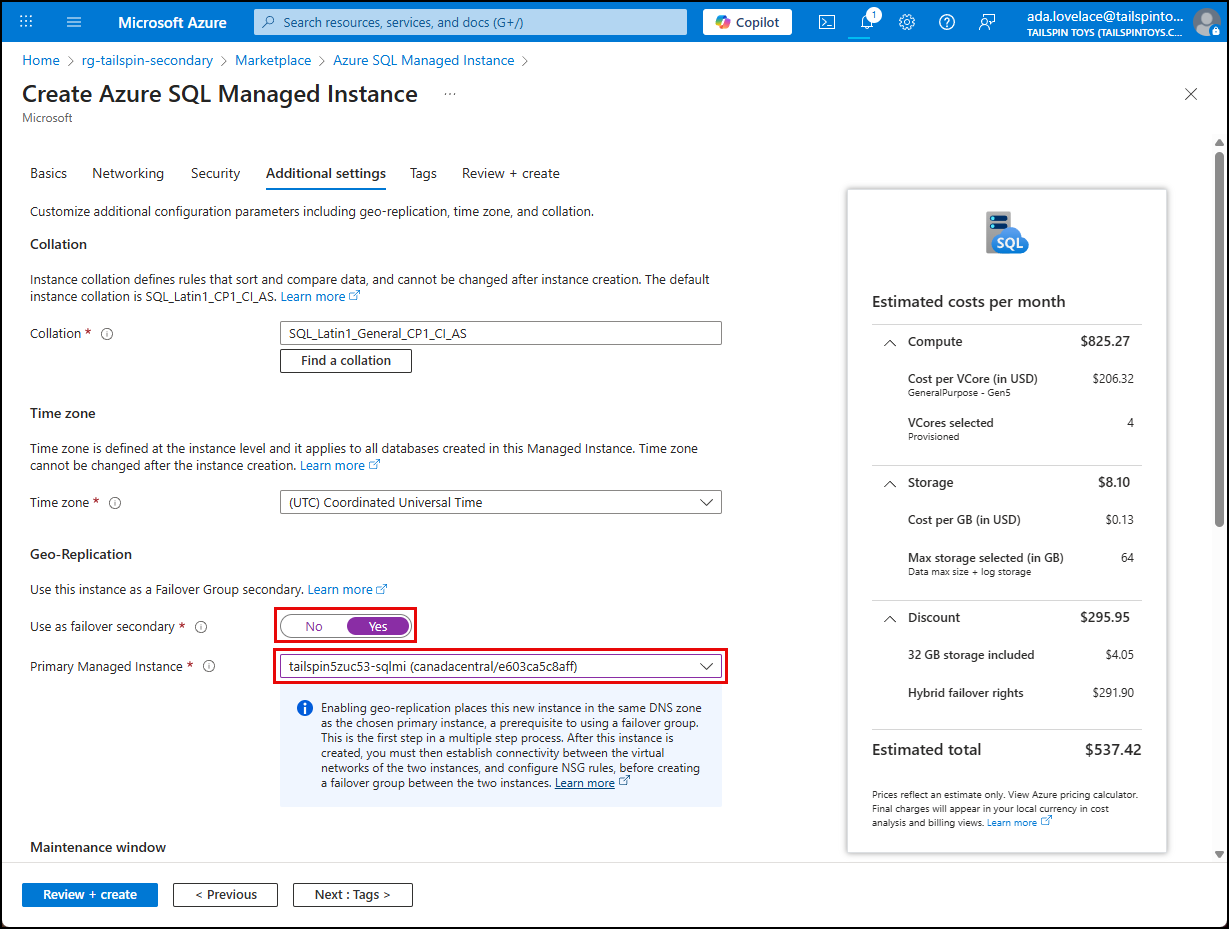
- Additional requirements for the secondary SQL MI can be found in the configurate a failover group for Azure SQL Managed Instance documentation.
-
To create a failover group, navigate to the blade for the primary SQL MI in the Azure portal, expand Data management in the left menu, select Failover groups, then select Add group on the toolbar.
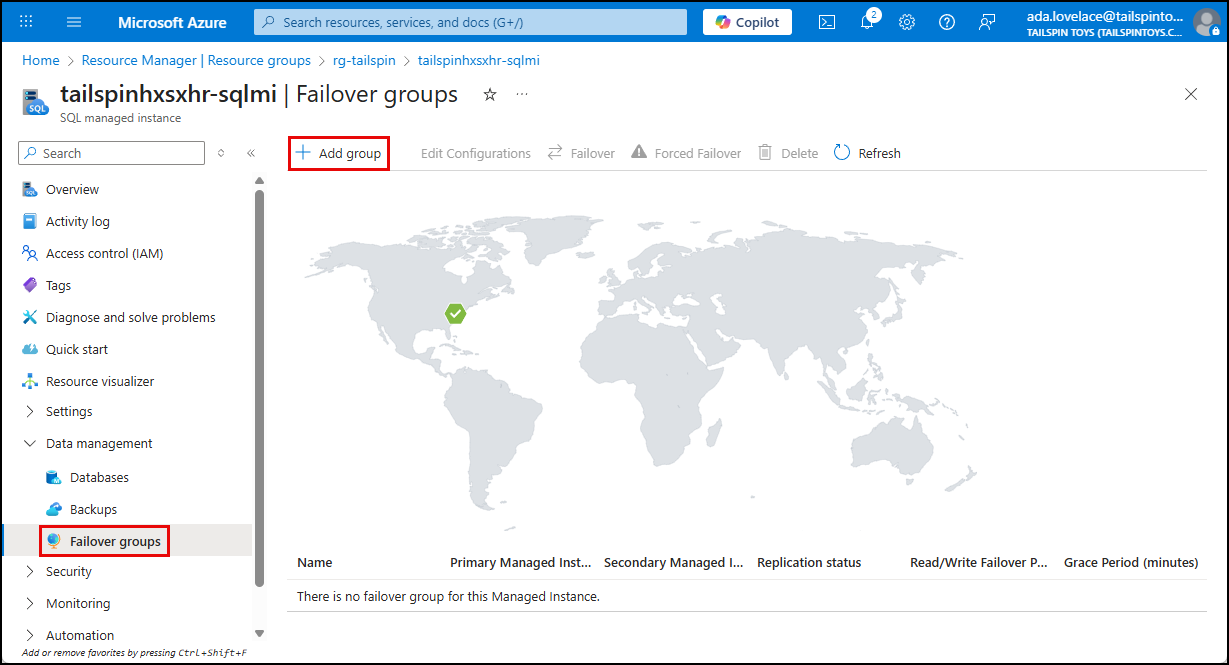
-
On the Instance Failover Group dialog, you can specify the details of the failover group, providing a name, selecting a secondary managed instance, and choosing a failover policy. You also have the option of setting the SQL Server License type for the secondary instance to Failover rights, which allows you to designate the secondary as a standby replica and use the same license for both primary and secondary instances, reducing costs.
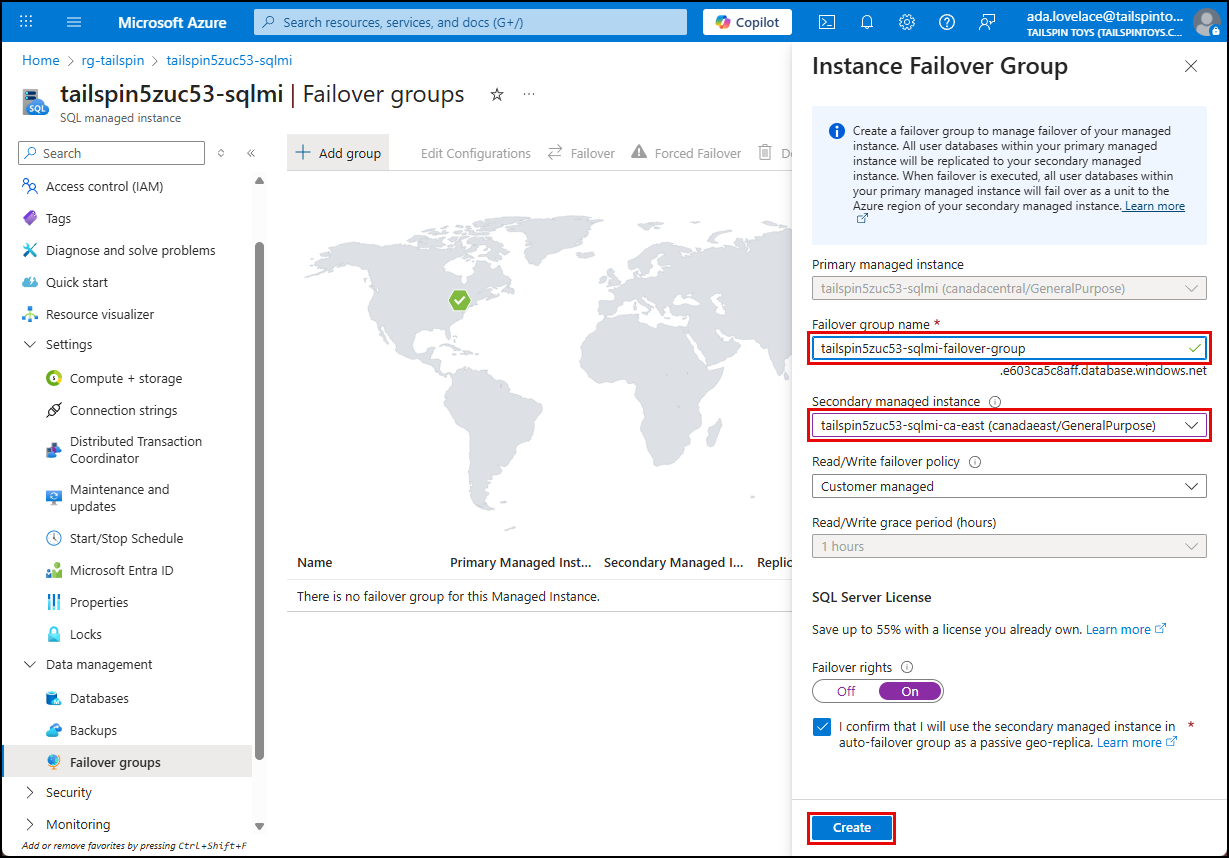
-
Once created, the failover group provides disaster recovery capabilities by replicating data from the primary SQL MI to the secondary SQL MI in another region. In the event of a regional outage or disaster affecting the primary region, you can initiate a failover to the secondary SQL MI, which will take over as the new primary instance. This process can be done manually or automatically based on the failover policy you selected during configuration.
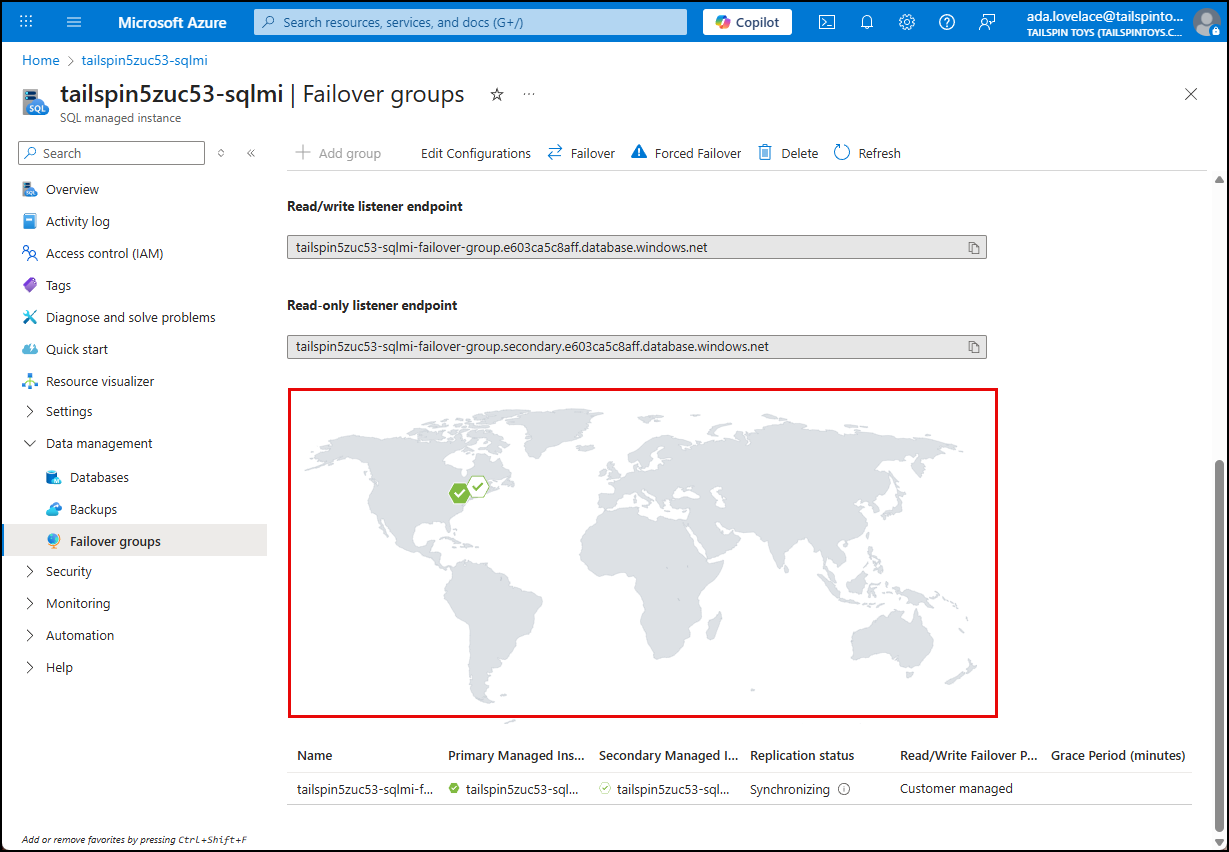
The failover group overview provides the status of the replication and any ongoing operations related to the failover group.
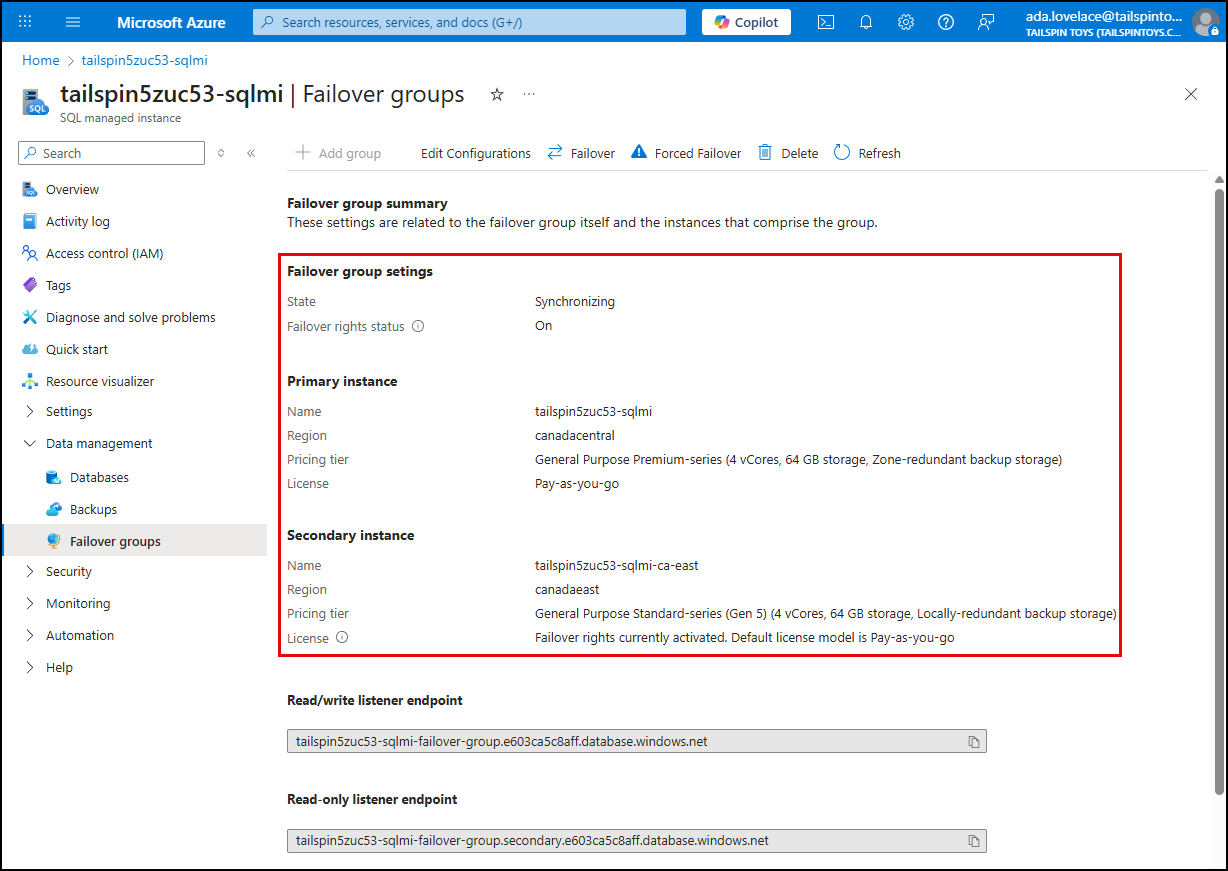
The failover group overview also provides a visual representation of the primary and secondary SQL MI instances on a global map, along with their respective regions.
-
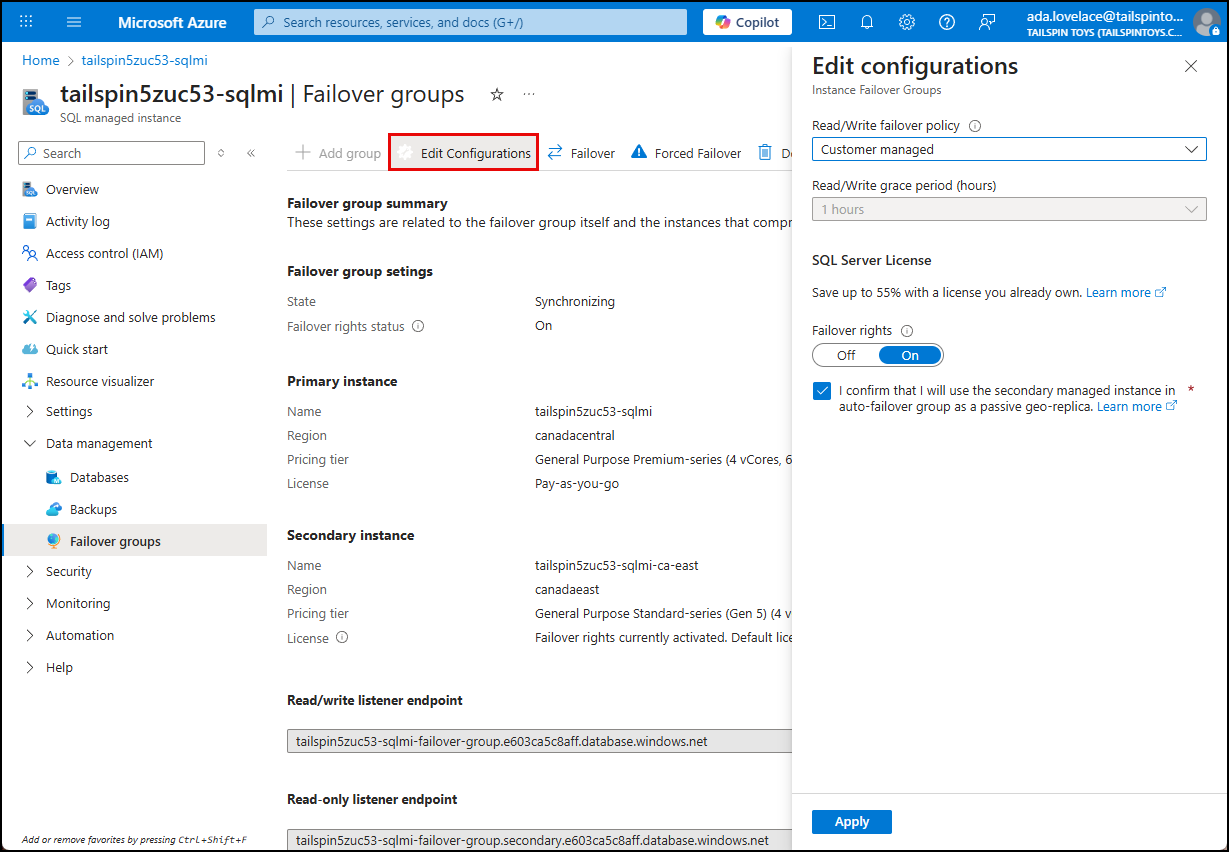
The Edit Configurations button on the toolbar allows you to modify the failover group settings, such as changing the failover policy or updating the SQL Server license.
-
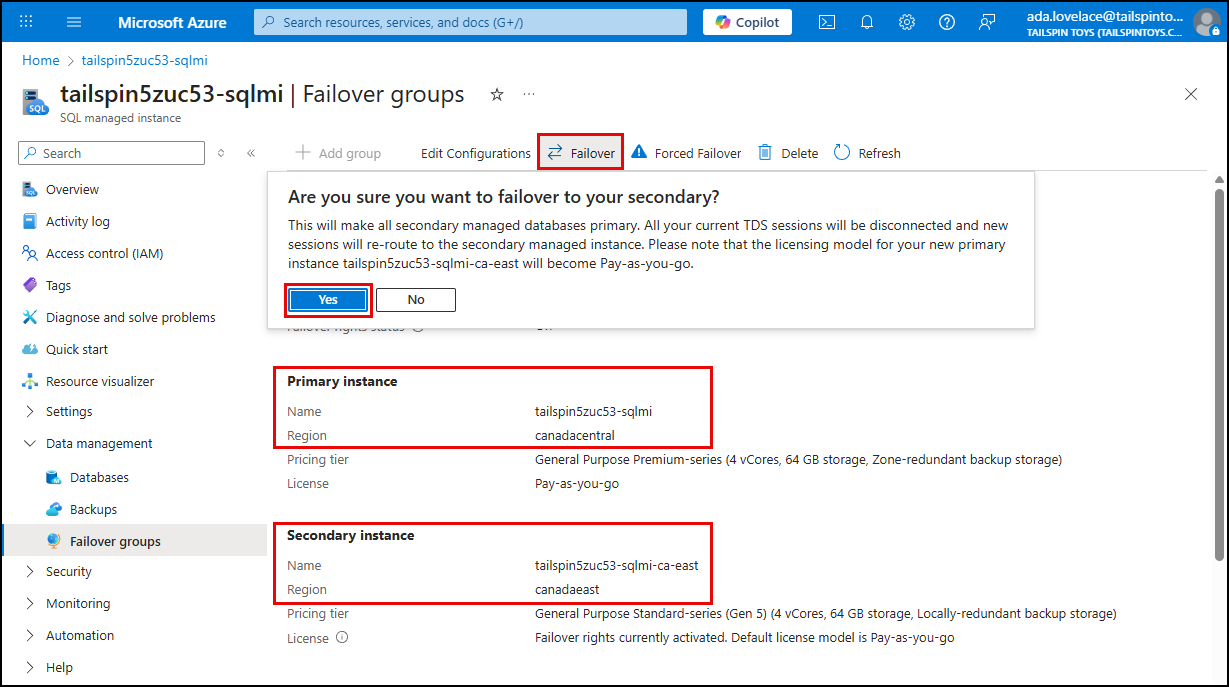
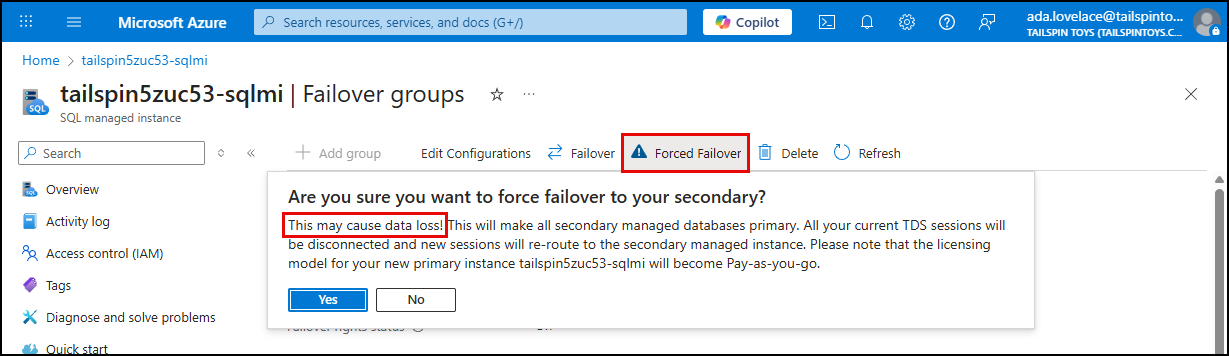
To simulate a failover, select Failover on the toolbar. On the toolbar, you can choose to perform a planned or forced failover.
A planned failover ensures that all transactions are synchronized between the primary and secondary instances before the failover occurs, minimizing data loss.
A forced failover is used in emergency situations where the primary instance is unavailable, and it may result in some data loss.
-
Once the failover is complete, you can verify that the secondary SQL MI is now the primary instance by checking the failover group status in the Azure portal.
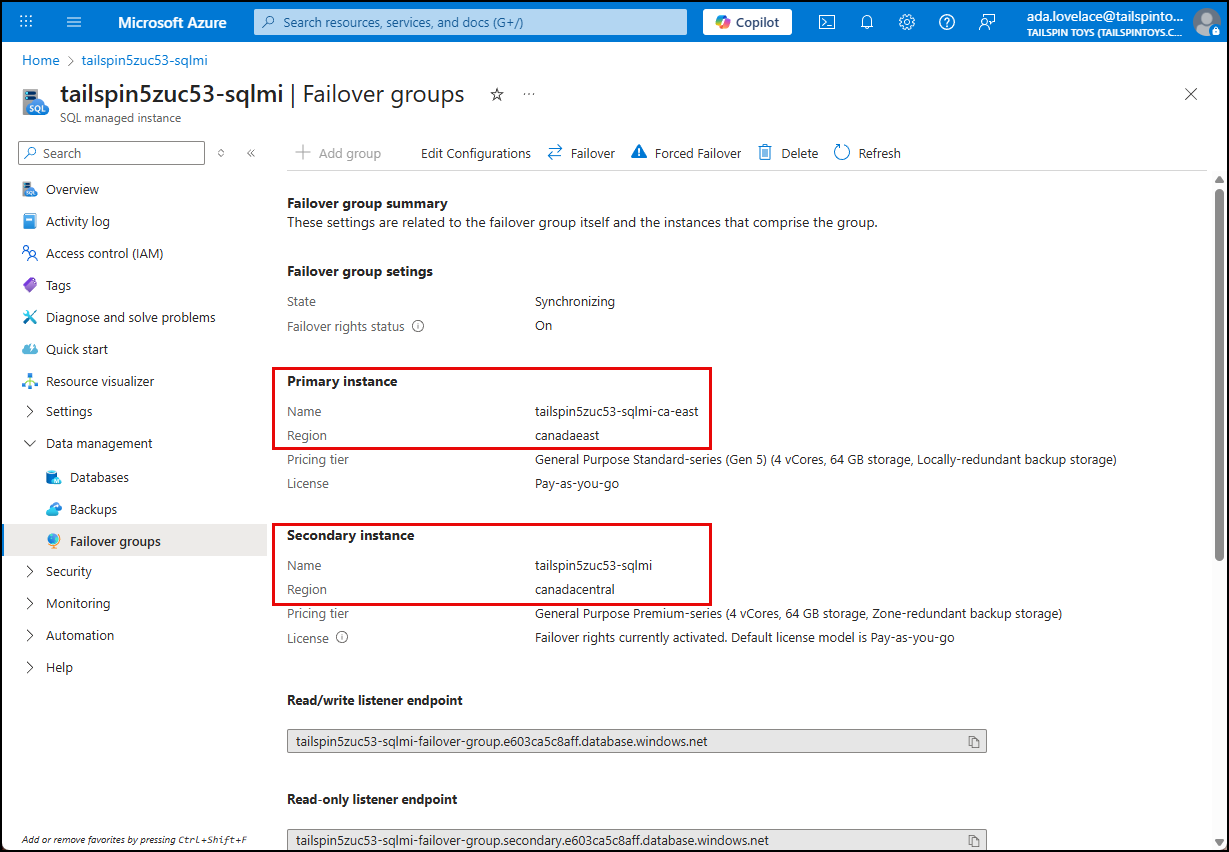
-
You can also verify on the failover group map that the regions of the primary and secondary instances have been swapped.
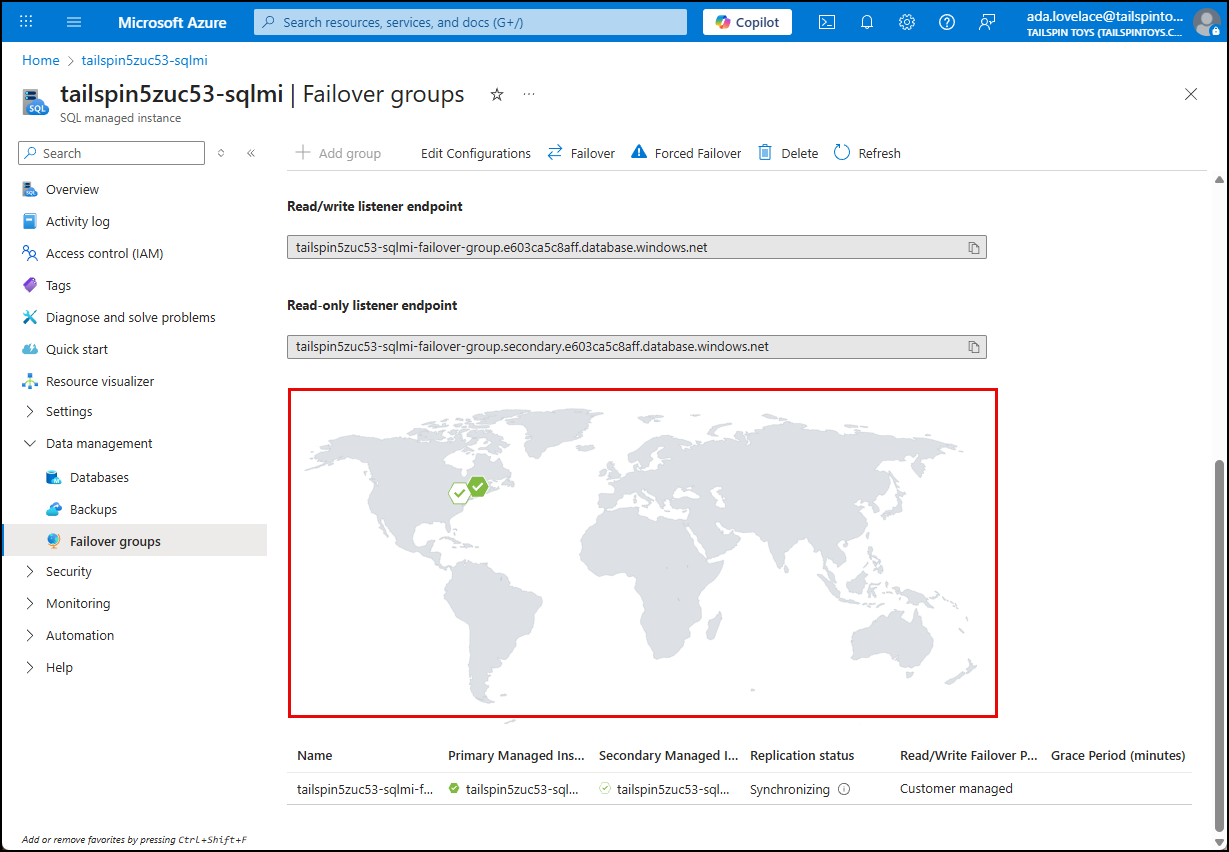
-
With the failover complete, you can navigate to the new primary SQL MI blade in the Azure portal, select Databases under Data management in the left menu, and verify you see the
ToyStoredatabase. This confirms that the failover was successful and that the database is available in the secondary region.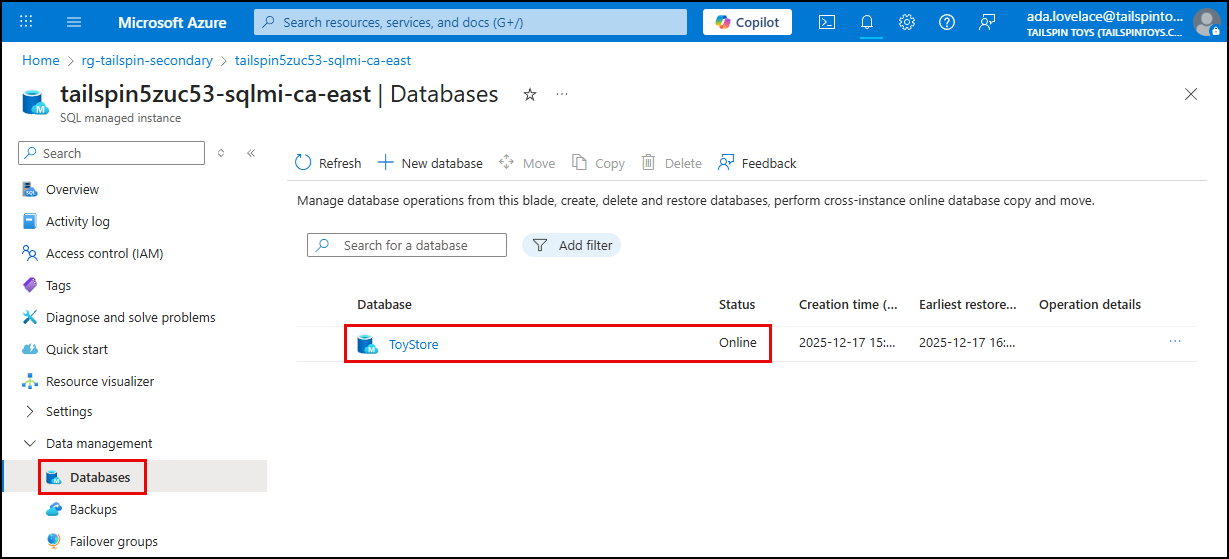
Summary
By reviewing these steps, you now understand how SQL Managed Instance provides:
- High Availability (HA): Zone redundancy within a region.
- Disaster Recovery (DR): Failover groups across regions.
Together, these features ensure Tailspin’s workloads remain resilient, minimize downtime, and meet strict business continuity requirements.