Task 03 - Verify Azure Arc-enabled VM
Introduction
Tailspin Toys wants to migrate their on-premises SQL Server database to Azure SQL Managed Instance. The SQL Server database is currently running on a Windows Server 2012 VM that was recently Azure Arc-enabled. Before proceeding with the migration, Tailspin wants to verify that the Azure Arc-enabled VM has been added successfully and is connected to Azure.
Description
In this task, you will Verify that the Azure Arc-enabled VM has been added successfully.
The key tasks are as follows:
- Confirm that the Machine - Azure Arc pane for the on-premises virtual machine shows the Status as Connected.
Success Criteria
- Azure Arc VM status is Connected.
Solution
Expand this section to view the solution
-
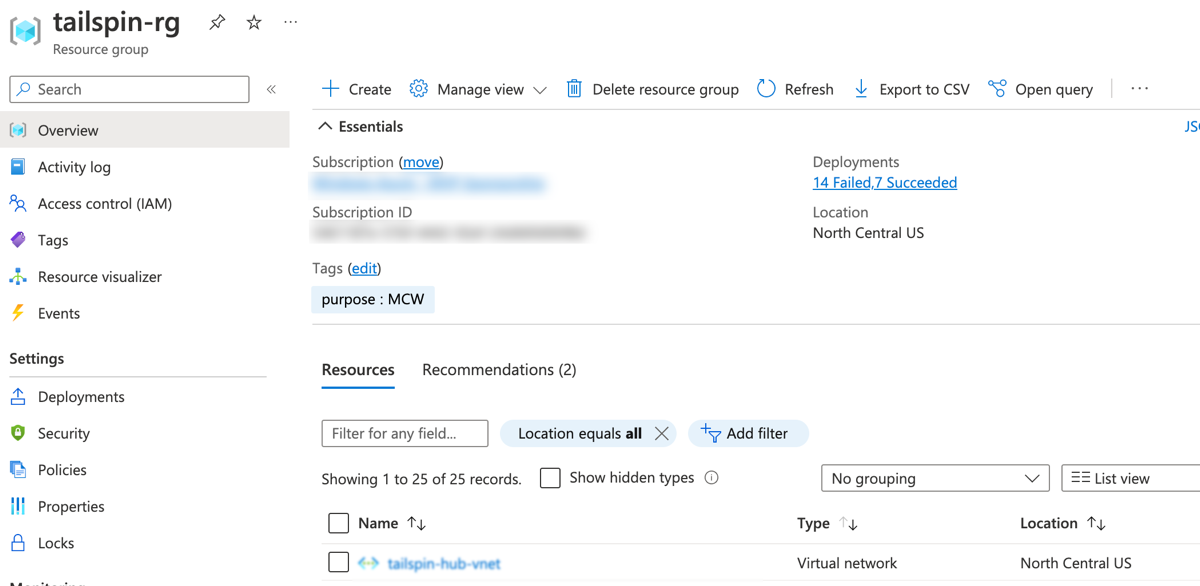
In the Azure Portal, navigate to the Resource Group for the lab.
-
Scroll down and locate the Azure resource of type Machine - Azure Arc and select it.

NOTE: The on-premises VM has been Azure Arc-enabled and can be managed alongside other Azure resources. This is enabled by the Azure Connected Machine Agent running on the VM that facilitates the interaction between Azure and the Azure Arc-enabled VM.
-
This is the Machine - Azure Arc pane for the on-premises virtual machine that was just Azure Arc-enabled. The Status shows Connected to signify that the Azure Arc-enabled virtual machine is connected to Azure. Also, notice that the Computer Name and Operating System of the virtual machine are displayed.
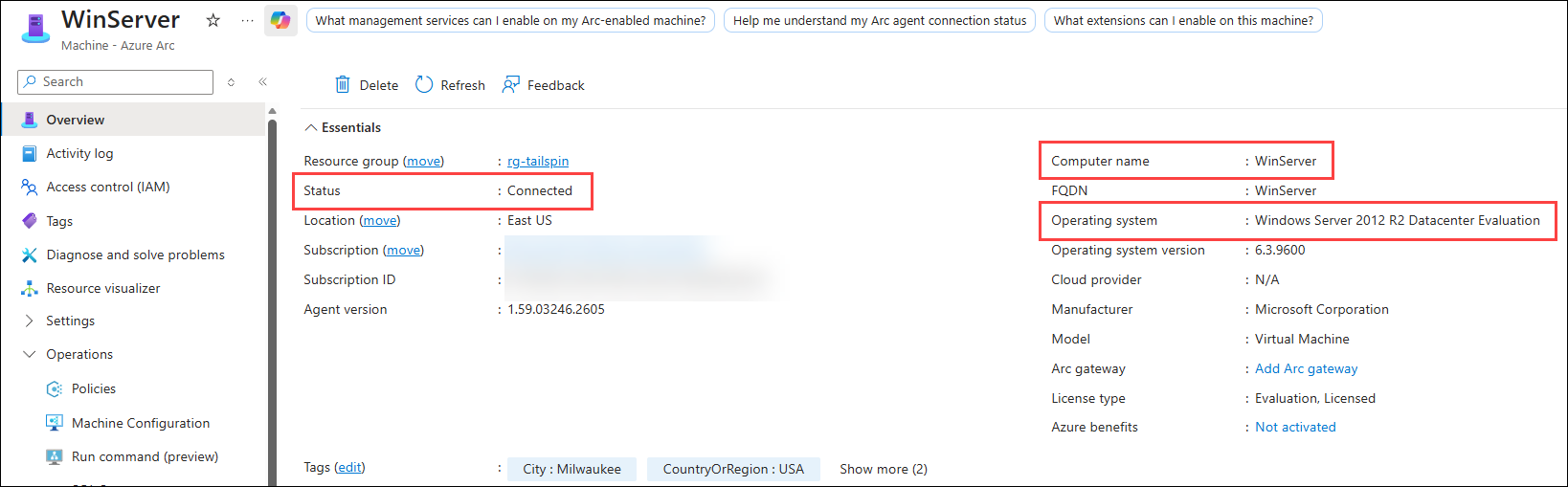
NOTE: You may see the following message at the top of the Overview blade: Your Arc agent version 1.50 is no longer supported. Upgrade to the latest version or enable automatic agent upgrade (preview). You can safely ignore this message for the purposes of this lab.
-
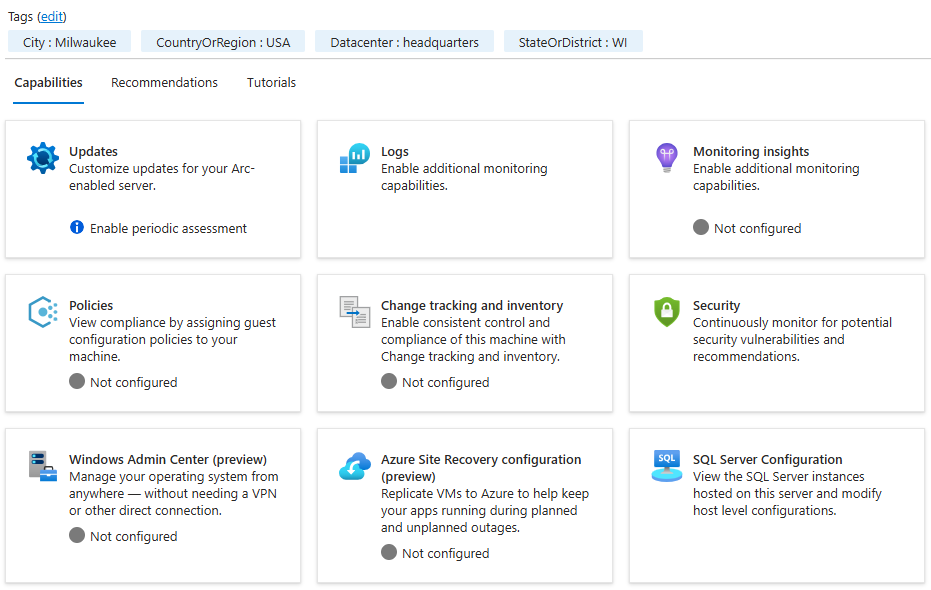
From here, there are several Azure Arc capabilities available to use for managing the Azure Arc-enabled virtual machine.