Task 04 - Activate Extended Security Updates (ESU) for Windows and SQL Server
Introduction
Tailspin Toys wants to ensure their Azure Arc-enabled VM is protected with the latest security updates. To do this, they need to activate Extended Security Updates (ESU) for the VM. This involves enabling ESU for both the Windows operating system and the SQL Server instance running on the VM.
Description
In this task, you will activate Extended Security Updates (ESU) for the Azure Arc-enabled VM running Windows and SQL Server.
The key tasks are as follows:
- Create an ESU license for the Windows operating system.
- Create an ESU license for the SQL Server instance running on the Azure Arc-enabled VM.
Since there is a licensing fee associated with Extended Security Updates (ESU), we will leave the licenses in a deactivated state for the purposes of this lab.
Success Criteria
- ESU license for Windows created.
- ESU license for SQL Server created.
Solution
Expand this section to view the solution
First, we want to verify the number of cores assigned to the Azure Arc-enabled VM.
-
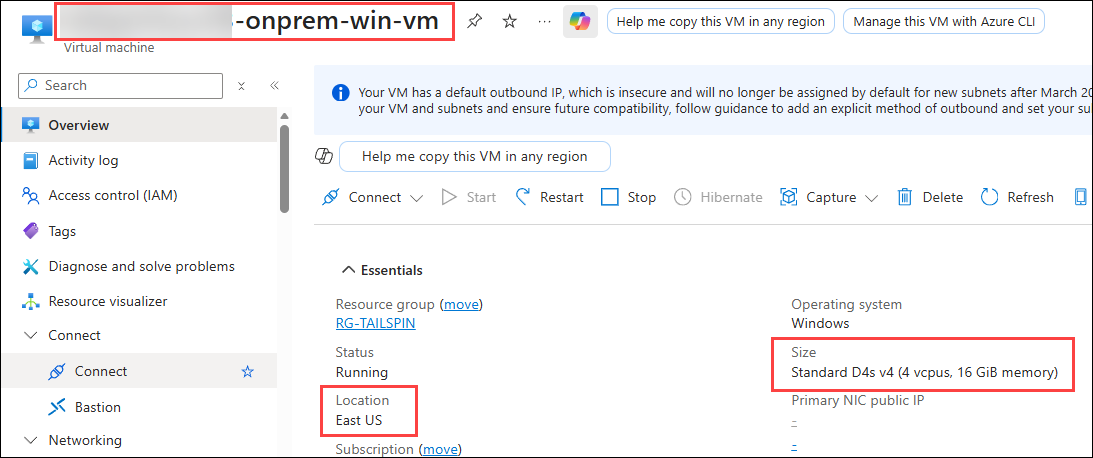
Navigate to the resource group and select the Virtual Machine (name ends with -onprem-win-vm). Copy the VM Name, which we will use as the instance name later when creating the licenses. Also, take note of the Number of Cores assigned to the VM and the Location to which it is deployed.
-
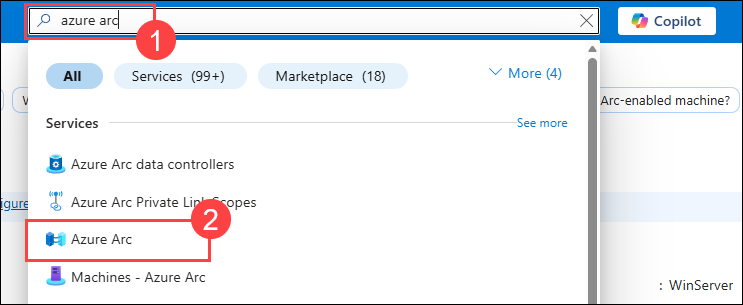
In the Azure Portal, use the search bar at the top to search for and select Azure Arc.
-
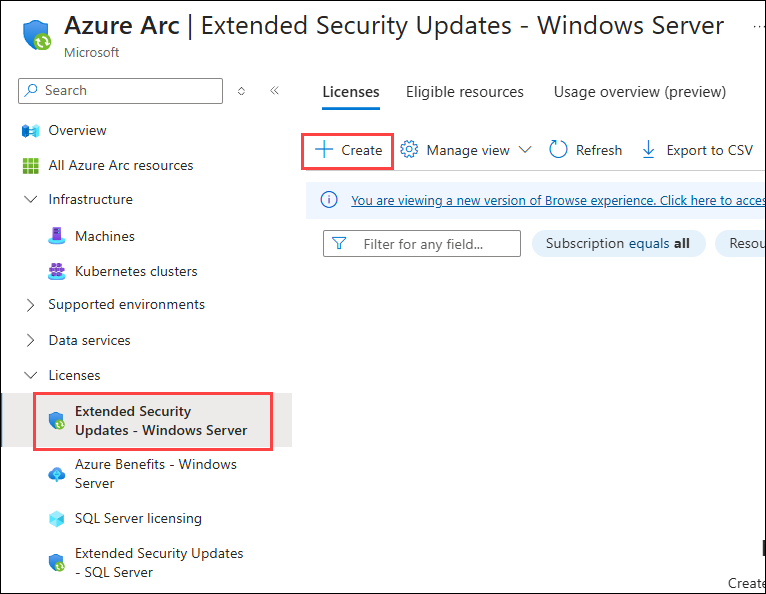
In the Azure Arc pane, expand Licenses and select Extended Security Updates - Windows Server, then select + Create.
-
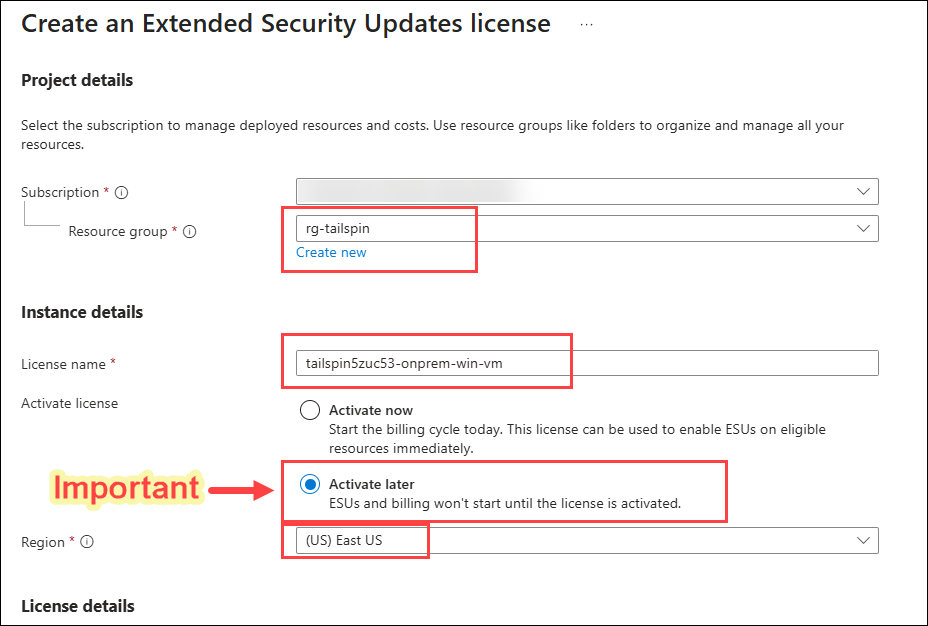
In the Create an Extended Security Updates license pane, select the Subscription, your lab Resource group, and enter the name of the VM (the name you copied earlier) in the License name field. Under Activate license, select Activate later. This is very important to avoid paying for the license at this time. Select the Region where the VM is located.
-
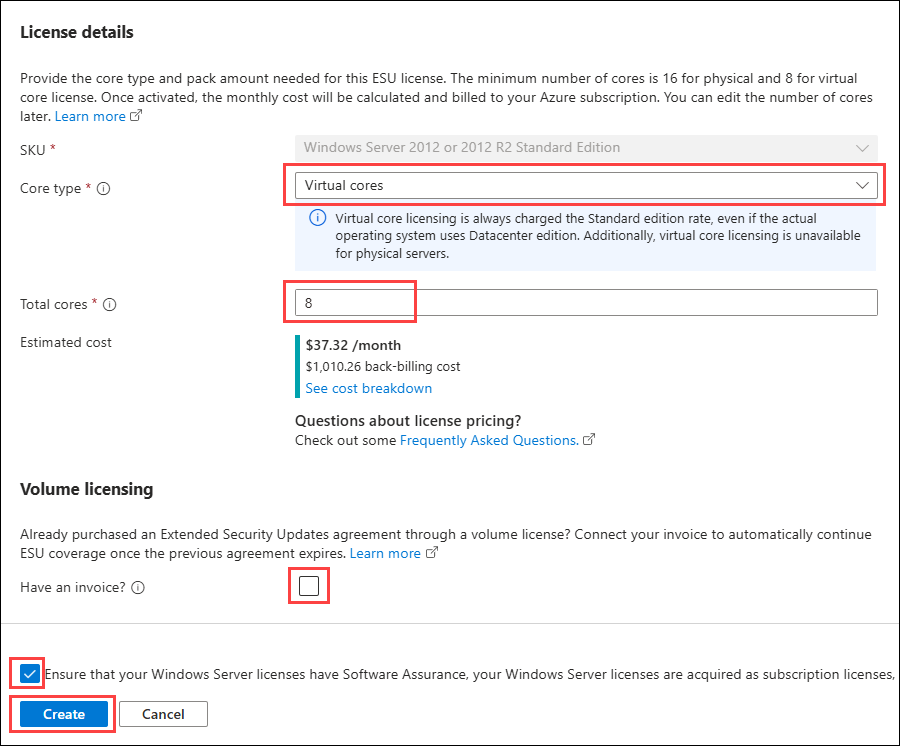
Select Virtual cores for the Core type, then enter 8 for the total cores. If the number of cores assigned to the VM is less than this amount, you must enter 8 as a minimum requirement. Uncheck the Have an invoice? checkbox, then check the Ensure that your Windows Server licenses are compliant checkbox. Finally, select Create to create the license.
-
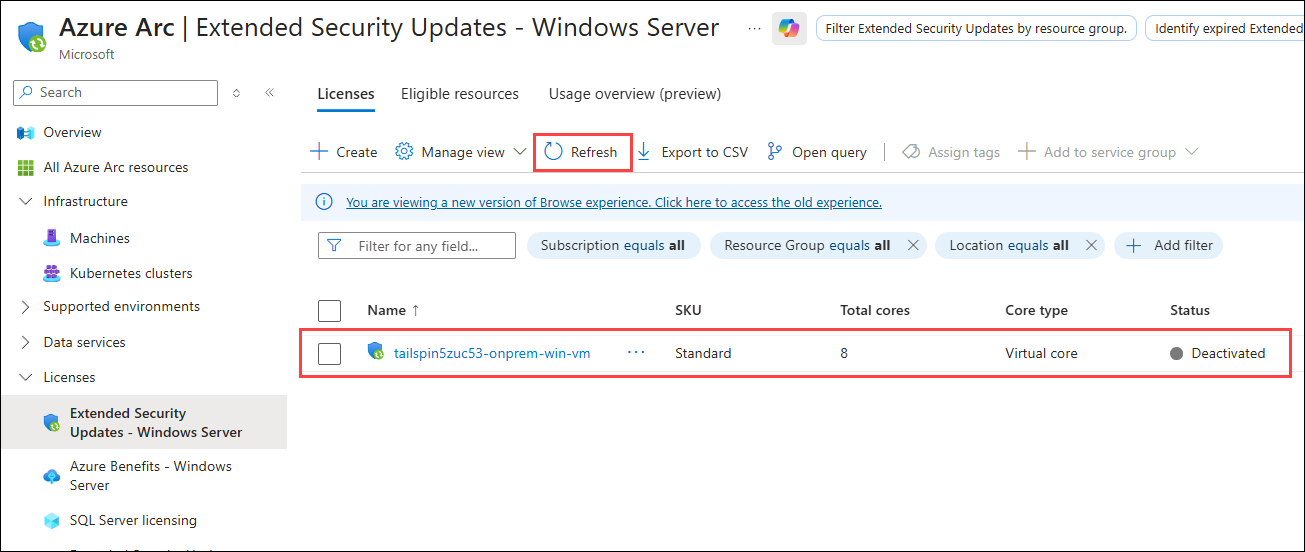
After a brief moment, the license will be created, and you will see a notification indicating the success of the operation. Refresh the page to see the new license listed in a Deactivated state.
-
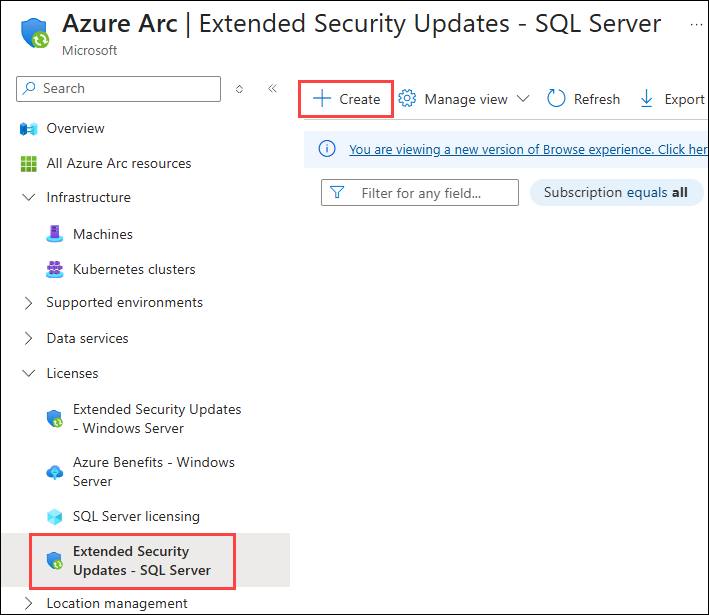
Select Extended Security Updates - SQL Server in the left-hand menu and then select + Create.
-
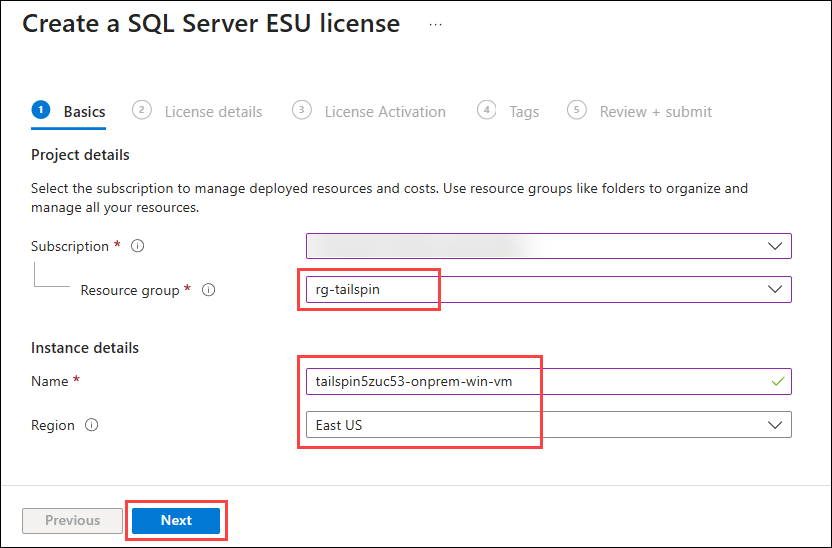
In the Create a SQL Server ESU License pane, select the Subscription, your lab Resource group, enter the name of the VM (the name you copied earlier) in the License name field, and select the Region where the VM is located, then select Next.
-
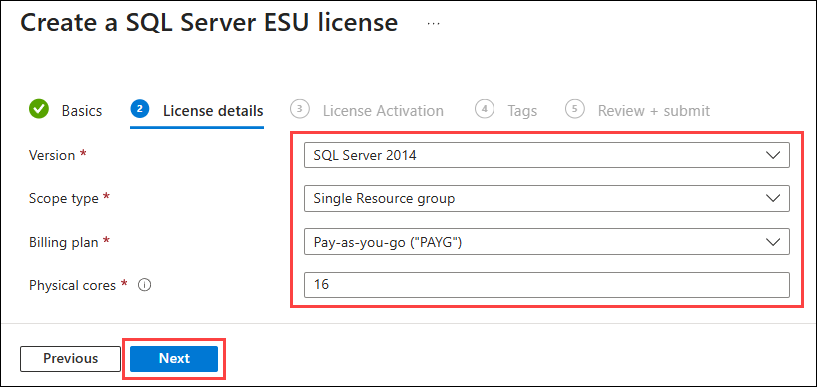
Within the License details tab, select SQL Server 2014 for Version, Single Resource group for Scope type, Pay-as-you-go (“PAYG”) for Billing plan, enter 16 (minimum allowed) for Physical cores, then select Next.
-
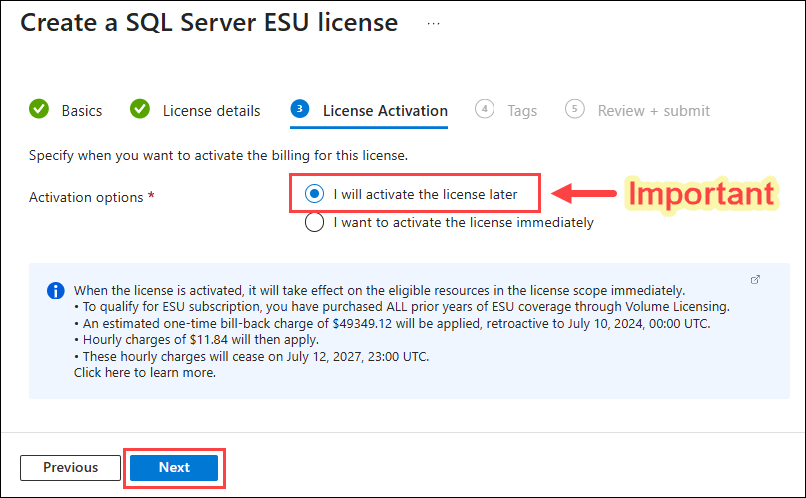
Within the License Activation tab, select I will activate the license later. This is very important to avoid paying for the license at this time. Select Next to continue.
-
Select Next on the Tags tab, then select Create to create the license.
-
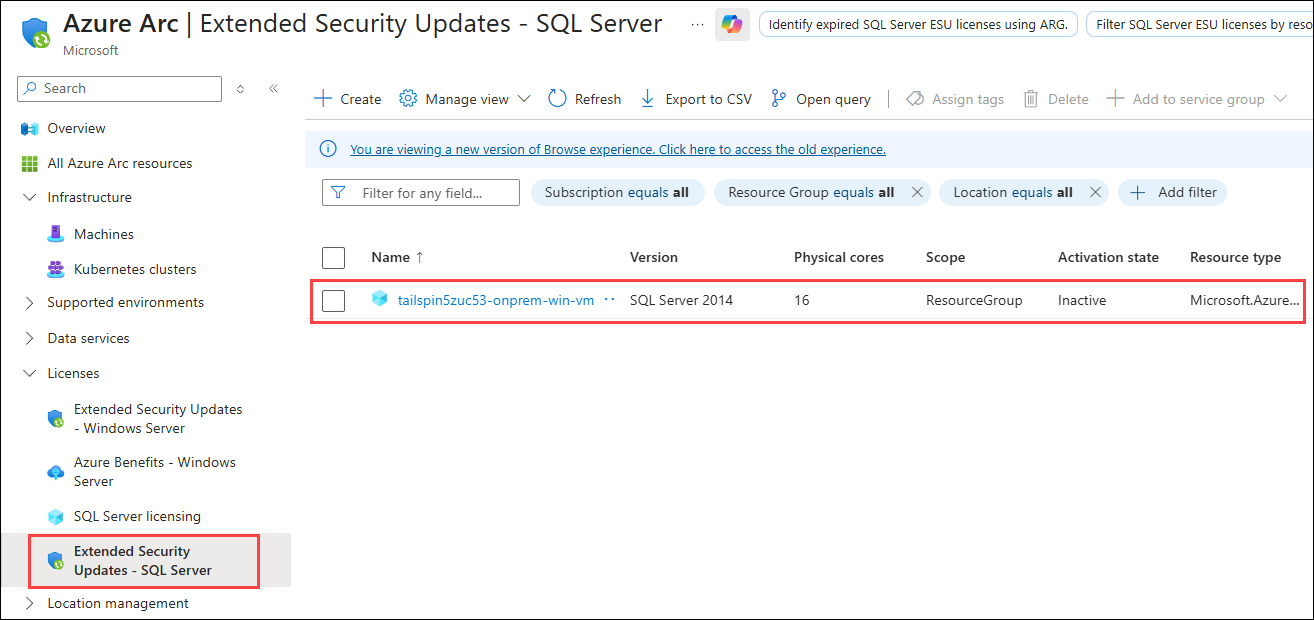
After the license is created, navigate back to Azure Arc, then select Extended Security Updates - SQL Server in the left-hand menu to view your license. It should be in an Inactive state.
NOTE: The lab steps end here since the remaining steps involve activating the licenses to finish enabling ESU for Windows Server and SQL Server. Do not activate the licenses. Doing so will incur significant costs.