Task 02 - Run script to add server to Azure Arc
Introduction
Tailspin Toys needs to add the simulated on-premises Windows Server 2012 VM to Azure Arc by running the generated onboarding script.
Description
In this task, you will run the onboarding script to install the Azure Arc agent.
Success Criteria
- Script executed successfully.
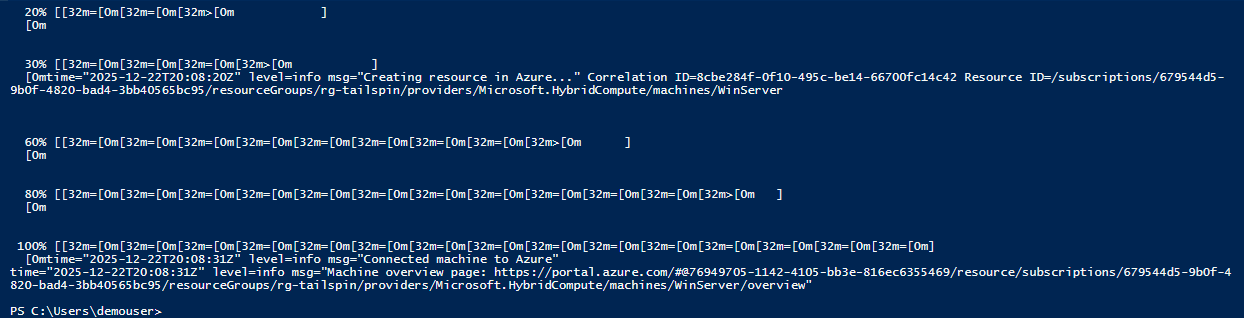
- Confirmation message: “Connected machine to Azure.””
- Azure Arc resource URL displayed.
Solution
Expand this section to view the solution
-
In the Azure Portal, navigate to the Resource Group for the lab, then select the
tailspin-onprem-hyperv-vmvirtual machine resource. This is the simulated on-premises Hyper-V host VM.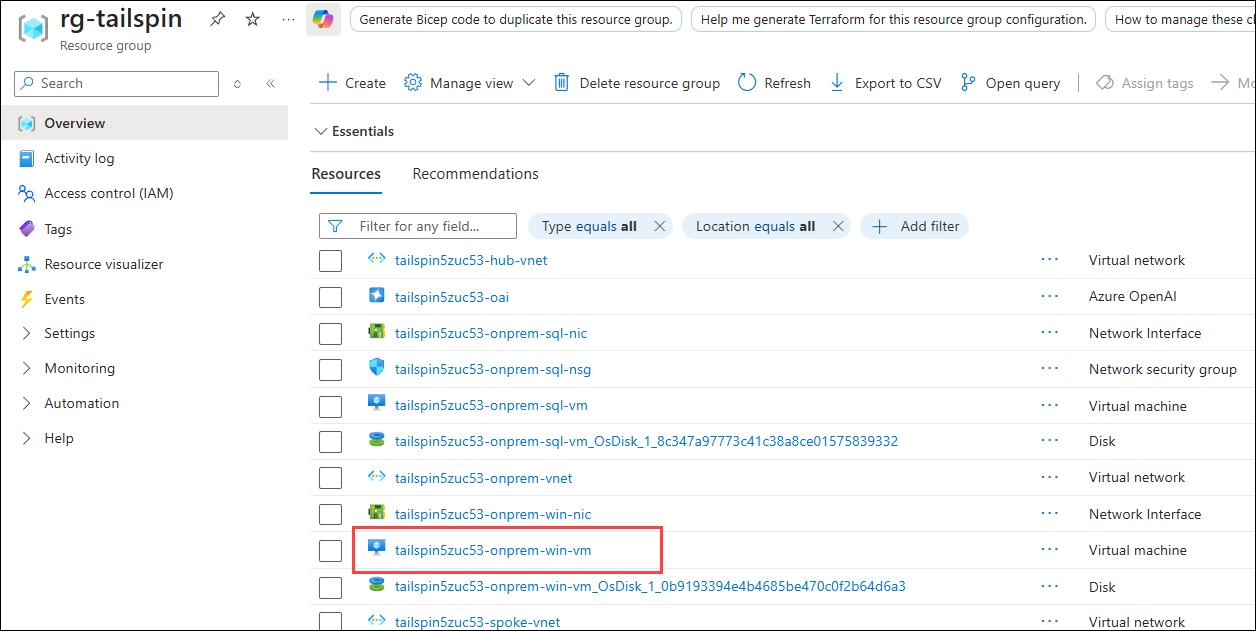
-
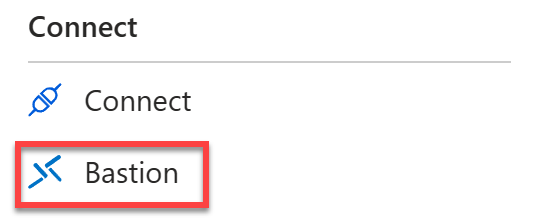
On the left, select Bastion under Connect.
-
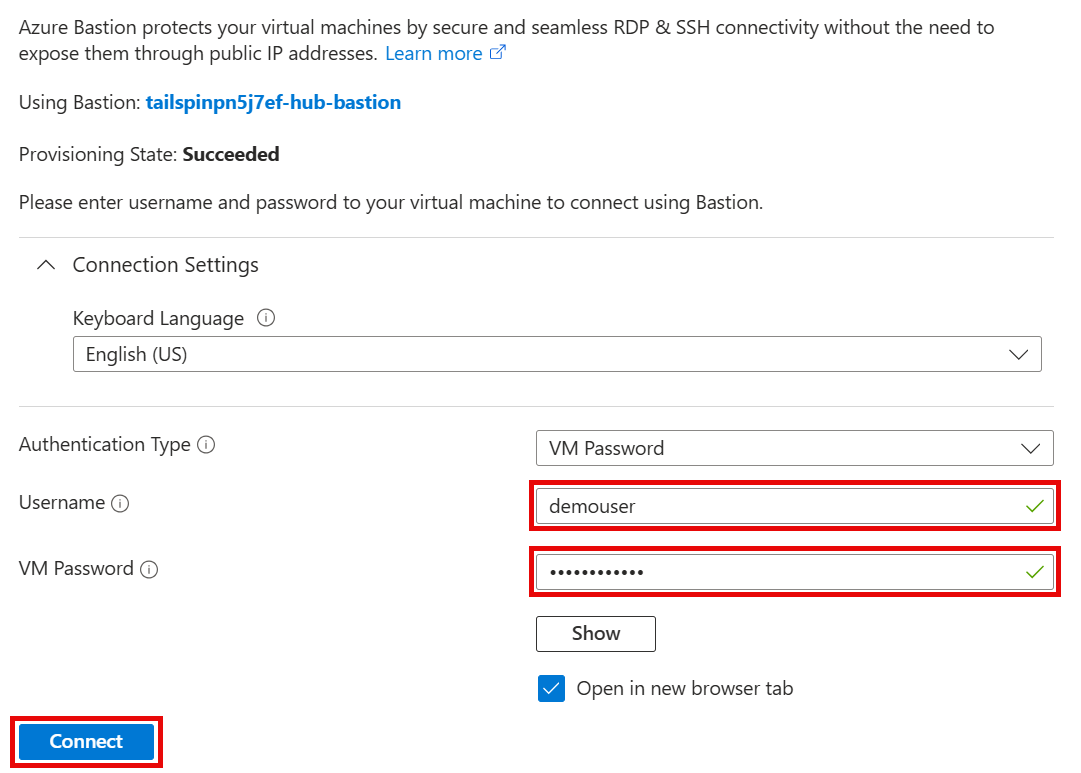
Enter the Username and Password, then select Connect.
IMPORTANT: When the VM was created the credentials were set up as:
- Username:
demouser - Password:
demo!pass123
NOTE: When running the PowerShell script later in this task, the script will open a browser window to authenticate your Azure account. Because of this, we need to set Microsoft Edge as the default browser in the VM before proceeding to the next steps.
- Username:
-
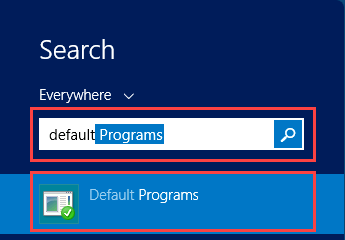
Once connected to the VM, type default at the Start menu. Select Default Programs to open it.
-
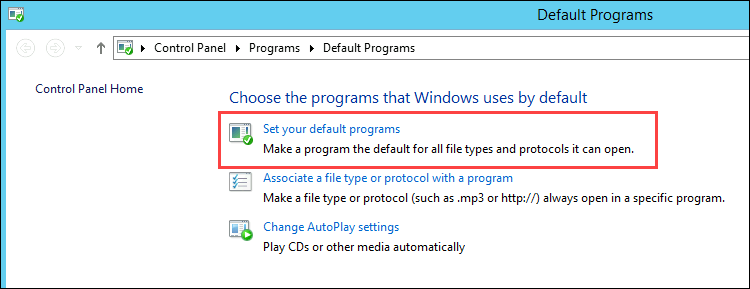
In the Default Programs window, select Set your default programs.
-
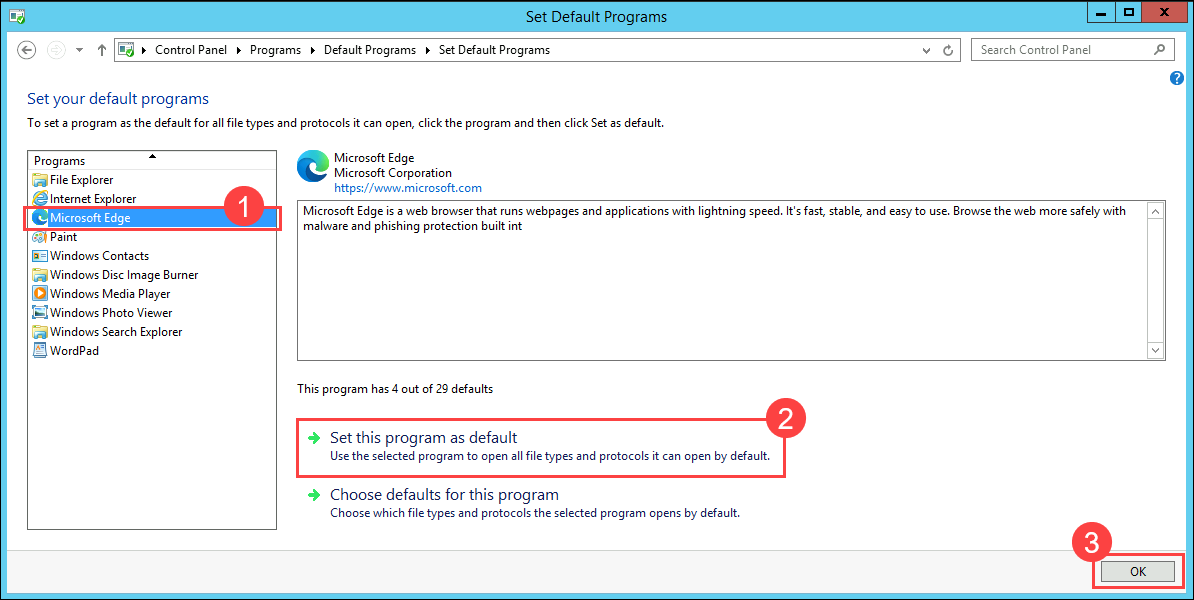
In the Set Default Programs window, select Microsoft Edge from the list on the left, then select Set this program as default. Select OK to close the window.
-
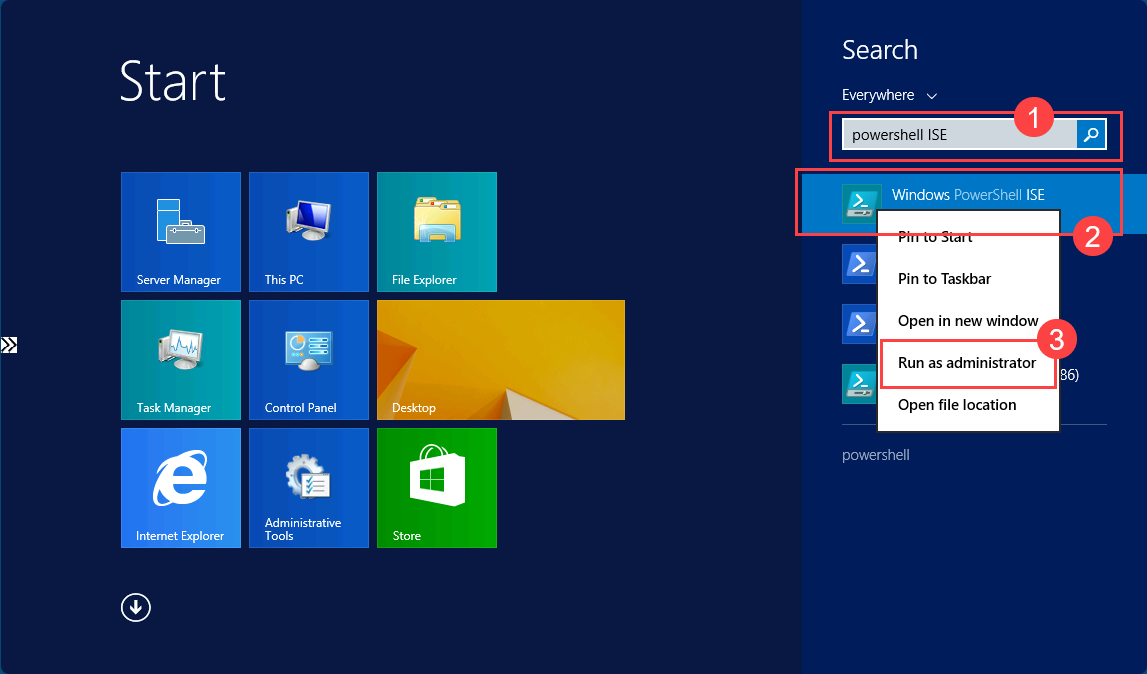
Open the Start menu, then type powershell at the Start menu. Right-click Windows PowerShell ISE, then select Run as administrator.
-
Within Windows PowerShell ISE, create a New script file and paste in the contents of the previously downloaded Azure Arc
OnboardingScript.ps1script.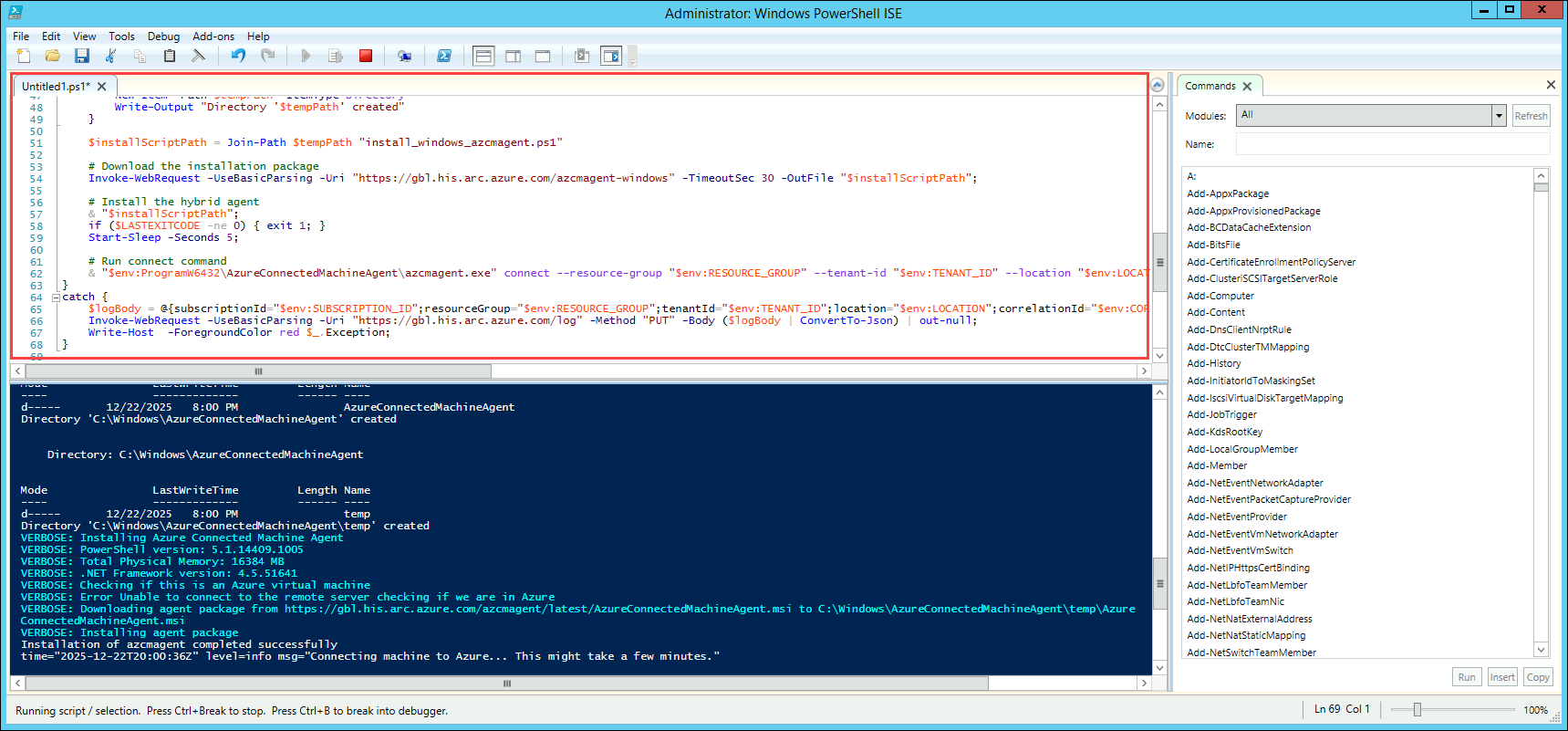
-
Important! New versions of the Azure Arc Connected Machine agent will not work on Windows Server 2012 R2. Because of this, we need to modify the PowerShell script to include the
-AltDownloadparameter to the agent install script. This sets the Connected Machine agent download path to an older version (1.50), which is compatible with Windows Server 2012 R2.Locate the following line in the script:
 # Install the hybrid agent
 & "$installScriptPath"
And modify it to include the
-AltDownloadparameter:# Install the hybrid agent & "$installScriptPath" -AltDownload "https://gbl.his.arc.azure.com/azcmagent/1.50/AzureConnectedMachineAgent.msi";The updated code should look like the following:
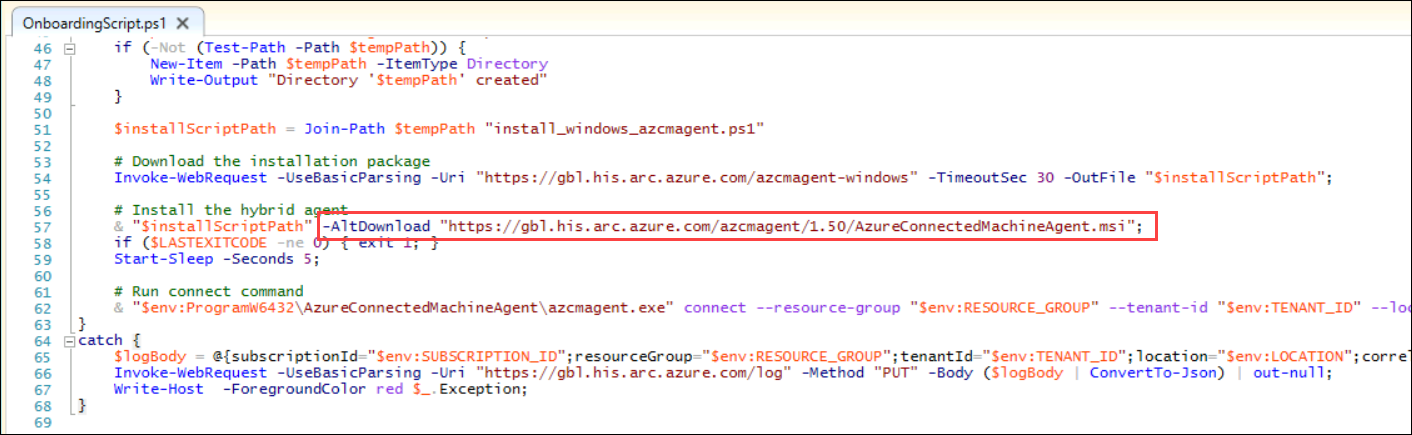
-
Run the script by selecting the Run Script (green play) button or pressing
F5. This will install the Azure Arc agent and Arc-enable the VM. When the script opens a browser window, enter your credentials to authenticate with Azure.NOTE: When the Azure Arc script opens a new browser window to authenticate you with Azure, be sure to use an Organization Account with permissions to create
Microsoft.HybridCompute/machinesresources. Using a Personal Account is not supported and will result in aAZCM0042: Failed to Create Resourceerror message. -
When the script finishes executing successfully, a message stating “Connected machine to Azure” will be shown, along with the Azure Portal resource URL for the Azure Arc-enabled Server.