Task 03 - Enable Microsoft Defender for Azure SQL Database
Introduction
Tailspin Toys is migrating their on-premises SQL Server database to Azure SQL Managed Instance. In this task, you will learn how to monitor and improve the security posture of your database using Microsoft Defender for SQL. You will also apply some of the suggested actions to enhance the security of your database and reduce their attack surface.
Description
In this task, you will learn how to monitor and improve the security posture of your database using Microsoft Defender for SQL. You will also apply some of the suggested actions to enhance the security of your database and reduce their attack surface.
The key tasks are as follows:
- Enabled Microsoft Defender for SQL.
Success Criteria
- Successfully enabled Microsoft Defender for SQL.
Step-by-Step Instructions
-
In the Search resources, services, and docs box at the top of the Azure portal, search for Microsoft Defender for Cloud, then select the Microsoft Defender for Cloud service.
-
Expand Management in the left navigation menu and select Environment settings.
-
Expand the subscription tree at the bottom of the page, and select the subscription you are using for this exercise.
-
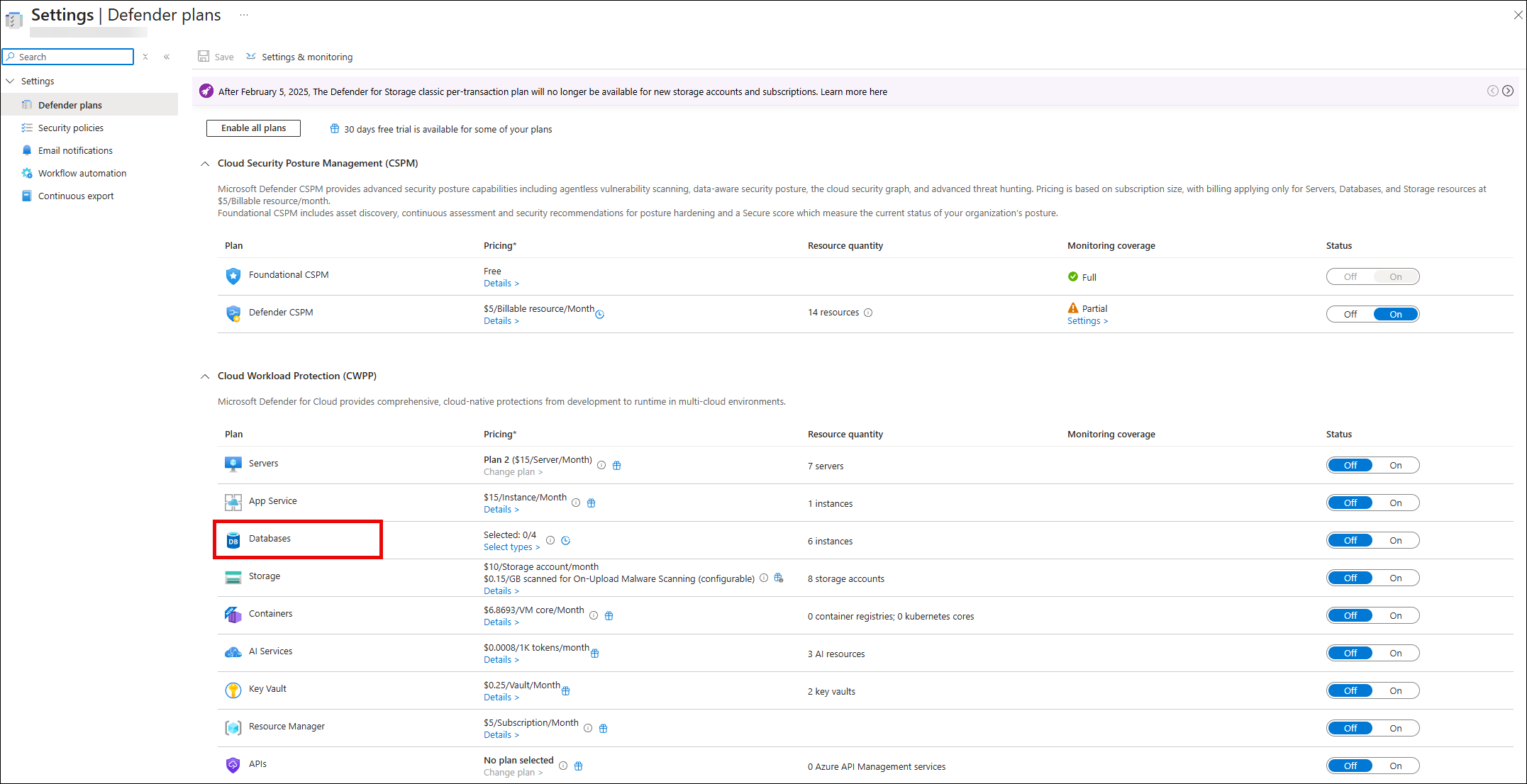
On the Defender plans page, locate the Databases plan and select Select types.
-
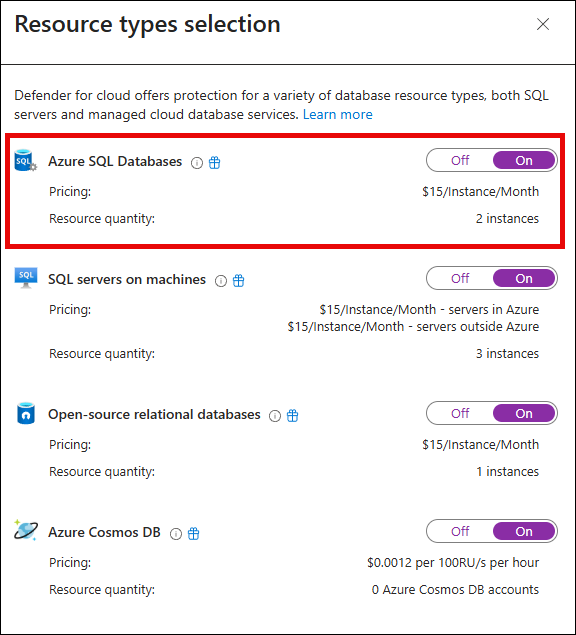
Toggle the
SQL servers on machinesplan or theAzure SQL Databasesplan to On, depending on your needs.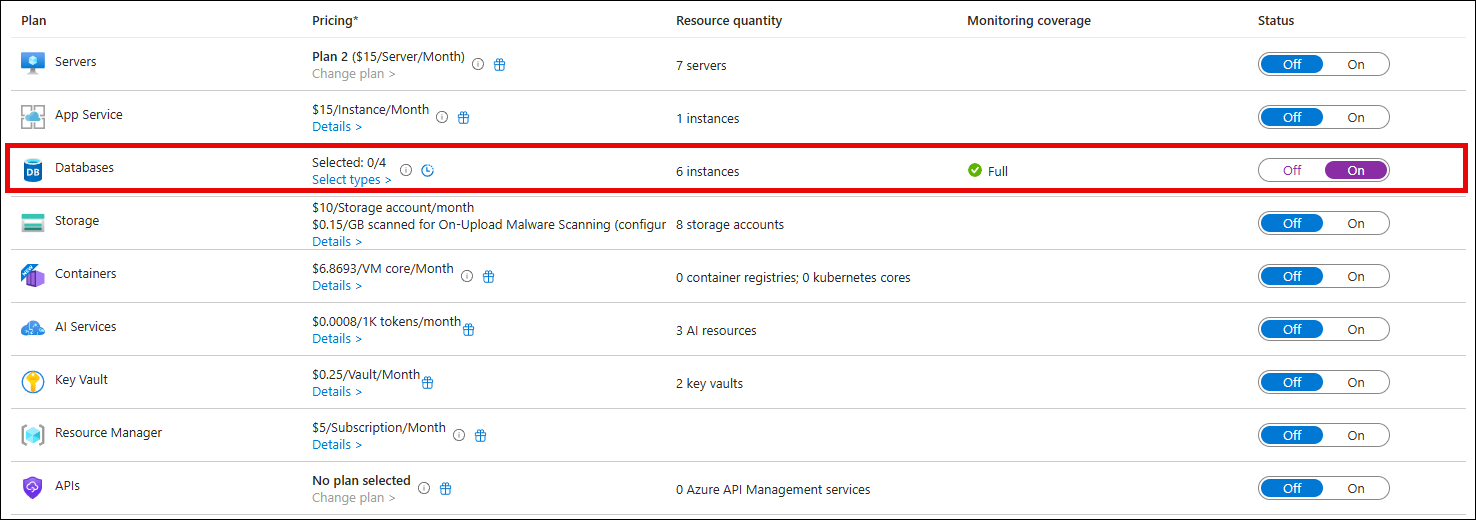
-
Select Continue and then Save.