Task 01: Provision the environment
Introduction
Before onboarding Microsoft Sentinel, you must prepare the Azure environment by deploying the foundational components. This includes creating a resource group and a Windows Server virtual machine that will serve as the monitored endpoint.
Description
In this task, you’ll create a new resource group, deploy a Windows Server virtual machine, and confirm that the environment is ready for data collection and security monitoring. These resources form the foundation for onboarding Microsoft Sentinel in later exercises.
Success criteria
- The resource group rg-sentinel-lab is created in the East US 2 region.
- A Windows Server virtual machine is deployed in the same resource group.
- The virtual machine is online and accessible in the Azure portal.
-
Open a browser, go to https://portal.azure.com, and sign in with your Azure credentials.
-
Create a resource group named
rg-sentinel-labin theEast US 2region.Expand here for detailed steps
-
Select Resource groups, and then select + Create.
-
On the Basics tab, enter the following information:
Setting Value Subscription Your subscriptionResource group rg-sentinel-labRegion East US 2 -
Select Review + Create, and then select Create.
-
Wait for deployment to complete, and verify that the resource group appears in the list.
-
-
Deploy a Windows Server virtual machine with the following values:
Setting Value Subscription Your subscriptionResource group rg-sentinel-labVirtual machine name vm-sentinel-labRegion East US 2Availability options No infrastructure redundancy requiredImage Windows Server 2022 Datacenter: Azure Edition Hotpatch - x64 Gen2Size Standard_D2s_v3Username azureadminPassword Sentinel@lab.VirtualMachine(Windows11-40-505-19).PasswordPublic IP SelectedDelete public IP and NIC when VM is deleted SelectedExpand here for detailed steps
-
In the Azure portal, select the
rg-sentinel-labresource group. -
Select + Create and then search for
Virtual Machine. -
On the Virtual Machine tile, select Create > Virtual machine.
-
On the Basics tab, enter the information shown in the table above and then select Next until you get to the Networking tab.
-
On the Networking tab, ensure a new virtual network is created or select an existing one. Add a Public IP address and enable the Delete public IP and NIC when VM is deleted setting.
-
Keep the default settings for other tabs, and then select Review + Create.
-
Select Create, and wait for the deployment to complete.
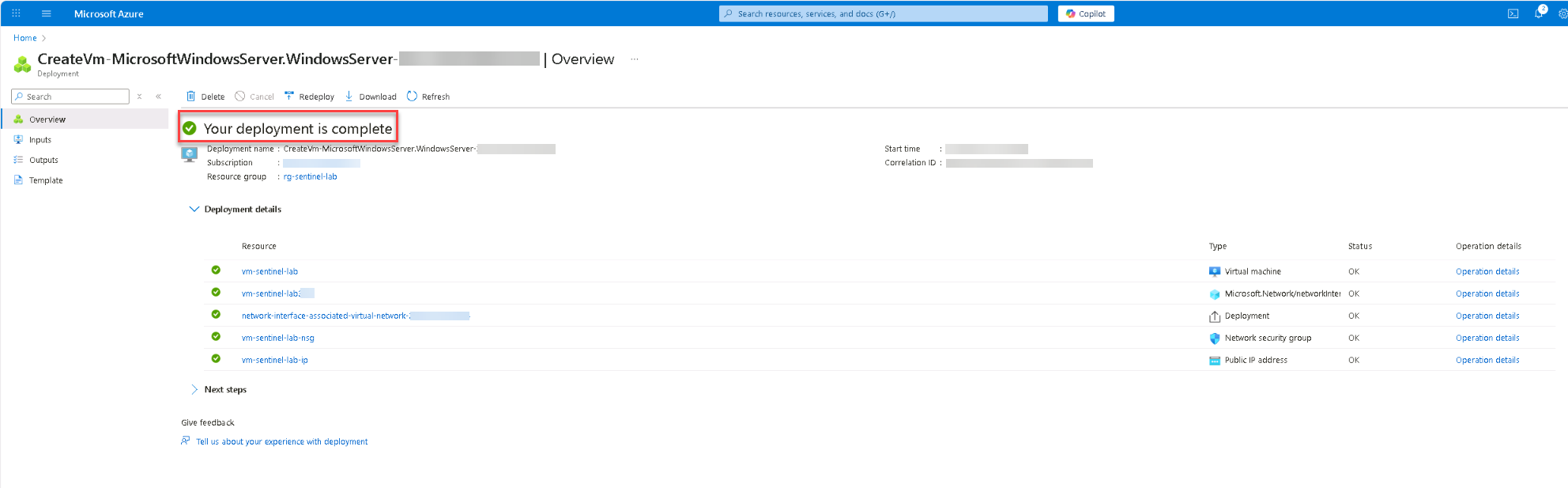
This VM will serve as the monitored endpoint and will be onboarded into Microsoft Defender for Cloud and Microsoft Defender for Endpoint in later tasks.
-
-
Verify the virtual machine deployment.
Expand here for detailed steps
- In the Azure portal, go to Resource groups > rg-sentinel-lab.
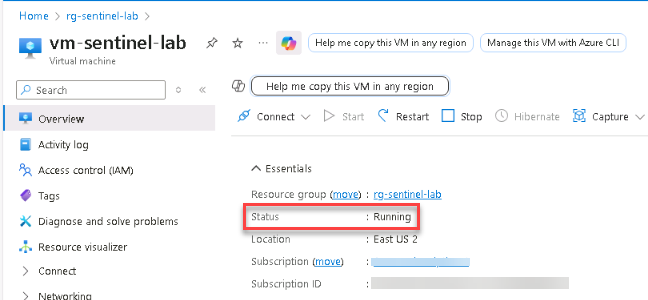
- Select your virtual machine and verify that the Status shows Running.
-
Register the
Microsoft.SentinelPlatformServicesresource provider.Expand here for detailed steps
-
In the Azure portal, search for and select
Subscriptions. -
Select your subscription.
-
On the left menu, select Settings > Resource providers.
-
Search for and choose
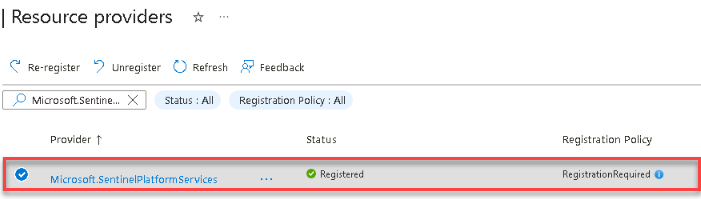
Microsoft.SentinelPlatformServices. -
Select Register and wait for the registration to complete.
-