Task 03: Verify availability of system tables and Lake integration
Introduction
Microsoft Sentinel’s Data Lake includes system tables—tenant-level datasets managed by Microsoft, containing Defender XDR, Entra ID, and M365 Defender telemetry.
Description
You’ll verify that these system tables are accessible within the Data Lake and understand their role in unified investigations.
Success criteria
- System tables are visible in the Data Lake Exploration view.
- The System tables scope is selectable in the workspace.
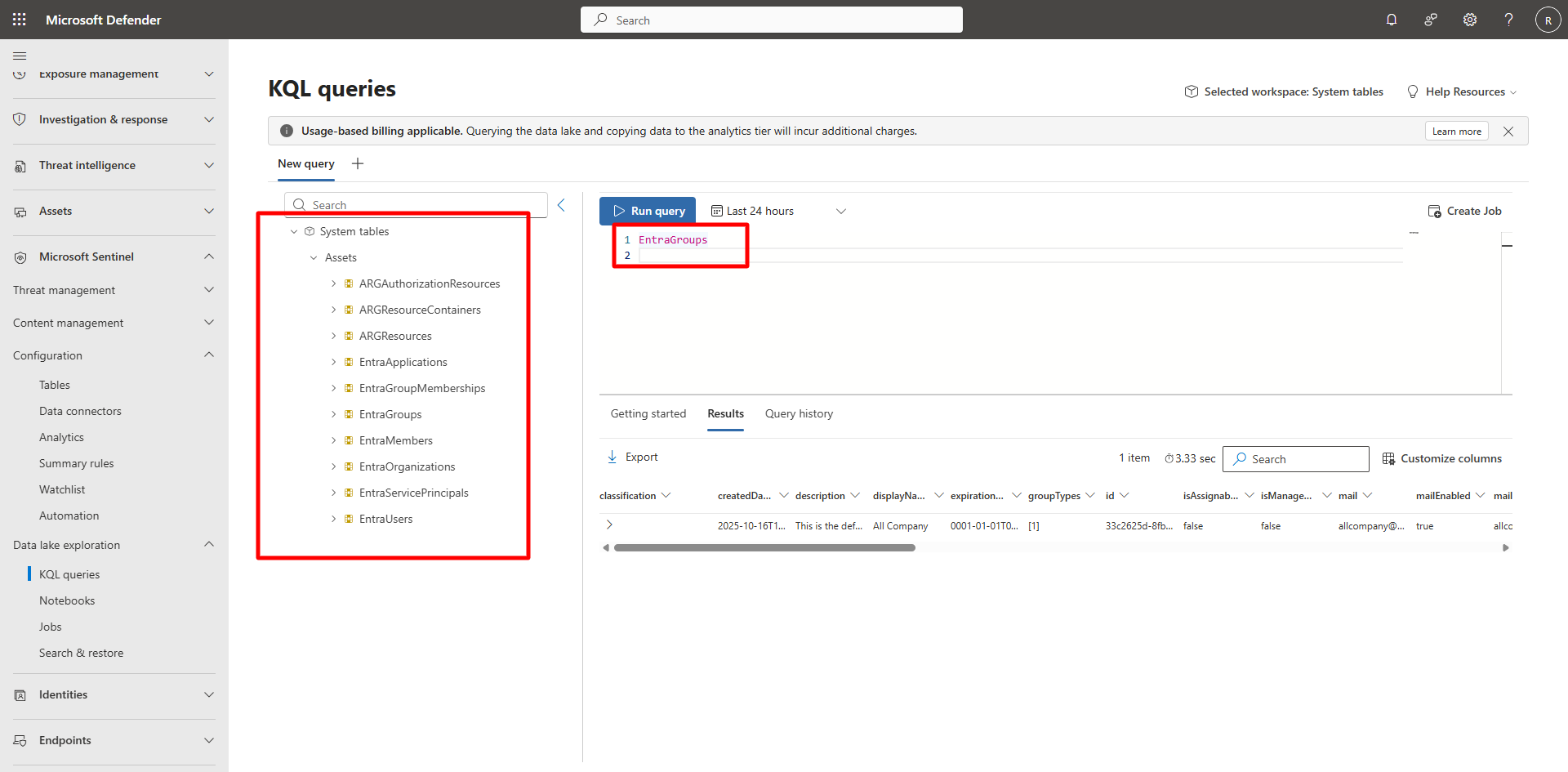
- You can identify categories such as EntraApplications, EntraGroups, and ARGResources.
Key steps:
-
Review system tables in Data Lake.
Expand here for detailed steps
- In the Microsoft Defender portal, go to Microsoft Sentinel > Data Lake Exploration > KQL queries.
-
In the upper right of the KQL queries page, select Selected workspace:law-sentinel-xdr-lab to view the workspace scope.
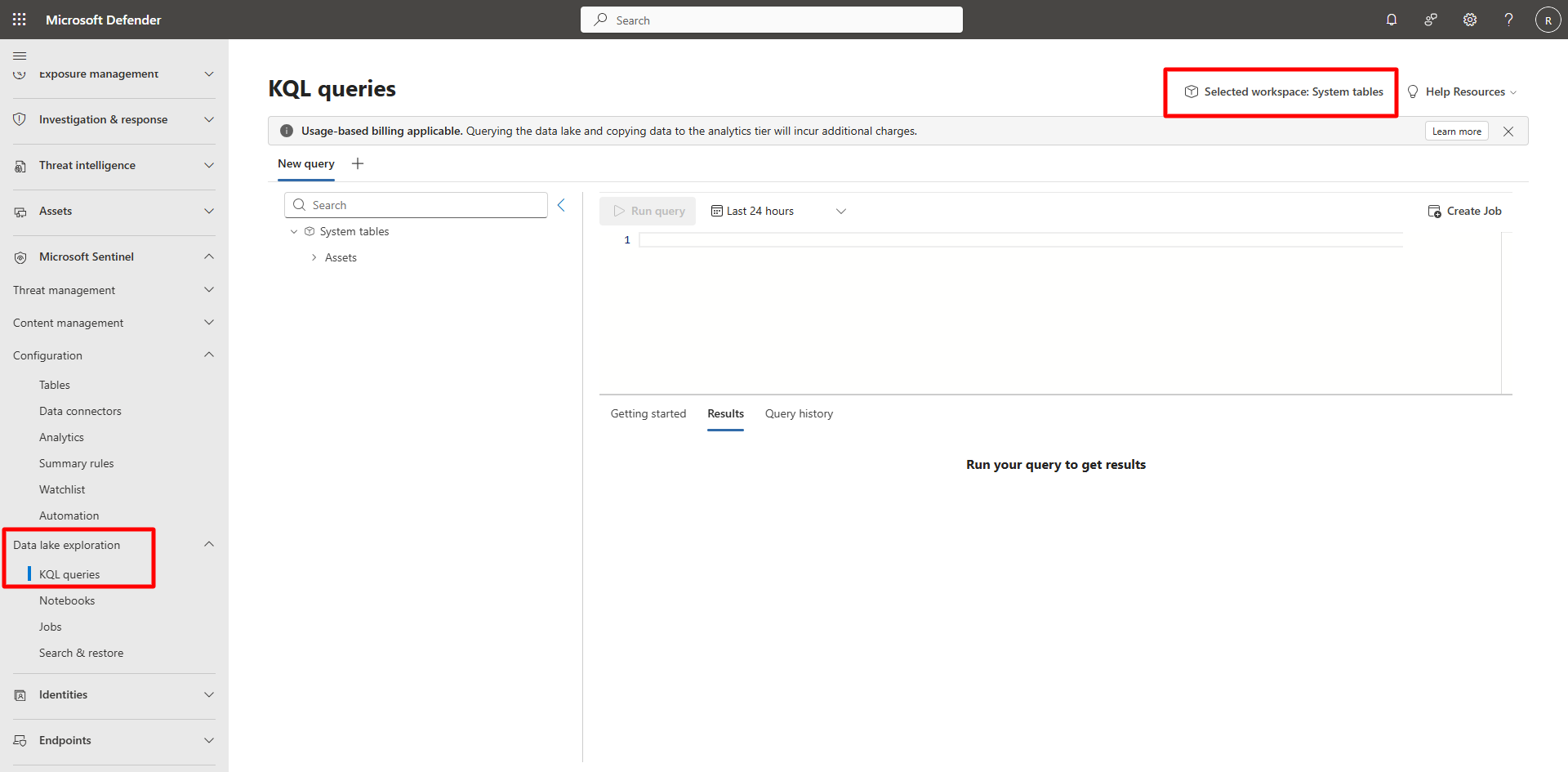
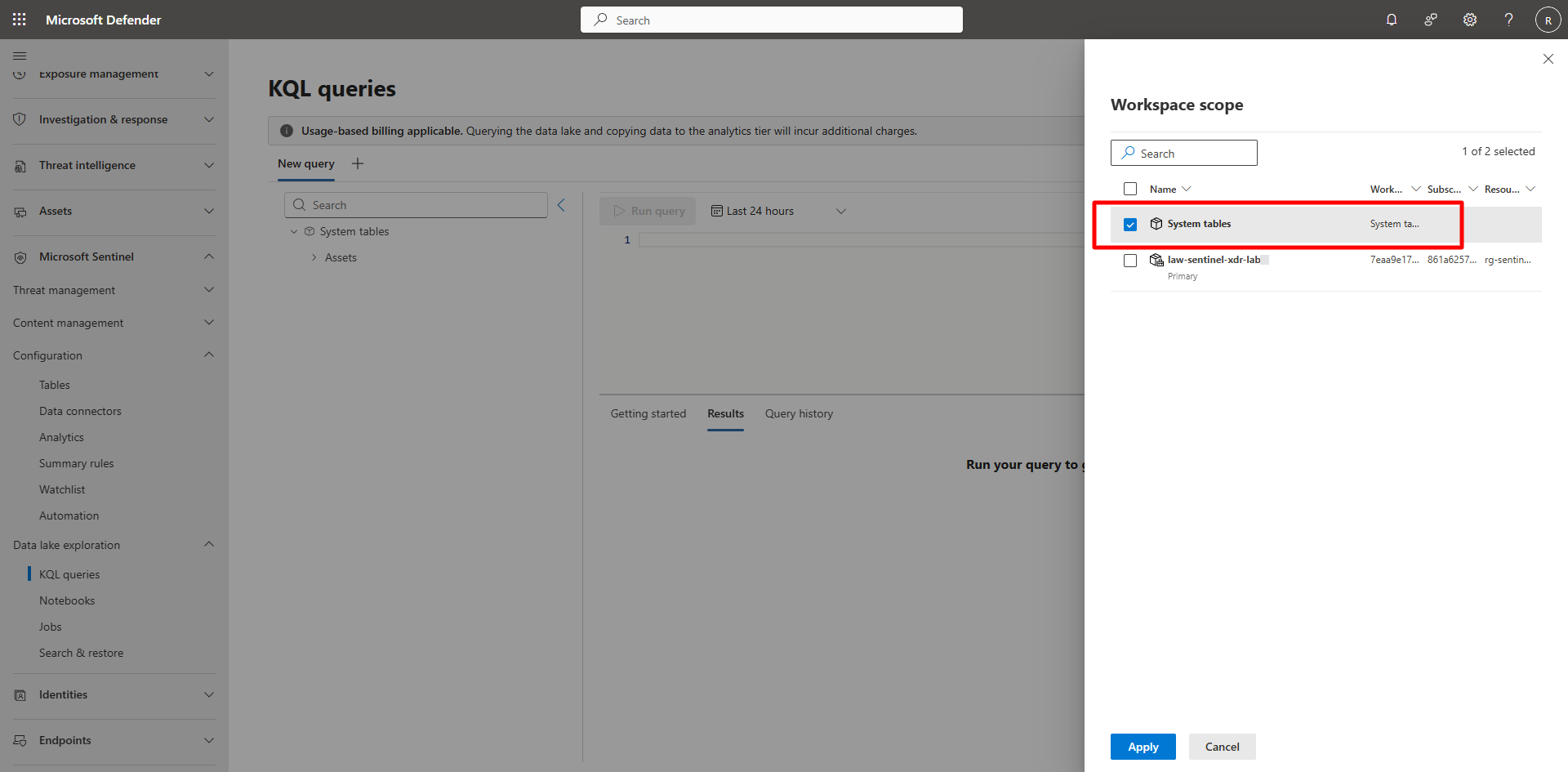
- You should see two scope options:
- law-sentinel-xdr-lab (Analytics workspace)
- System tables (tenant-level Data Lake)
-
Clear law-sentinel-xdr-lab, choose System tables, and then select Apply.
-
Expand the table tree on the left.
You should see folders such as:
- Assets > EntraApplications, EntraGroups, EntraMembers > ARGResources, ARGAuthorizationResources, and others.
System tables in Microsoft Sentinel Data Lake are Microsoft-managed.
You don’t manage their underlying storage or assign RBAC roles directly to them.