Task 04: Validate alert and incident flow
Introduction
Validate that alerts generated from onboarded endpoints in Microsoft Defender for Endpoint flow into Microsoft Sentinel as unified incidents through Defender XDR integration.
Description
You’ll trigger a safe test alert on the VM, confirm its appearance in Defender XDR, and verify it also appears in Microsoft Sentinel using KQL queries.
Success criteria
- A Defender for Endpoint test alert is generated on the VM.
- The alert appears in both Defender XDR and Sentinel with matching ID and timestamp.
Key steps:
-
Connect to the Azure virtual machine (
vm-sentinel-lab).Item Value Username azureadminPassword Sentinel@lab.VirtualMachine(Windows11-40-505-19).PasswordExpand here for detailed steps
- In the Azure portal, search for and select the
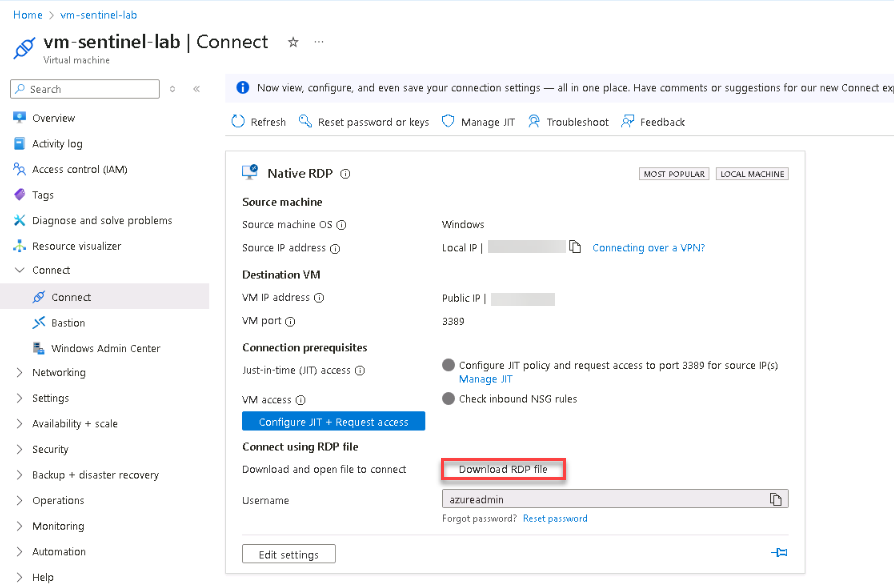
vm-sentinel-labvirtual machine. - Select Connect and download the RDP file to the default location in the VM.
- Open and run the .rdp file.
- In the Remote Desktop Connection popup, select Connect.
- Sign in using the credentials above and connect in spite of any certificate issues.
- In the Azure portal, search for and select the
-
Trigger a Defender test alert on the Azure virtual machine.
Expand here for detailed steps
- Open PowerShell as Administrator.
-
Run the following commands to simulate a malware detection event using the EICAR test file:
$eicar='X5O!P%@AP[4\PZX54(P^)7CC)7}$EICAR-STANDARD-ANTIVIRUS-TEST-FILE!$H+H*' Set-Content -Path C:\eicar.com -Value $eicar -Encoding ASCII - Wait a few moments for Microsoft Defender for Endpoint to detect and quarantine the file.
- Run the command 4-5 times to get a handful of alerts.
-
Minimize the RDP window.
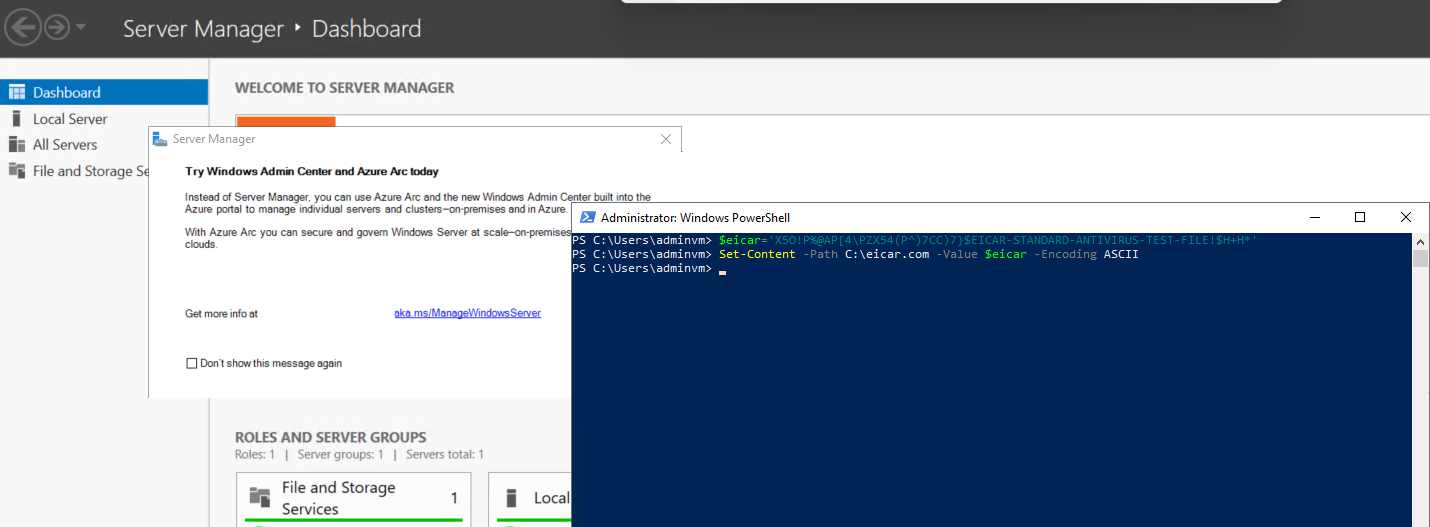
This harmless file triggers an antivirus alert used to test Defender for Endpoint integration.
-
Verify the alert in the Defender portal.
Expand here for detailed steps
- If necessary, minimize the RDP session and return to the browser tab that’s signed into the Defender portal.
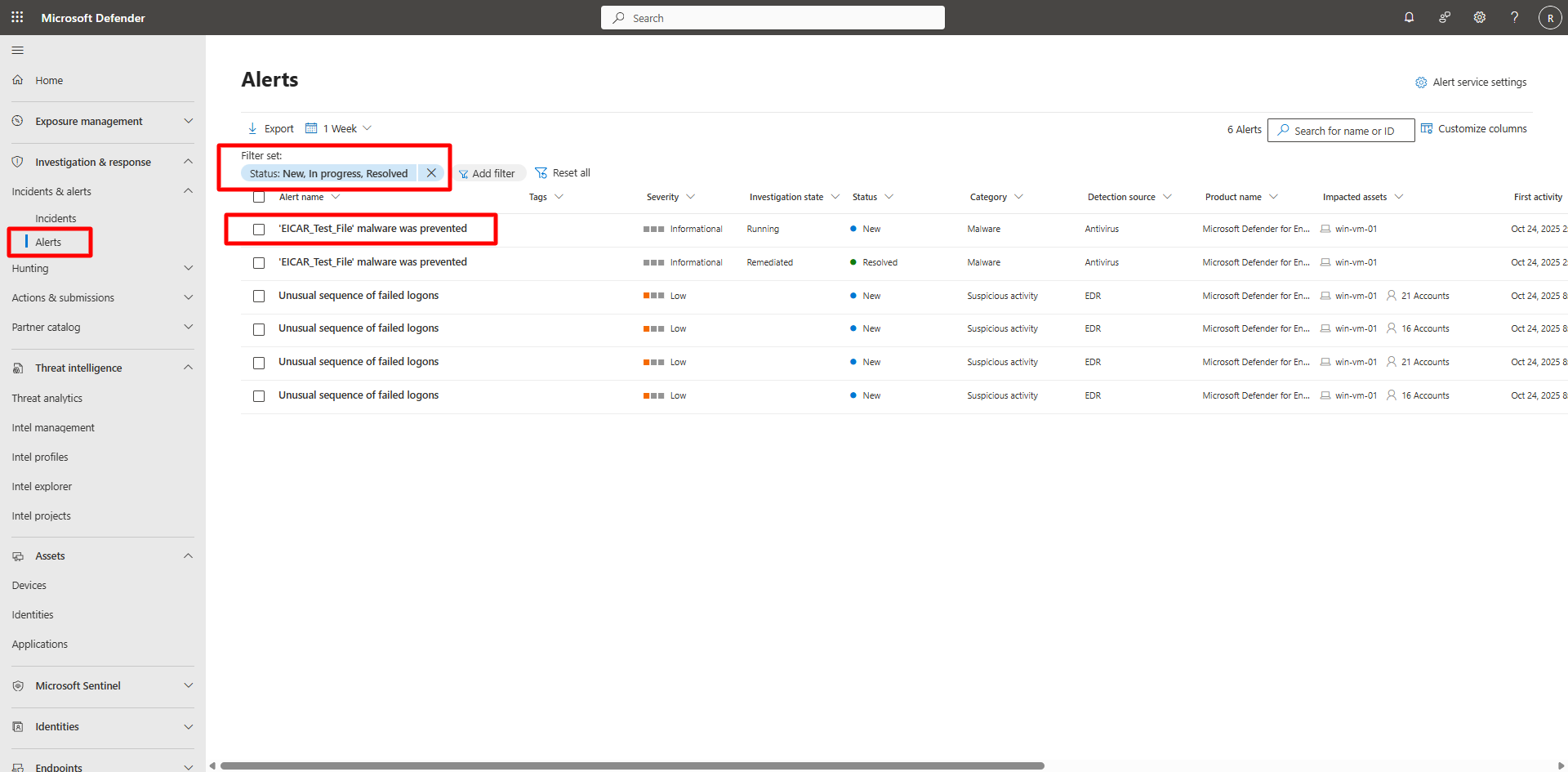
- On the left menu, select Investigation & response > Incidents & Alerts > Alerts.
- Confirm a new alert related to EICAR Test File or Malware detected appears.
- If not visible, wait up to five minutes and refresh the page.
-
Verify unified incident visibility between portals.
Expand here for detailed steps
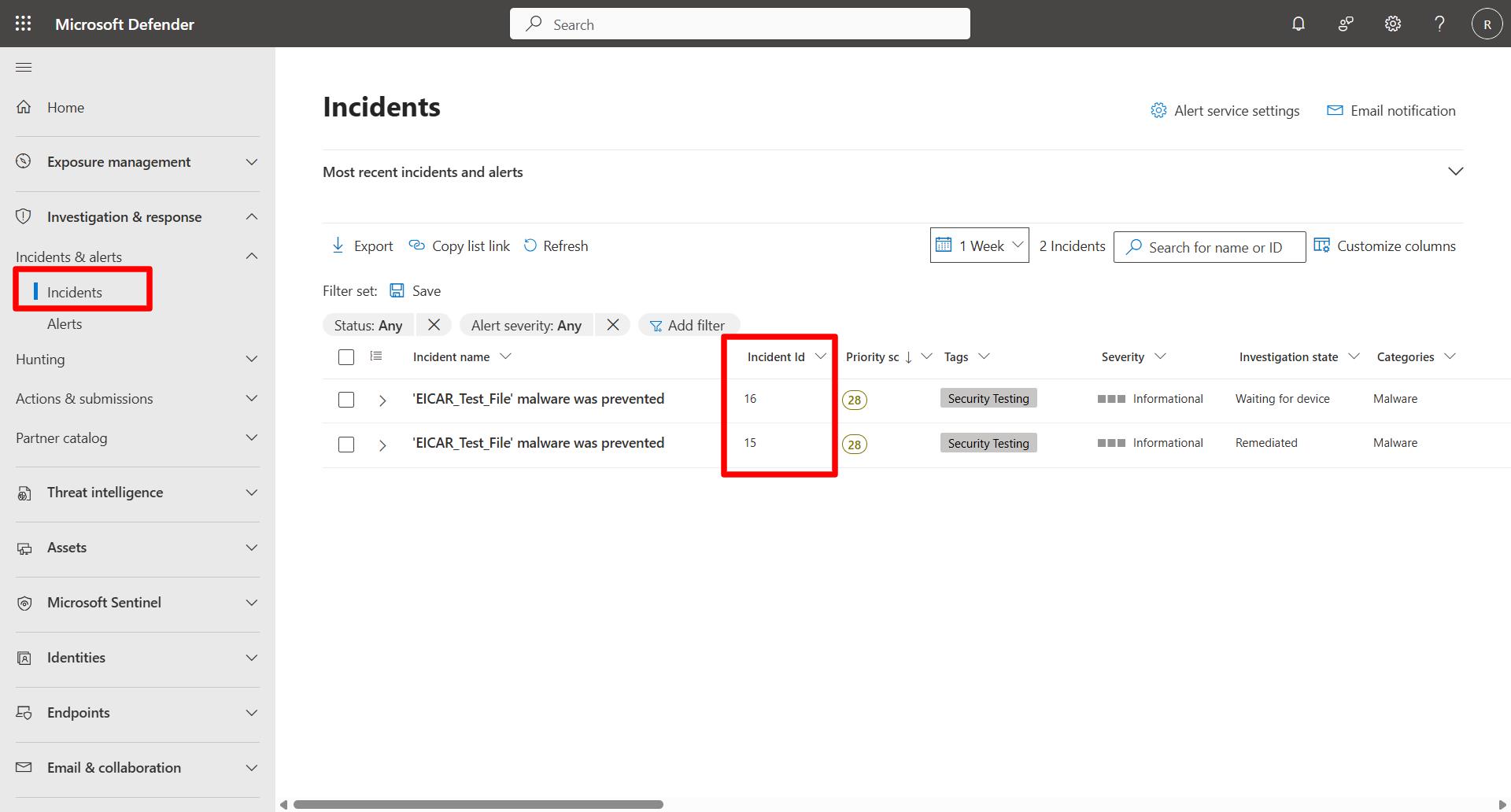
- On the left menu, select Investigation & response > Incidents & Alerts > Incidents.
- Open the incident created by the EICAR test.
-
Copy the Incident ID from the incident details panel into a Notepad for future use.
Wait 3-5 minutes for results to appear, if results do not appear, move to the next step.
Remove all filters applied to incidents in the Defender portal.
- In the Azure portal, go to Microsoft Sentinel > law-sentinel-xdr-lab.
- On the left menu, select General > Logs.
- Close the query hub.
- Verify that KQL mode is selected.
-
Run the following KQL queries:
-
Check for Security Incidents.
  SecurityIncident
  | project
      SentinelIncidentId = @lab.Variable(incidentid),
      Title,
      ProviderIncidentId,
      ProviderName,
      CreatedTime
  | where ProviderIncidentId != ""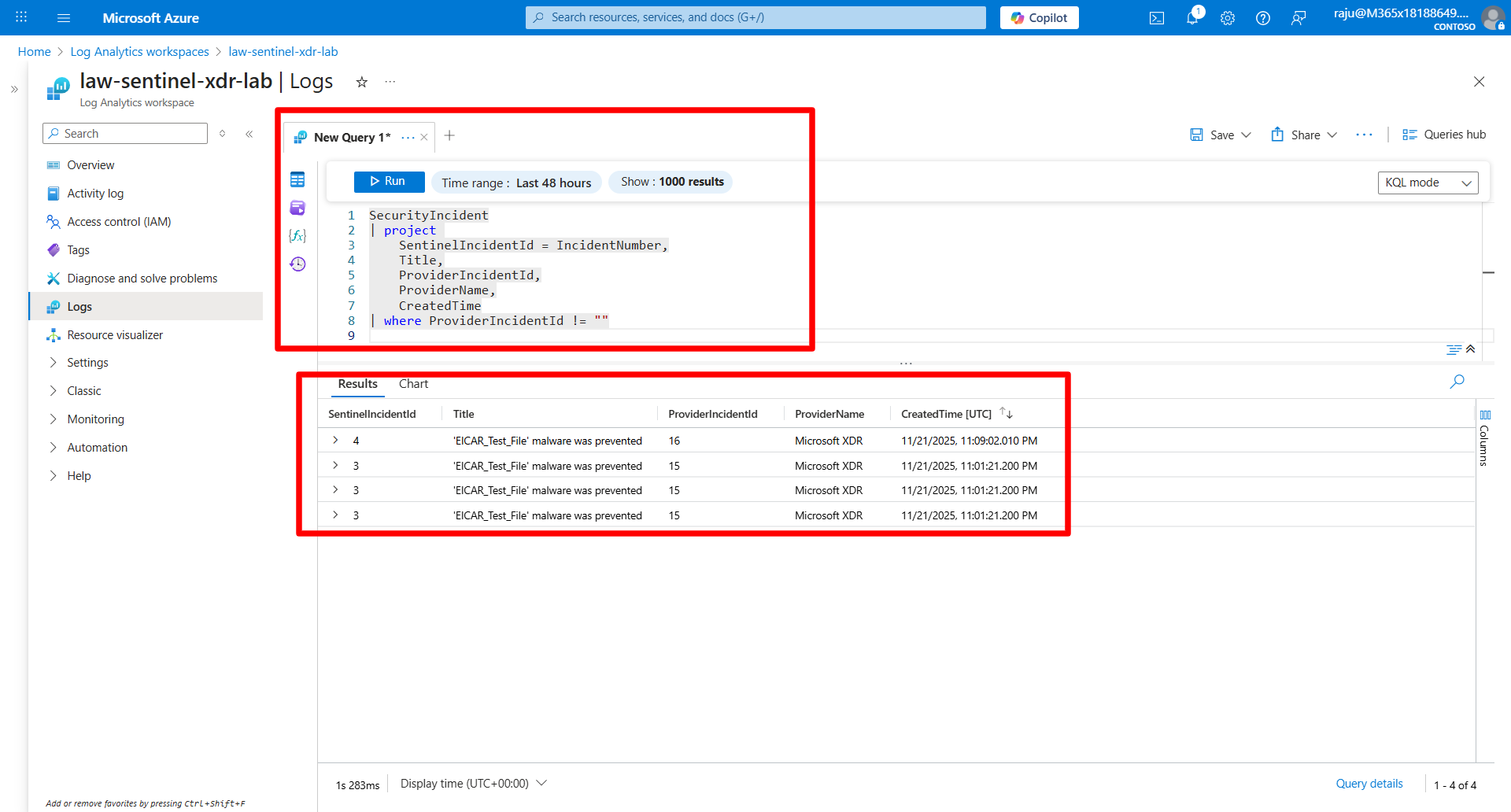
-
Check for Security Alerts.
  SecurityAlert
  | where ProviderName == "MDATP" or ProductName == "Microsoft Defender for Endpoint"
  | project TimeGenerated, AlertName, Description, CompromisedEntity, Tactics, ProviderName
  | sort by TimeGenerated desc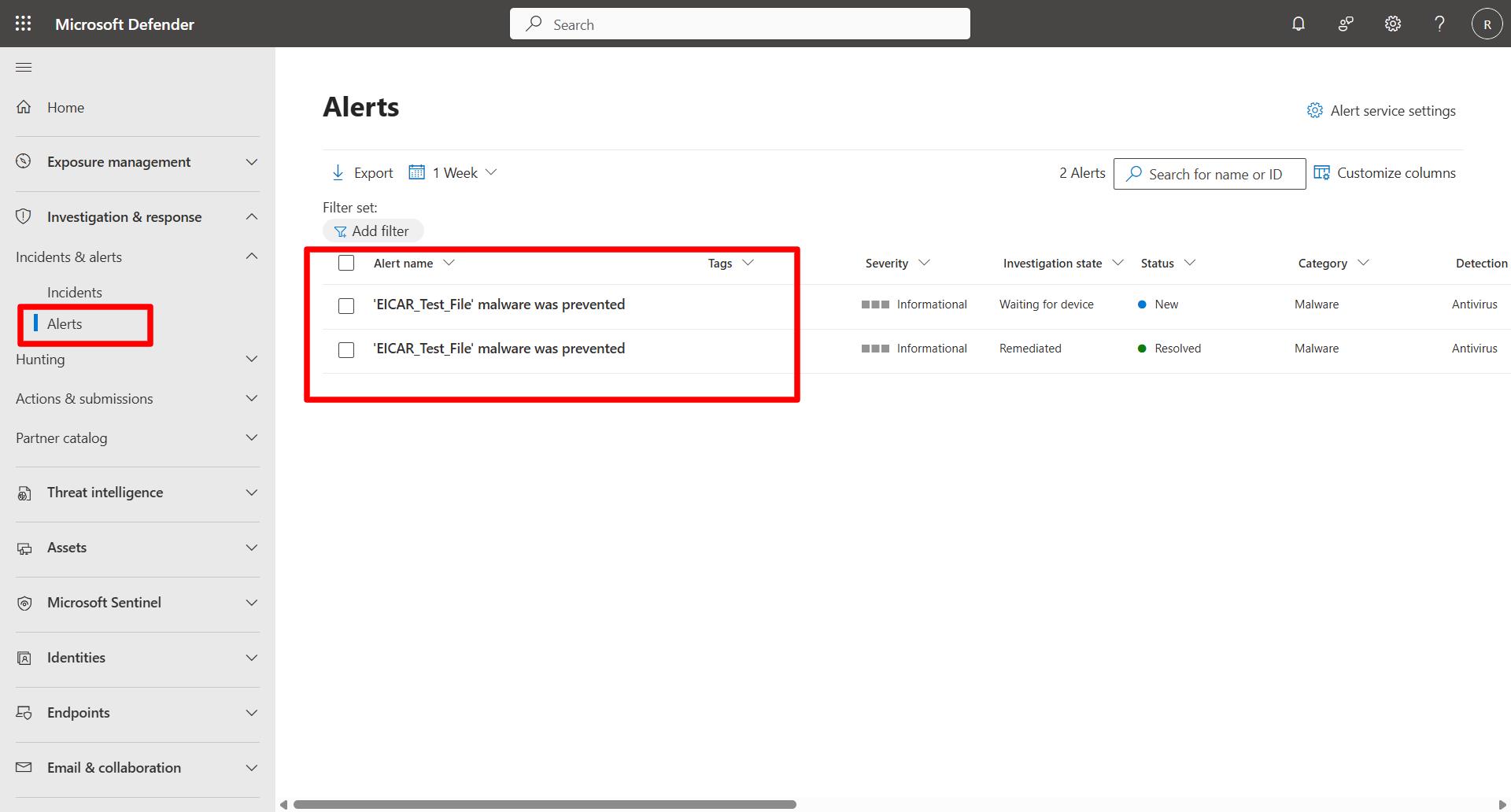
Remove all filters applied to alerts in the Defender portal.
-
Matching incident IDs in both portals confirm synchronization and unified visibility between Defender XDR and Sentinel.