Task 03: Deploy a Codeless Connector (CCF) using PowerShell and ARM Template
Introduction
The Codeless Connector Framework (CCF) simplifies data ingestion by deploying a connector that automatically creates a Data Collection Endpoint (DCE), Data Collection Rule (DCR), and custom table.
Description
In this task, you’ll deploy a mock API connector using PowerShell and verify data flow into both Microsoft Sentinel and the Data Lake.
Success criteria
-
The CCF connector is deployed and connected.
-
Mock data appears in both Microsoft Sentinel and the Data Lake.
Key steps:
-
Deploy the template using PowerShell.
Expand here for detailed steps
If you work with multiple Azure tenants or subscriptions, verify that you are signed in to the correct tenant and have the intended subscription selected before running any PowerShell commands. This helps prevent commands from being executed in the wrong environment.
-
Open Notepad, copy and paste the following command:
.\deploy-ccf-inline-params.ps1 -SubscriptionId "<<ReplaceWithSubscriptionId>>" -ResourceGroupName "rg-sentinel-lab" -WorkspaceName "law-sentinel-xdr-lab" -Location "East US 2" - Replace the subscription placeholder value with your subscription.
- Open PowerShell 7 as an administrator and enter
cd C:\LabFiles. -
Copy and paste the code from the Notepad editor into the PowerShell 7 terminal and execute it.
If you get an error just rerun the script until it’s successful.
-
-
Verify the connector in Microsoft Sentinel.
Expand here for detailed steps
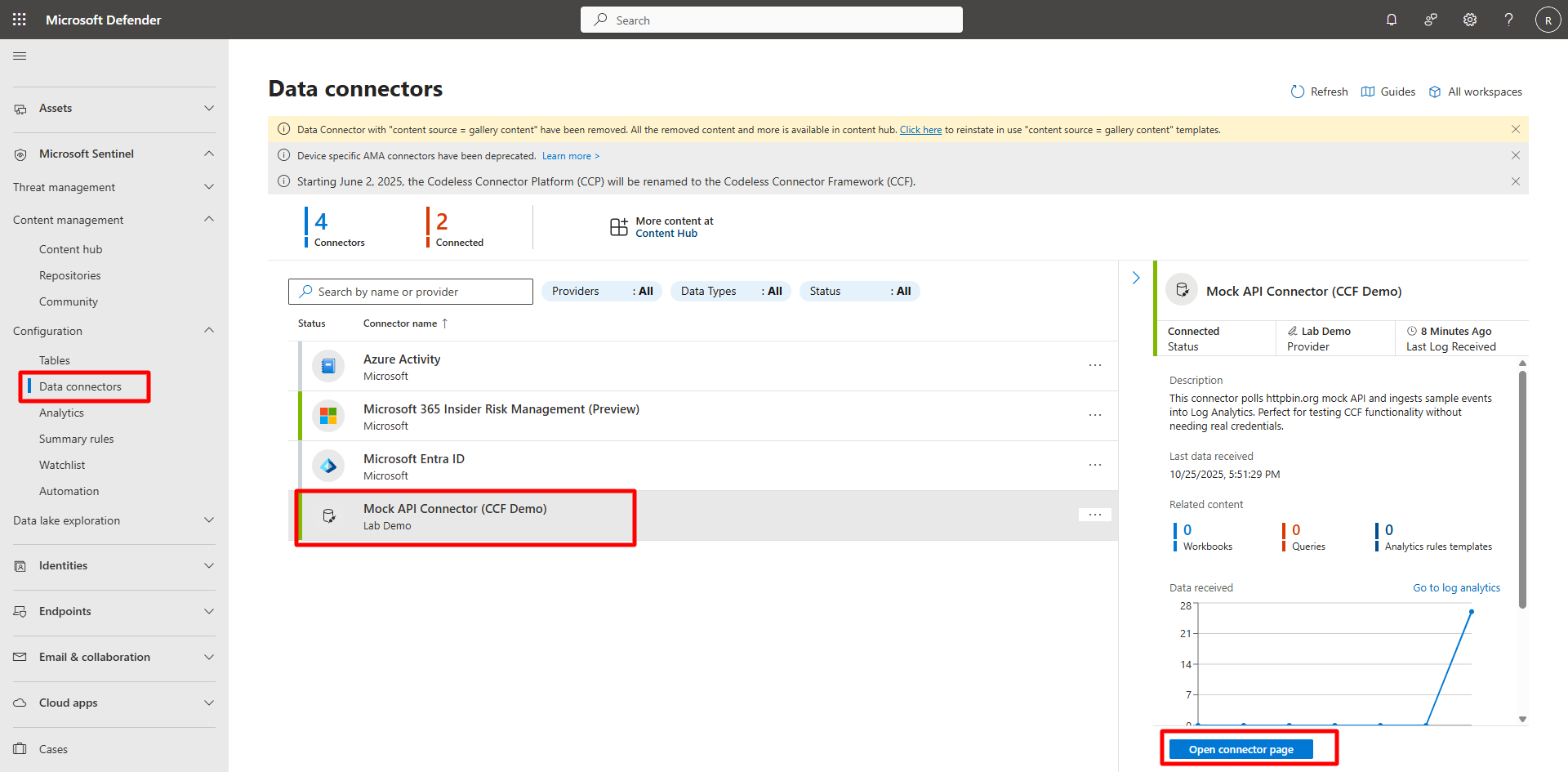
- In the Defender portal, go to Microsoft Sentinel and on the left menu, select Configuration, then select Data connectors.
- Search for and select
Mock API Connector (CCF Demo). -
Select Open connector page.
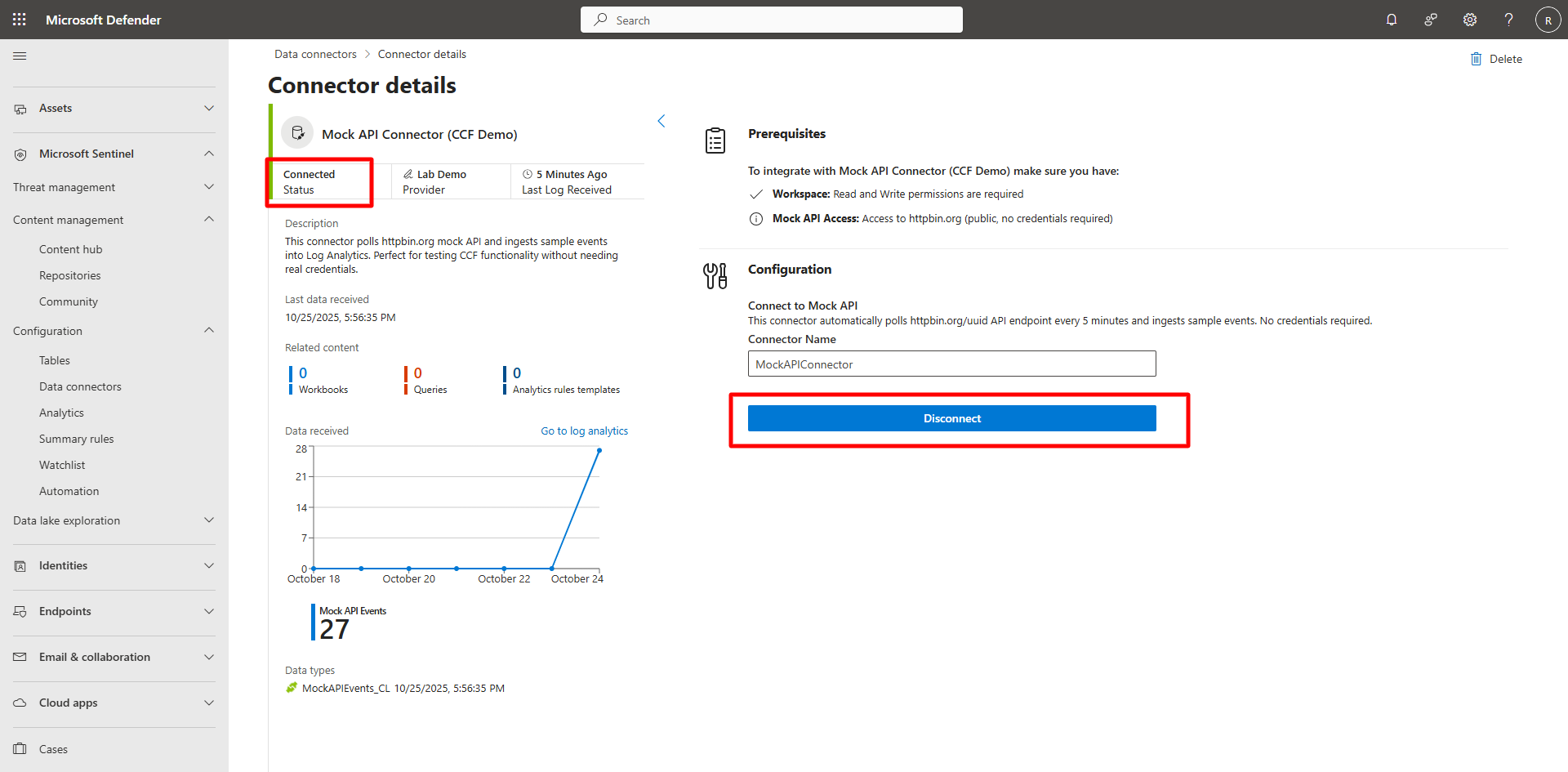
- Confirm the connector status shows Connected.
- If not connected, select Connect under Configuration.
-
Monitor data ingestion.
Expand here for detailed steps
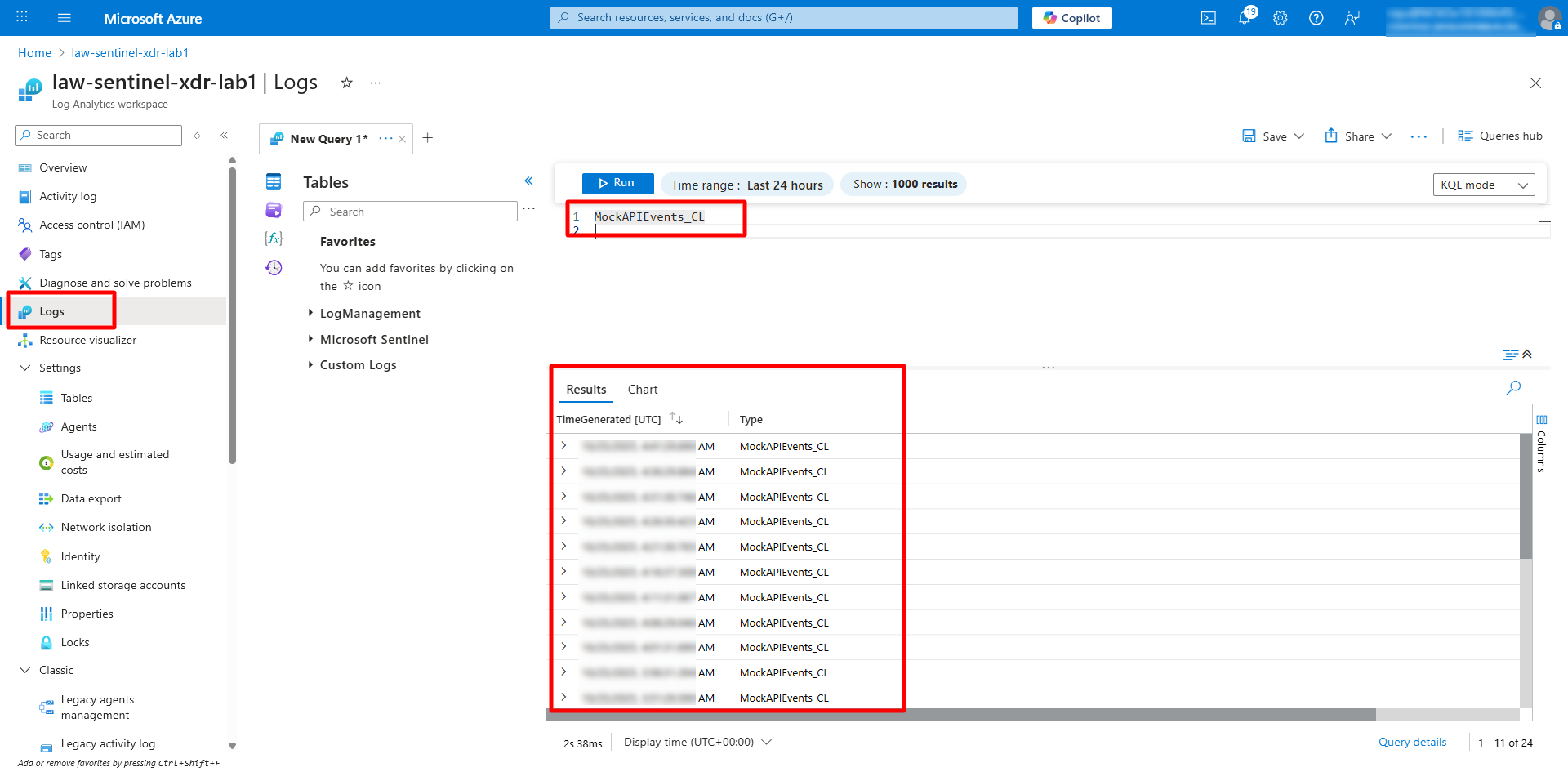
- In the Microsoft Sentinel portal, open Logs.
-
Run the following KQL query to validate that mock API data is flowing in:
MockAPIEvents_CL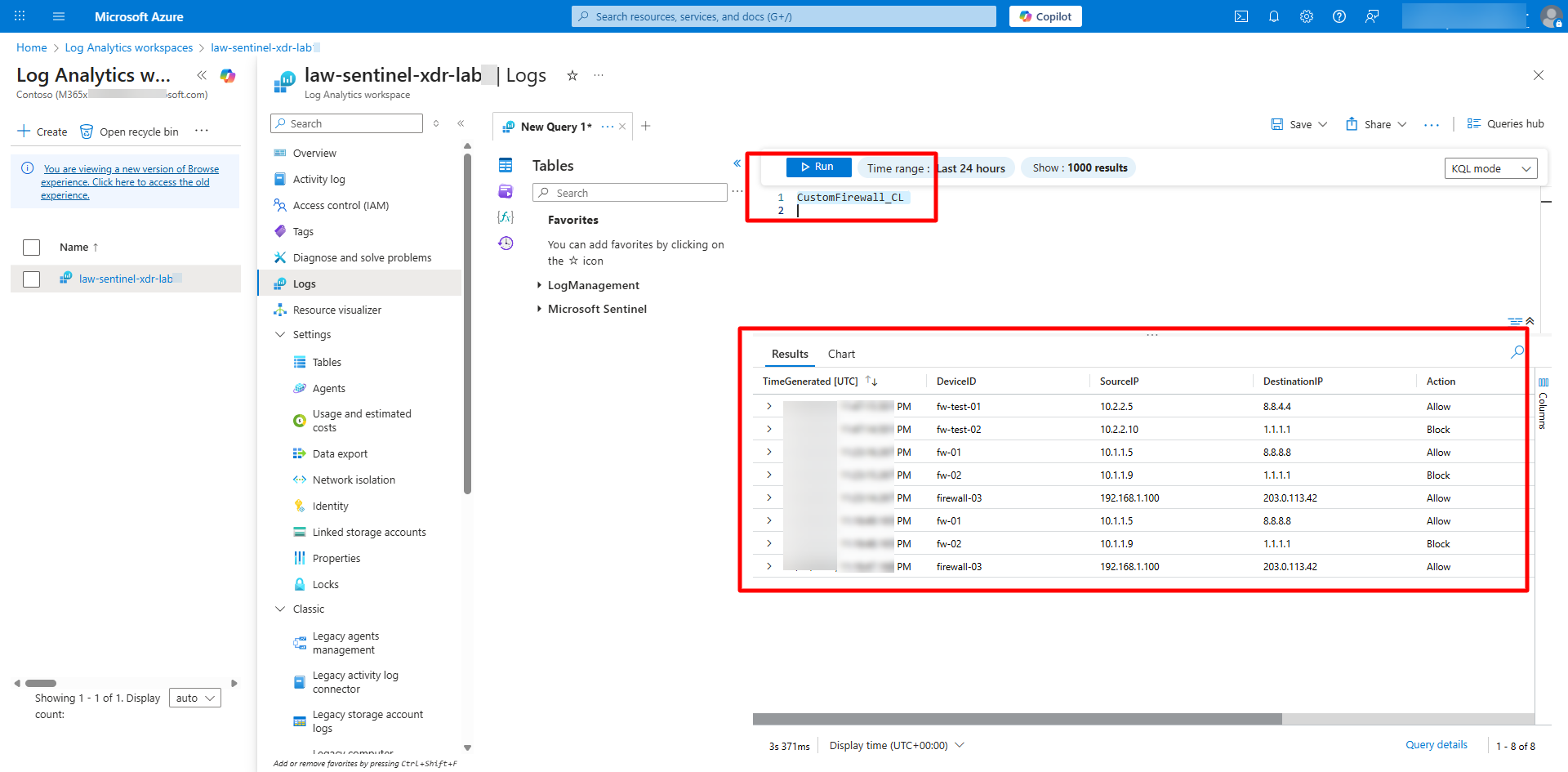
Replication can take 10–25 minutes.
-
Validate mirrored data in the Data Lake after approximately 10–25 minutes.
Expand here for detailed steps
Replication can take 10–25 minutes.
- In the Defender portal, go to Microsoft Sentinel > Data Lake Exploration > KQL Queries.
-
Run the same query to confirm that data is now replicated:
MockAPIEvents_CL