Task 02: Create a recurring operational job
Introduction
Recurring KQL jobs continuously process incoming telemetry for near-real-time analytics or dashboard metrics.
Description
You’ll schedule a recurring job that aggregates Security Alert data every 15 minutes by severity.
Success criteria
- A recurring KQL job named
QuarterHourly_Alert_Trendis created and active. - The job runs automatically every 15 minutes.
- Output table
AlertSummary_15m_KQL_CLis populated and queryable.
Key steps:
-
Open the KQL job wizard and create a new job with the following details:
Expand here for detailed steps
- In the Defender portal, go to Microsoft Sentinel > Data Lake exploration > KQL queries.
- In the upper right of the query, select Create job.
-
On the Name & details page, enter the following and select Next:
Item Value Job name: QuarterHourly_Alert_TrendDescription: 15-minute recurring alert trend by severityDestination workspace: law-sentinel-xdr-lab New table name: AlertSummary_15m_KQL_CL -
On the Query page, define and validate the query by entering the following and select Next:
 SecurityAlert
 | where TimeGenerated > ago(64h)
 | extend Severity = tostring(column_ifexists("Severity", "Unknown"))
 | summarize Alerts = count() by bin(TimeGenerated, 15m), Severity
 | order by TimeGenerated desc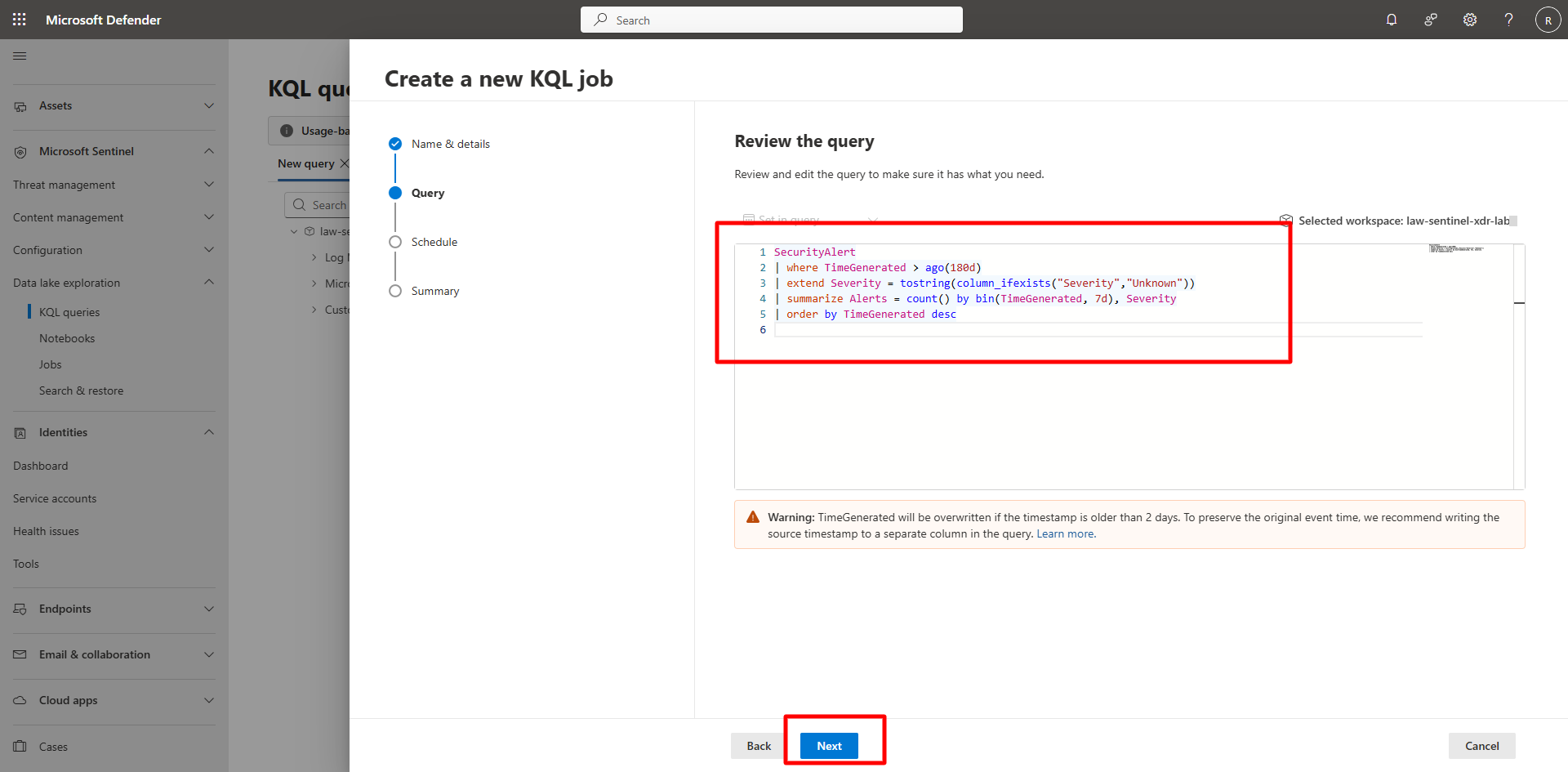
-
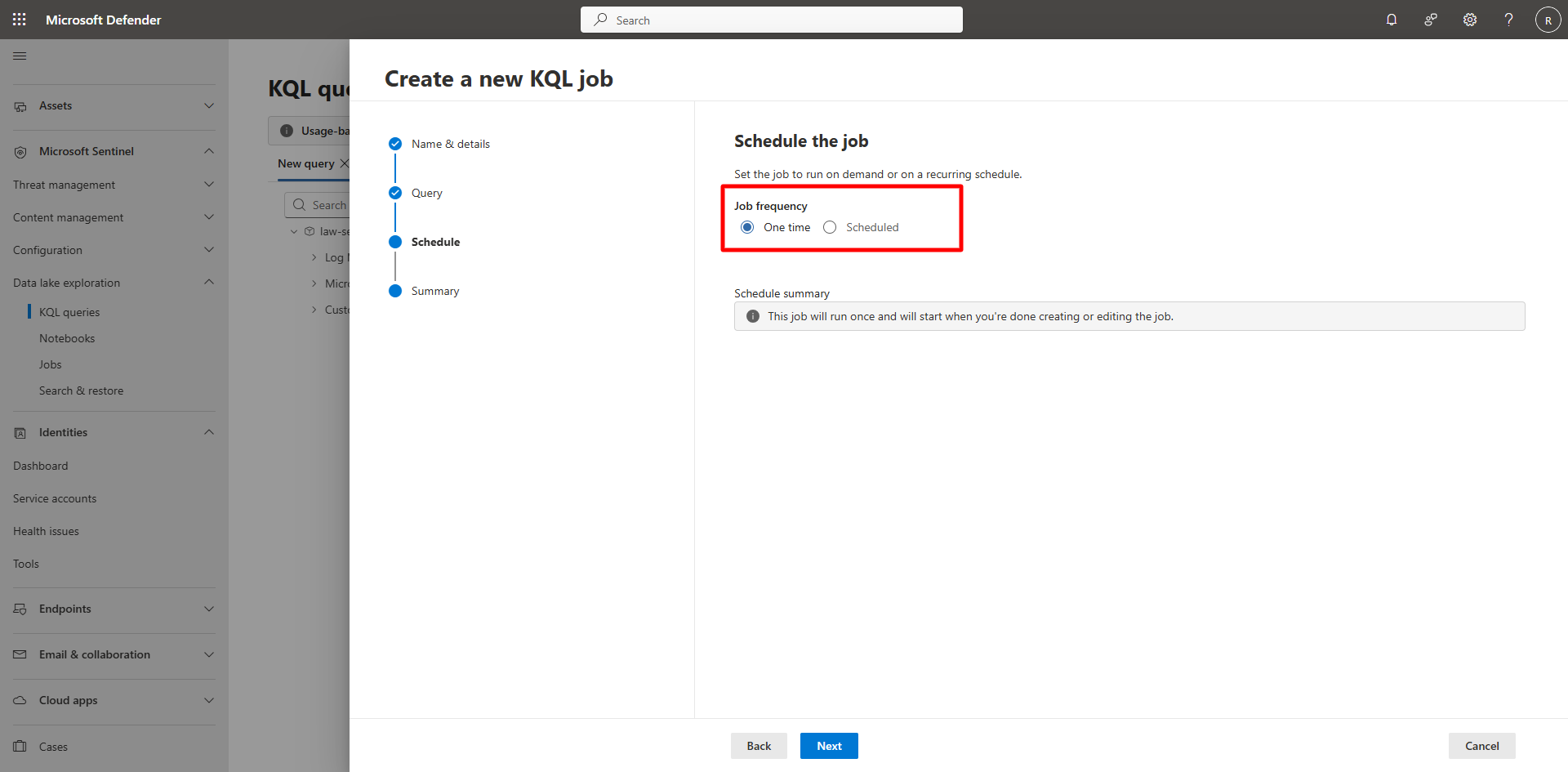
On the Schedule page, configure schedule and limits.
- Set Job frequency to Scheduled.
- Under Schedule interval, configure:
- Run every: 15 minutes
- Start time: Next quarter-hour mark
- Review the schedule summary. {: .note }The schedule summary confirms: The job runs every 15 minutes.
-
Select Next.
-
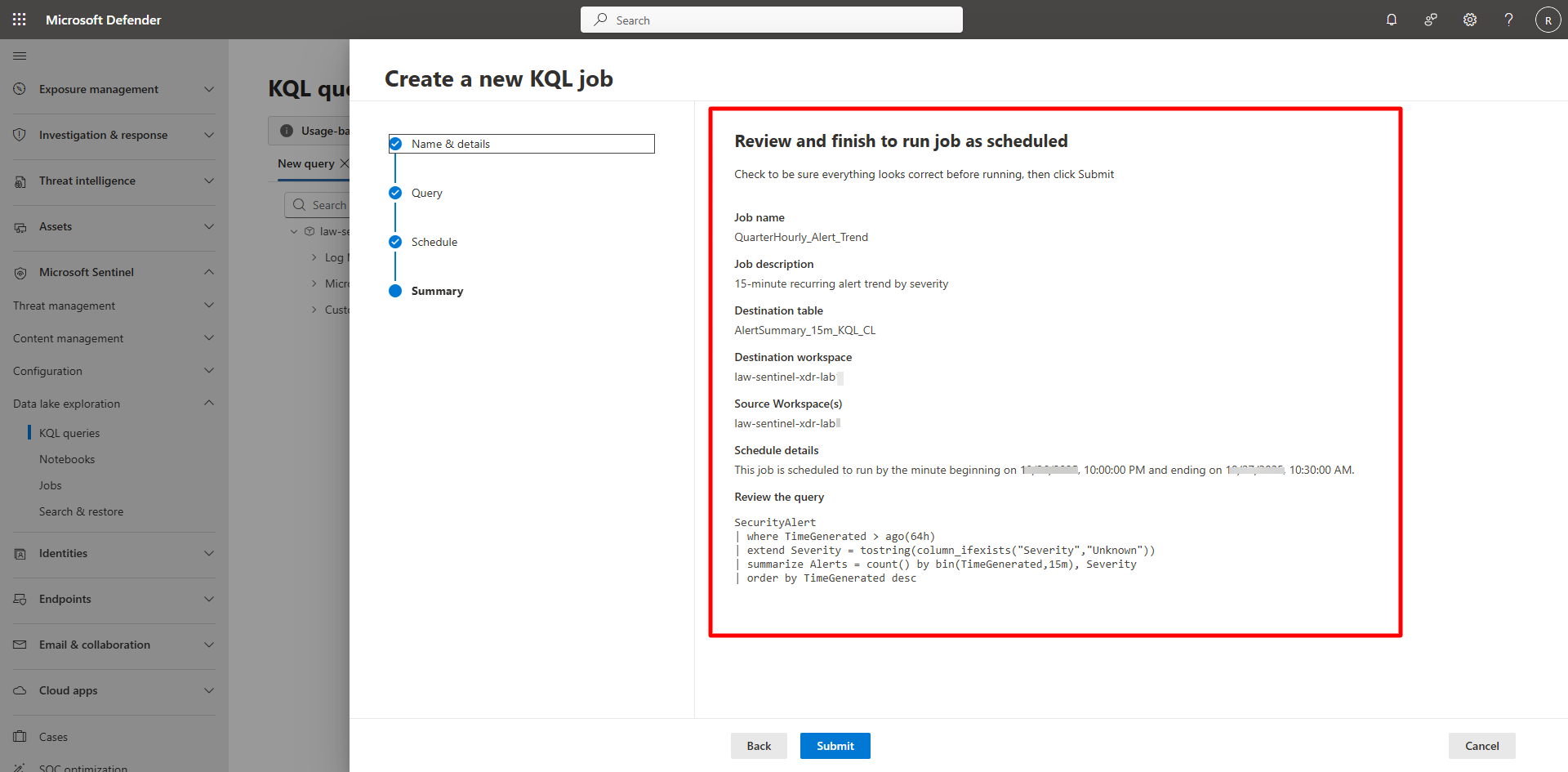
Verify the details and select Submit.
- Job name:
QuarterHourly_Alert_Trend - Destination table:
AlertSummary_15m_KQL_CL - Workspace:
law-sentinel-xdr-lab1 - Frequency: Every 15 minutes
- Query: Your validated KQL
- Job name:
-
Select Done.
-
Verify recurring job execution.
Expand here for detailed steps
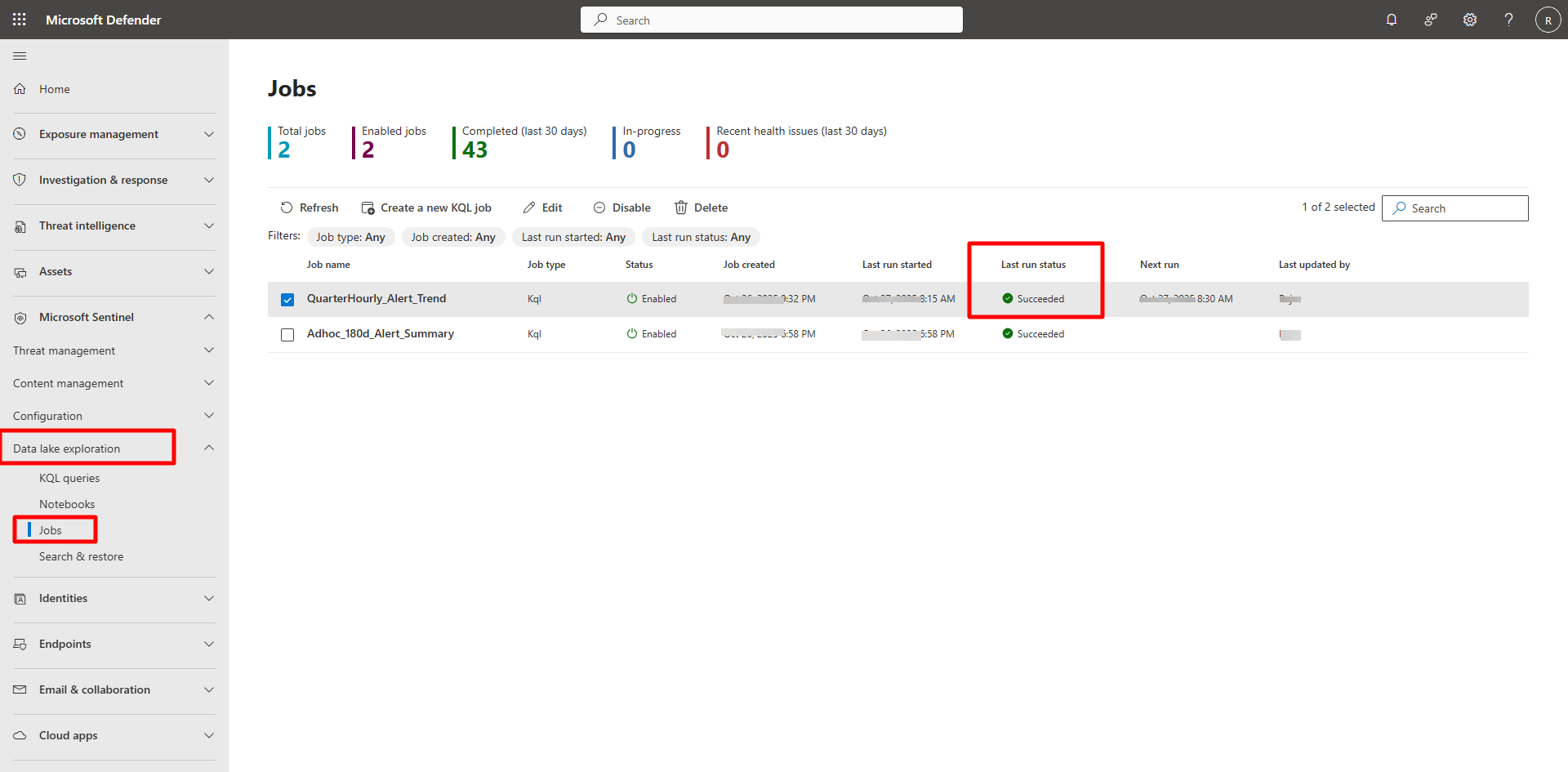
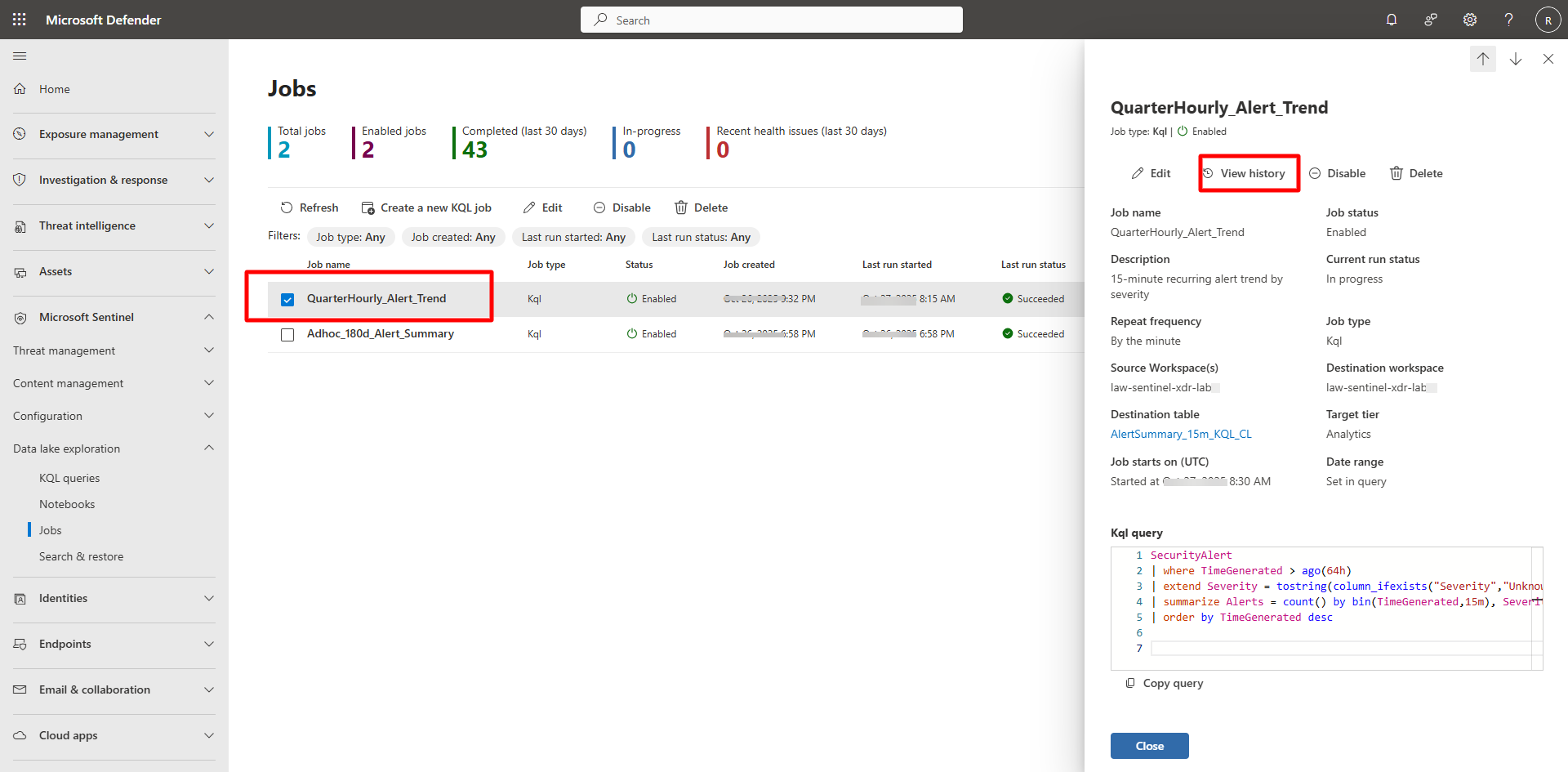
- In the Defender portal, go to Microsoft Sentinel > Data Lake exploration > Jobs.
- Confirm metrics such as Total jobs, Enabled jobs, and Completed.
-
Verify QuarterHourly_Alert_Trend, status should show Succeeded after 15 minutes.
-
To view history, open the job pane and select View history.
-
Explore the job output.
Expand here for detailed steps
-
In the Defender portal, go to Microsoft Sentinel > Data Lake exploration > KQL queries.
-
Run the following query:
 AlertSummary_15m_KQL_CL
 | where TimeGenerated > ago(24h)
 | summarize TotalAlerts = sum(Alerts) by Severity
 | render barchart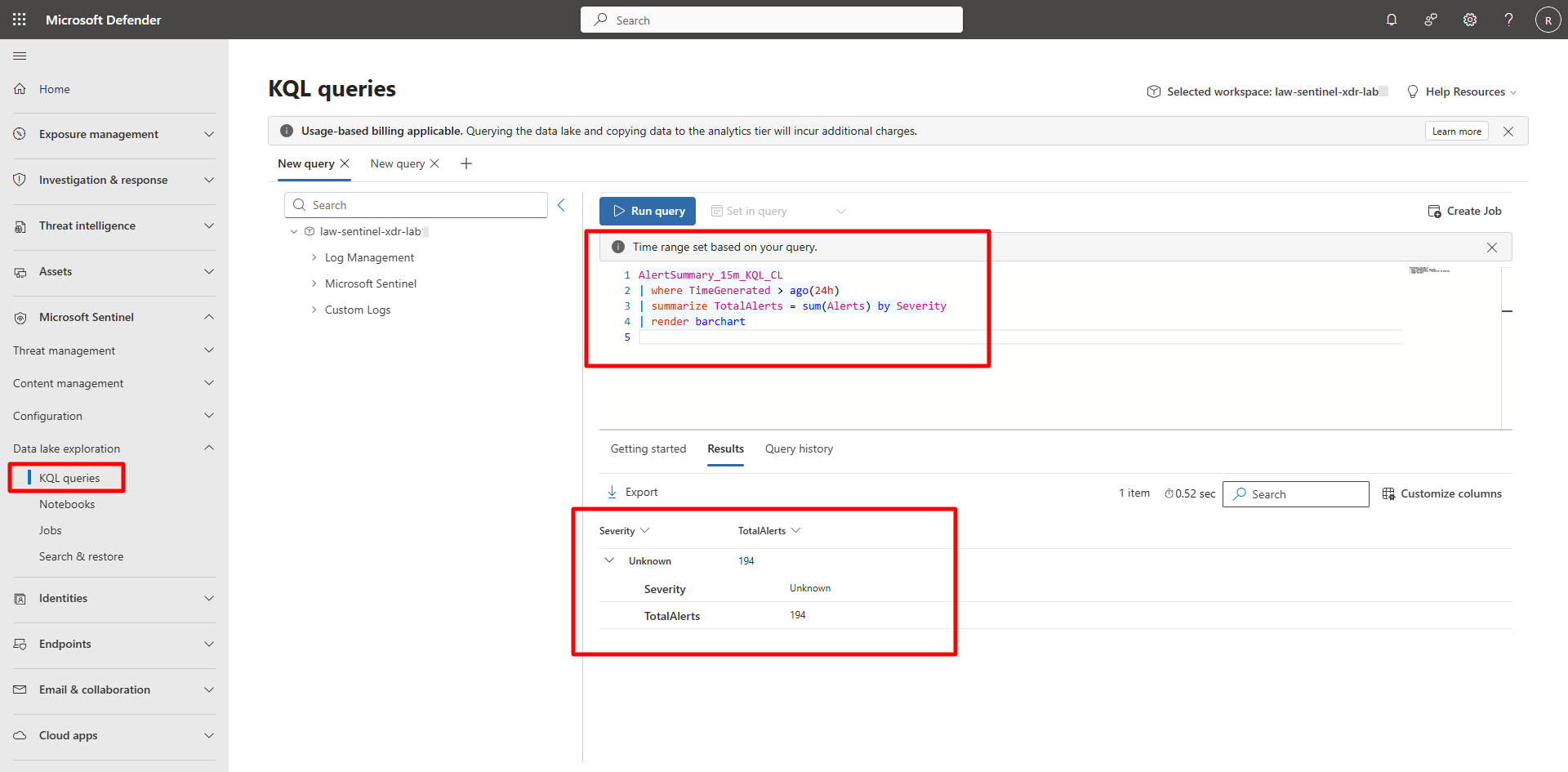
-