Task 02: Enable Microsoft Sentinel integration in Defender XDR
Introduction
Integrate Defender XDR with your Sentinel workspace so alerts, incidents, and telemetry synchronize automatically between both portals.
Description
You’ll connect Defender XDR to the existing workspace and install the Microsoft Defender XDR solution from the Content Hub to enrich Sentinel with prebuilt analytics, workbooks, and schemas.
Success criteria
-
Defender XDR is connected to law-sentinel-xdr-lab.
-
Microsoft Defender XDR solution is installed in Sentinel.
Key steps:
-
In the left menu of the Defender portal, select System > Settings.
-
On the Settings page, select Microsoft Sentinel.
-
Review the integration status for your workspace.
-
If law-sentinel-xdr-lab shows Connected, no further action is required.
- If it shows No workspace connected do the following:
- Select Connect workspace.
- Choose law-sentinel-xdr-lab, and select Next.
- Choose law-sentinel-xdr-lab as the primary workspace and select Next.
- Review the workspace information and select Connect.
-
Select Connect and wait for the connection to complete.
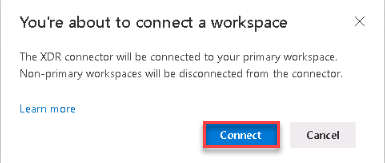
- Select Close.
-
On the SIEM workspaces page, verify that the workspace is connected.

-
Install the Microsoft Defender XDR solution in the Content hub.
Expand here for detailed steps
-
In the Azure portal, search for and select Microsoft Sentinel.
-
Select Content management > Content hub.
-
On the Content hub page, in the search box, enter
Microsoft Defender XDR. -
From the results, choose the Microsoft Defender XDR box.
-
In the Microsoft Defender XDR flyout, select Install to deploy the associated analytics rules, workbooks, and data schemas.
-
Wait several minutes for installation to complete.
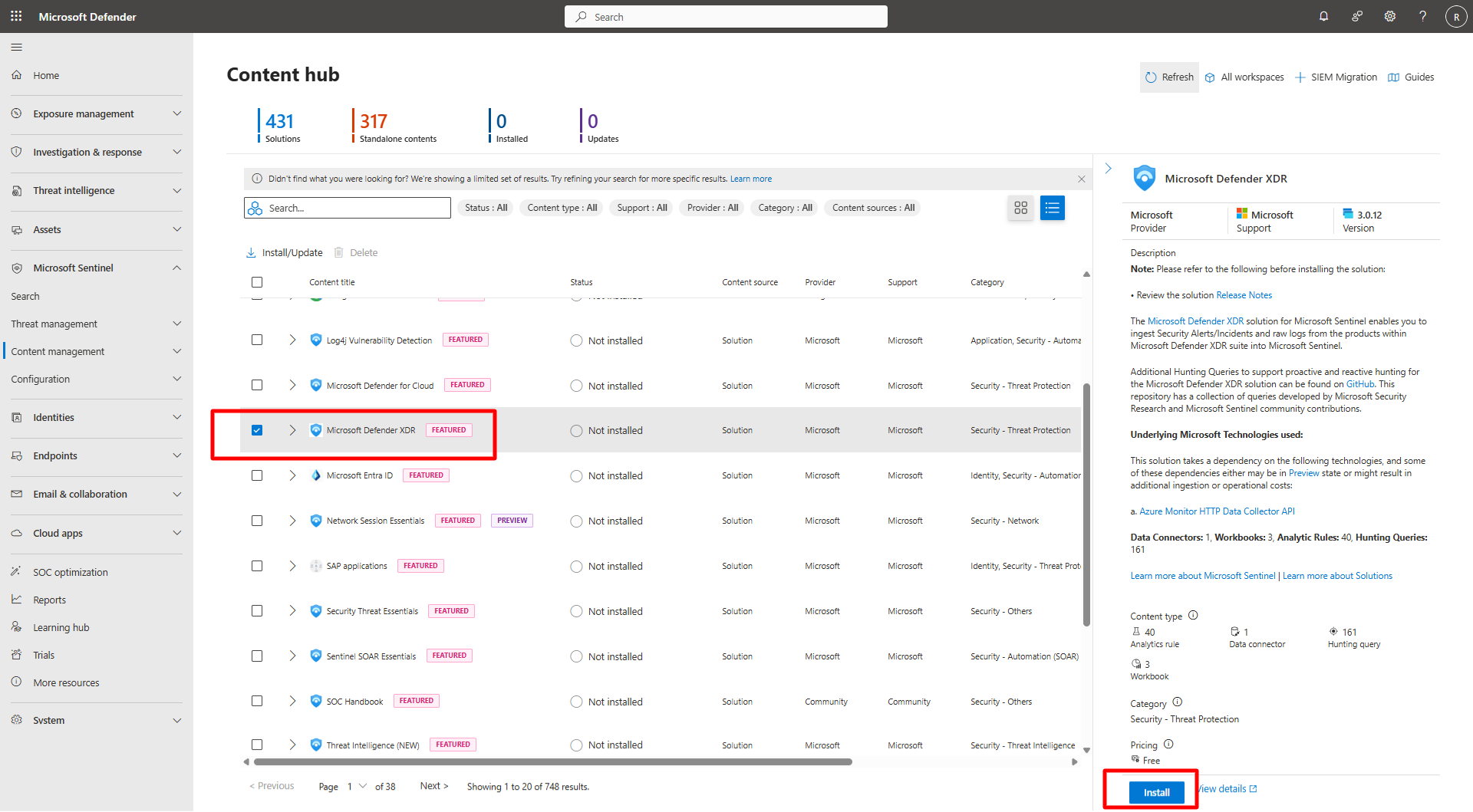
Installing the solution enriches Sentinel with Defender XDR content such as rules, dashboards, and queries.
-