Task 03: Manage access and collaboration
Introduction
Microsoft Sentinel supports role-based access control (RBAC) to enable secure collaboration across teams.
In this task, you’ll review existing workspace roles, assign a new role to a test user, and validate access in the Defender portal.
Description
You’ll explore workspace IAM settings, add a contributor role to a test account, and confirm access permissions through the Defender portal.
Success criteria
- Existing workspace role assignments are reviewed.
- A test user is granted the Microsoft Sentinel Contributor role.
- Access validation confirms proper visibility in the Defender portal.
Key steps:
-
On the left menu of your Sentinel workspace (law-sentinel-xdr-lab), select Access control (IAM).
-
On the Role assignments tab, review the list of users, groups, and service principals who already have access.
If you’d like to export the current list, you can use the Download role assignments (.csv) link at the top of the page. This step is optional and for reference only.

If your lab environment does not include a secondary user account, review the remaining steps conceptually.
You can create a test user under Microsoft Entra ID > Users > + New user and then complete the steps to complete Exercise 2.
-
Assign the
Microsoft Sentinel Contributorrole to a test user.Expand here for detailed steps
- In IAM, select + Add > Add role assignment.
- Search for and select
Microsoft Sentinel Contributorand then select Next. - Choose User, group, or service principal.
- Select + Select members.
- Search for and select your lab test account (for example,
secops-analyst@contoso.com) and then select Select. - Select Review + Assign.
- Wait about one minute, then refresh the Role assignments tab to confirm the addition.
-
Validate access in the Defender portal.
Expand here for detailed steps
- Open an InPrivate or different browser session and go to
https://security.microsoft.com. - Sign in as the user assigned in the previous step.
- In the Defender portal, go to Microsoft Sentinel > Workspaces.
-
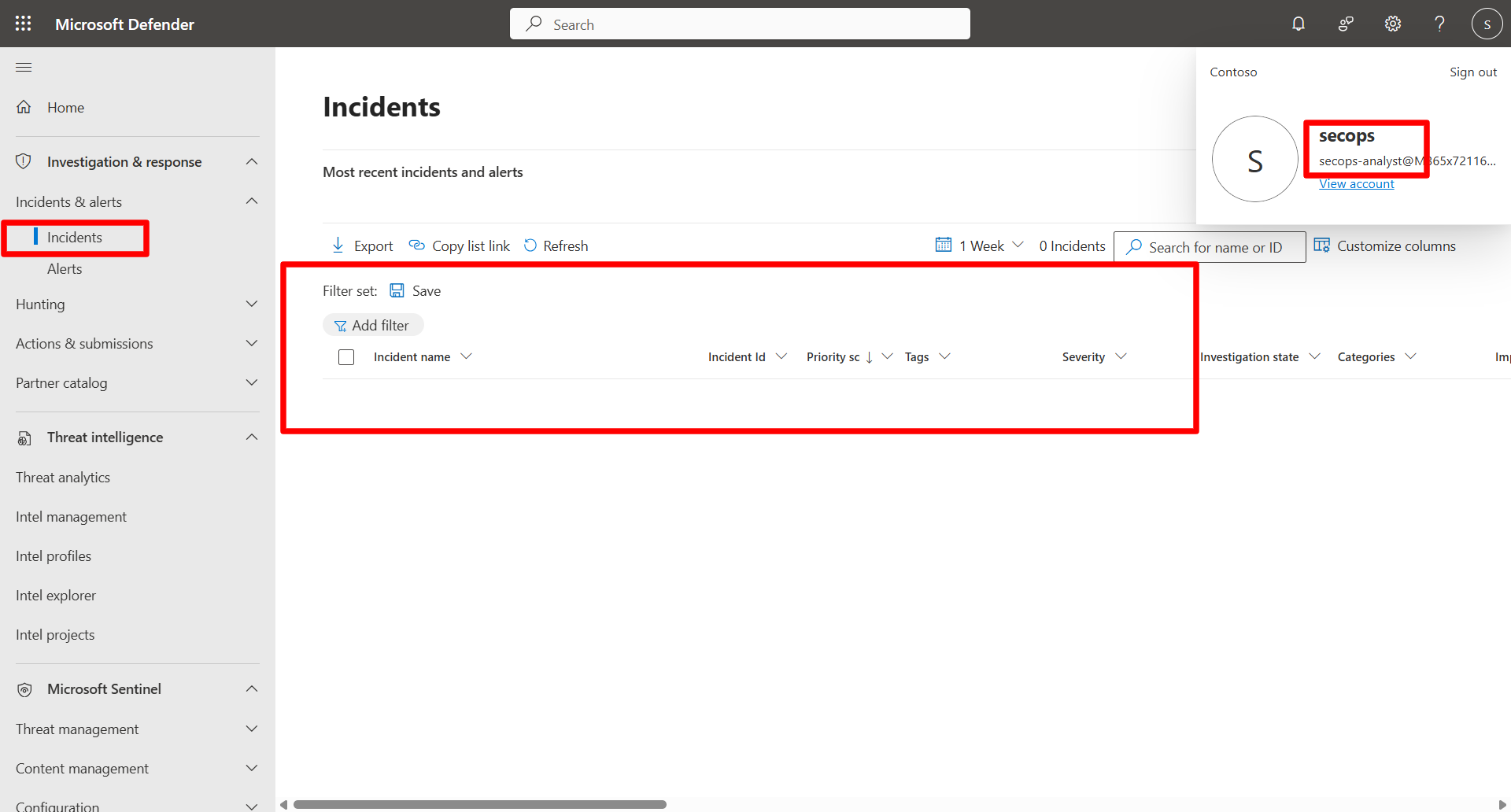
Confirm the user can see the Sentinel Workspace (law-sentinel-xdr-lab)
The user will not see the previously generated EICAR incident because it originated from Defender for Endpoint, and the user does not have Defender XDR permissions (Security Reader/Operator/Admin).
- Open an InPrivate or different browser session and go to