Task 03: Use topic nodes
Introduction
Structuring the conversation effectively is crucial for clear customer interactions.
Description
In this task, you’ll use topic nodes to clearly organize the agent’s conversation logic, ensuring Contoso’s customers receive structured and coherent responses.
Success criteria
- You’ve created and organized topic nodes effectively.
- You’ve verified correct conversational flow in tests.
Key tasks
01: Become familiar with topic nodes
-
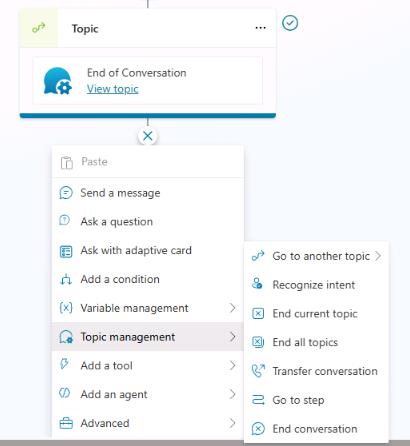
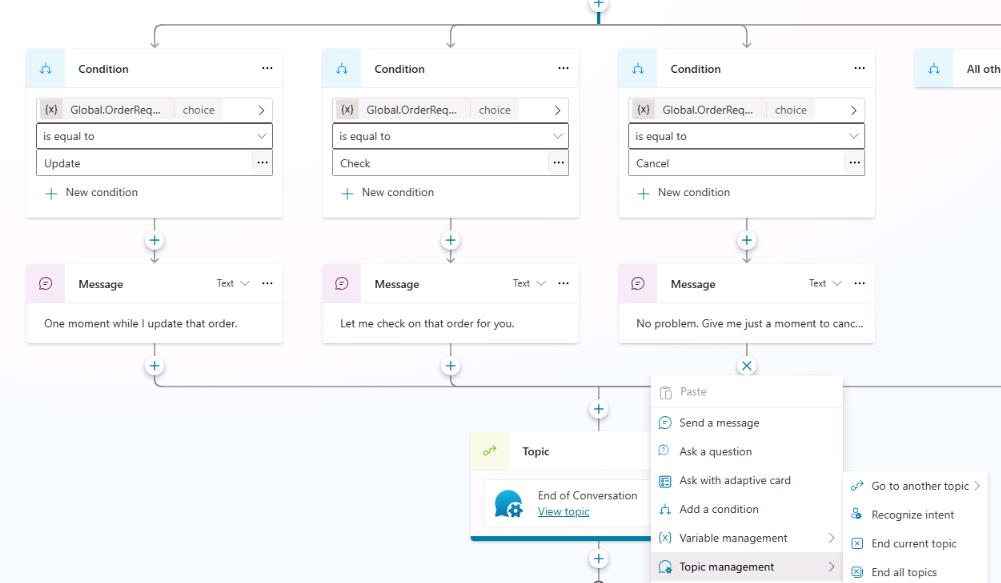
Below the End of conversation node, select + band then select Topic management.
-
You should see the following options:
- Go to another topic - Go to another topic that you need to select.
- End current topic - End the current topic. Typically, you’d use this option where the topic was called from another topic.
- End all topics - This node ends all active topics. The next message from the user is considered a new conversation and triggers the most appropriate topic based on that user message, starting a new active topic.
- Transfer conversation - Select this option to transfer to an agent and send a contextual message.
- Go to step - Go to another node in the open topic. This option is useful for looping scenarios or if you want to gather more information from the user.
- End conversation - Sends an endOfConversation activity. This can be useful for a client chat widget (for example, deployed to your website), to know that the chat session is over.
02: Create a new topic for order cancellations
-
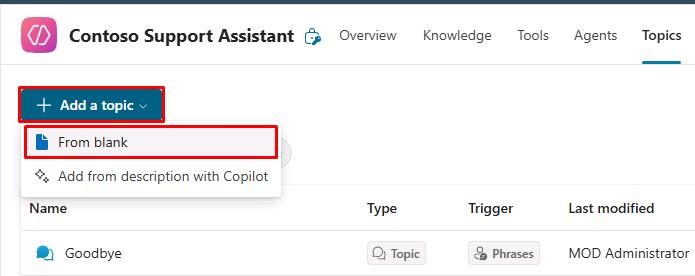
On the command bar for the agent, select Topics.

-
On the Topics page, select Add a topic and then select From blank.
-
Select Untitled in the upper-left part of the window, then change the topic name to
Order Cancellation.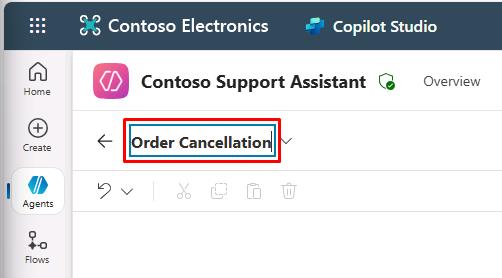
-
Within the Trigger node, hover over the Phrases section, then select the Change trigger button that appears in the upper-right part of the node.
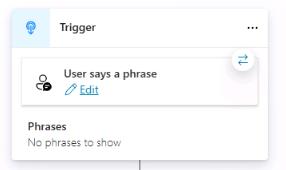
-
[]In the Change trigger dialog select It’s redirected to.
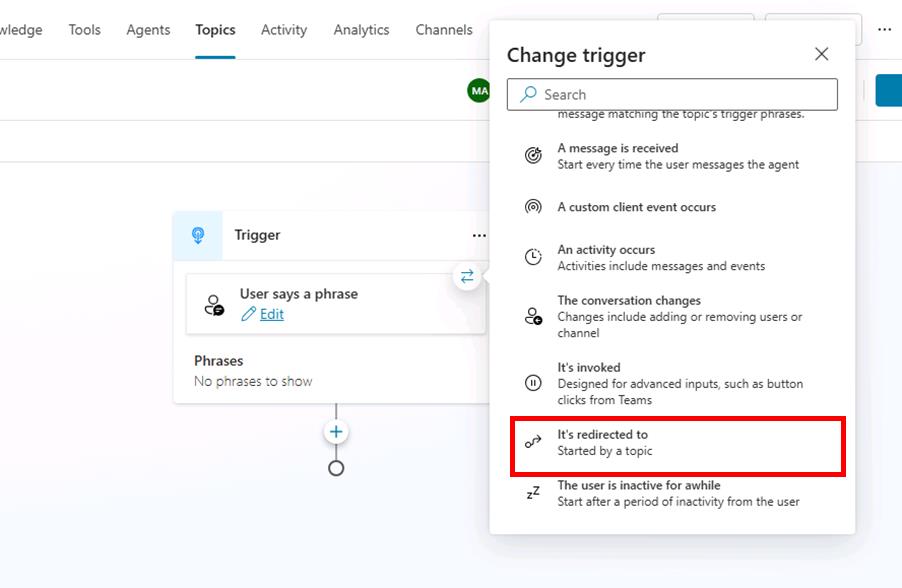
-
Below the Trigger node, select the + button and then select Send a message.
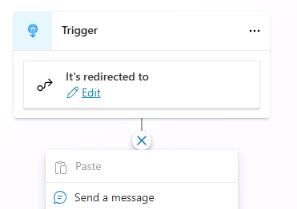
-
In the message field, enter the following text:
Your order has been canceled, thank you.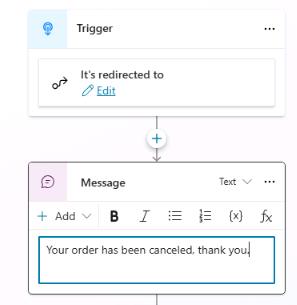
-
On the command bar for the agent, select Save.
03: Configure a node to go to another topic
-
On the command bar for the agent, select Topics.
-
Select the Check Order Status topic.
-
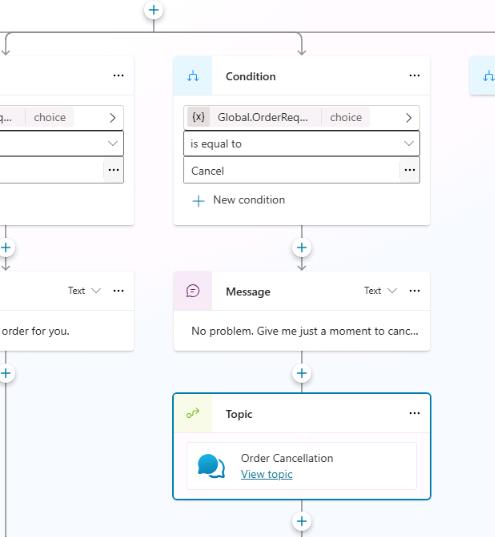
Within the Condition branch for Cancel, below the Message node, select the + button, select Topic management, then select Go to another topic.
-
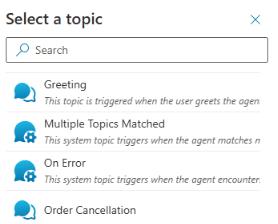
Select the Order Cancellation topic from the list.
-
On the command bar for the agent, select Save.
-
On the command bar for the agent, select Test.
-
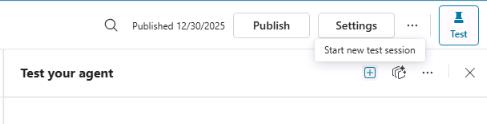
In the upper-right corner of the Test your agent pane, select Start new test session to start a new conversation.
-
Submit the following prompt and review the response:
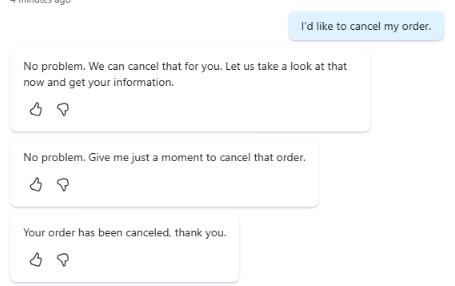
I'd like to cancel my order.