Task 02: Call the agent flow
Introduction
To enhance Contoso’s customer interactions, the agent flows, the agent will dynamically fetch and provide customers with relevant information in real-time.
Description
In this task, you’ll integrate your previously created agent flow with the conversational topic. You’ll configure the flow invocation and pass collected customer inputs to automate the process of information retrieval.
Success criteria
- You’ve linked your conversational topic to the agent flow.
- You’ve correctly configured topic variables to pass inputs to the flow.
- You’ve verified through testing that the integration works correctly.
Key tasks
01: Connect the agent flow to a topic
-
In the Check Ticket Status topic, select the Action node.
-
In the Power Automate inputs section, select the ellipsis (…) and then select the TicketNumber variable.
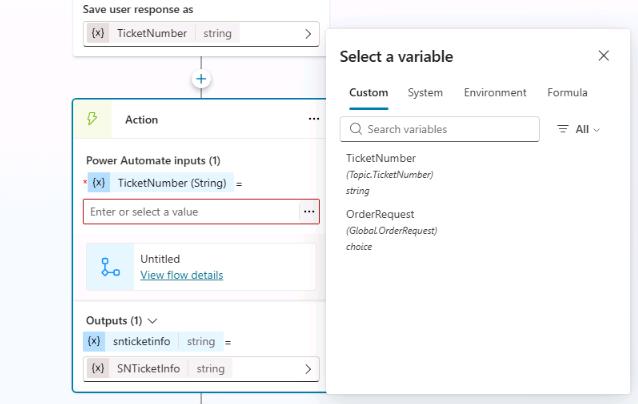
The output from the agent flow will be added to the SNTicketInfo variable.
02: Parse the JSON output
ServiceNow returns the full details of an incident in a JSON format. You need to parse the JSON so that Copilot Studio fully understands its content based on its schema.
-
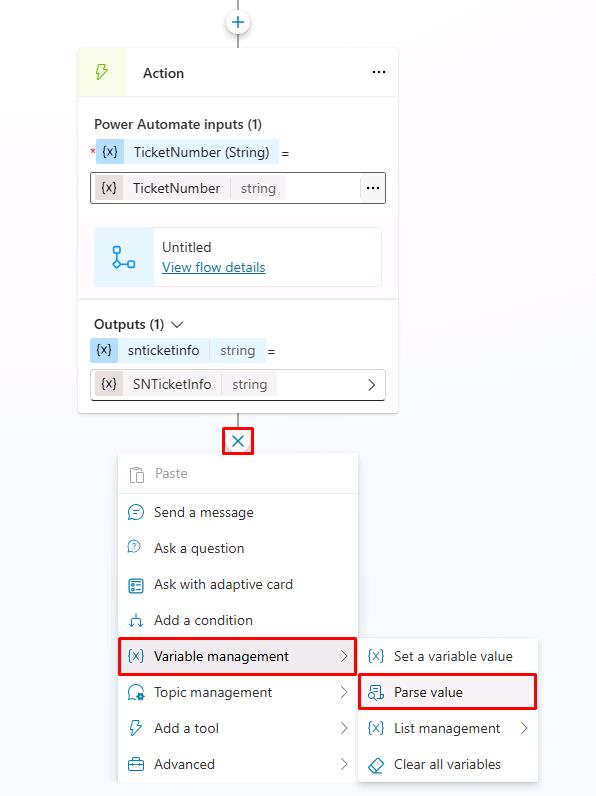
Below the Action node, select +. Select Variable Management and then select Parse value.
-
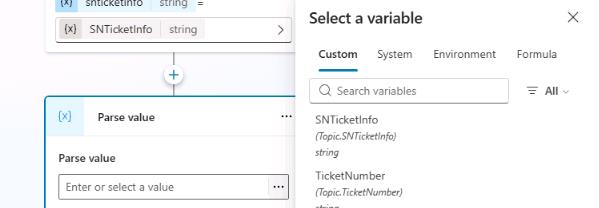
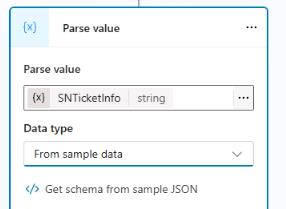
In the Parse value section, select the ellipsis (…) and then select the SNTicketInfo variable.
-
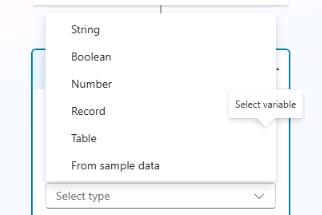
In the Data type field, select From sample data.
-
Select Get schema from sample JSON.
-
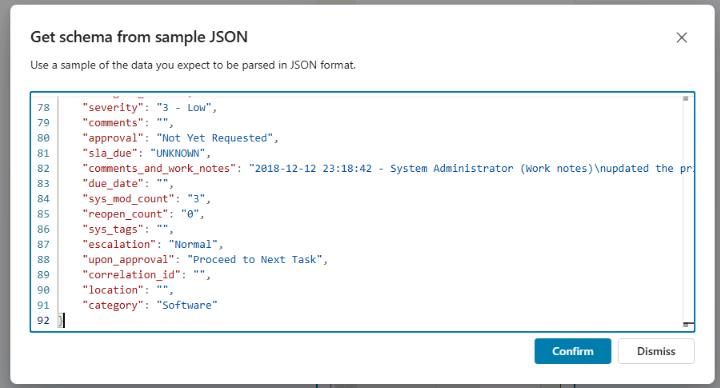
In the Get schema from sample JSON dialog, paste the following schema and then select Confirm:
 {
     "parent": "",
     "made_sla": "true",
     "caused_by": "",
     "watch_list": "",
     "upon_reject": "Cancel all future Tasks",
     "sys_updated_on": "2018-12-12 23:18:55",
     "child_incidents": "0",
     "hold_reason": "",
     "origin_table": "",
     "task_effective_number": "INC0009005",
     "approval_history": "",
     "number": "INC0009005",
     "resolved_by": "",
     "sys_updated_by": "admin",
     "opened_by": "System Administrator",
     "user_input": "",
     "sys_created_on": "2018-08-31 21:35:45",
     "sys_domain": "global",
     "state": "New",
     "route_reason": "",
     "sys_created_by": "admin",
     "knowledge": "false",
     "order": "",
     "calendar_stc": "",
     "closed_at": "",
     "cmdb_ci": "",
     "delivery_plan": "",
     "contract": "",
     "impact": "1 - High",
     "active": "true",
     "work_notes_list": "",
     "business_service": "",
     "business_impact": "",
     "priority": "1 - Critical",
     "sys_domain_path": "/",
     "rfc": "",
     "time_worked": "",
     "expected_start": "",
     "opened_at": "2018-08-31 21:35:21",
     "business_duration": "",
     "group_list": "",
     "work_end": "",
     "caller_id": "David Miller",
     "reopened_time": "",
     "resolved_at": "",
     "approval_set": "",
     "subcategory": "Email",
     "work_notes": "2018-12-12 23:18:42 - System Administrator (Work notes)\nupdated the priority to high based on the criticality of the Incident.\n\n",
     "universal_request": "",
     "short_description": "Email server is down.",
     "correlation_display": "",
     "delivery_task": "",
     "work_start": "",
     "assignment_group": "",
     "additional_assignee_list": "",
     "business_stc": "",
     "cause": "",
     "description": "Unable to send or receive emails.",
     "origin_id": "",
     "calendar_duration": "",
     "close_notes": "",
     "notify": "Do Not Notify",
     "service_offering": "",
     "sys_class_name": "Incident",
     "closed_by": "",
     "follow_up": "",
     "parent_incident": "",
     "sys_id": "ed92e8d173d023002728660c4cf6a7bc",
     "reopened_by": "",
     "incident_state": "New",
     "urgency": "1 - High",
     "problem_id": "",
     "company": "",
     "reassignment_count": "0",
     "activity_due": "2018-12-13 01:18:55",
     "assigned_to": "",
     "severity": "3 - Low",
     "comments": "",
     "approval": "Not Yet Requested",
     "sla_due": "UNKNOWN",
     "comments_and_work_notes": "2018-12-12 23:18:42 - System Administrator (Work notes)\nupdated the priority to high based on the criticality of the Incident.\n\n",
     "due_date": "",
     "sys_mod_count": "3",
     "reopen_count": "0",
     "sys_tags": "",
     "escalation": "Normal",
     "upon_approval": "Proceed to Next Task",
     "correlation_id": "",
     "location": "",
     "category": "Software"
 }
-
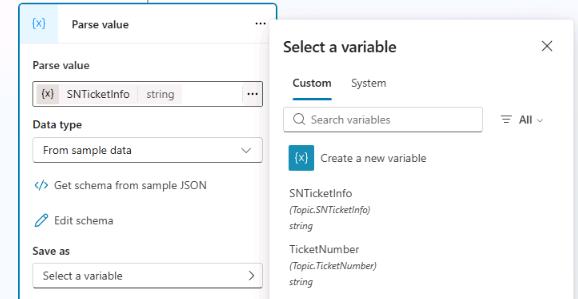
In the Save as section, select Select a variable and then select Create a new variable.
-
Select Var1. Then, in the Variables properties pane, in the Variable name field, enter
SNTicketInfoParsed.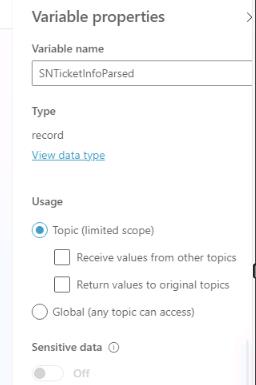
-
Below the Parse value node, add a new Message node and enter the following message:
The status of ticket {Topic.TicketNumber} ({Topic.SNTicketInfoParsed.short_description}) is {Topic.SNTicketInfoParsed.state}.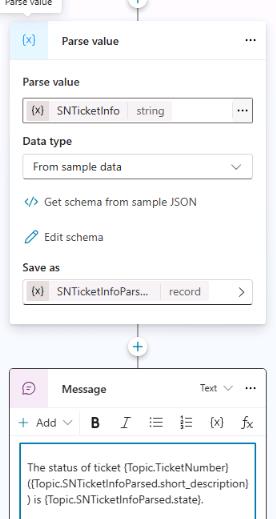
You can apply bold by surrounding the text with **.
-
On the command bar for the agent, select Save.
-
On the command bar for the agent, select Test.
-
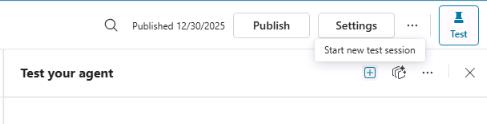
In the upper-right corner of the Test your agent pane, select Start new test session to start a new conversation.
-
Submit the following prompt and review the response:
What is the status of my ticket INC0007001?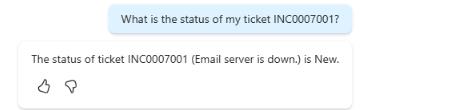
-
Leave the topic page open.
03: Display the ServiceNow ticket information in an adaptive card
-
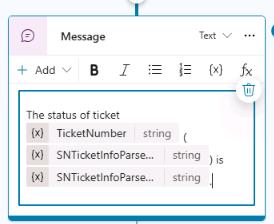
In the Message node, select the message text and then select Delete (the trash can icon) to delete the current message.
-
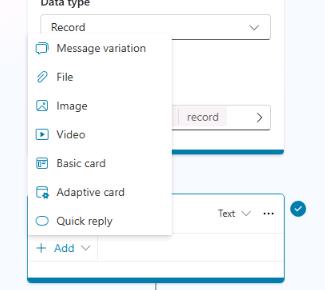
In the Message node, select + Add and then select Adaptive card.
-
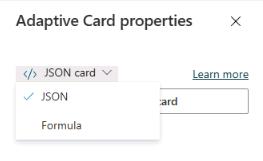
In the Adaptive Card properties pane, select JSON card and then select Formula.
-
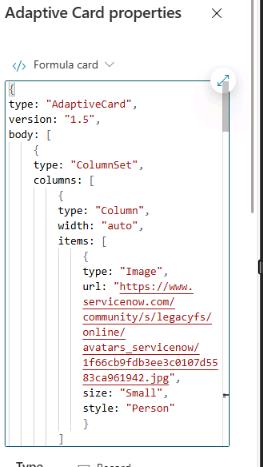
Replace the text in the text with the following formula:
 {
 type: "AdaptiveCard",
 version: "1.5",
 body: [
     {
     type: "ColumnSet",
     columns: [
         {
         type: "Column",
         width: "auto",
         items: [
             {
             type: "Image",
             url: "https://www.servicenow.com/community/s/legacyfs/online/avatars_servicenow/1f66cb9fdb3ee3c0107d5583ca961942.jpg",
             size: "Small",
             style: "Person"
             }
         ]
         },
         {
         type: "Column",
         width: "stretch",
         items: [
             {
             type: "TextBlock",
             text: Topic.SNTicketInfoParsed.short_description,
             weight: "Bolder",
             size: "Large",
             wrap: true,
             color: "Attention",
             horizontalAlignment: "Left"
             }
         ],
         verticalContentAlignment: "Center",
         horizontalAlignment: "Center"
         }
     ]
     },
     {
     type: "TextBlock",
     text: Topic.SNTicketInfoParsed.description,
     weight: "Lighter",
     wrap: true
     },
     {
     type: "FactSet",
     facts: [
         {
         title: "Number:",
         value: Topic.SNTicketInfoParsed.number
         },
         {
         title: "State:",
         value: Topic.SNTicketInfoParsed.state
         },
         {
         title: "Priority:",
         value: Topic.SNTicketInfoParsed.priority
         },
         {
         title: "Impact:",
         value: Topic.SNTicketInfoParsed.impact
         },
         {
         title: "Urgency:",
         value: Topic.SNTicketInfoParsed.urgency
         },
         {
         title: "Category:",
         value: Topic.SNTicketInfoParsed.category
         },
         {
         title: "Subcategory:",
         value: Topic.SNTicketInfoParsed.subcategory
         },
         {
         title: "Caller ID:",
         value: Topic.SNTicketInfoParsed.caller_id
         },
         {
         title: "Opened By:",
         value: Topic.SNTicketInfoParsed.opened_by
         },
         {
         title: "Opened At:",
         value: Topic.SNTicketInfoParsed.opened_at
         }
     ],
     spacing: "Small"
     },
     {
     type: "TextBlock",
     text: "Comments and notes:",
     weight: "Bolder",
     size: "Medium",
     wrap: true
     },
     {
     type: "TextBlock",
     text: Topic.SNTicketInfoParsed.comments_and_work_notes,
     wrap: true,
     size: "Small"
     }
 ],
 actions: [
     {
     type: "Action.OpenUrl",
     title: "Update Ticket",
     url: "https://dev204932.service-now.com/nav_to.do?uri=incident.do?sys_id=" & Topic.SNTicketInfoParsed.sys_id & "%26sysparm_view=ess"
     }
 ],
 '$schema': "http://adaptivecards.io/schemas/adaptive-card.json"
 }
-
On the command bar for the agent you created, select Save.
-
On the command bar for the agent, select Test.
-
In the upper-right corner of the Test your agent pane, select Start new test session to start a new conversation.
-
Submit the following prompt and review the response:
What is the status of my ticket INC0007001?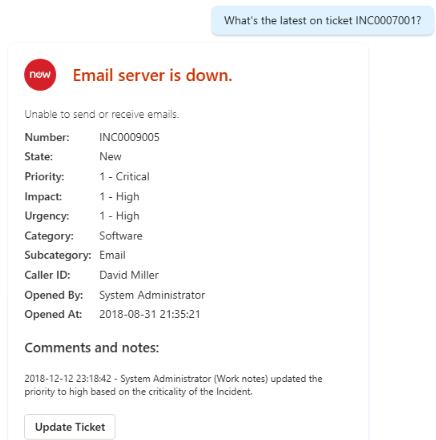
-
Leave the topic page open.