Task 02: Configure Microsoft Defender for Office 365 Safe Links and Safe Attachments
Protect users from malicious email links and attachments by enabling preset security policies in Microsoft Defender for Office 365.
-
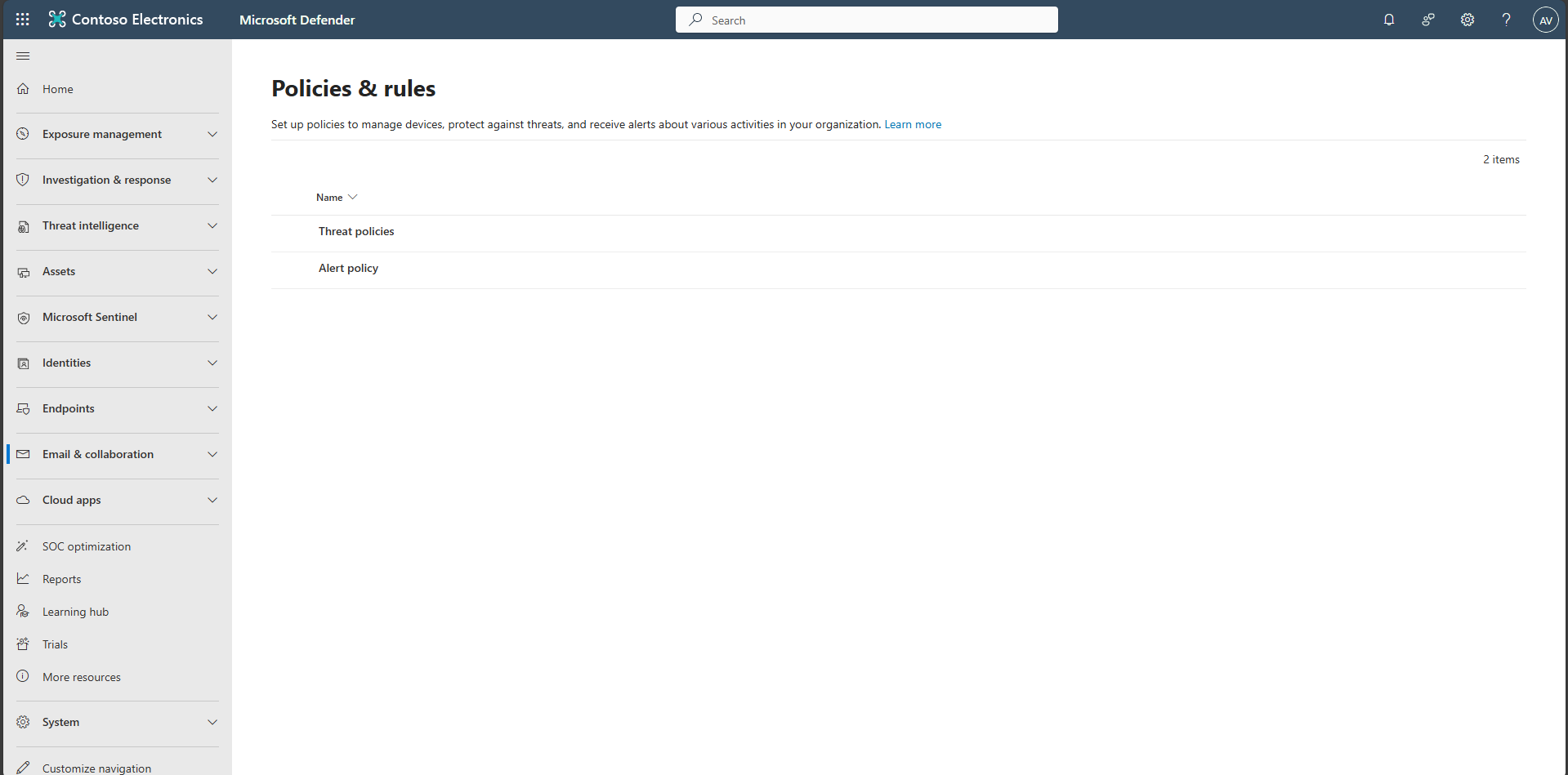
In the leftmost pane, select Email & collaboration > Policies & rules.
-
Select Threat policies.
-
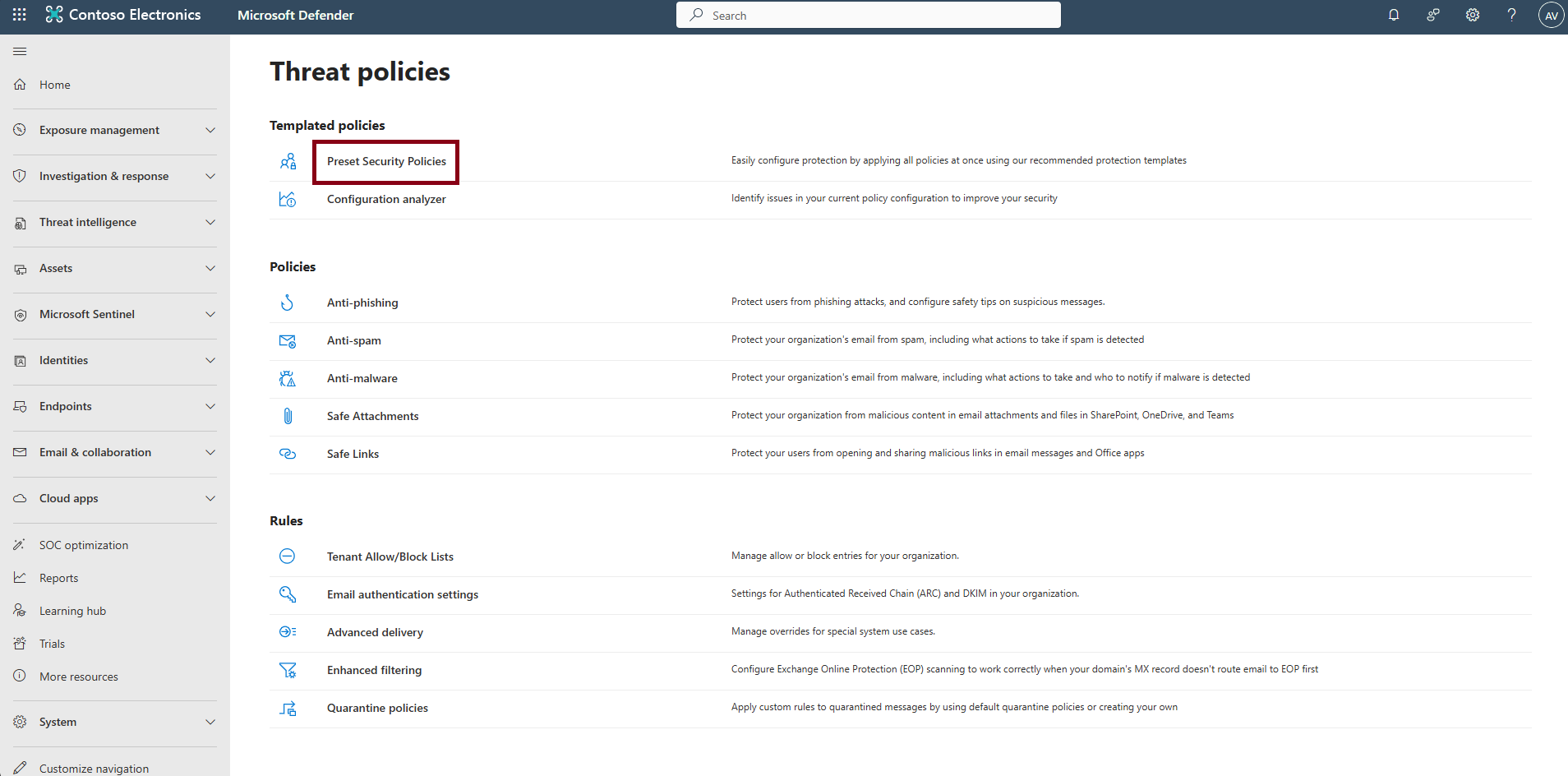
Select Preset Security Policies.
-
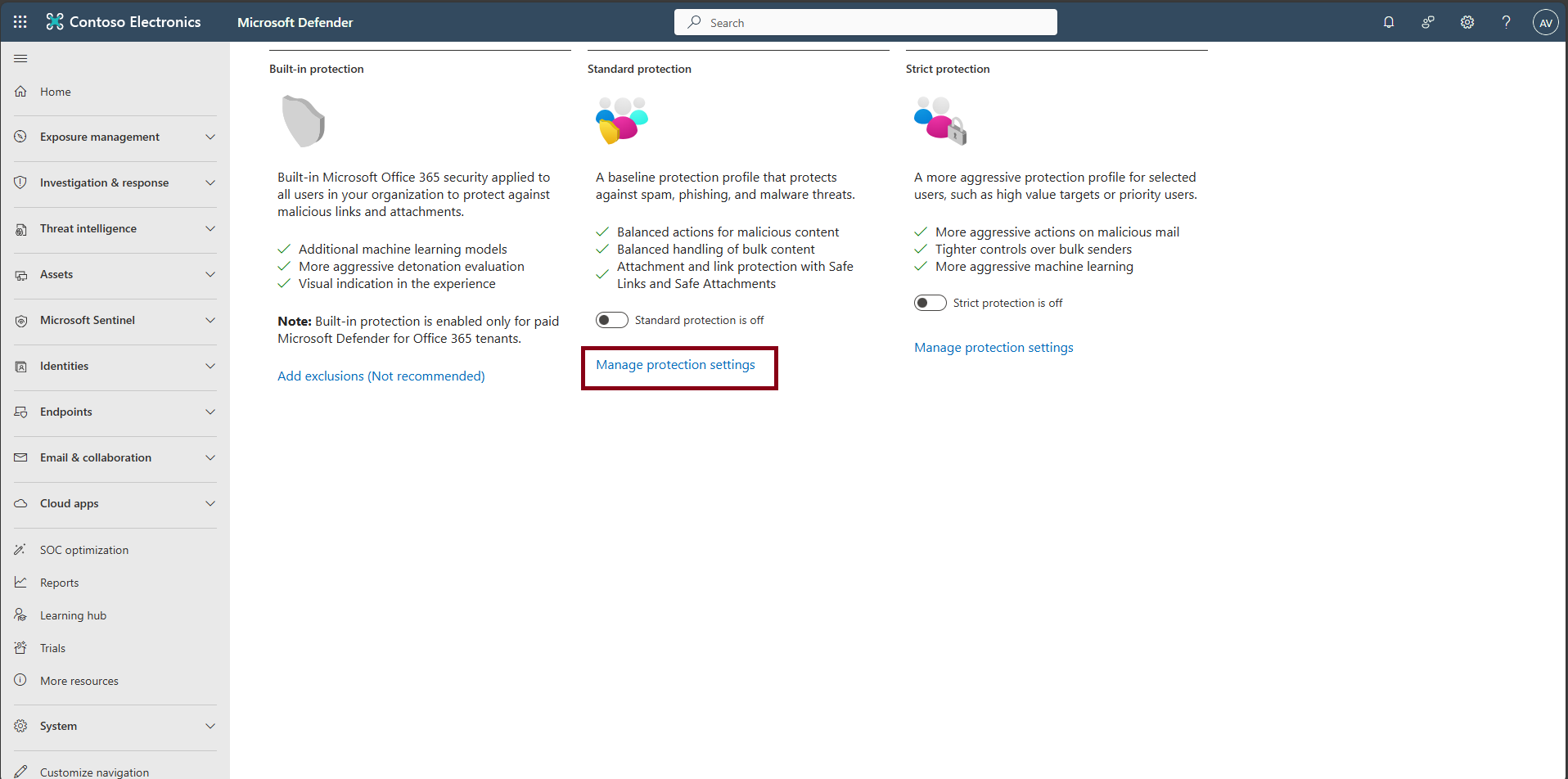
Under Standard protection, select Manage protection settings to start the wizard.
Expand here to configure Safe Links and Safe Attachments
-
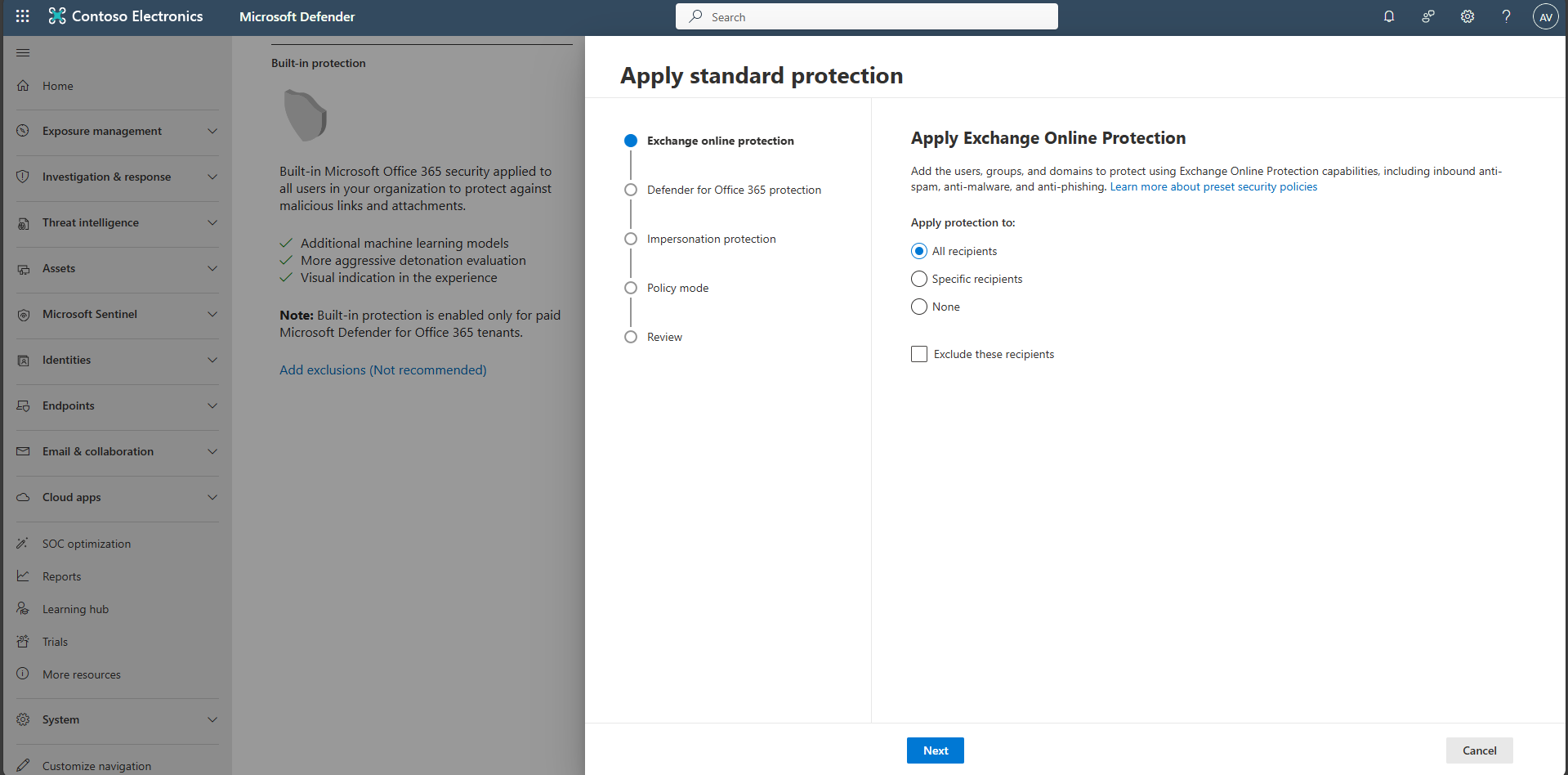
On the Exchange Online Protection page, select All recipients, then select Next.
-
On the Defender for Office 365 Protection page, select All recipients, then select Next.
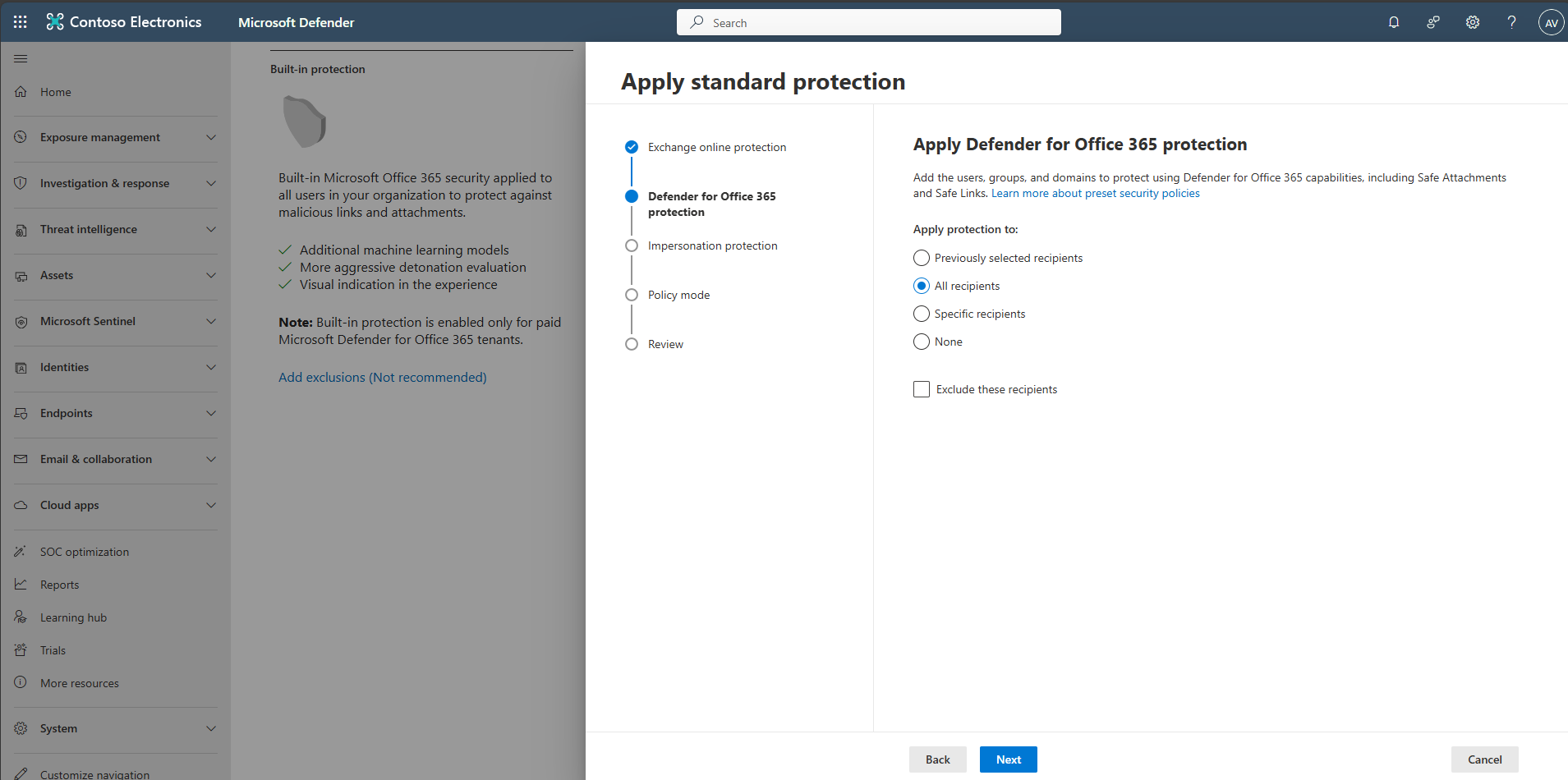
The assignments above create or update Safe Links and Safe Attachments policies for everyone in the organization.
-
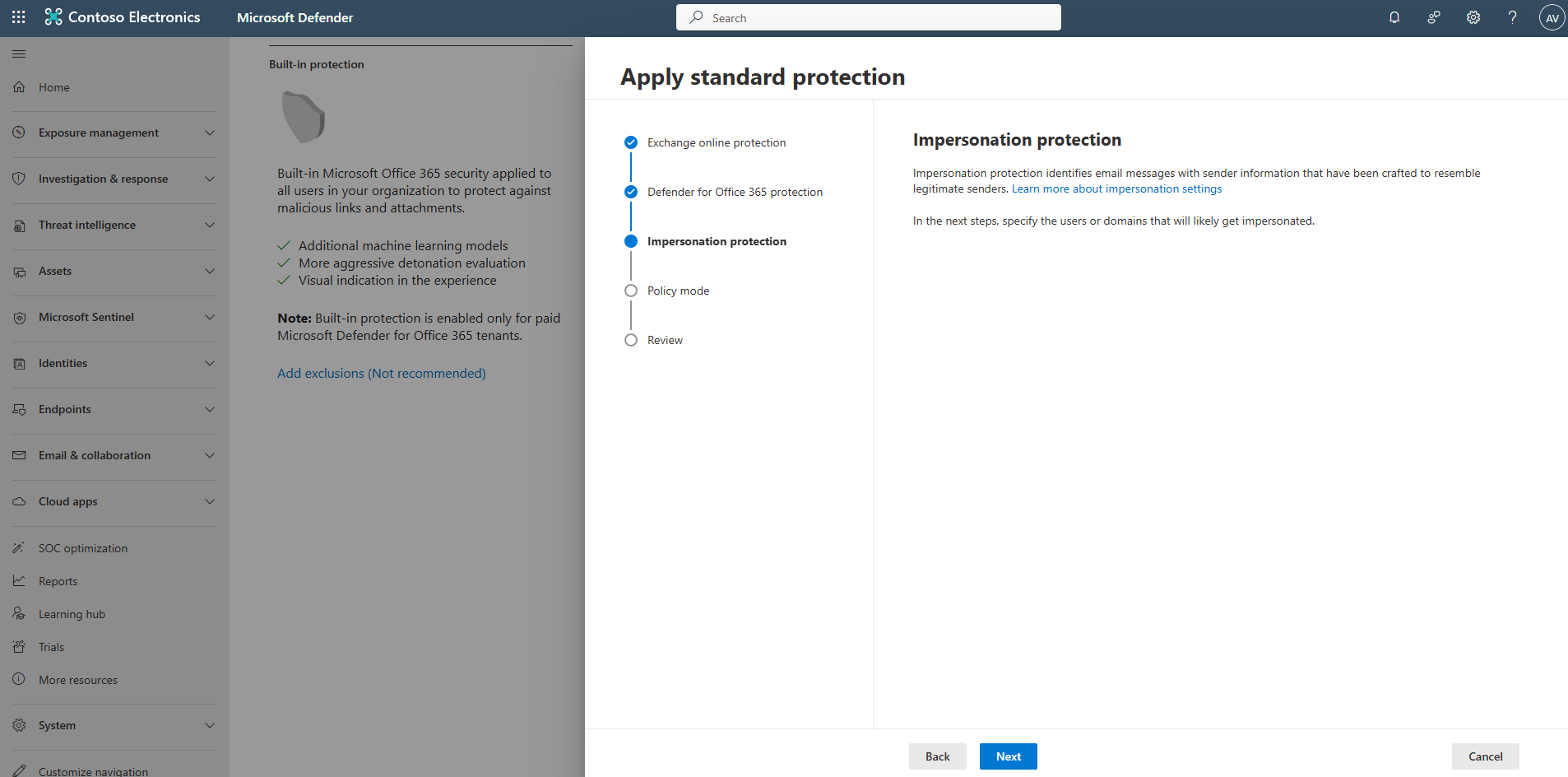
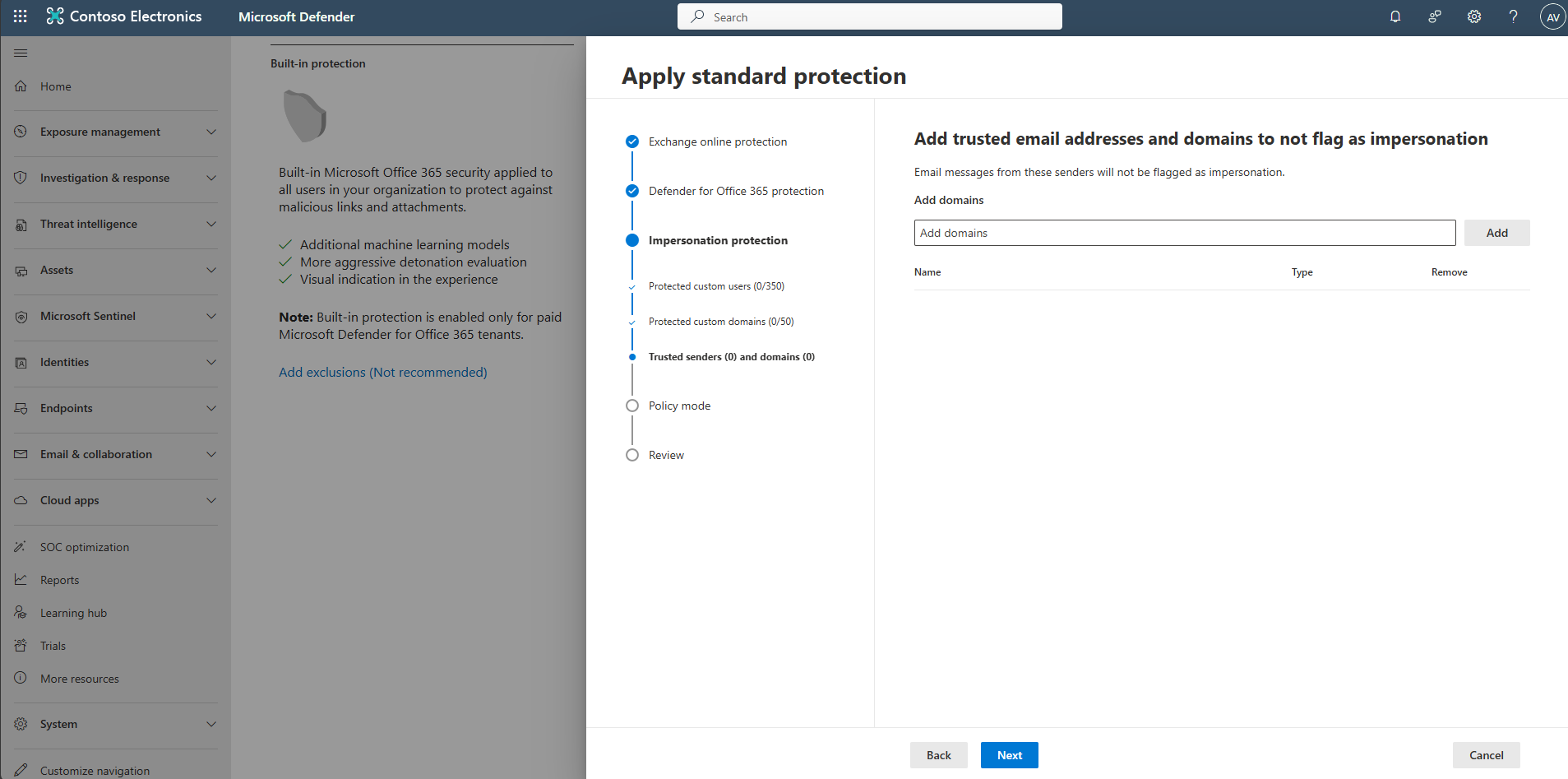
On the Impersonation Protection page, select Next.
-
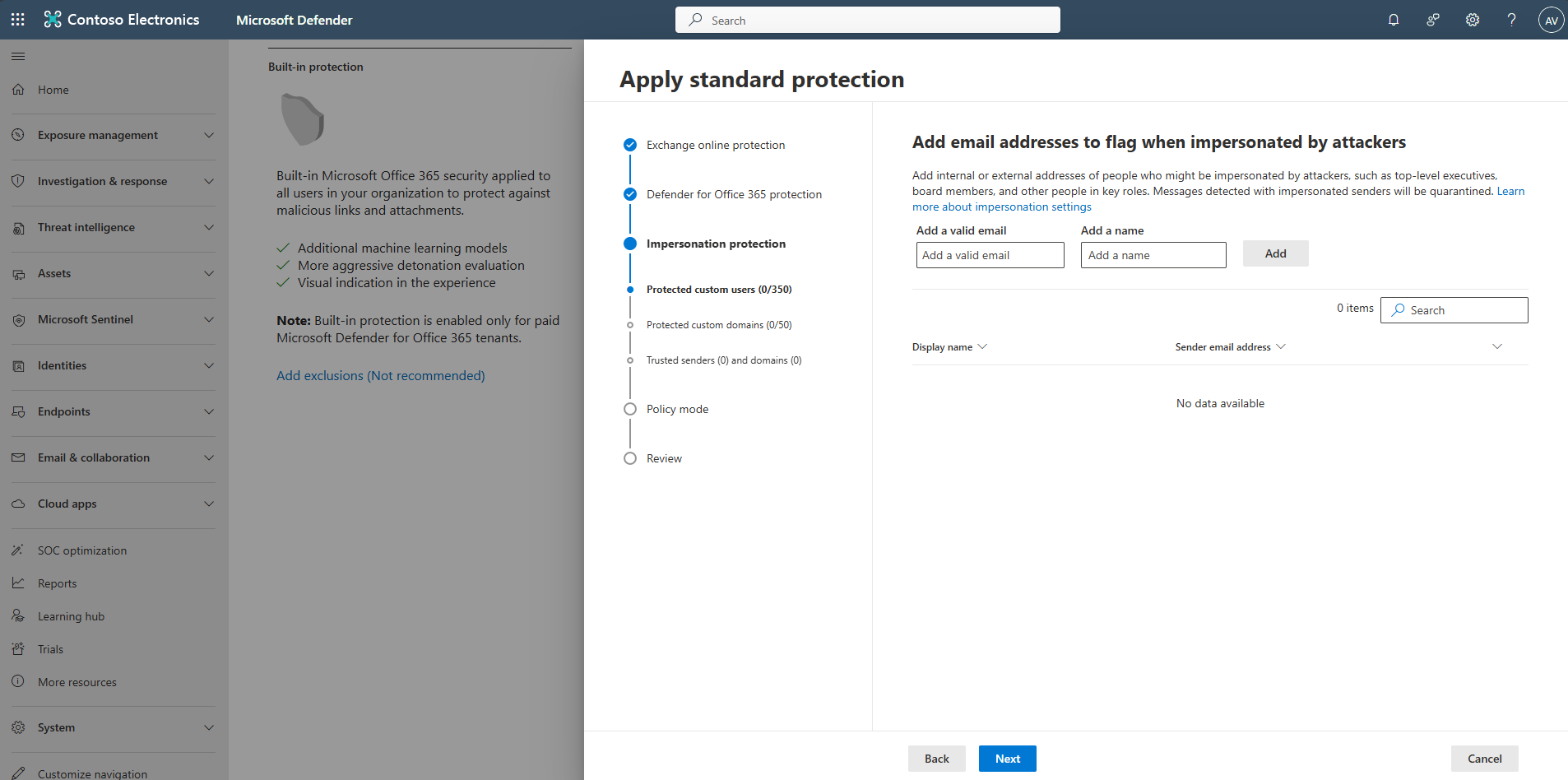
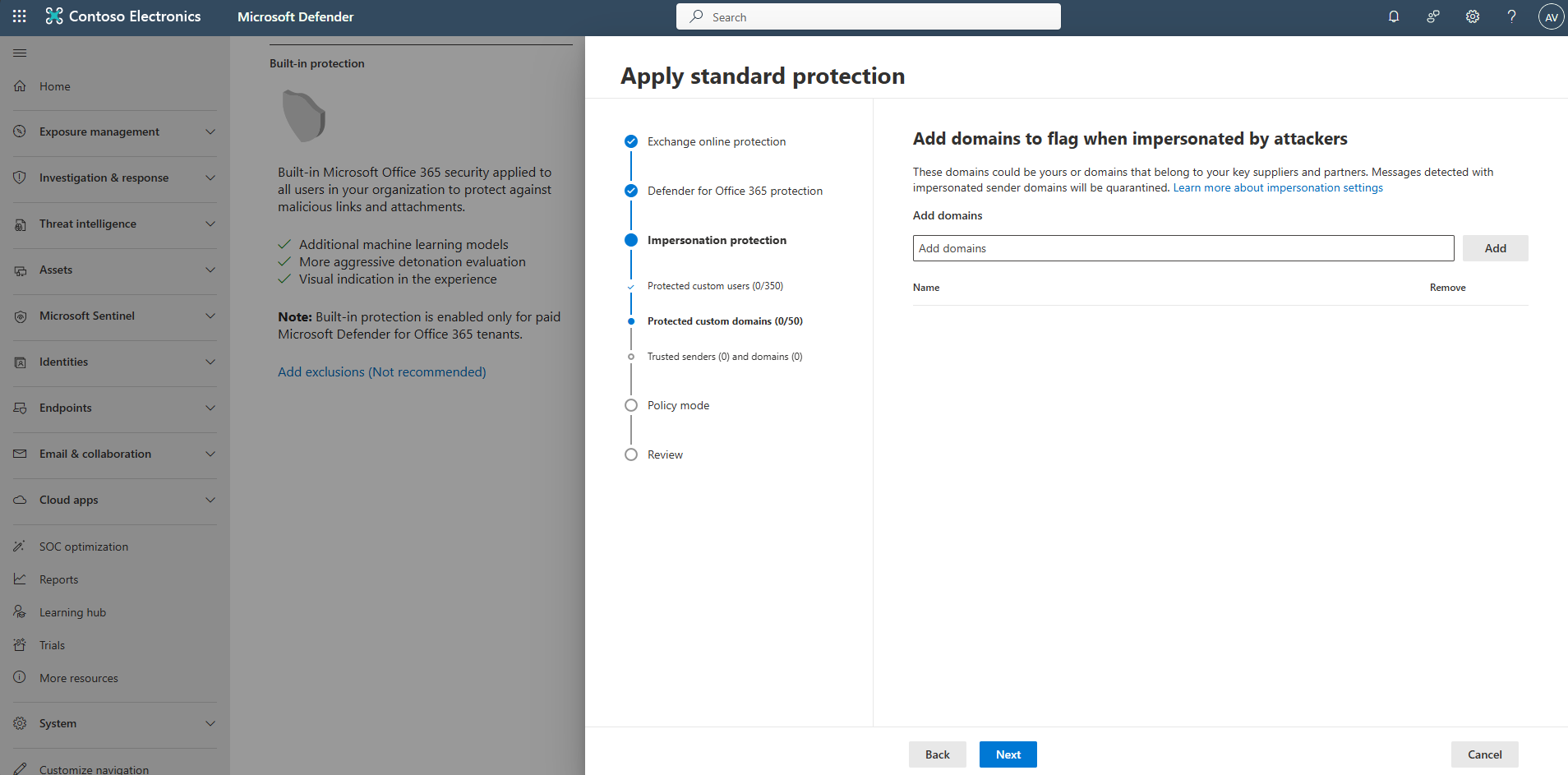
Optionally add VIP mailboxes, domains, and trusted senders, then select Next.
-
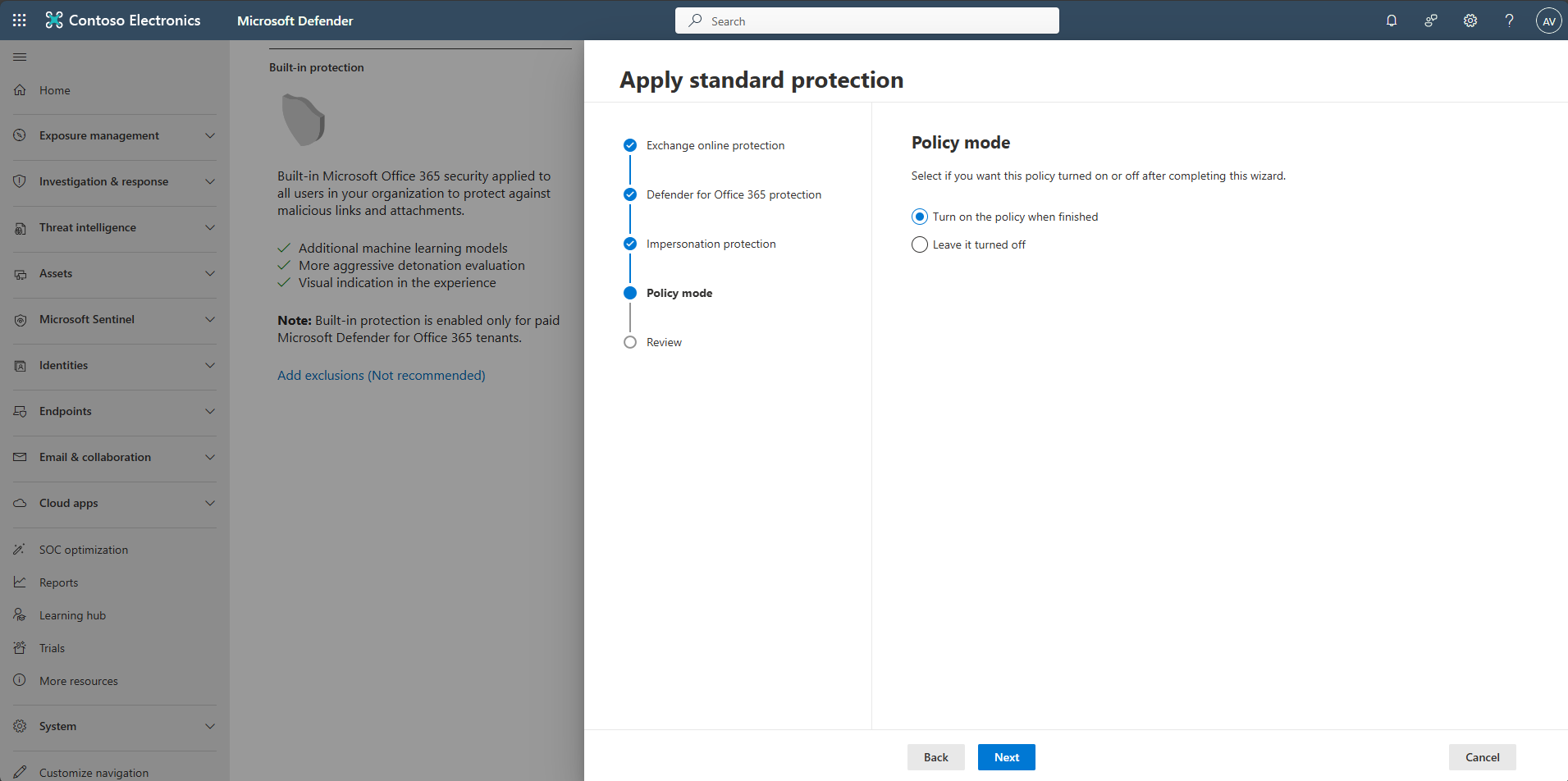
On the Policy mode page, select Turn on the policy when finished and select Next.
-
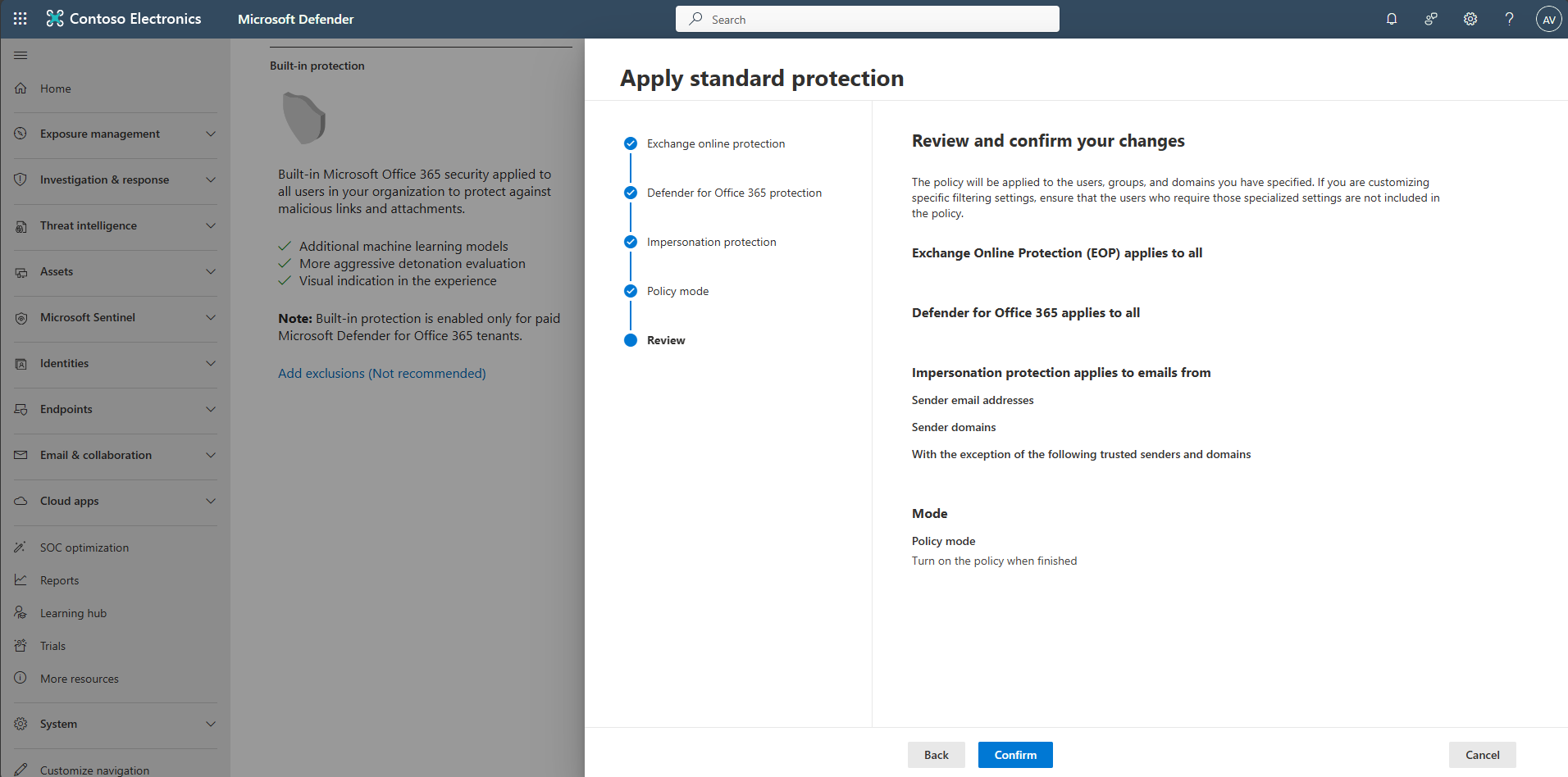
Select Confirm to submit and then select Done.
-