Task 03: Configure Microsoft Defender Safe Attachments
Enable Safe Attachments to scan and detonate email and collaboration-file attachments in a secure sandbox, blocking malicious content before it reaches users.
-
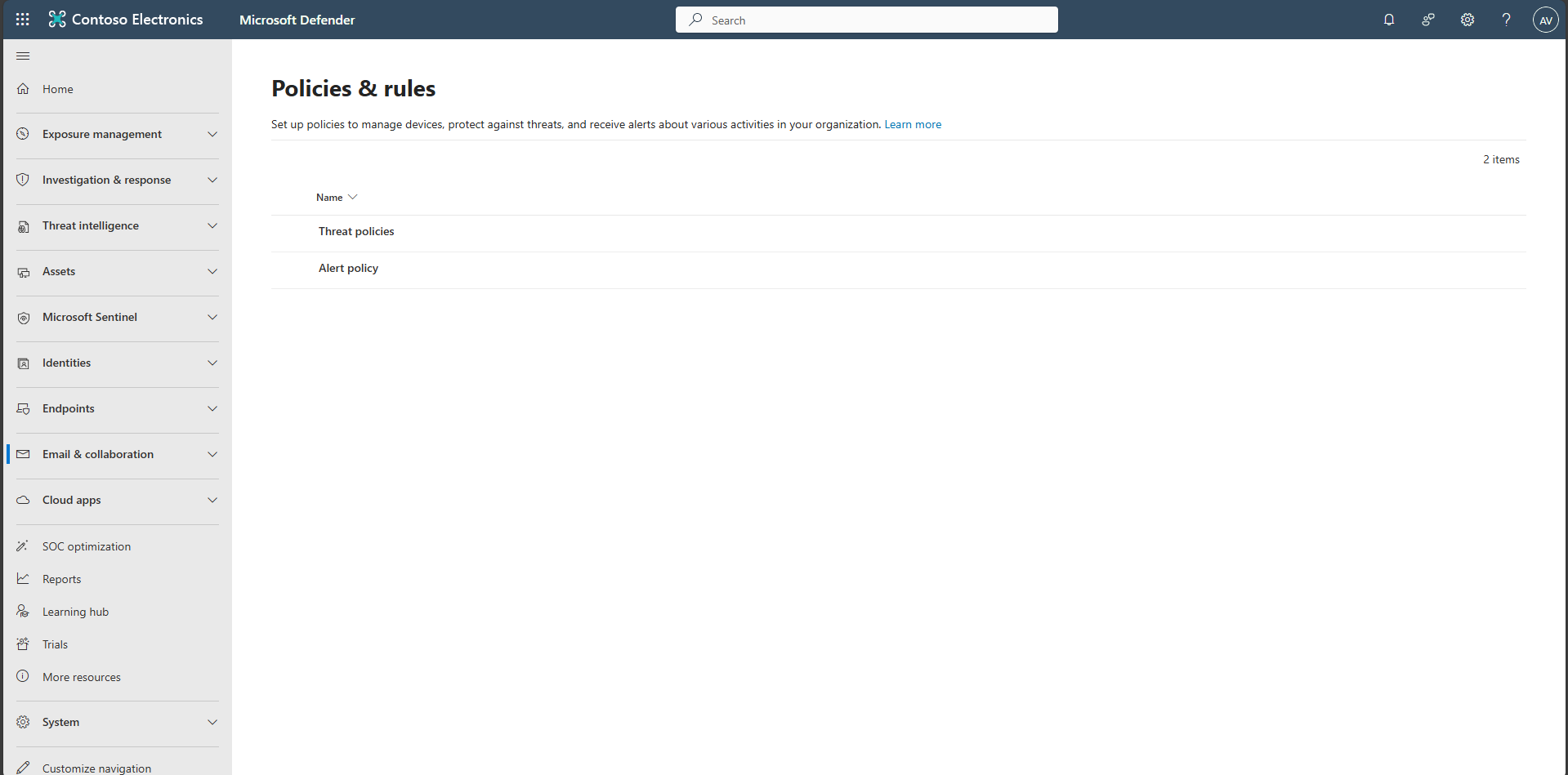
In the leftmost pane, select Email & collaboration > Policies & rules > Threat policies.
-
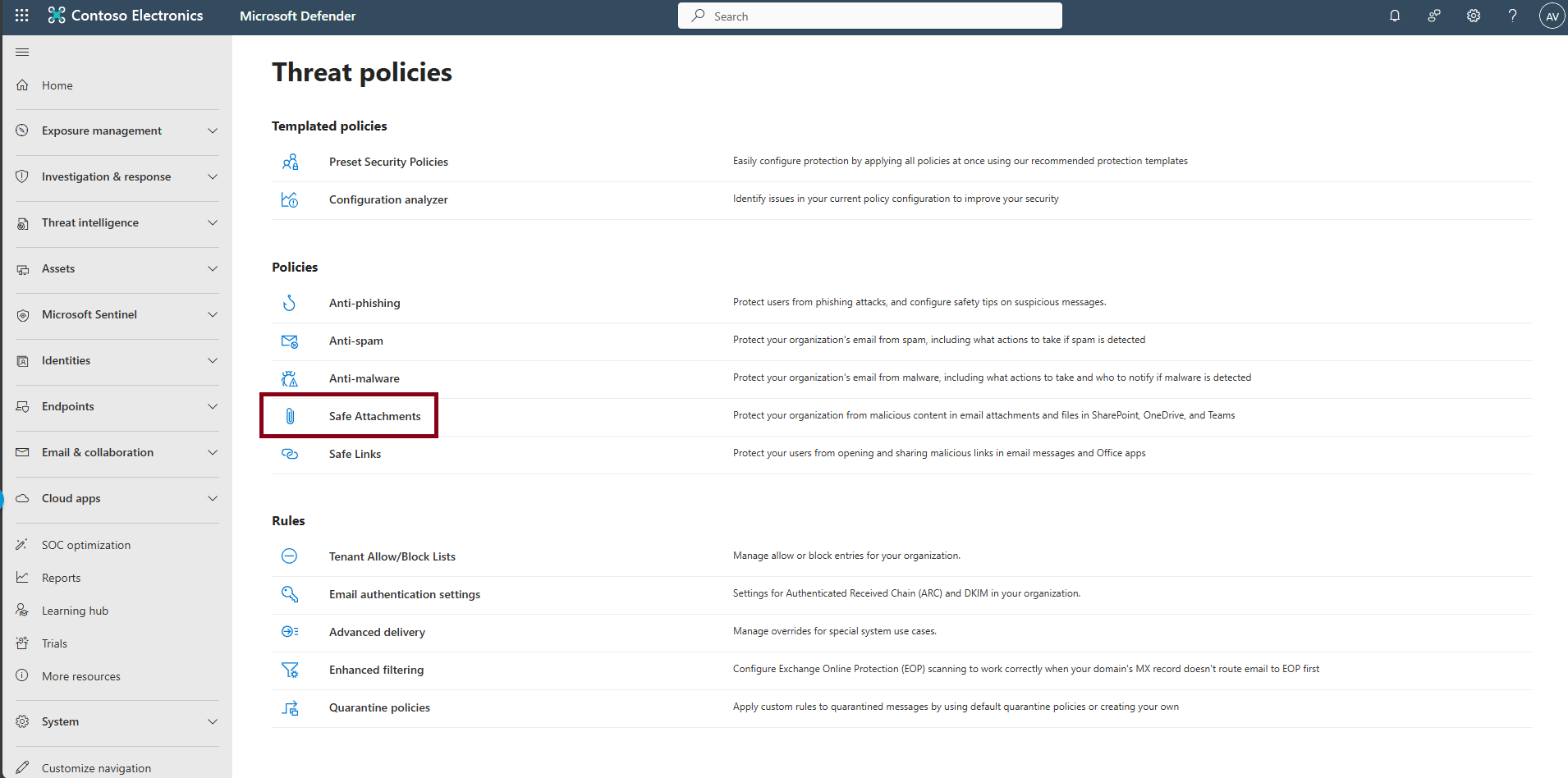
Select Safe Attachments.
-
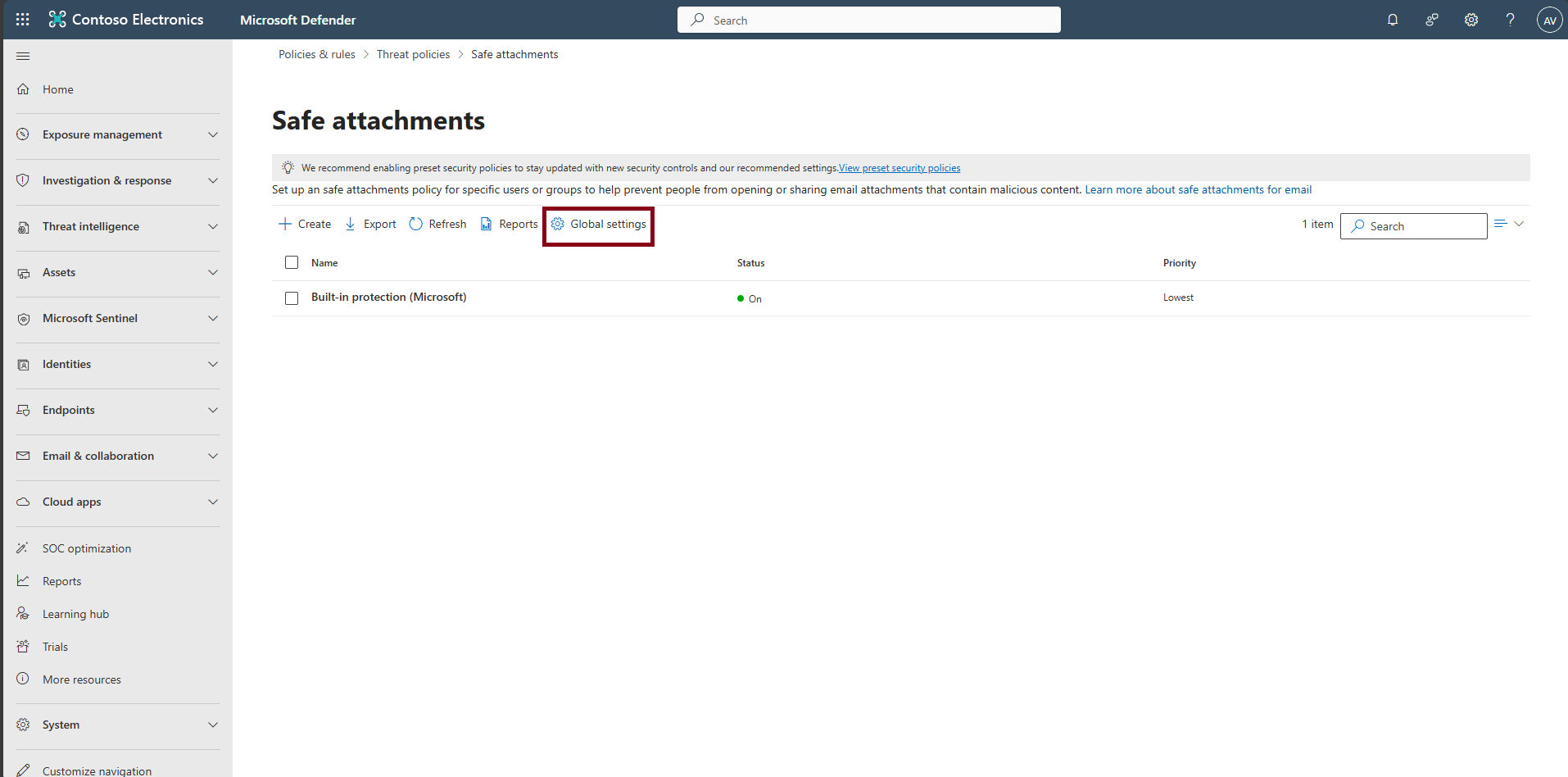
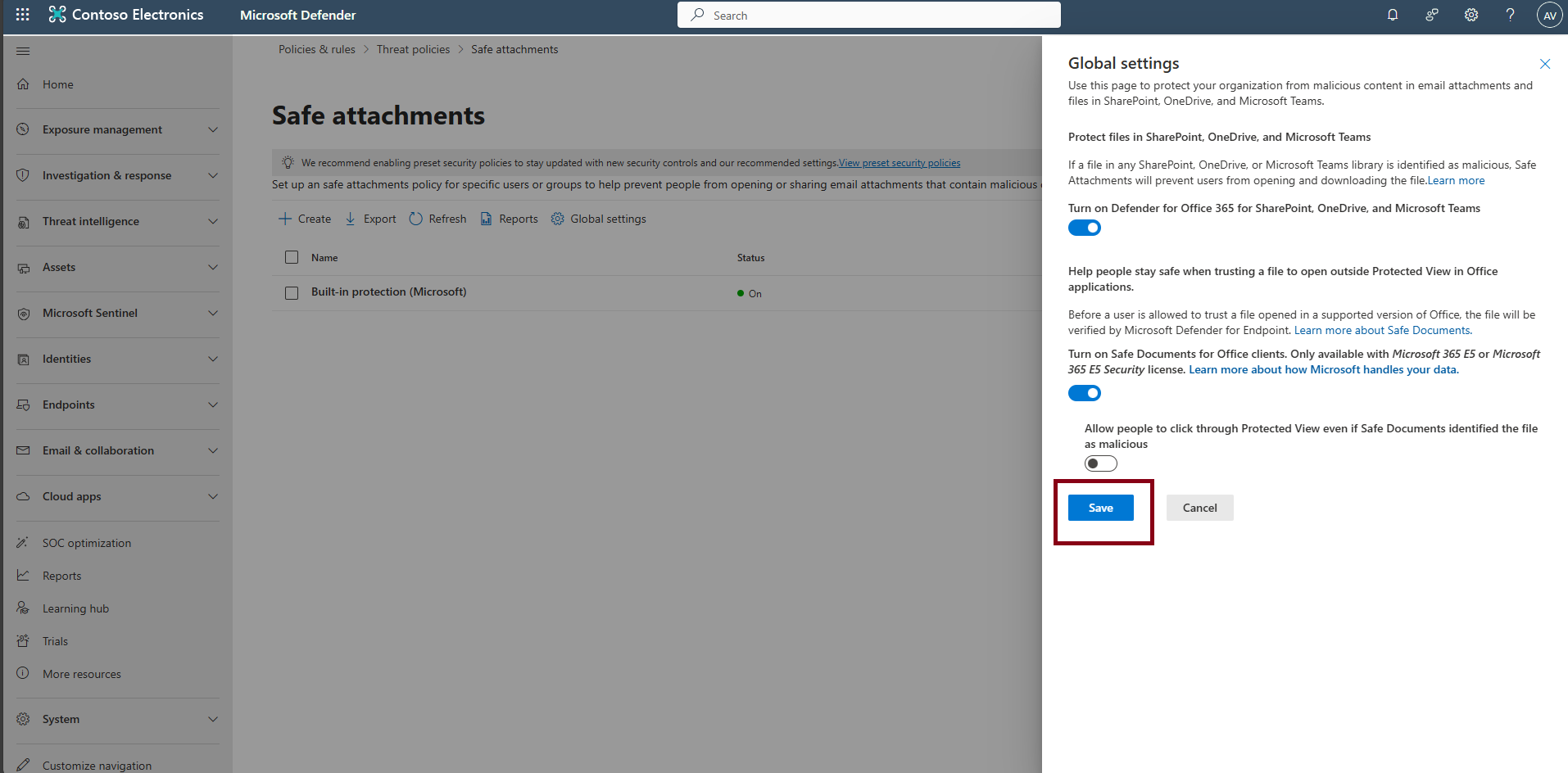
Select Global settings.
-
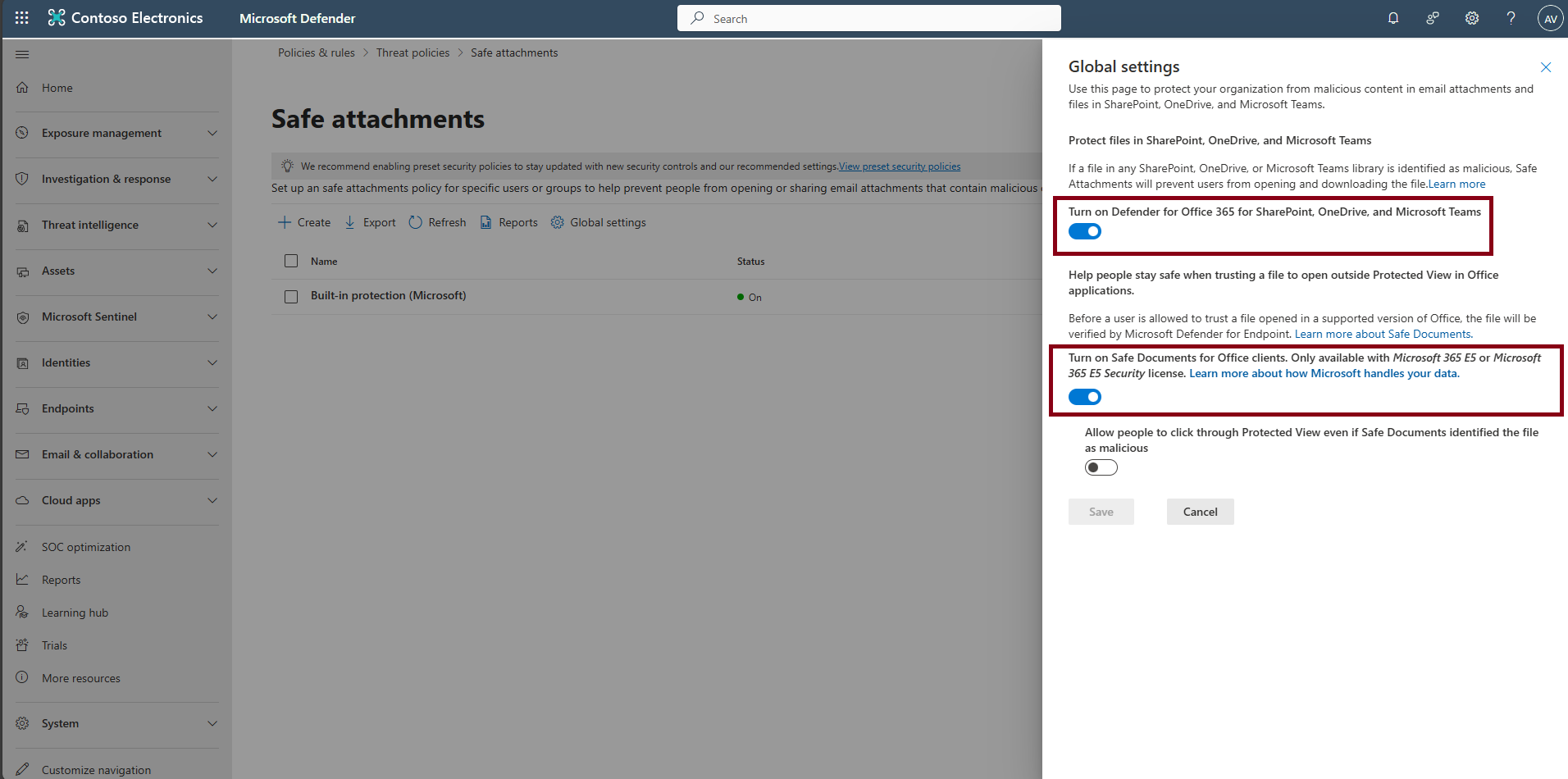
Ensure the following options are enabled:
- Defender for Office 365 for SharePoint, OneDrive, and Microsoft Teams
- Safe Documents for Office clients
-
If necessary, select Save.
Confirm Safe Attachments is active. It detonates attachments at delivery time to detect and block malicious files across Exchange, SharePoint, OneDrive, and Teams.