Task 07: Validate Defender for Identity agent health
-
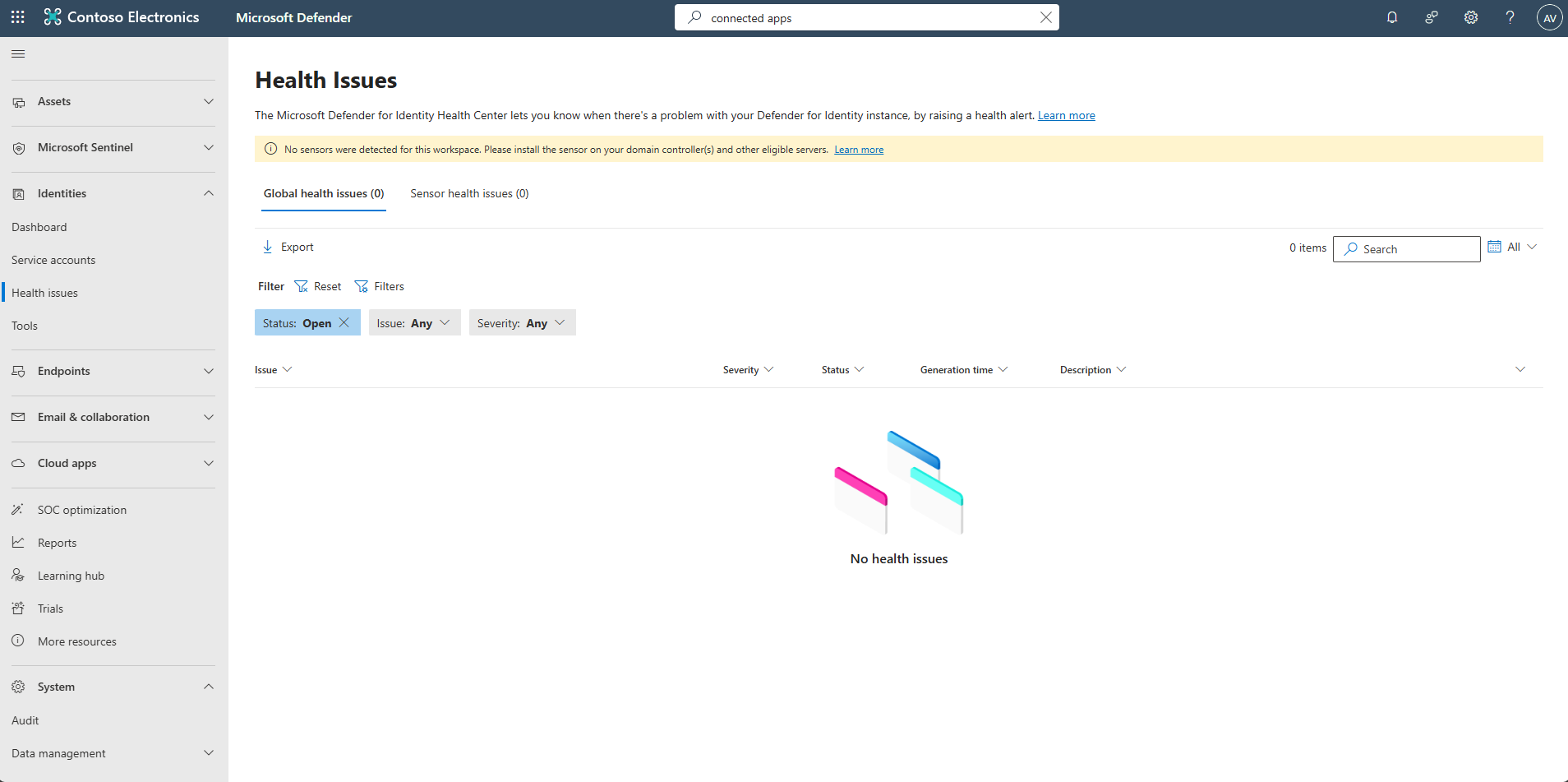
In the leftmost pane, select Identities > Health issues to resolve any alerts.
-
In the leftmost pane, go to System > Settings.
-
Select Identities > Sensors to confirm status, version, and network adapters.
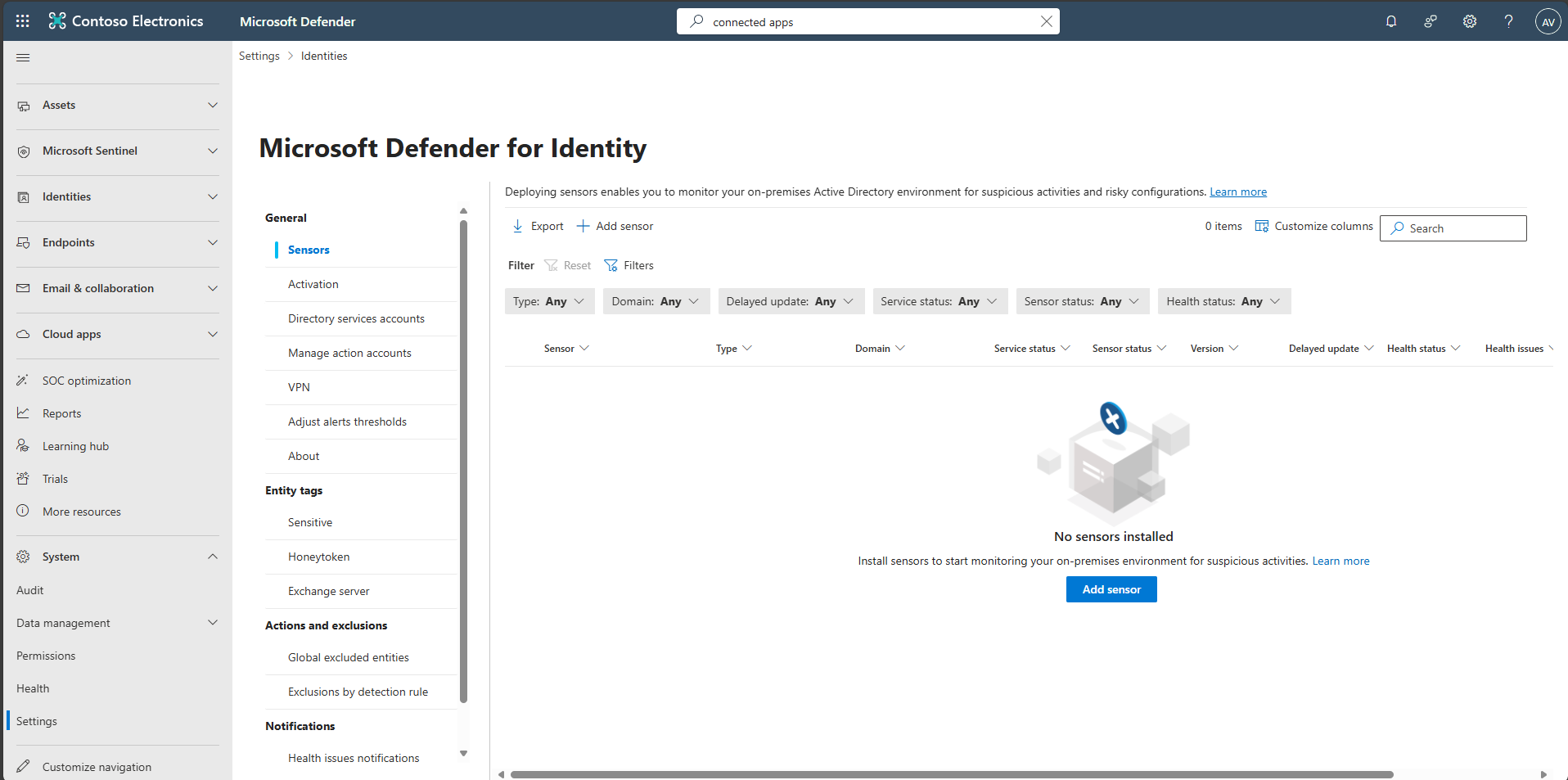
If a sensor is outdated/not starting, update or reinstall the package.
-
In the leftmost pane, select Investigation & response > Hunting > Advanced hunting.
-
Copy the following KQL into the query window, select the entire query, then select Run query.
Expand here to copy the Ingestion-KQL-4.txt
Selecting the Copy option in the upper-right corner of the code block and pasting with Ctrl+V will be significantly faster than selecting Type!
 let DemoMdiSensorHealth = datatable(TimeGenerated:datetime, Sensor:string, DomainController:string, Status:string, Version:string)
 [
   datetime(2025-09-14T21:40:00Z),"Sensor-DC01","DC01.corp.contoso.com","Unhealthy","3.0.1",
   datetime(2025-09-14T23:57:00Z),"Sensor-DC02","DC02.corp.contoso.com","Healthy","3.0.1",
   datetime(2025-09-15T00:03:00Z),"Sensor-DC01","DC01.corp.contoso.com","Healthy","3.0.1"
 ];
 DemoMdiSensorHealth
 | summarize LastHB=max(TimeGenerated), AnyUnhealthy=any(Status == "Unhealthy") by Sensor, DomainController, Version
This KQL query uses a custom demo table to simulate sensor health data, not production logs. It includes realistic fields and timestamps relative to now() so the results are always current. To use it with real data, simply replace the demo table reference with the actual SensorHealth Custom Log Analytics table that stores real sensor heartbeat and status information.
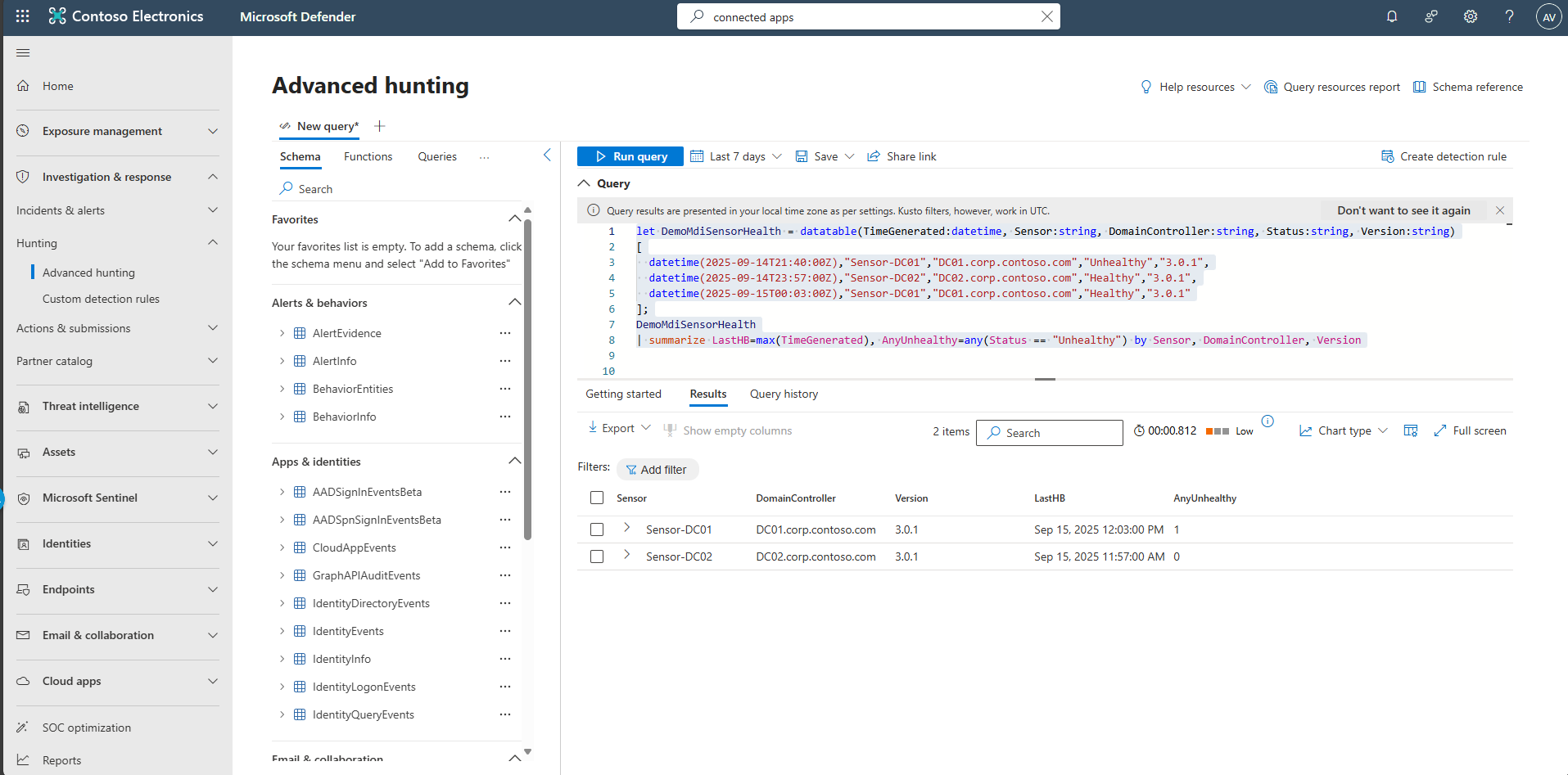
The result will indicate sensor-DC01 showing a recent heartbeat and changes Unhealthy to Healthy.