Task 09: Validate automation with test artifacts (EICAR)
-
In the leftmost pane, go to Assets then Devices.
-
Select your pilot device, winvm-mde.
-
In the upper-right corner of the page, select the ellipsis to open the More actions menu, then select Initiate Live Response Session.
-
In the upper-right corner of the page, select Upload file to library.
Depending on window size, you may need to select the ellipsis in the upper-right corner of the page to open the More actions menu to see the option.
-
In the flyout pane, select Upload file to library.
-
Go to
C:\Lab Files, select the make-eicar PowerShell script, then select Open. -
At the bottom of the flyout pane, select Submit.
-
In the console, run:
run make-eicar.ps1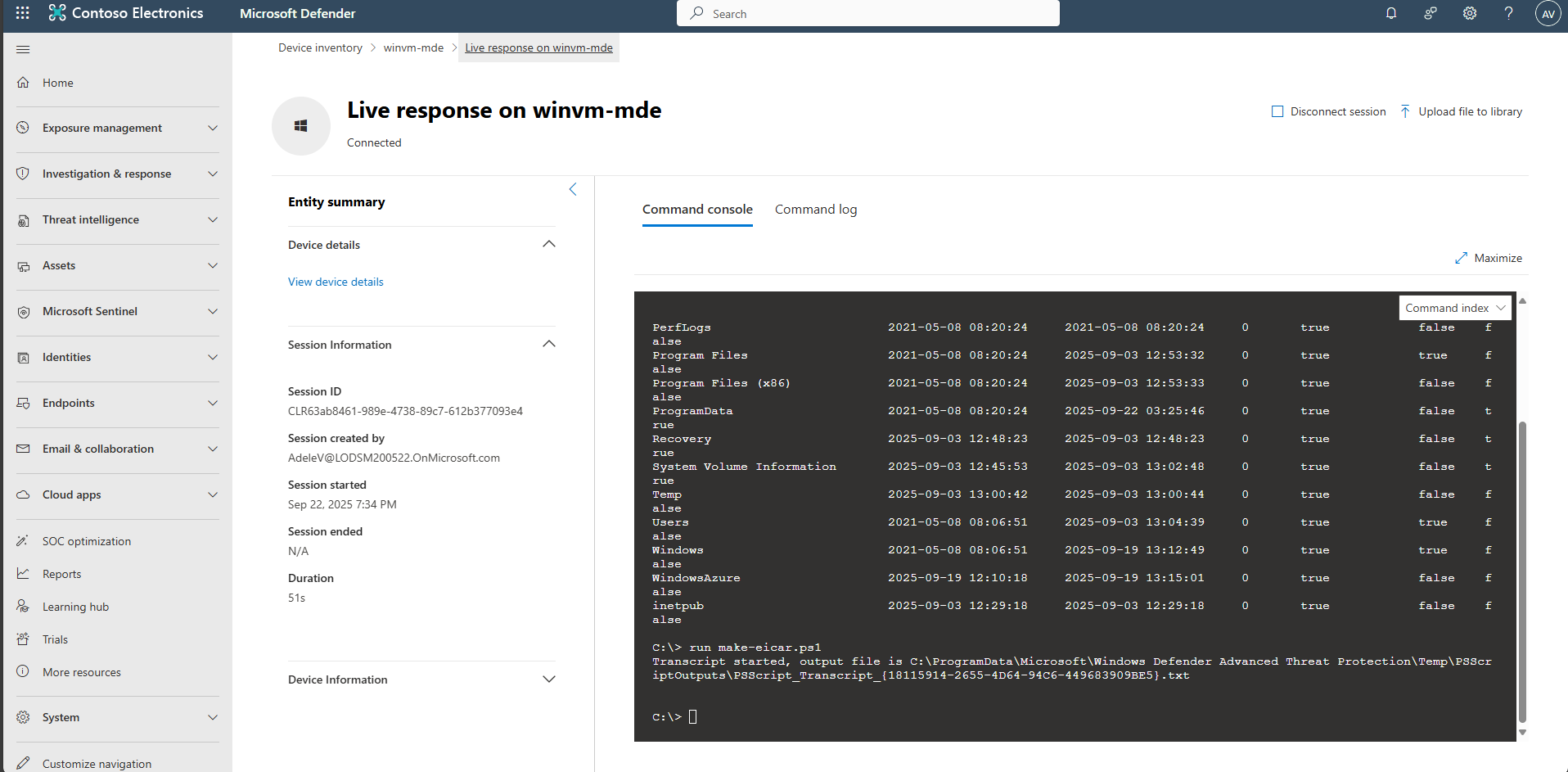
Observe that Defender immediately quarantines the EICAR test file.