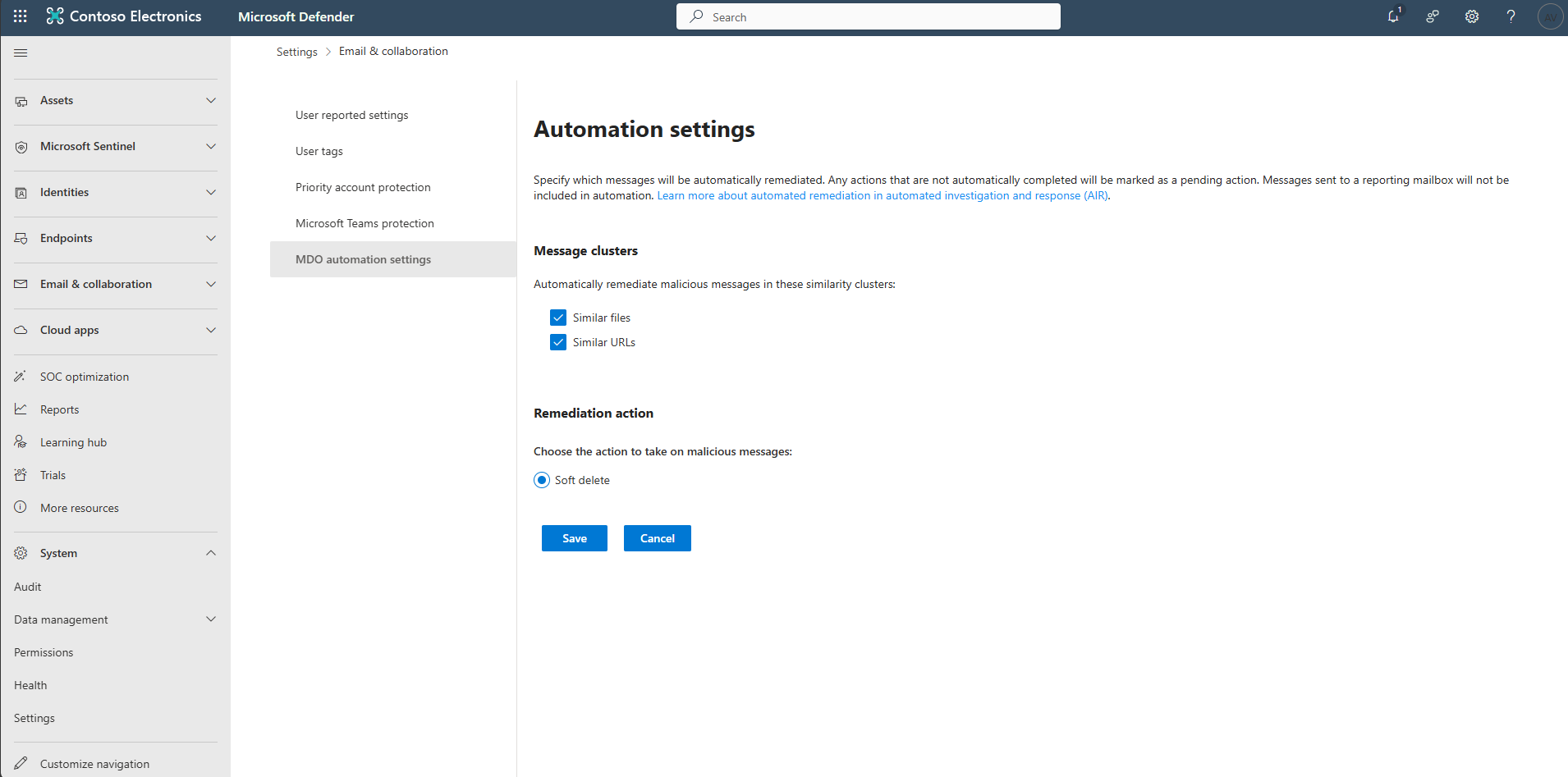
Task 01: Enable AIR and set automatic remediation levels (MDE + MDO)
-
In the leftmost pane of the Microsoft Defender portal, go to System > Settings.
-
Select Endpoints.
-
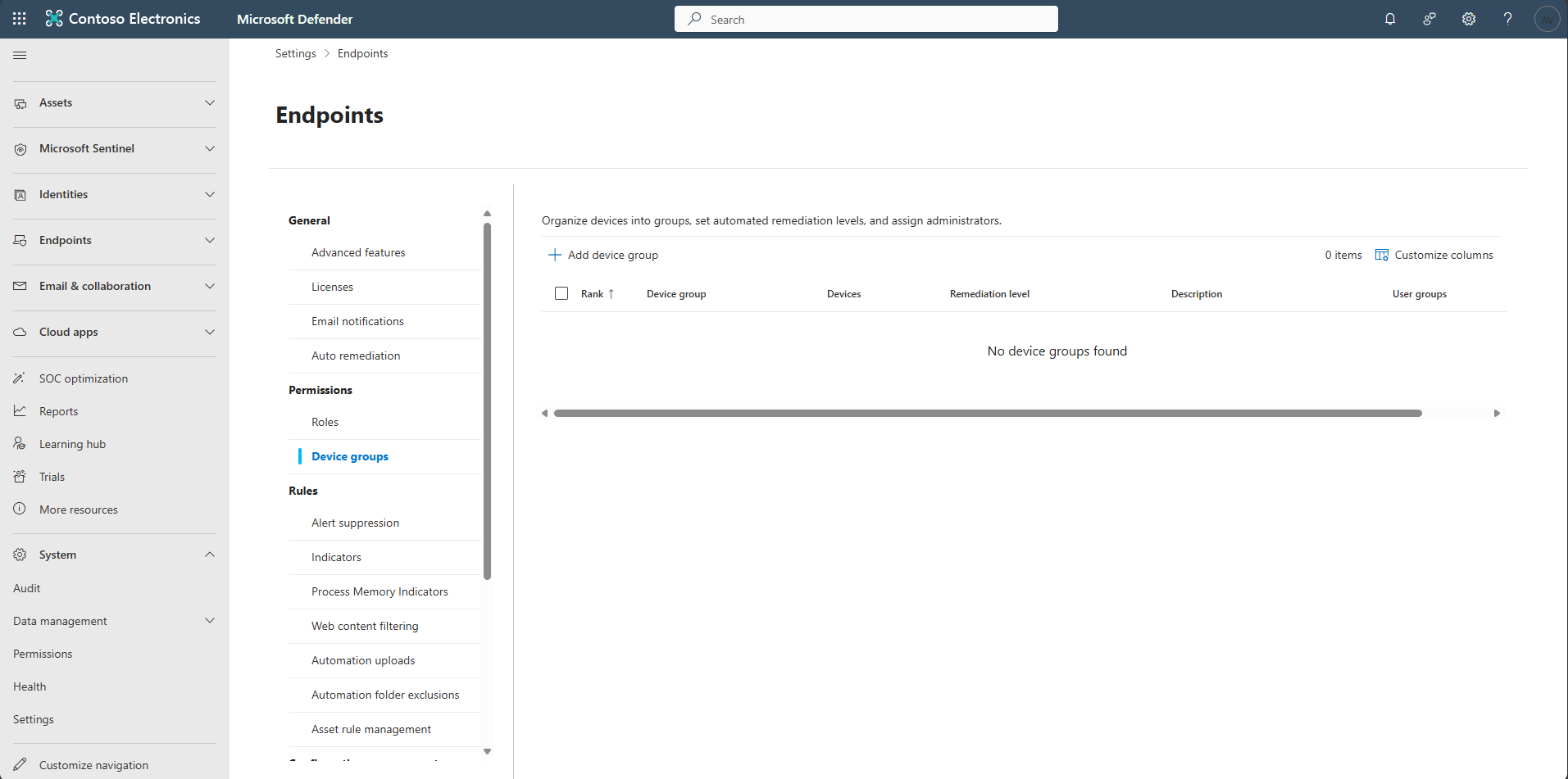
In the Endpoints menu, under Permissions, select Device groups.
-
Select + Add device group.
-
In the flyout pane’s General step, enter the following, then select Next.
Item value Device group name Pilot LabRemediation level Full remediation 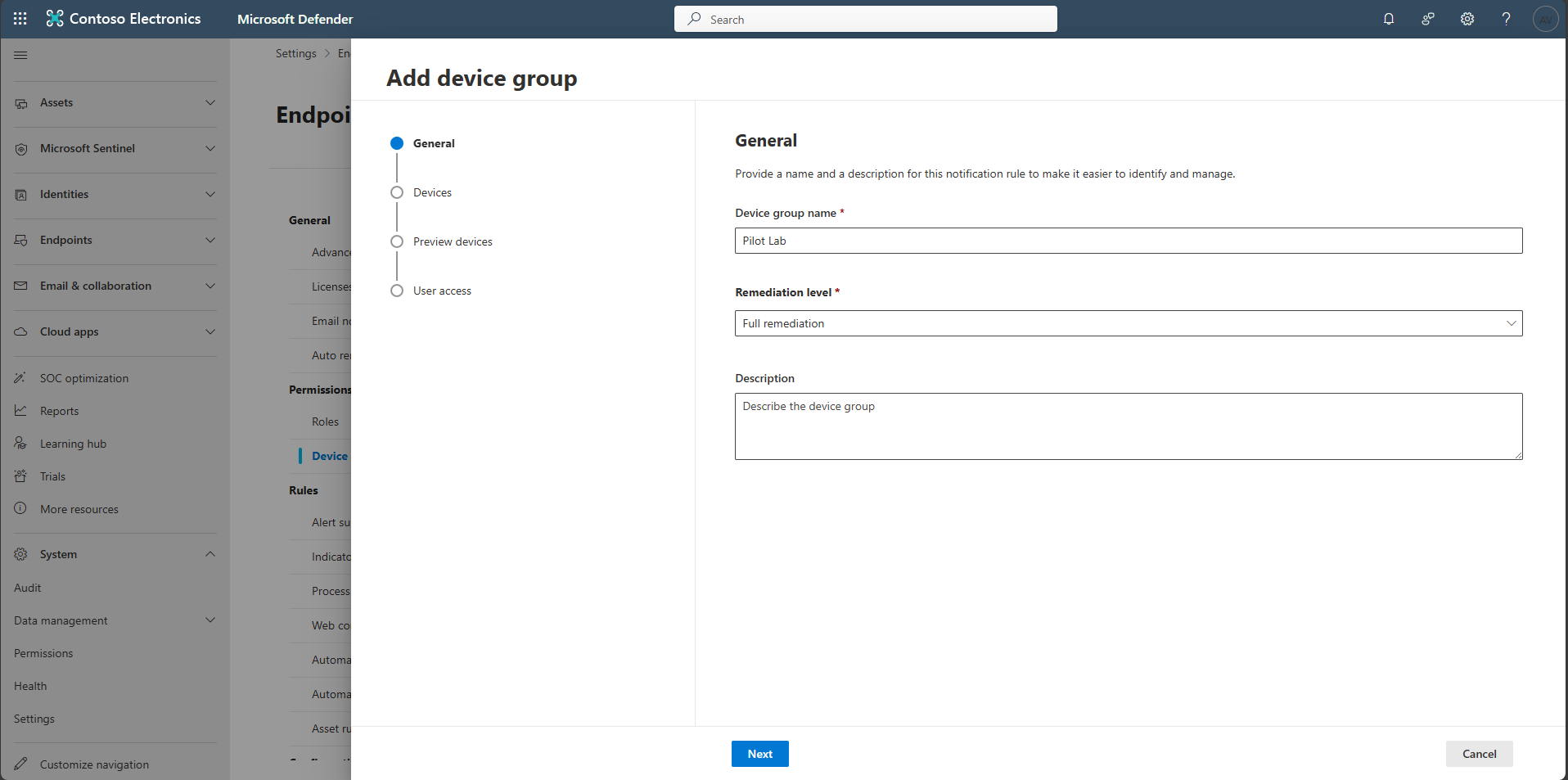
-
Under Devices, set the Name condition to Starts with, a value of
win, then select Next.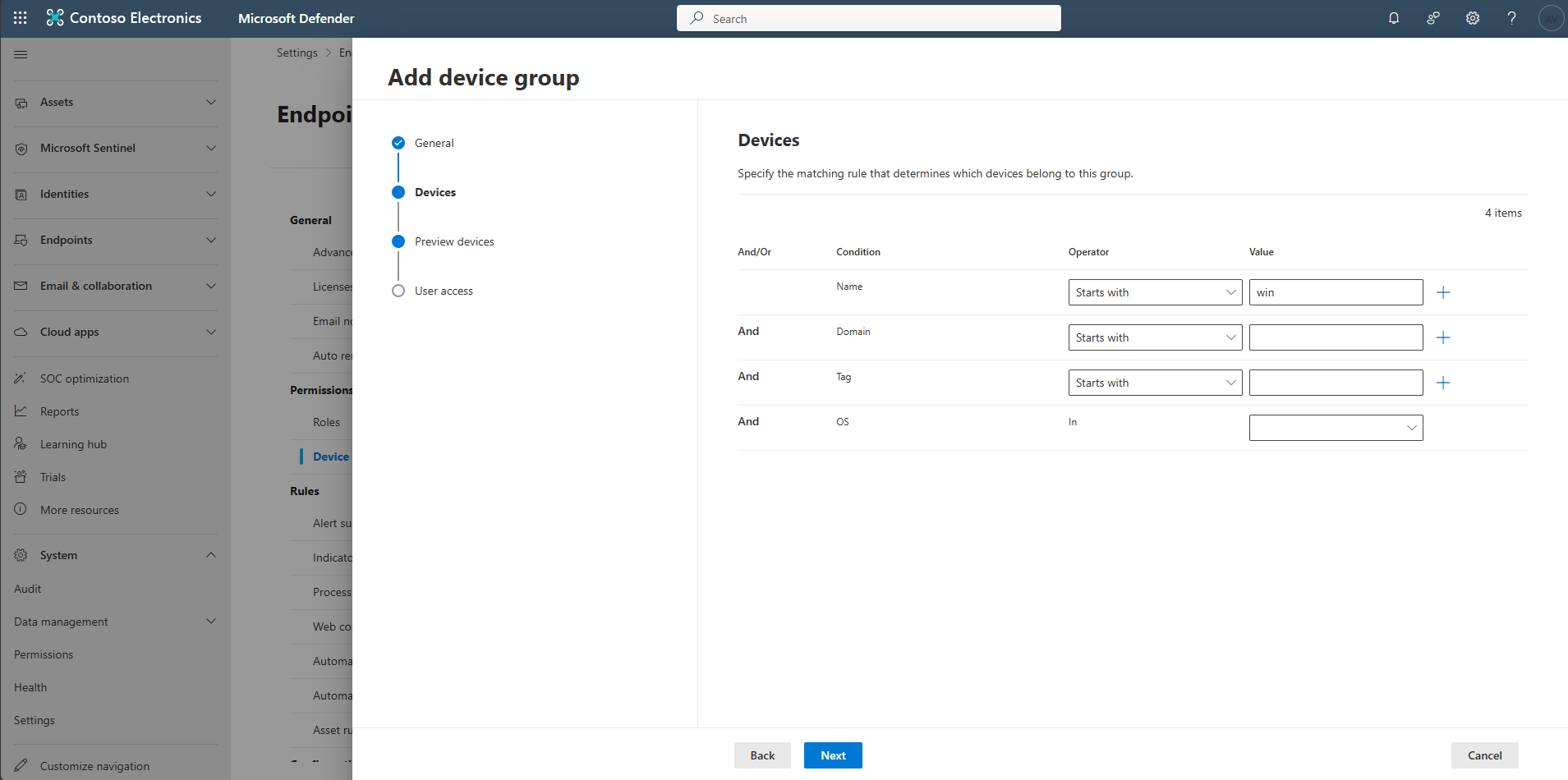
-
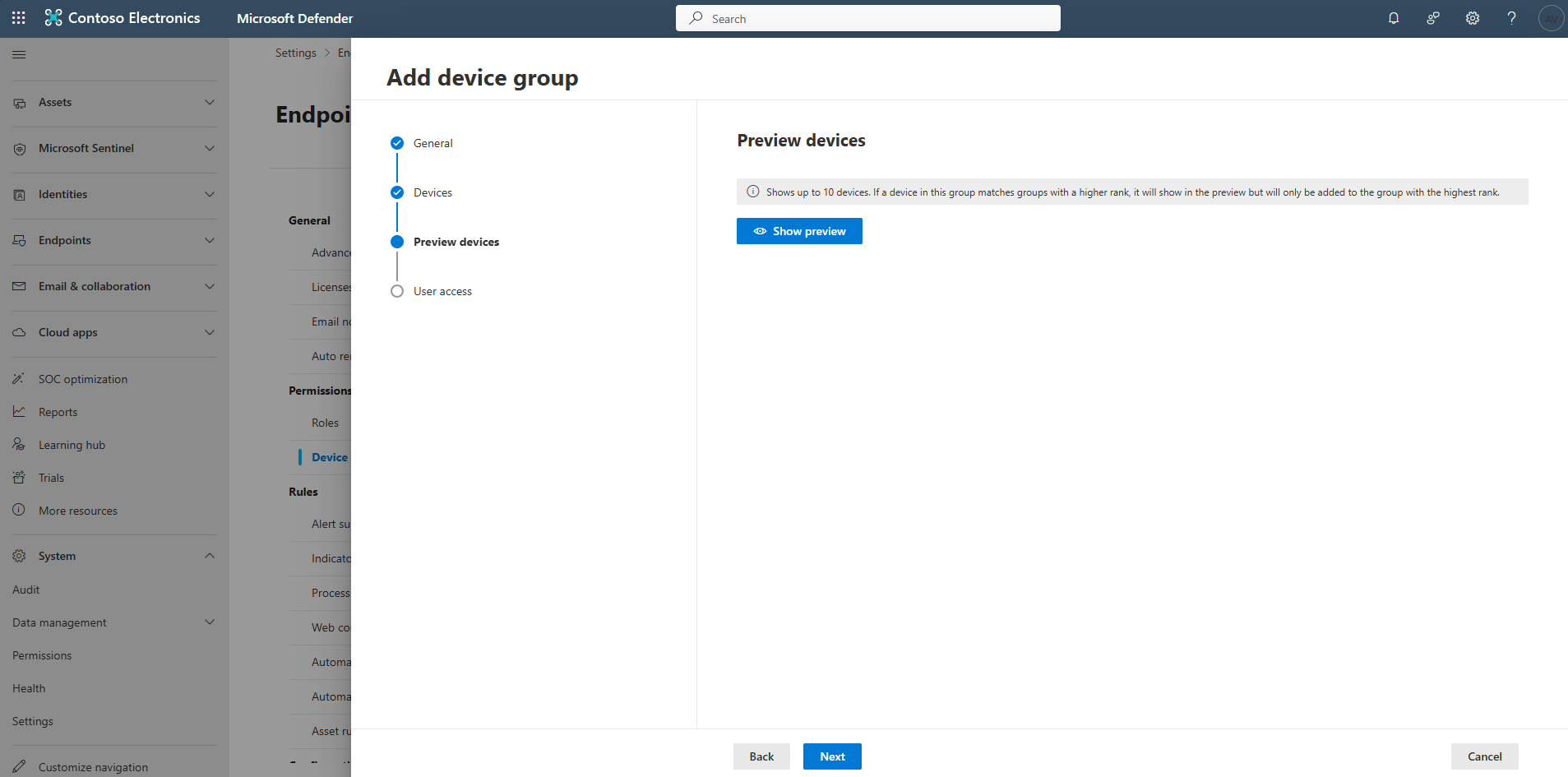
On Preview devices, select Show preview to confirm matching devices.
-
Verify the lab VM (for example
\winvm-mde) appears, then select Next.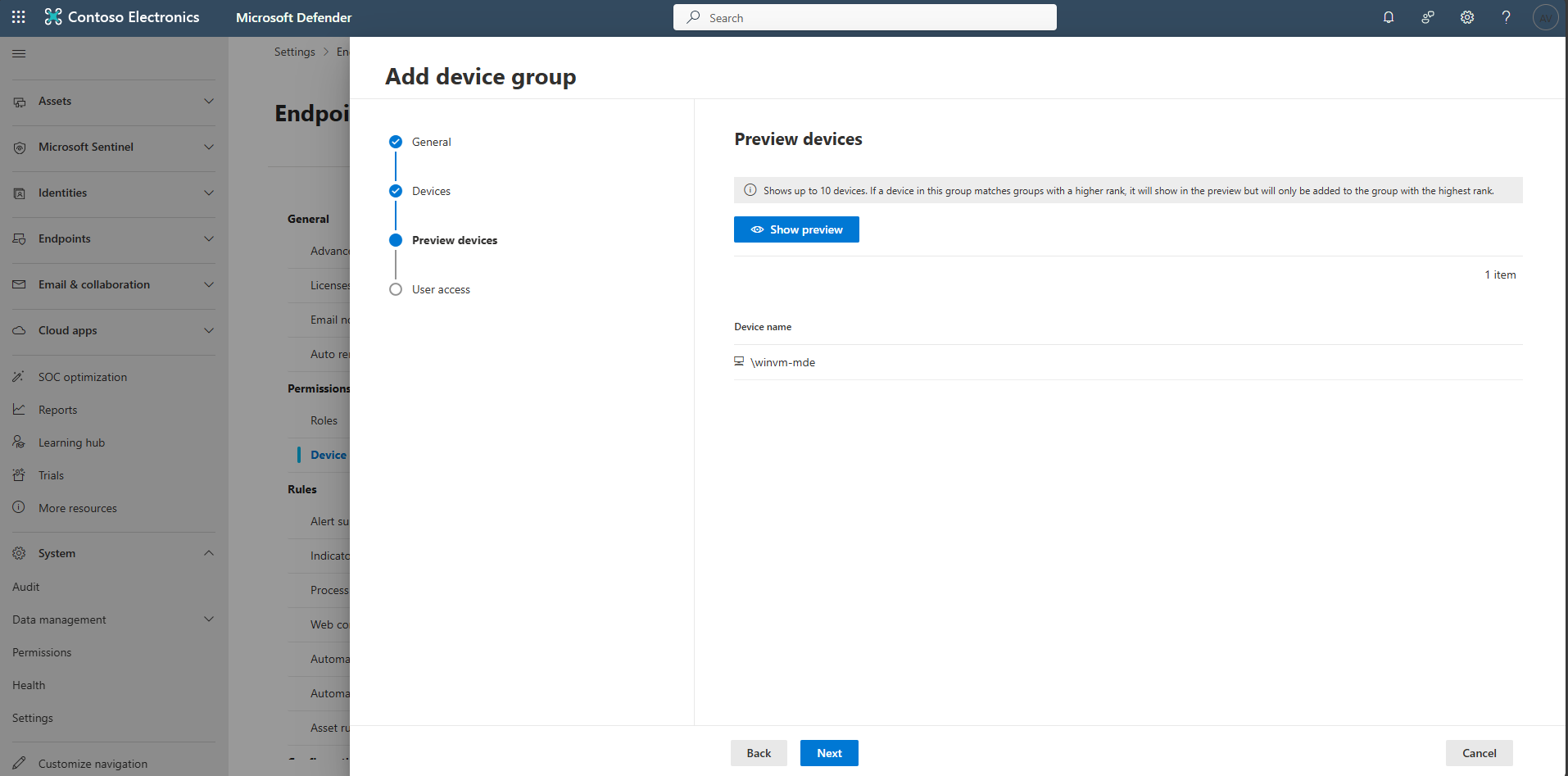
-
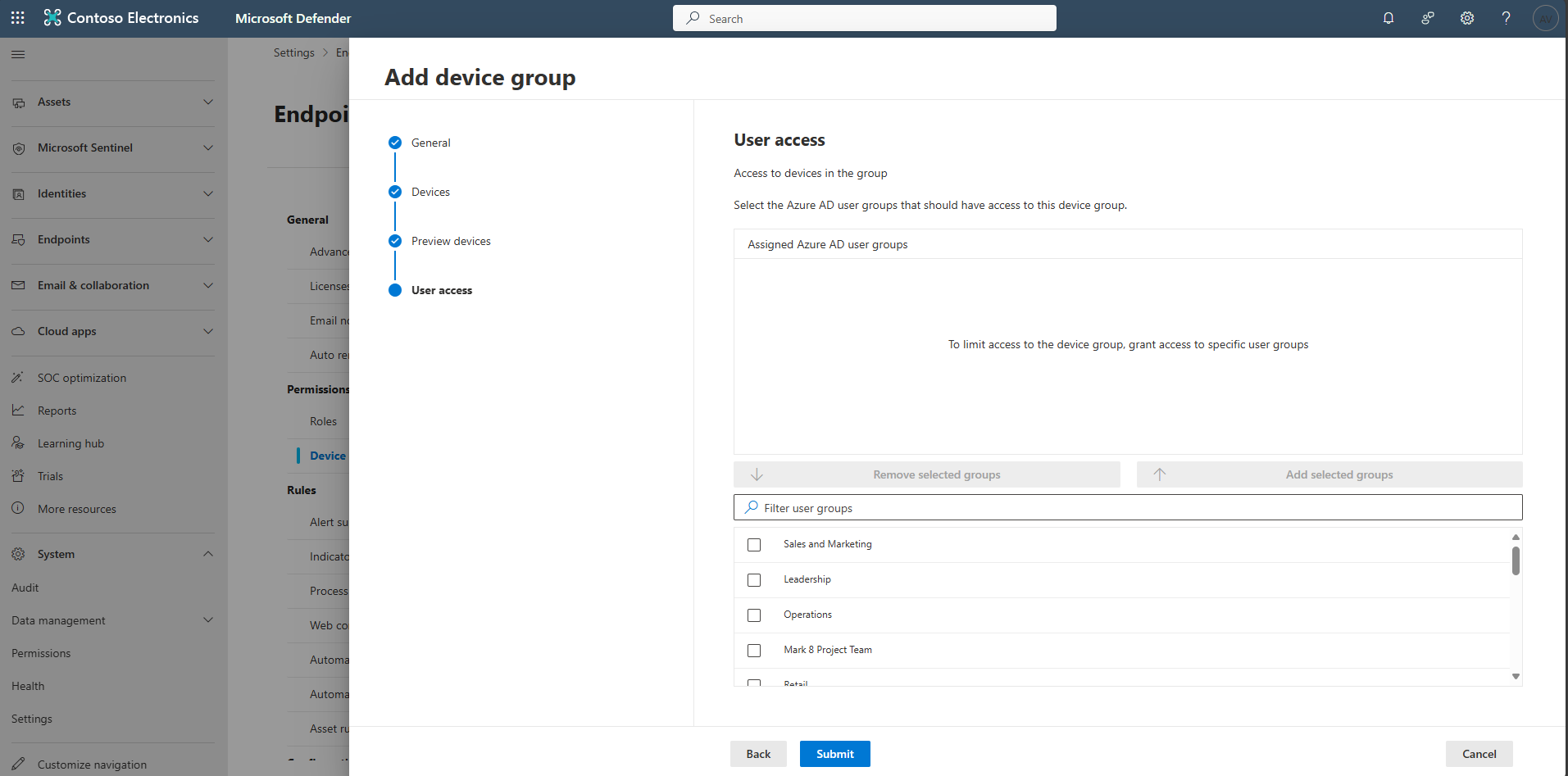
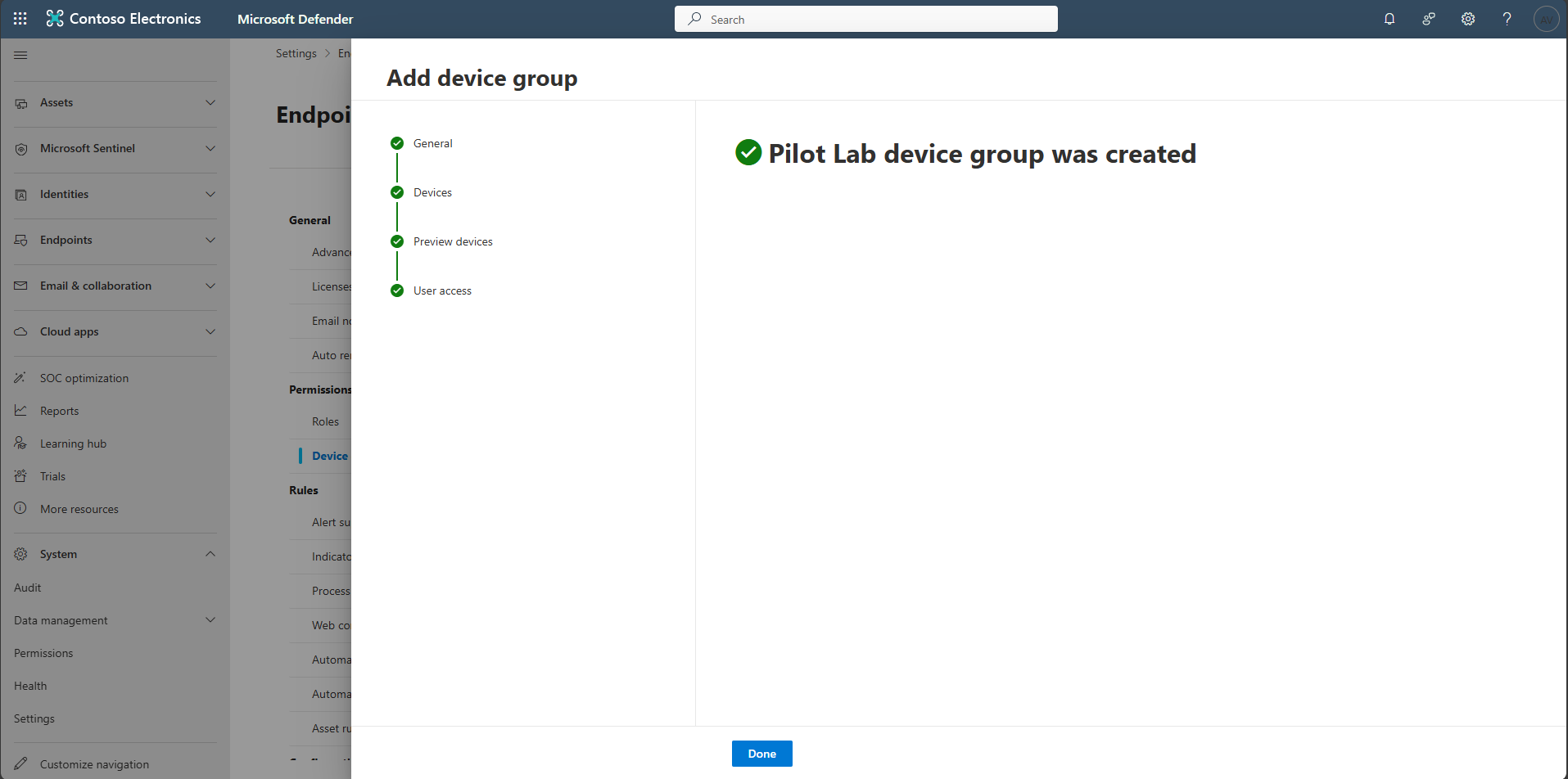
Select Submit.
-
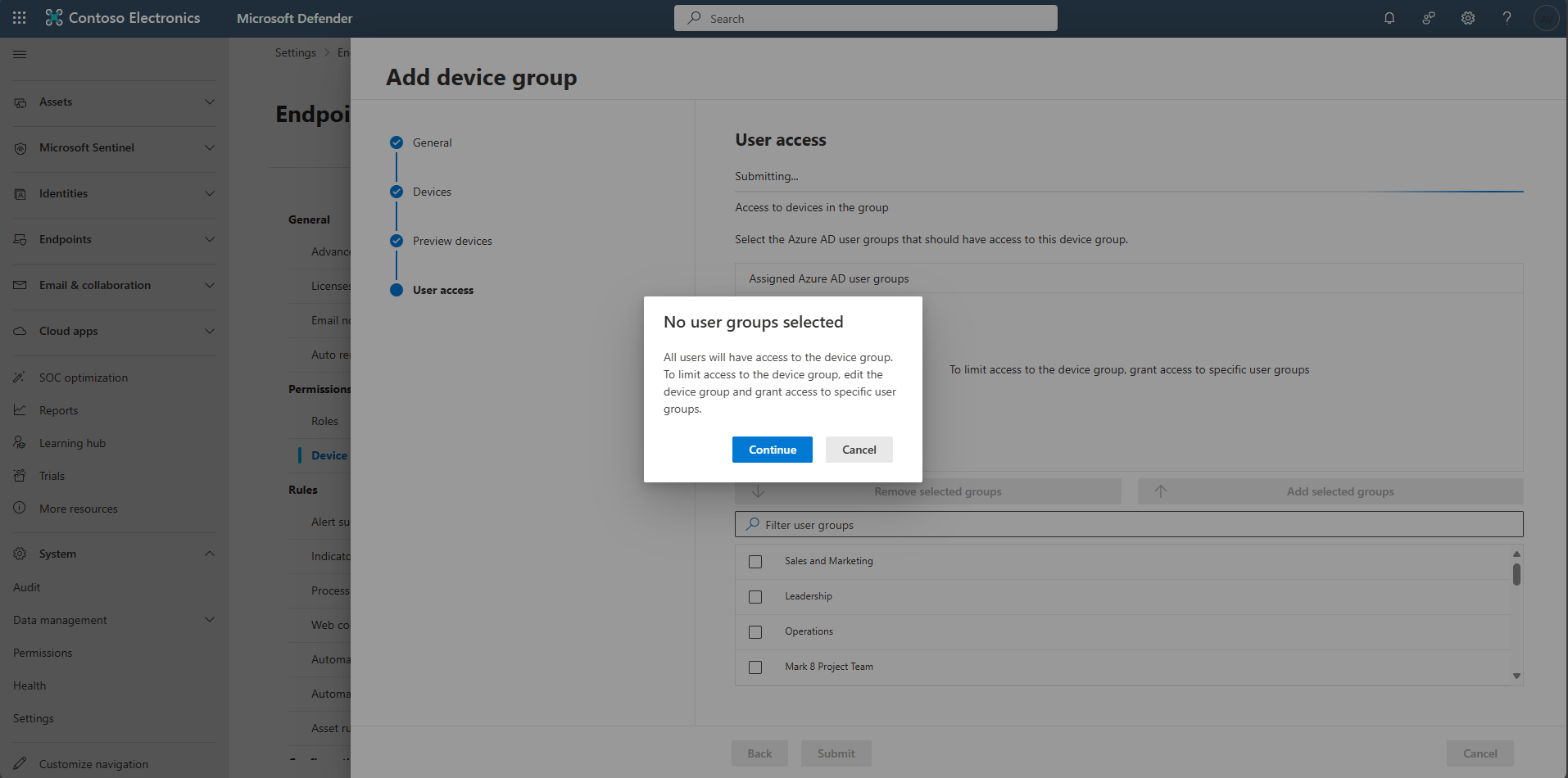
In the No user groups selected prompt, select Continue.
-
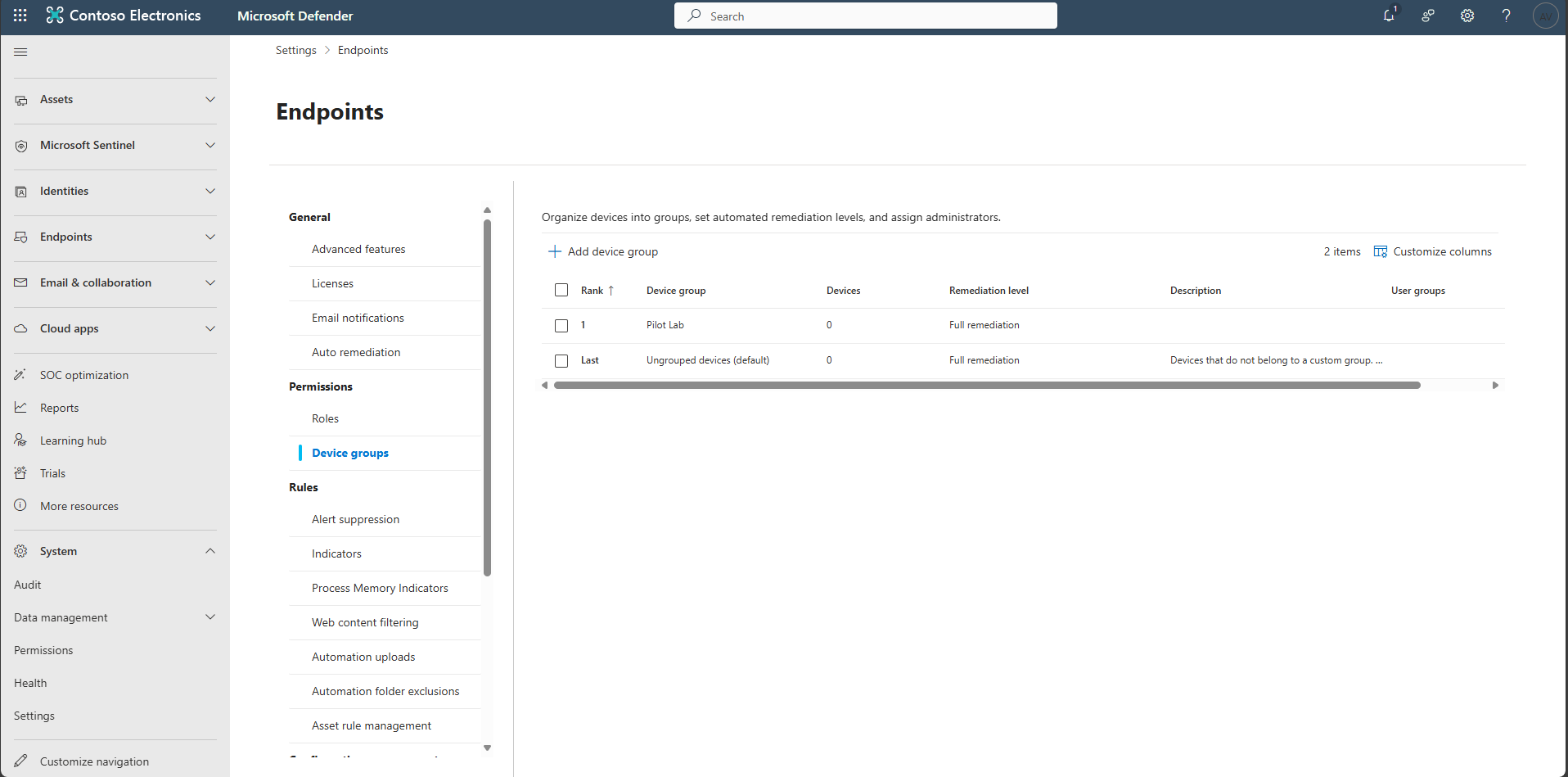
Select Done, then confirm the new device group is listed.
-
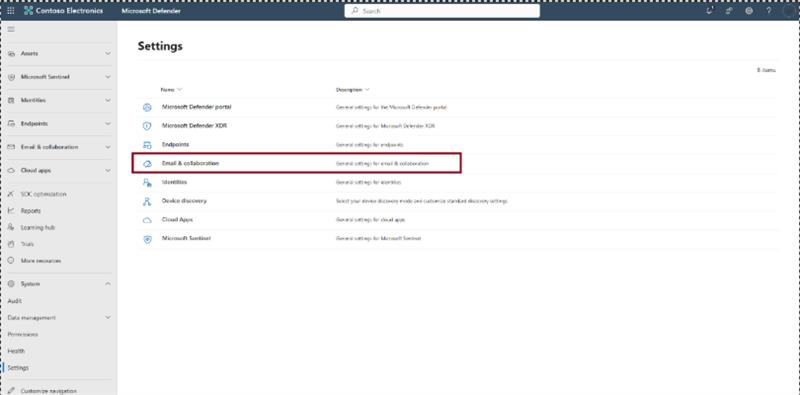
In the leftmost pane, go to System > Settings > Email & collaboration.
-
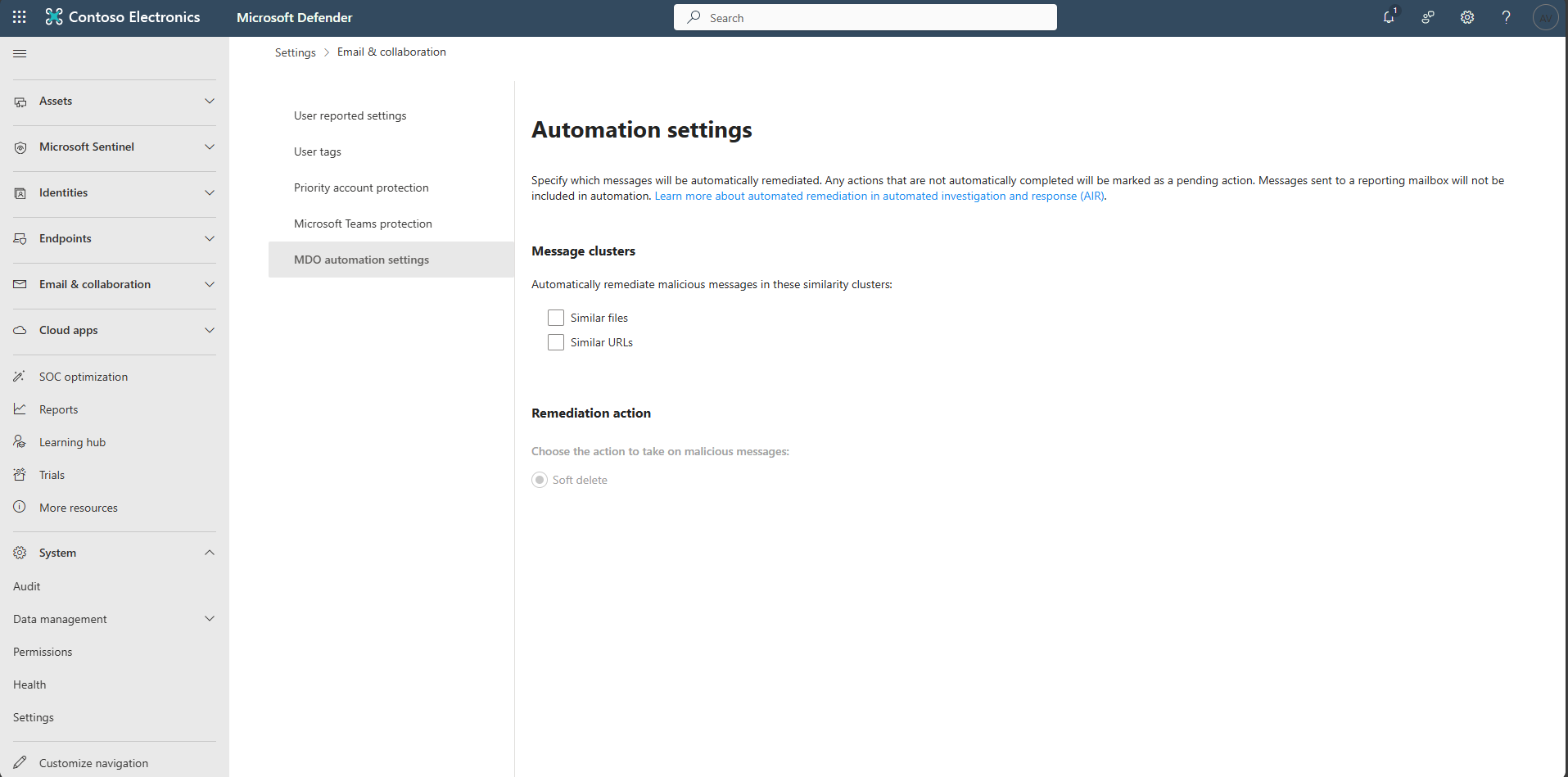
Select MDO automation settings.
-
Under Message clusters, select Similar files and Similar URLs. Set Remediation action to Soft delete, then select Save.