Task 06: Configure Anti-phishing / Impersonation
-
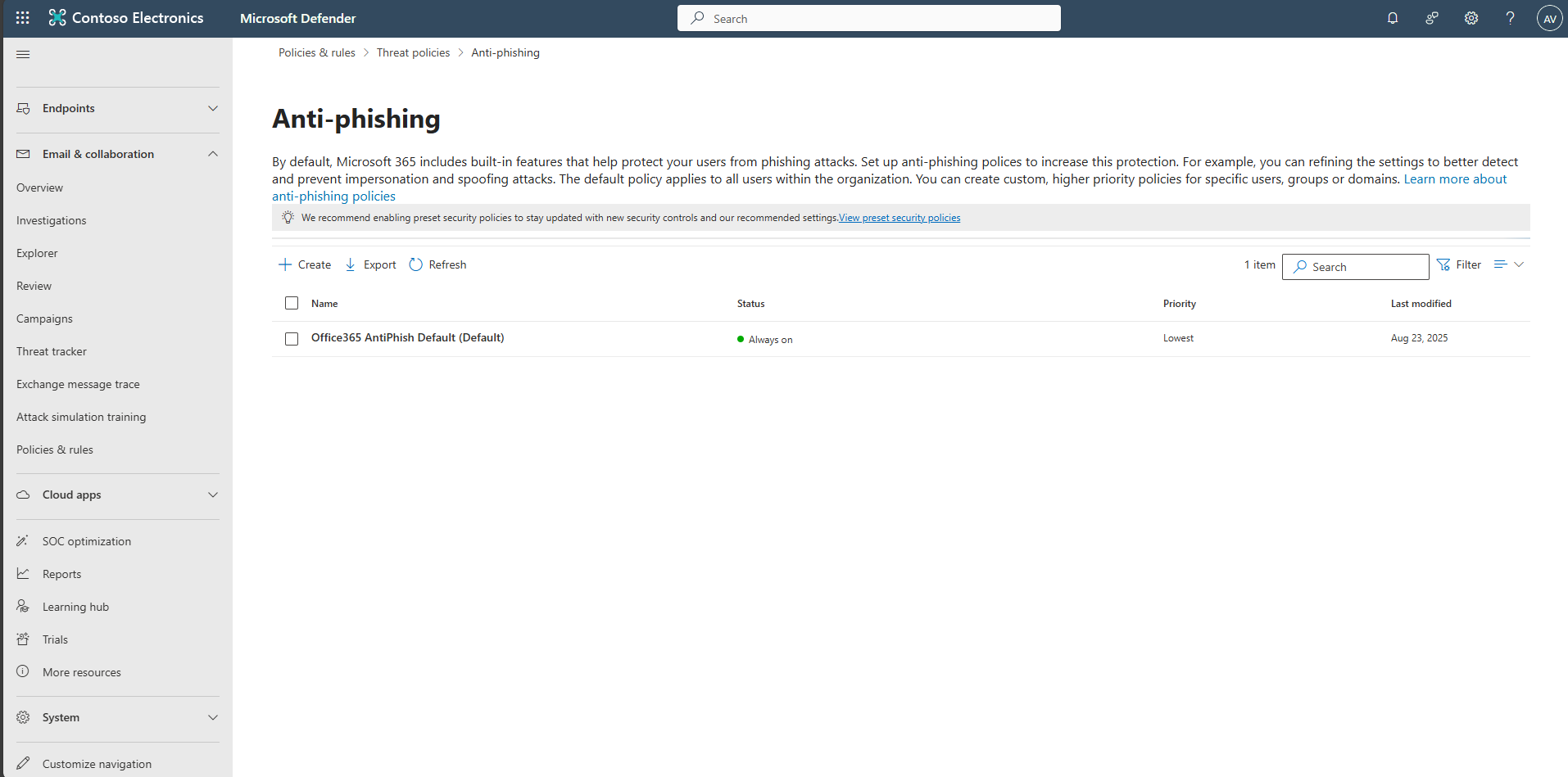
In the leftmost pane, select Email & collaboration > Policies & rules.
-
Select Threat policies.
-
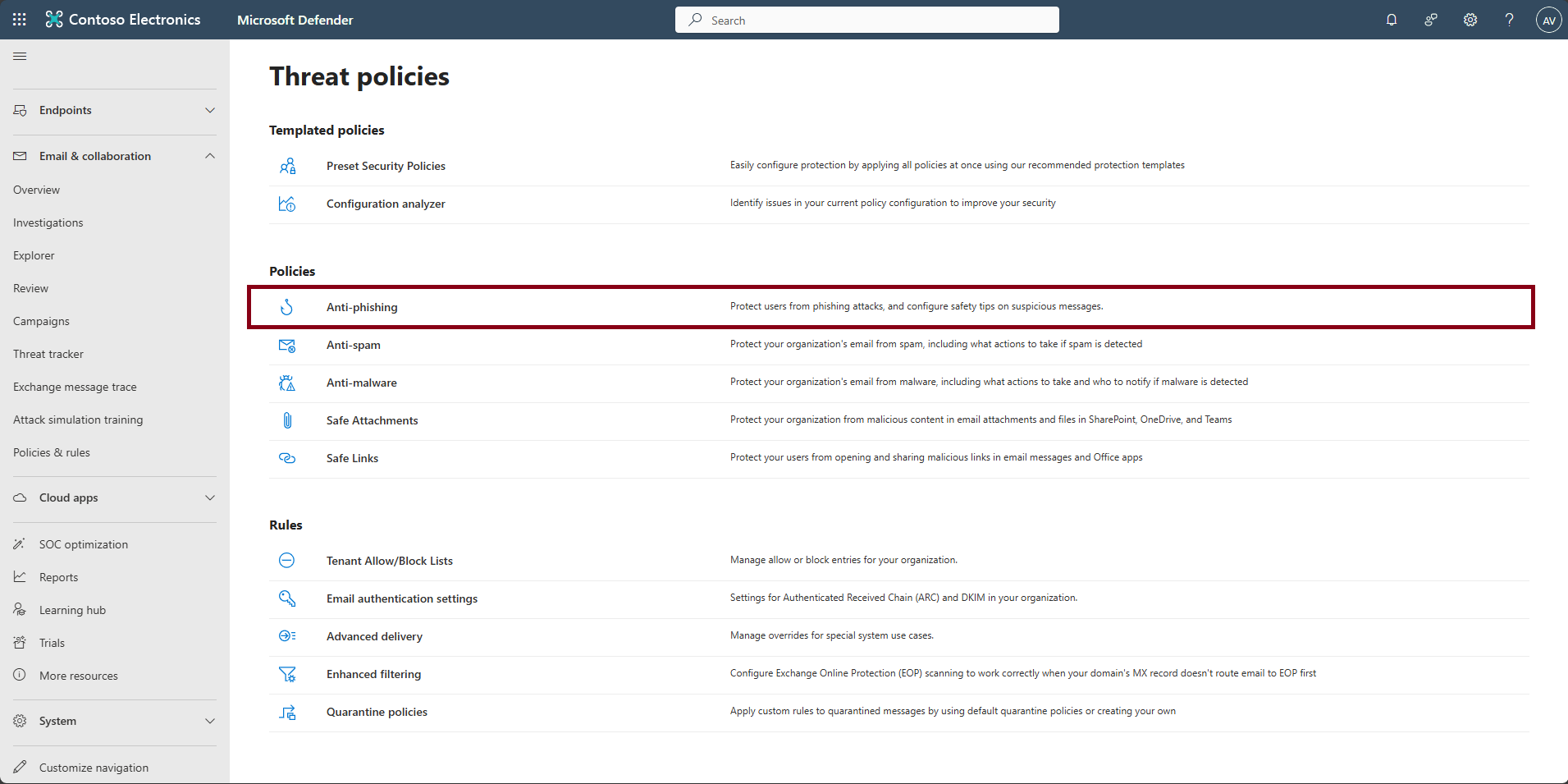
Under the Policies section, select Anti-phishing.
-
Select + Create.
-
Name the policy
AP-Impersonation-VIPs, then select Next.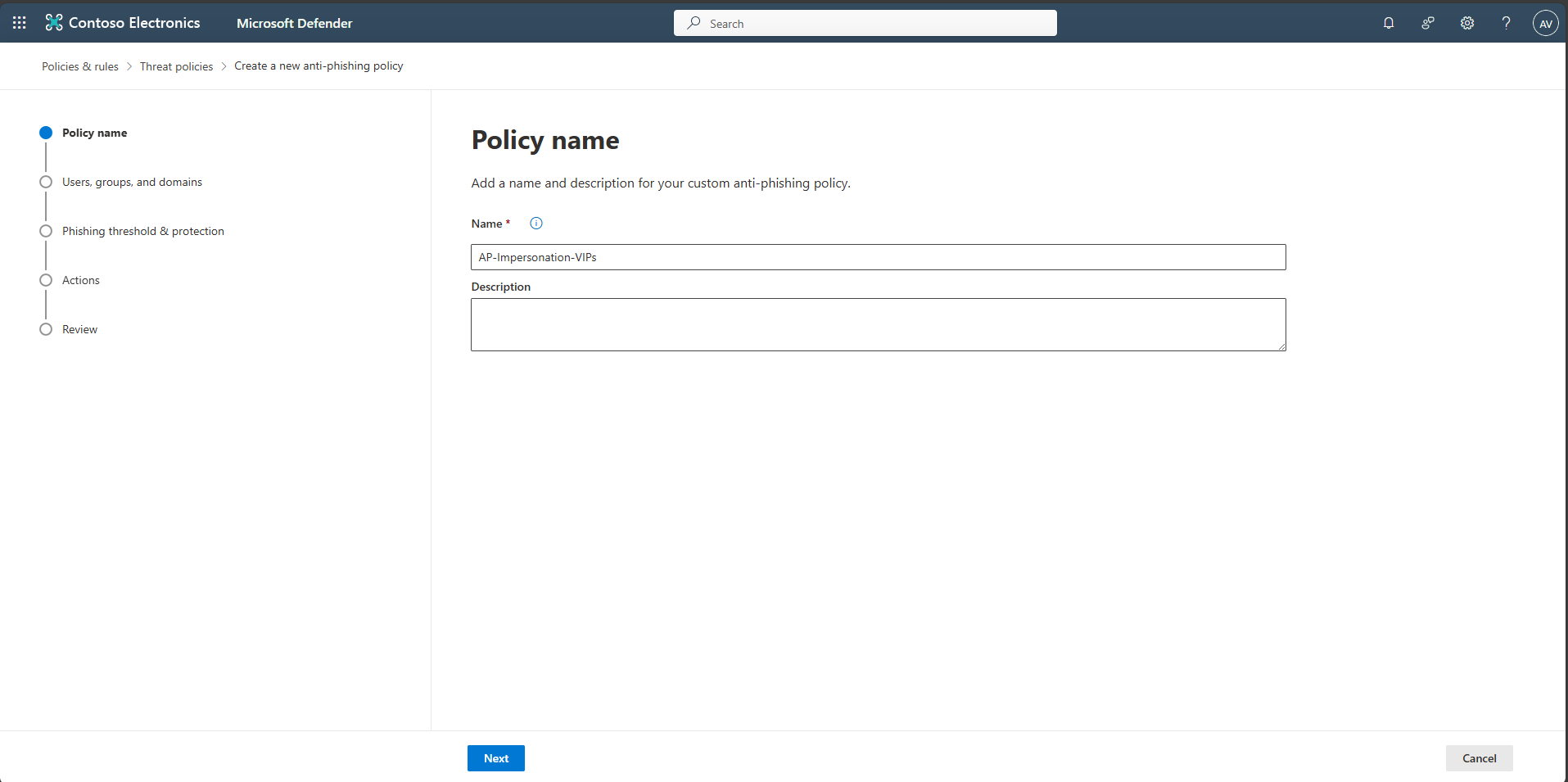
-
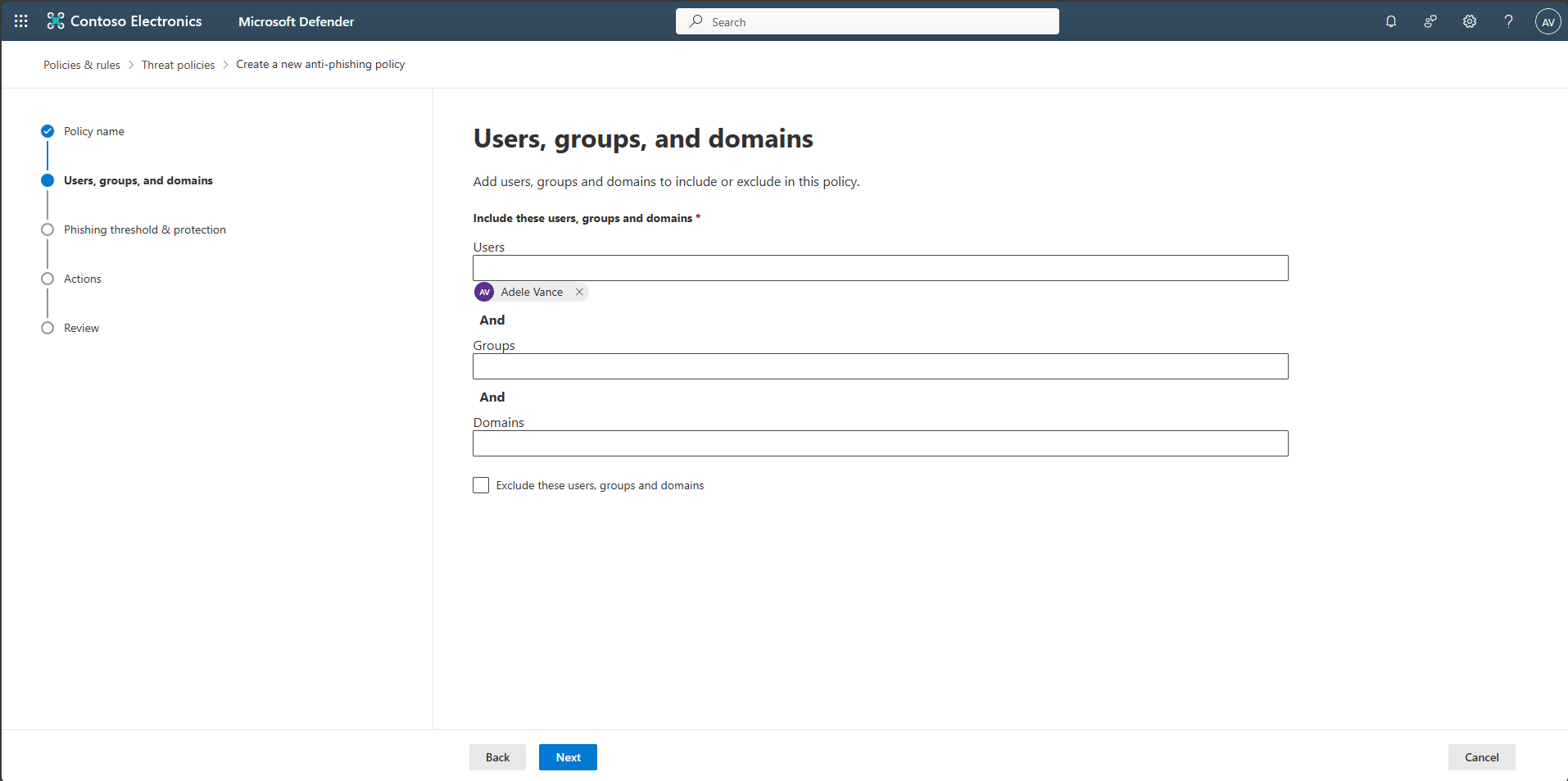
Under Users, search for and select your account (or target users) to apply protection, then select Next.
-
On Phishing threshold & protection, under Impersonation, select Enable users to protect, then select select Manage 0 sender(s).

-
In the flyout pane, select Add user.
-
Under Email, search for and select your account, then select Add.

-
At the bottom of the flyout pane, select Add, then select Done.

-
Back on the Phishing threshold & protection step, select Next.
-
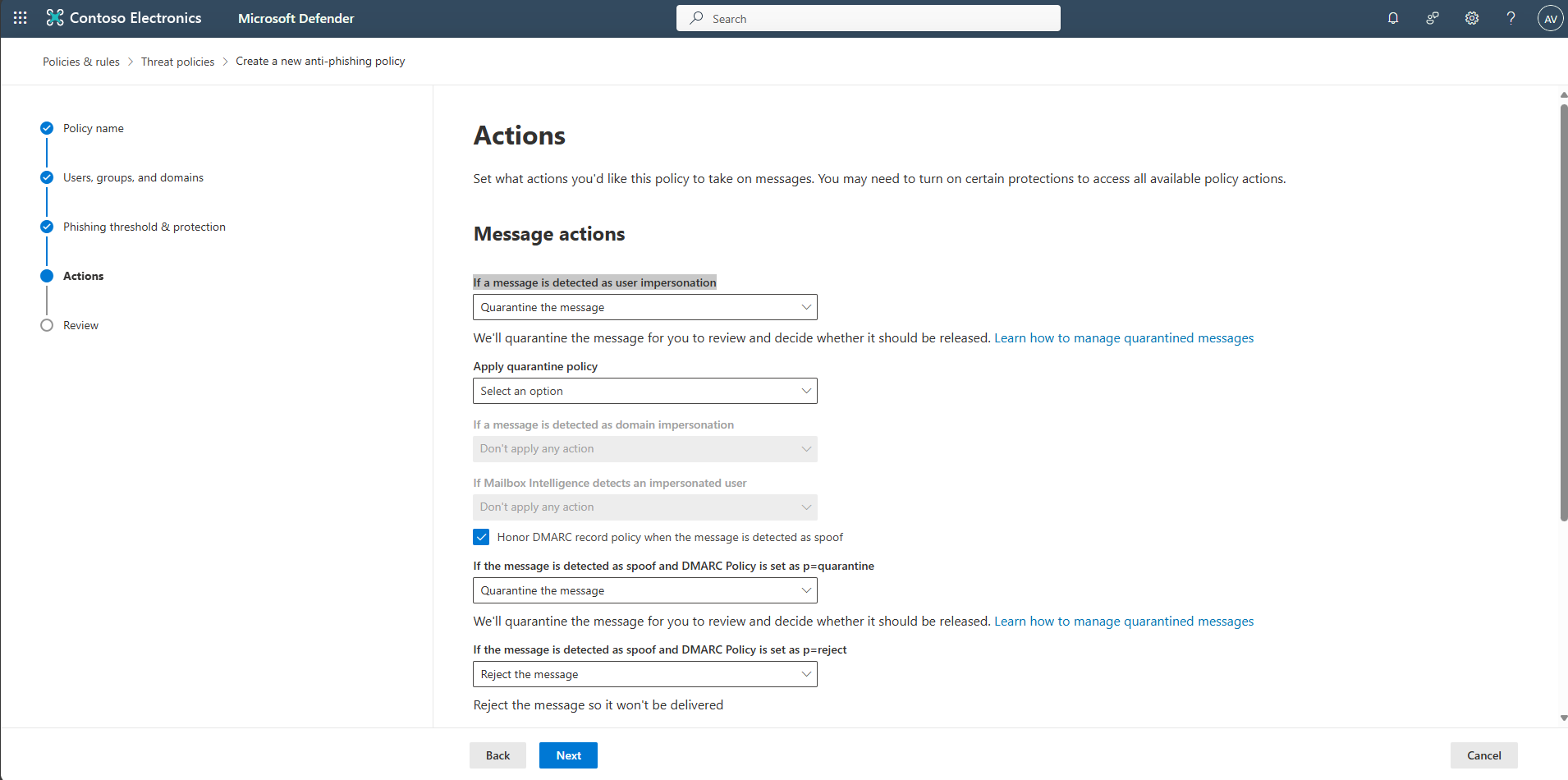
On the Actions step, under If a message is detected as user impersonation, select the dropdown menu, then select Quarantine the message, then select Next.
-
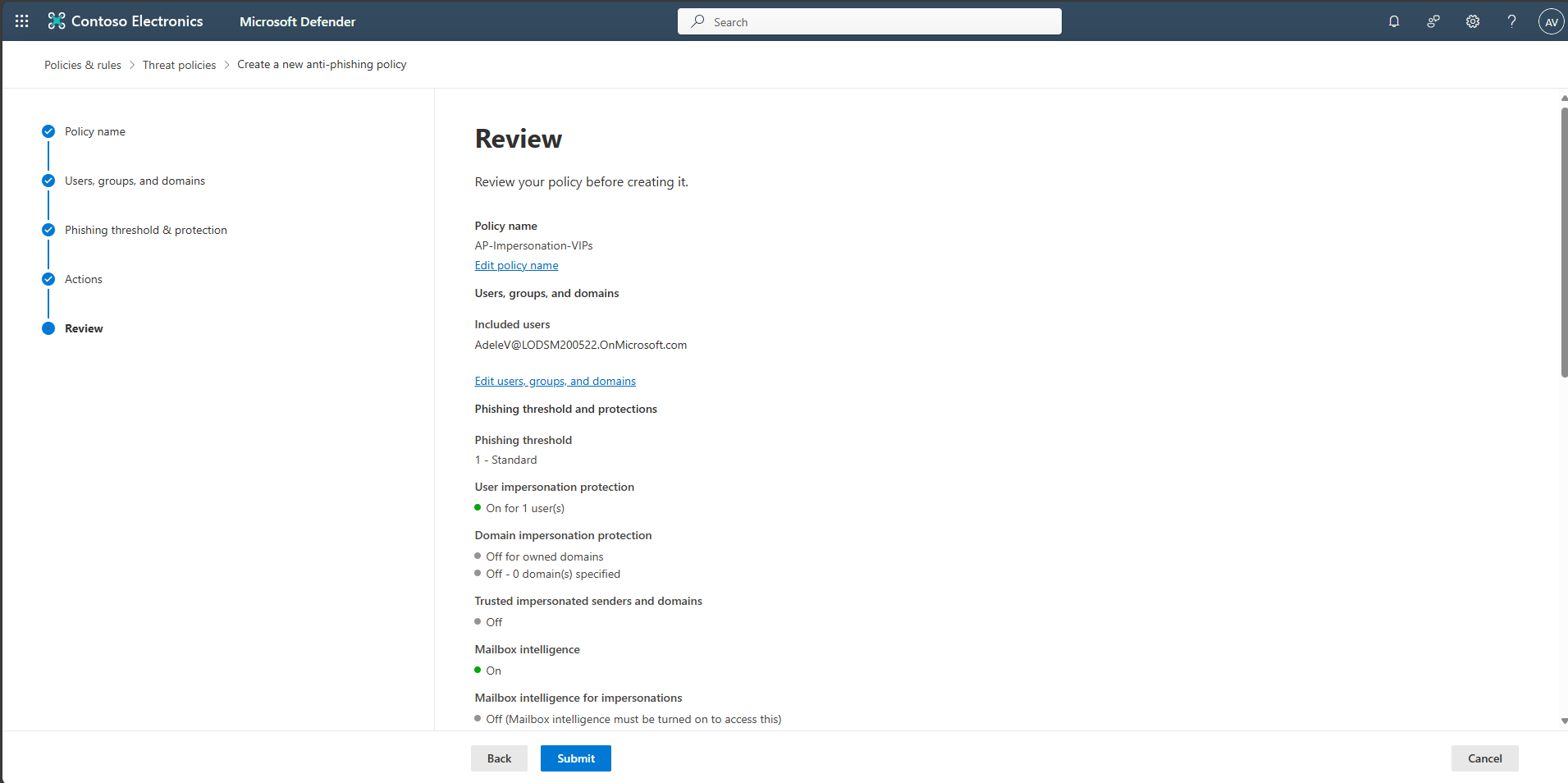
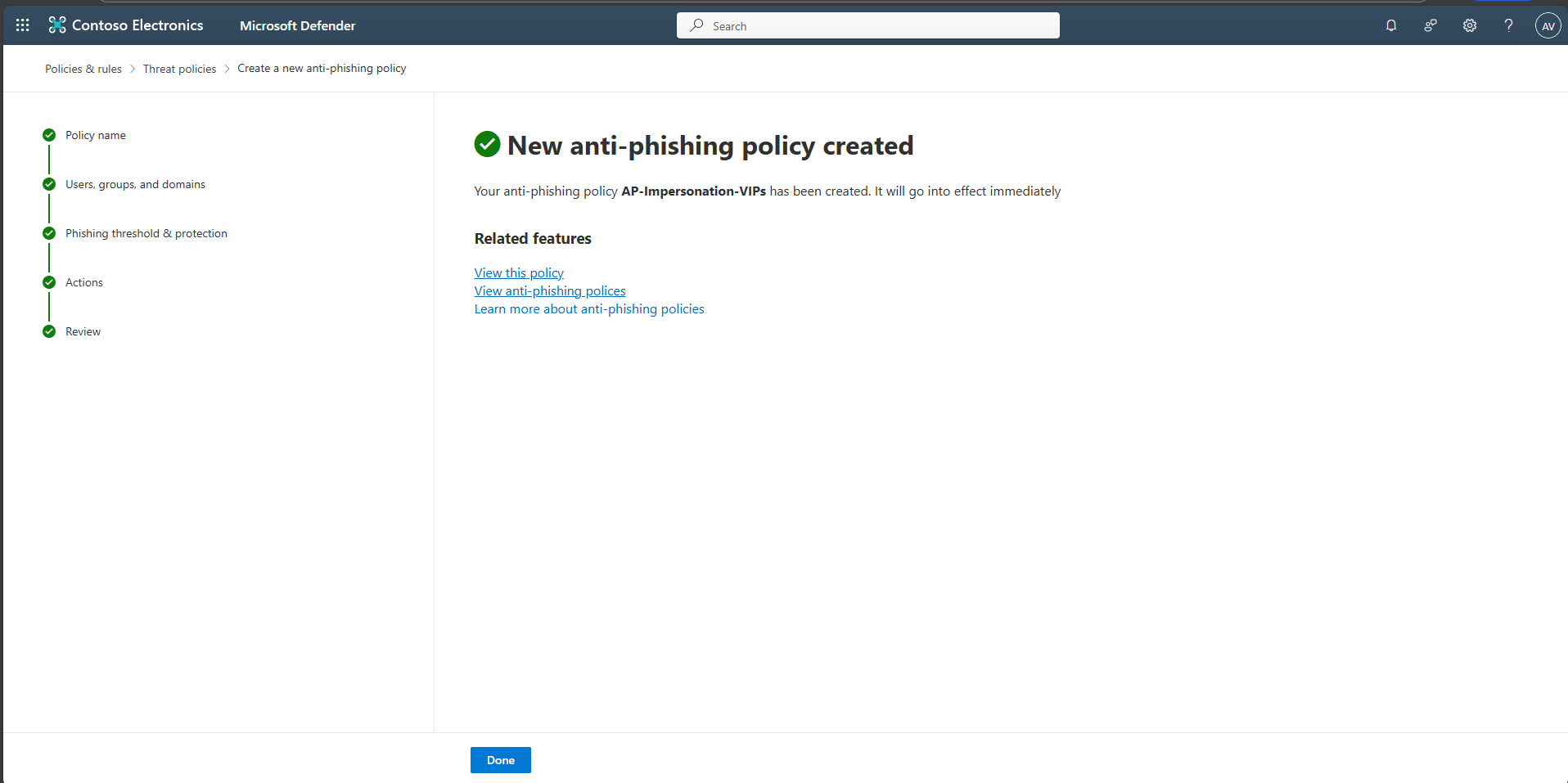
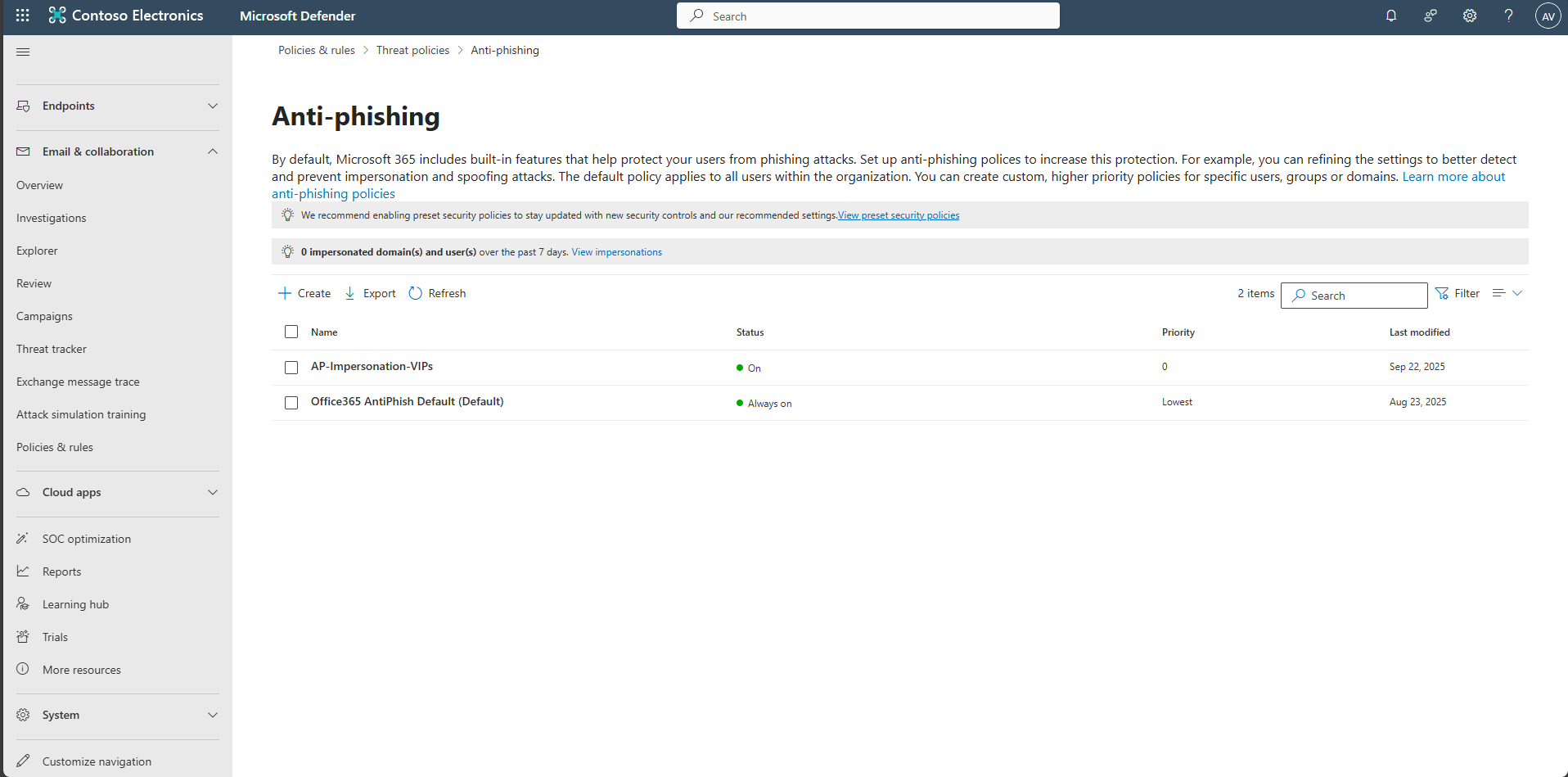
Select Submit, then Done. Confirm the policy is active.