Task 03: Configure Safe Attachments policy
-
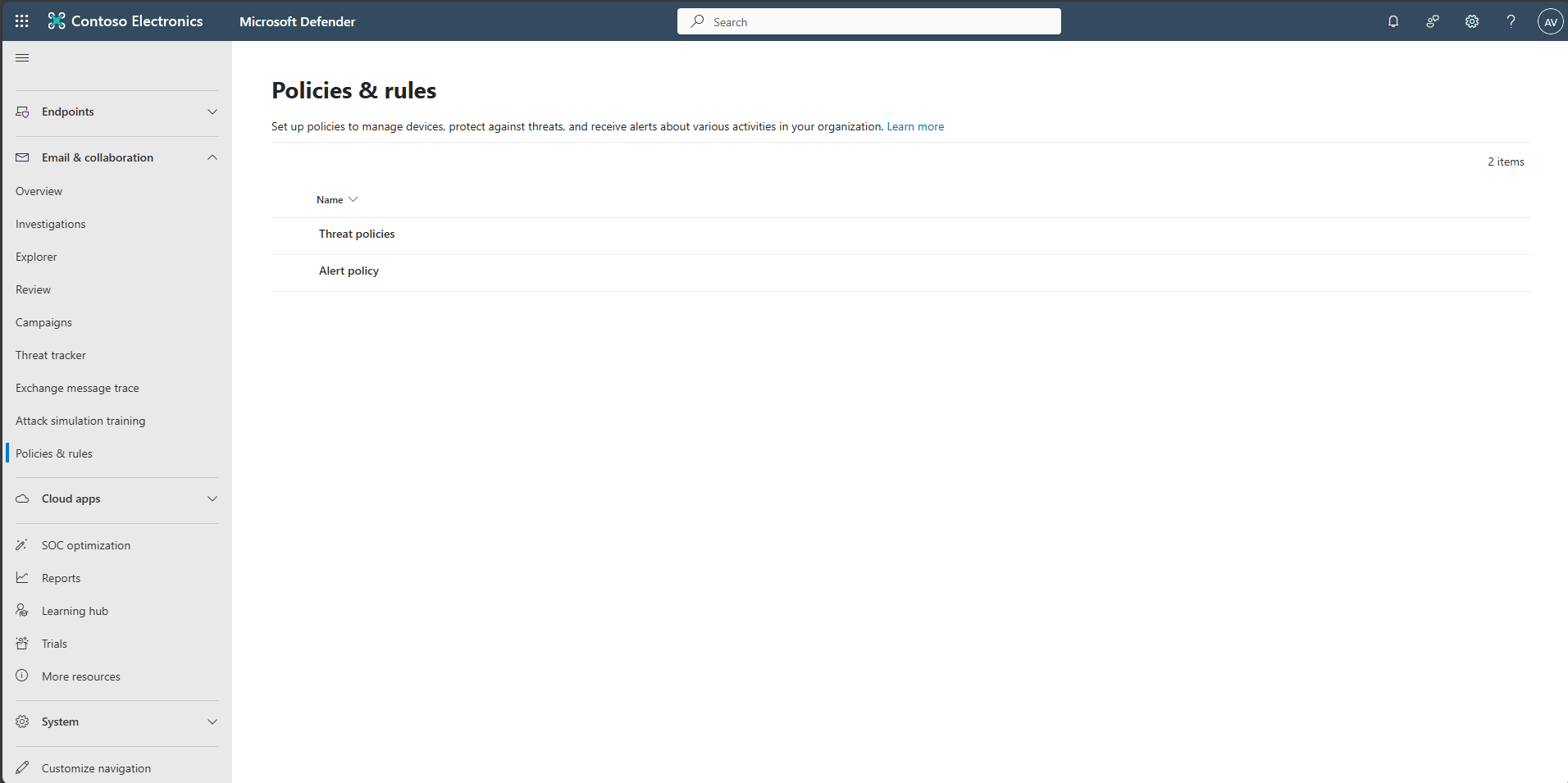
In the leftmost pane, select Email & collaboration > Policies & rules.
-
Select Threat policies.
-
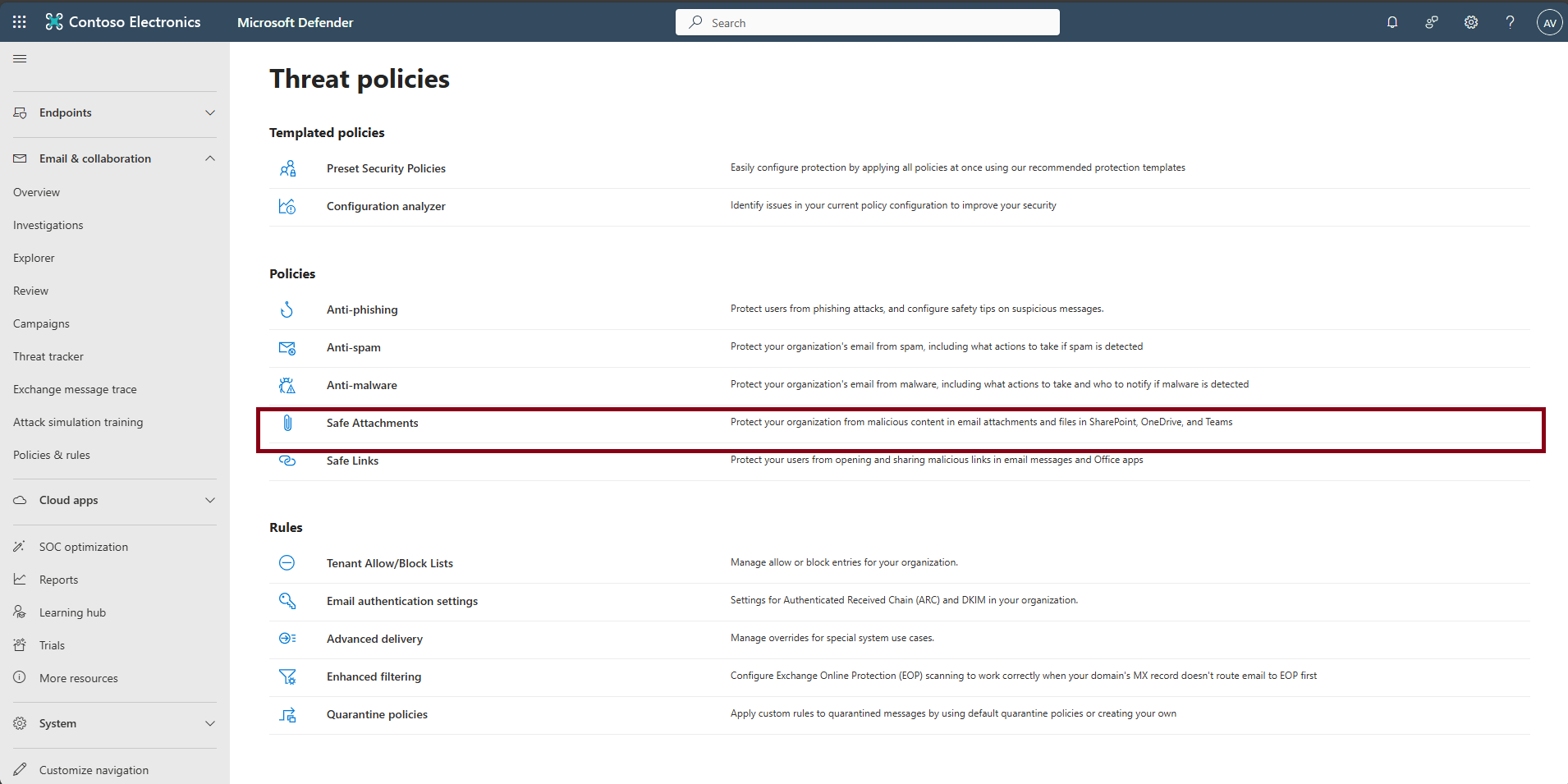
Under the Policies section, select Safe Attachments.
-
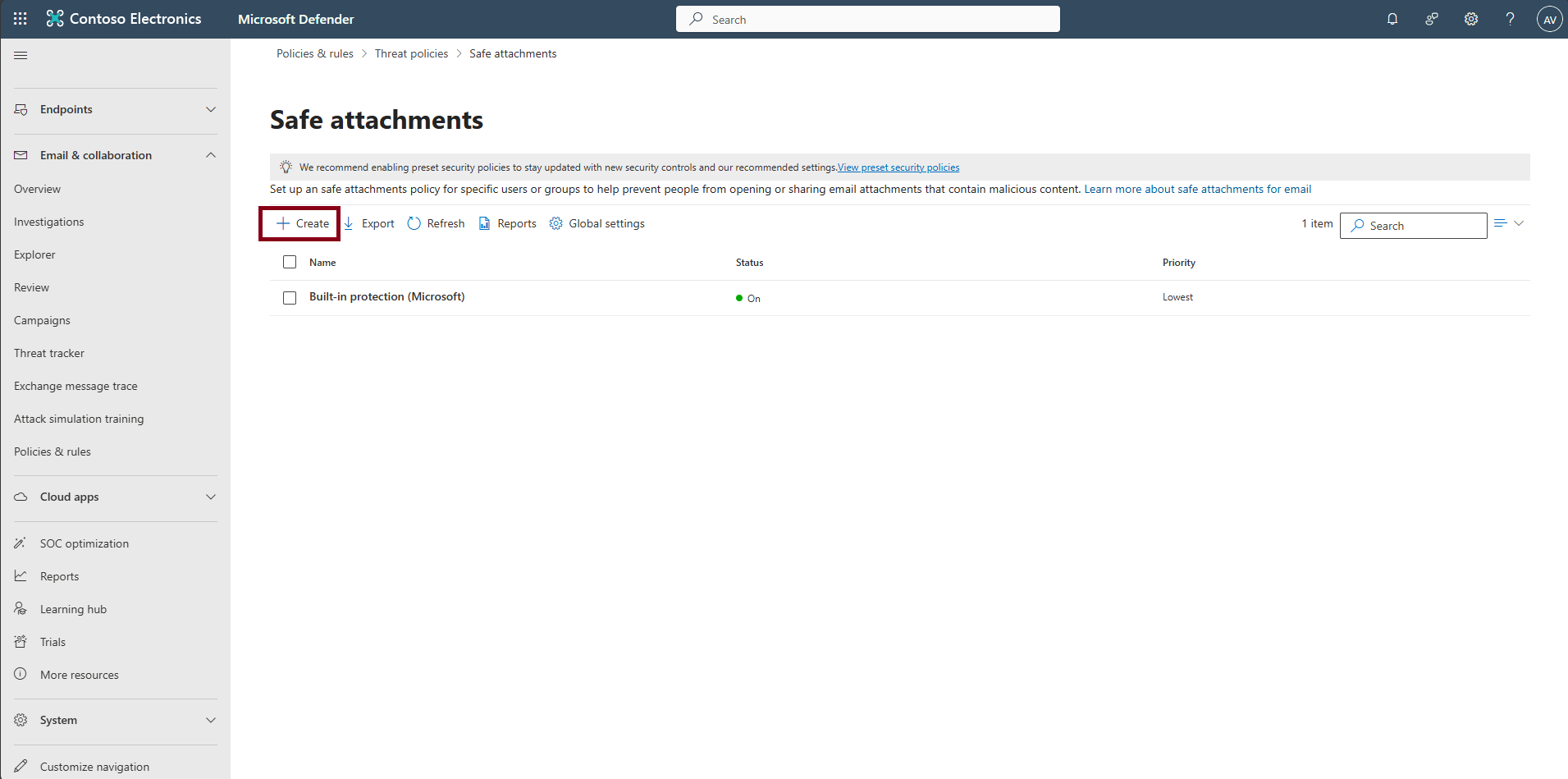
Select + Create.
-
Name the policy
SA-Block, then select Next.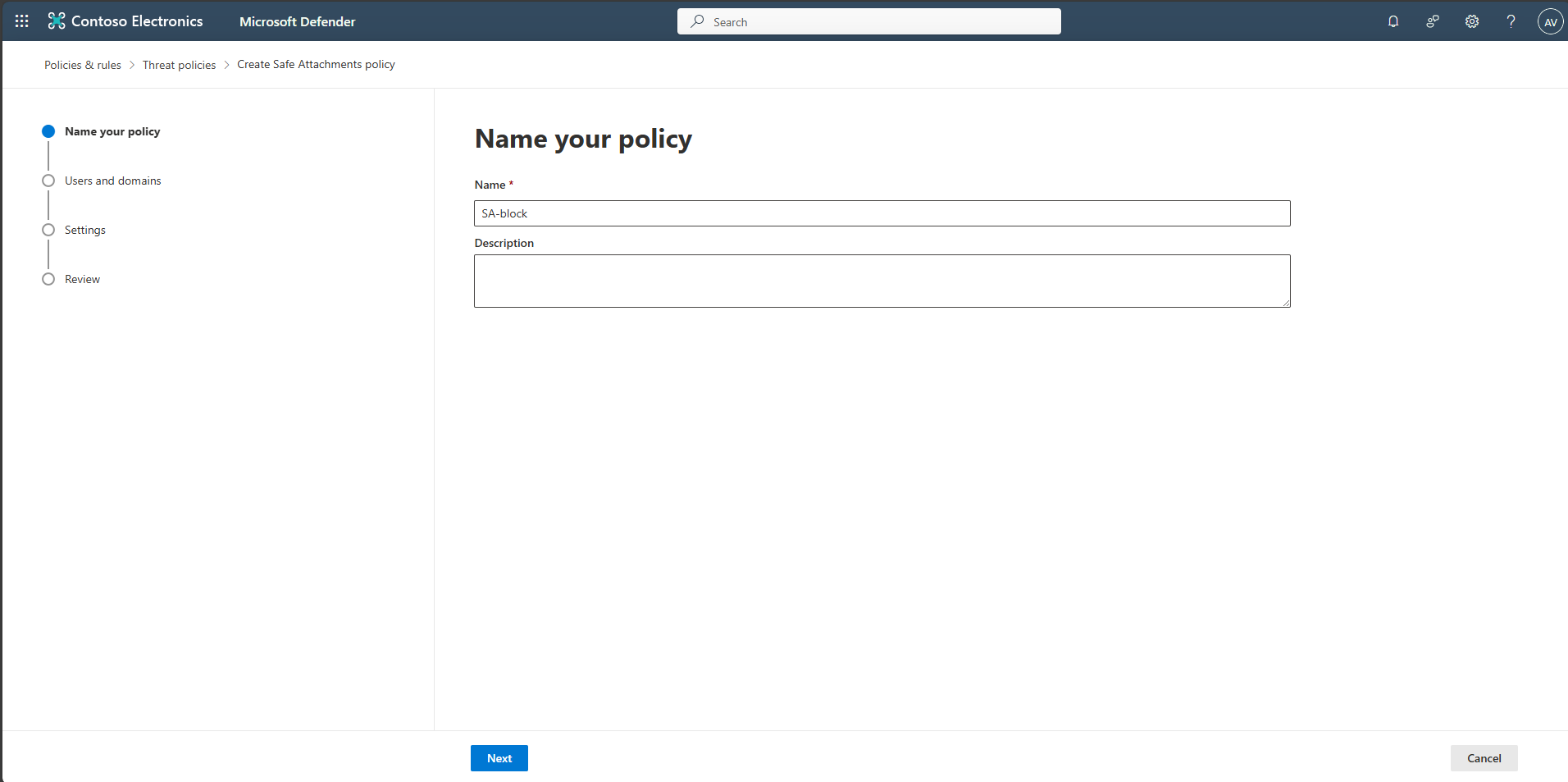
-
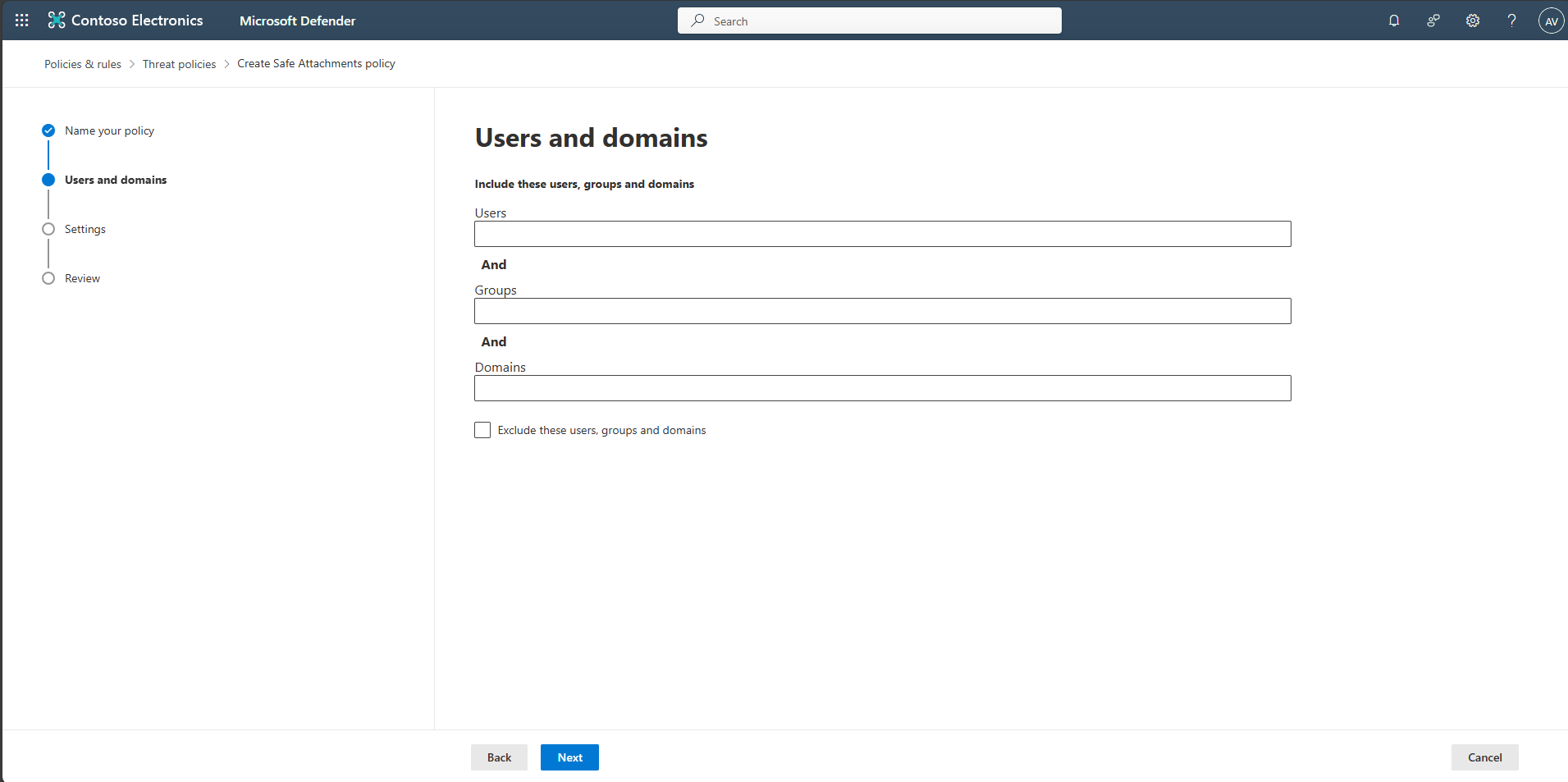
Leave Users, Groups, and Domains empty so it applies to all users, then select Next.
-
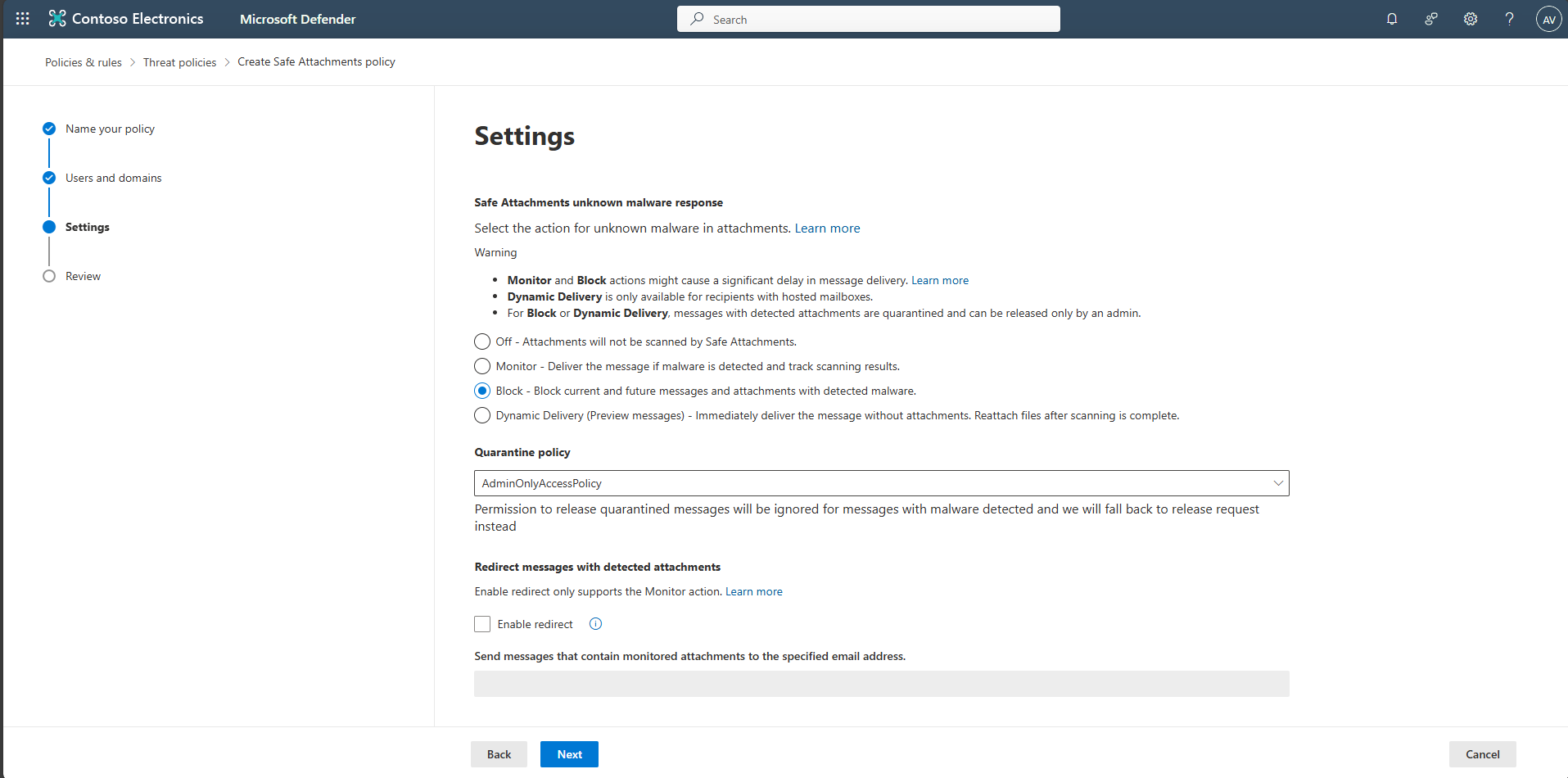
On the Settings step, select Block, then select Next. (Optional: turn on Dynamic delivery to release body before attachment scan.)
-
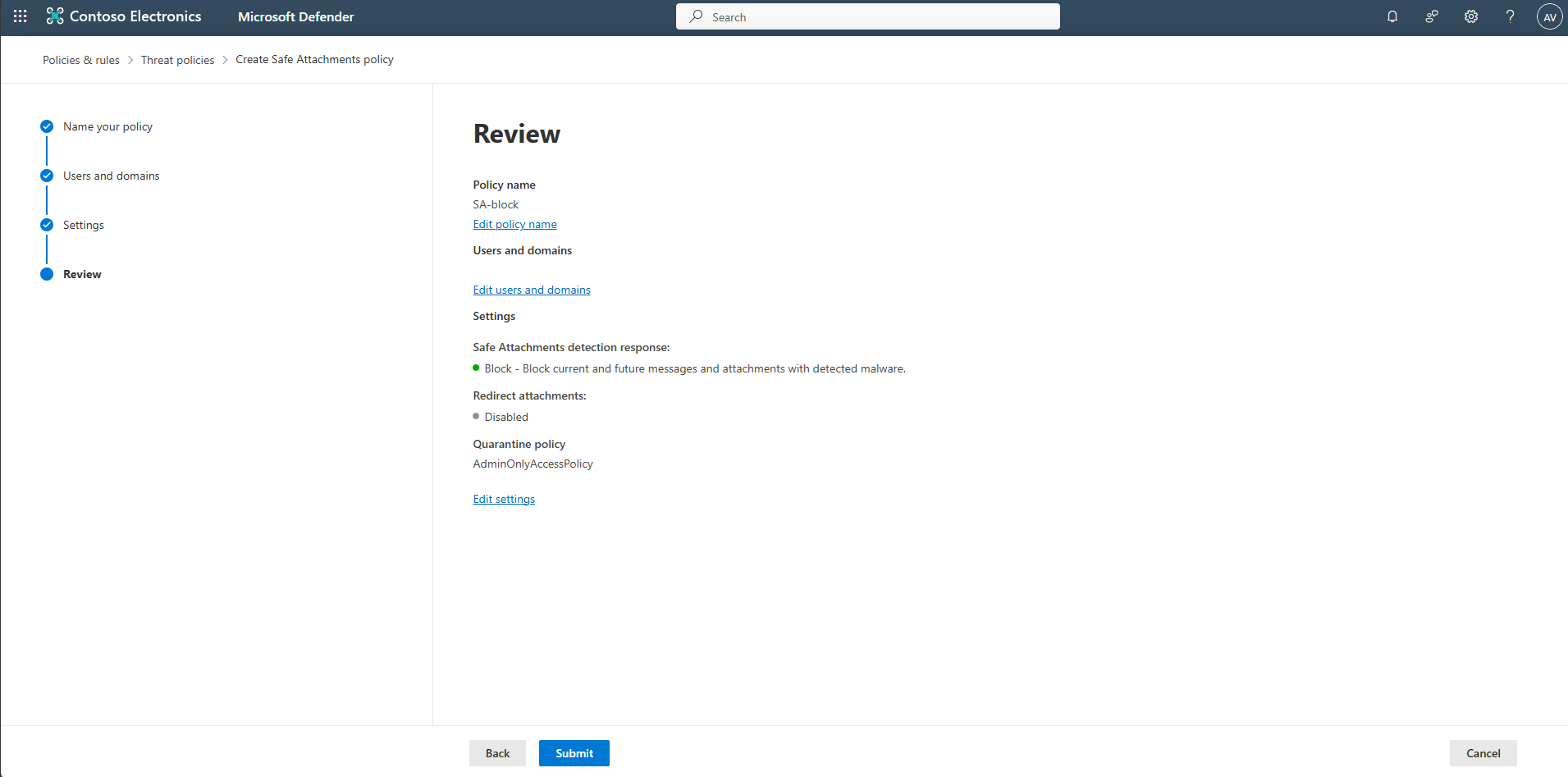
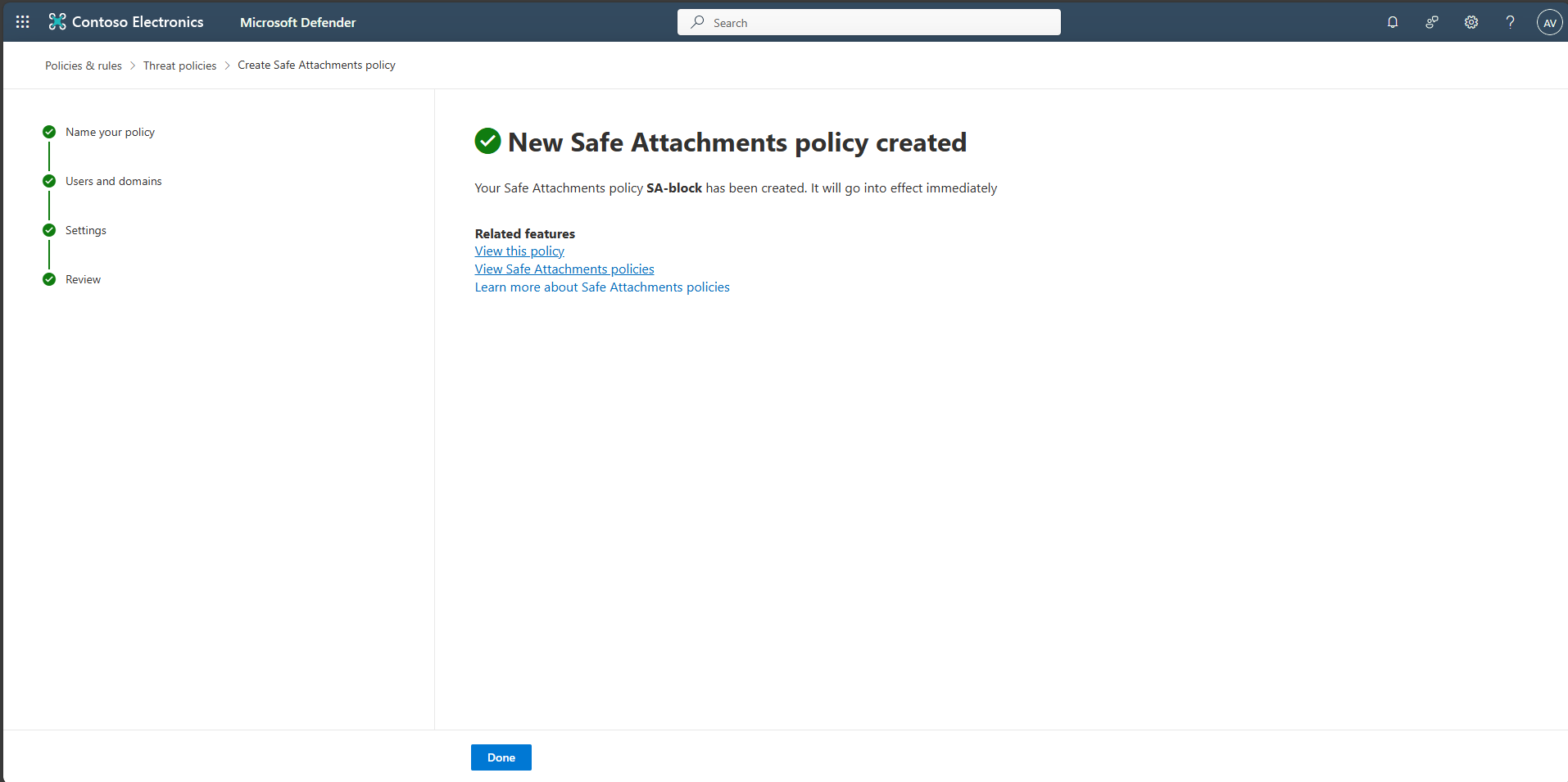
Select Submit, then Done.
-
(Optional) Adjust priority so this policy applies before others.
-
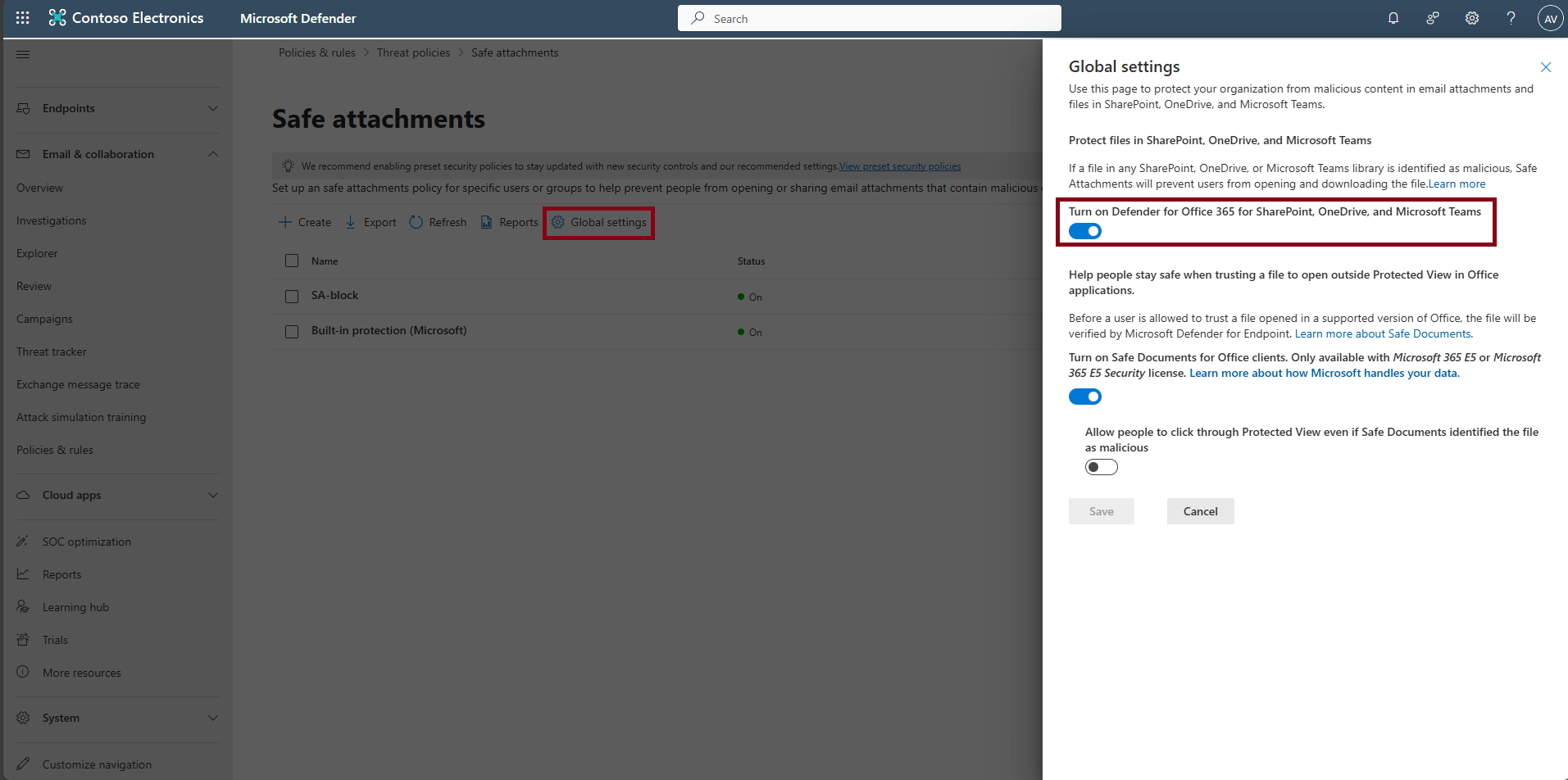
On the Safe attachments page’s top bar, select Global settings.
-
Confirm Defender for Office 365 for SharePoint, OneDrive, and Microsoft Teams is on.