Task 05: Generate safe alerts
-
Go back to your Azure portal tab.
-
In Azure’s search box, enter and select your
rg-xdr-labresource group.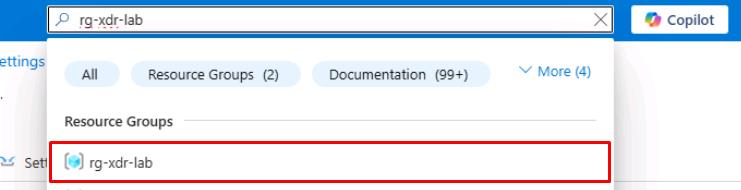
-
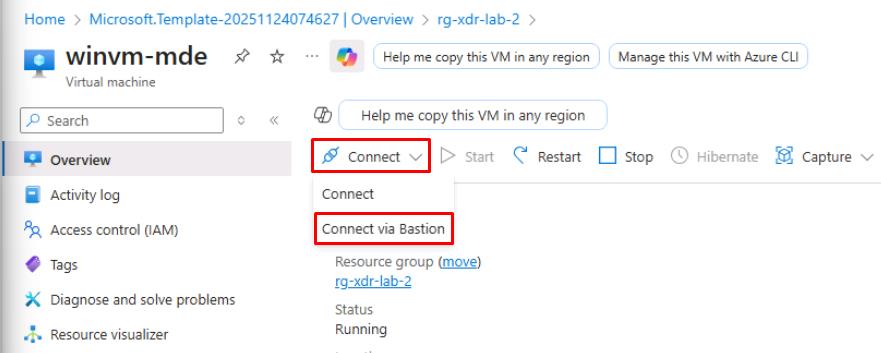
Select the winvm-mde VM.
-
On the top bar, select Connect > Connect via Bastion.
-
On the Bastion page, enter the following credentials:
Item Value Username azureadminPassword P@ssword123! -
Select Connect.
This will open the winwm-mde VM in a new browser tab.
-
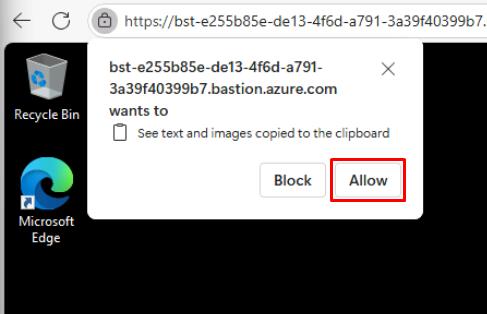
In the See text and images copied… dialog, select Allow.
-
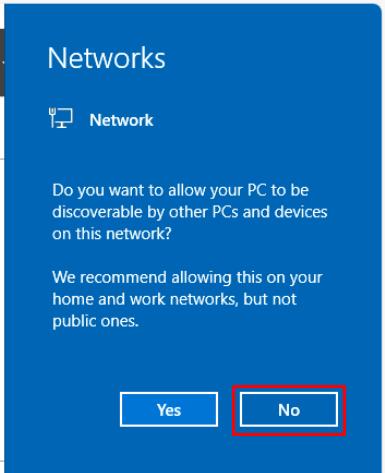
In the Networks flyout pane, select No.
-
Close all other windows that load in the VM.
-
In winwm-mde’s taskbar search box, enter Windows PowerShell, right-click Windows PowerShell > Run as administrator.
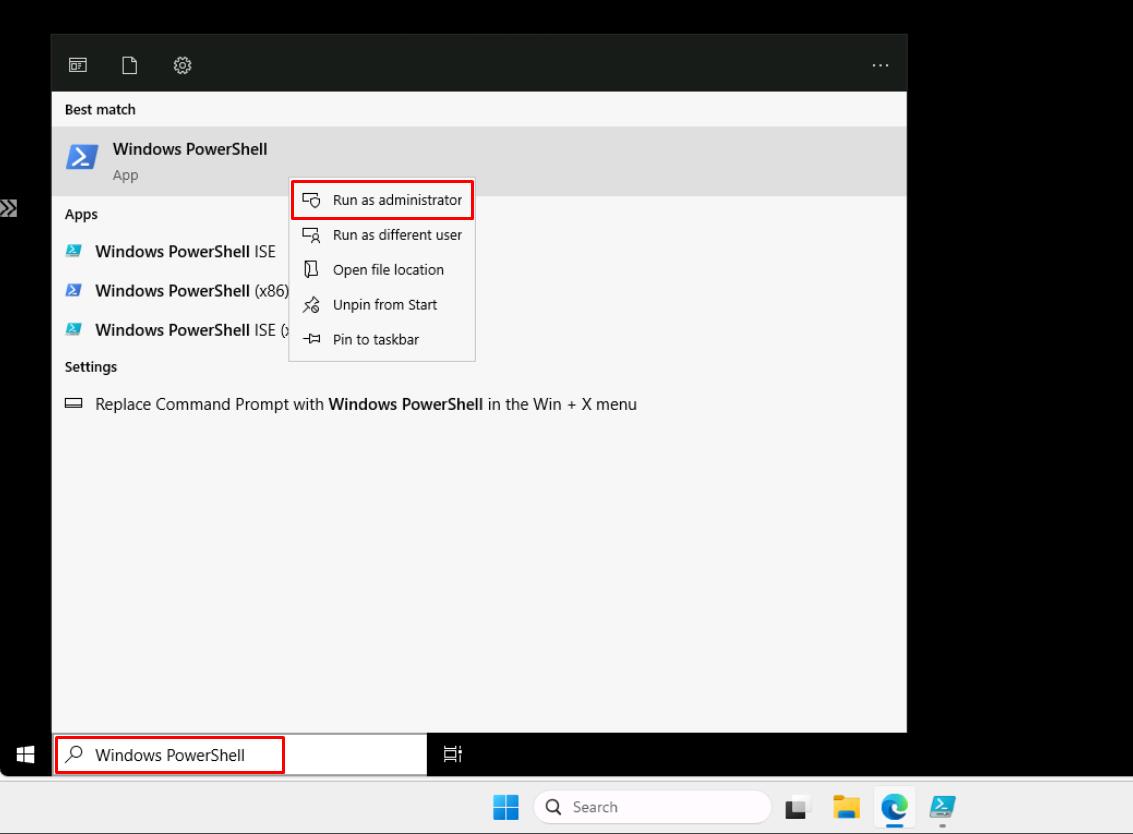
The Bastion VM tab for winwm-mde in the browser tab. Not the Skillable VM’s taskbar.
-
Enter the following:
$eicar='X5O!P%@AP[4\PZX54(P^)7CC)7}$EICAR-STANDARD-ANTIVIRUS-TEST-FILE!$H+H*' -
Run the following five times:
Set-Content -Path C:\eicar.com -Value $eicar -Encoding ASCIISelect the up arrow on your keyboard to quickly load and rerun the same line.
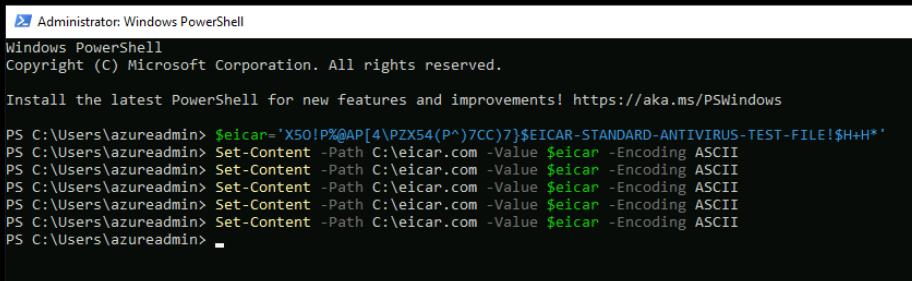
Windows Defender AV should quarantine it and MDE should raise an alert/incident.
Wait 5-10 minutes after running.
-
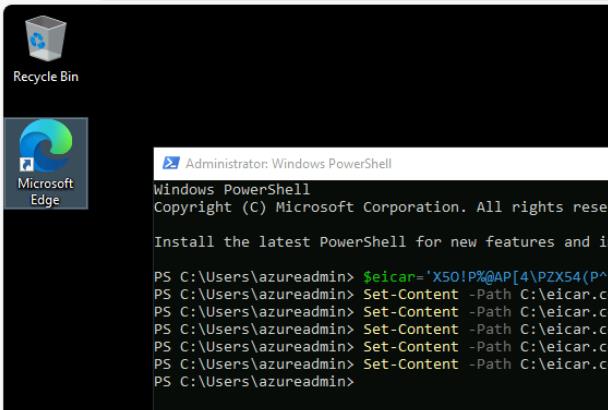
Still in the winwm-mde VM, open Microsoft Edge and close any dialogs without signing in.
-
Open a few well-known SaaS sites like the following to seed Cloud Discovery via MDE integration. You do not need to sign in.
- outlook.com
- onedrive.com
- salesforce.com
- monday.com
- docusign.com
-
Close the winwm-mde Bastion browser tab.