Task 04: Create custom detection rules
Security Architecture Team
-
Define detection use case:
- Name: ‘HVA After-Hours or Multi-Country Remote Logon’
- Purpose: Catch logon anomalies from executive or privileged accounts.
- Severity: High
- MITRE ATT&CK tactics:
- TA0001 - Initial Access
- TA0008 - Lateral Movement
- Entity types: Account, Device
- Detection criteria:
- LogonType == “RemoteInteractive”
- MultiCountry == True OR AfterHours == True
Security Engineering and Administration
01: Run a simulated detection KQL query
-
Run the following query:
  // --- Simulated HVA dataset (identity-only) ---
  let HighValueAssets = datatable(AccountUpn:string, Department:string)
  [
      "ceo@zavaoil.com","Executive",
      "ciso@zavaoil.com","Security",
      "adminsvc@zavaoil.com","IT",
      "finlead@zavaoil.com","Finance",
      "itops@zavaoil.com","Operations"
  ];
  let SimulatedDeviceLogons = datatable(
      Timestamp:datetime, AccountUpn:string, DeviceName:string, Location:string, LogonType:string
  )
  [
      datetime(2025-11-02 08:05:00),"ceo@zavaoil.com","CEO-LAPTOP","Wellington","RemoteInteractive",
      datetime(2025-11-02 08:10:00),"ciso@zavaoil.com","CISO-LAPTOP","Wellington","RemoteInteractive",
      datetime(2025-11-02 09:00:00),"adminsvc@zavaoil.com","SRV-AD01","Auckland","ServiceLogon",
      datetime(2025-11-02 23:50:00),"finlead@zavaoil.com","FIN-LAPTOP01","Singapore","RemoteInteractive",
      datetime(2025-11-02 23:45:00),"ceo@zavaoil.com","CEO-LAPTOP","Singapore","RemoteInteractive"
  ];
  // 1) Simulated anomalies
  let Results =
  HighValueAssets
  | join kind=inner (SimulatedDeviceLogons) on AccountUpn
  | extend HourOfDay = datetime_part("hour", Timestamp)
  | extend AfterHours = iif(HourOfDay < 6 or HourOfDay > 20, true, false)
  | summarize DistinctLocations = dcount(Location),
          Countries = make_set(Location, 5),
          LastLogon = max(Timestamp)
      by AccountUpn, Department, AfterHours
  | where AfterHours or DistinctLocations > 1
  | project AccountUpn, Department, Countries, AfterHours, LastLogon;
  // 2) Single real AAD sign-in anchor (guarantees real provider identifiers)
  let Anchor =
  AADSignInEventsBeta
  | where Timestamp > ago(30d)
  | top 1 by Timestamp desc
  | project AnchorTs = Timestamp, AnchorReportId = tostring(ReportId);
  // 3) Cross-join every simulated row with the real anchor, then output required columns
  Results
  | extend _k = 1
  | join kind=inner (Anchor | extend _k = 1) on _k
  | project
      Timestamp = AnchorTs,              // REAL provider event time
      AccountUpn,                        // map as User → UPN
      ReportId  = AnchorReportId,        // REAL provider event id (string is fine)
      Department, Countries, AfterHours, SimulatedLastLogon = LastLogon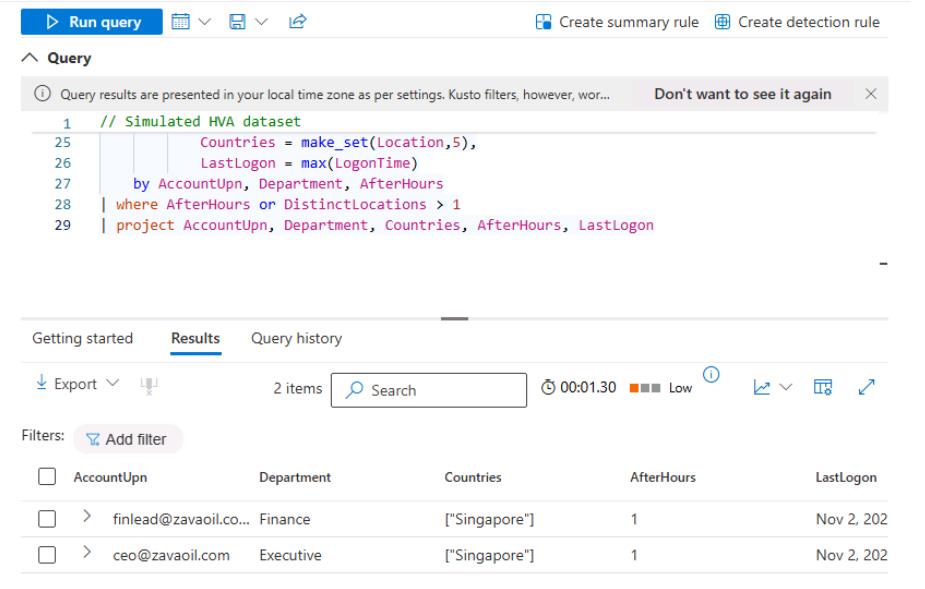
You’ll see the CEO and Finance Lead flagged.
02: Create a detection rule
-
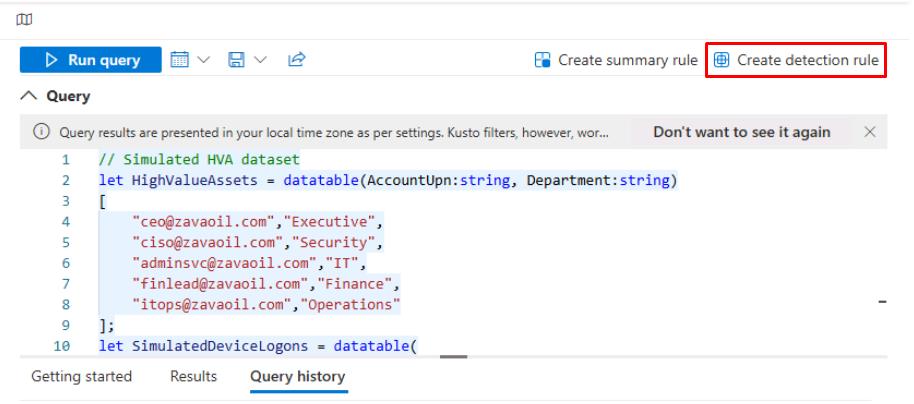
In the upper-right corner of the Query pane, select Create detection rule.
-
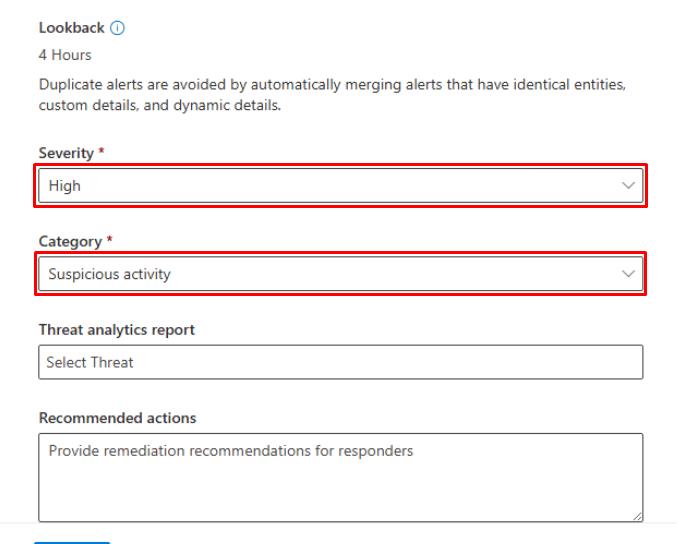
In the Custom detection wizard, enter the following:
Item Value Detection name HVA After-Hours or Multi-Country LogonRule description Detects after-hours or multi-country remote logons by high-value accounts (simulated).Frequency Every hour Severity High Category Suspicious activity 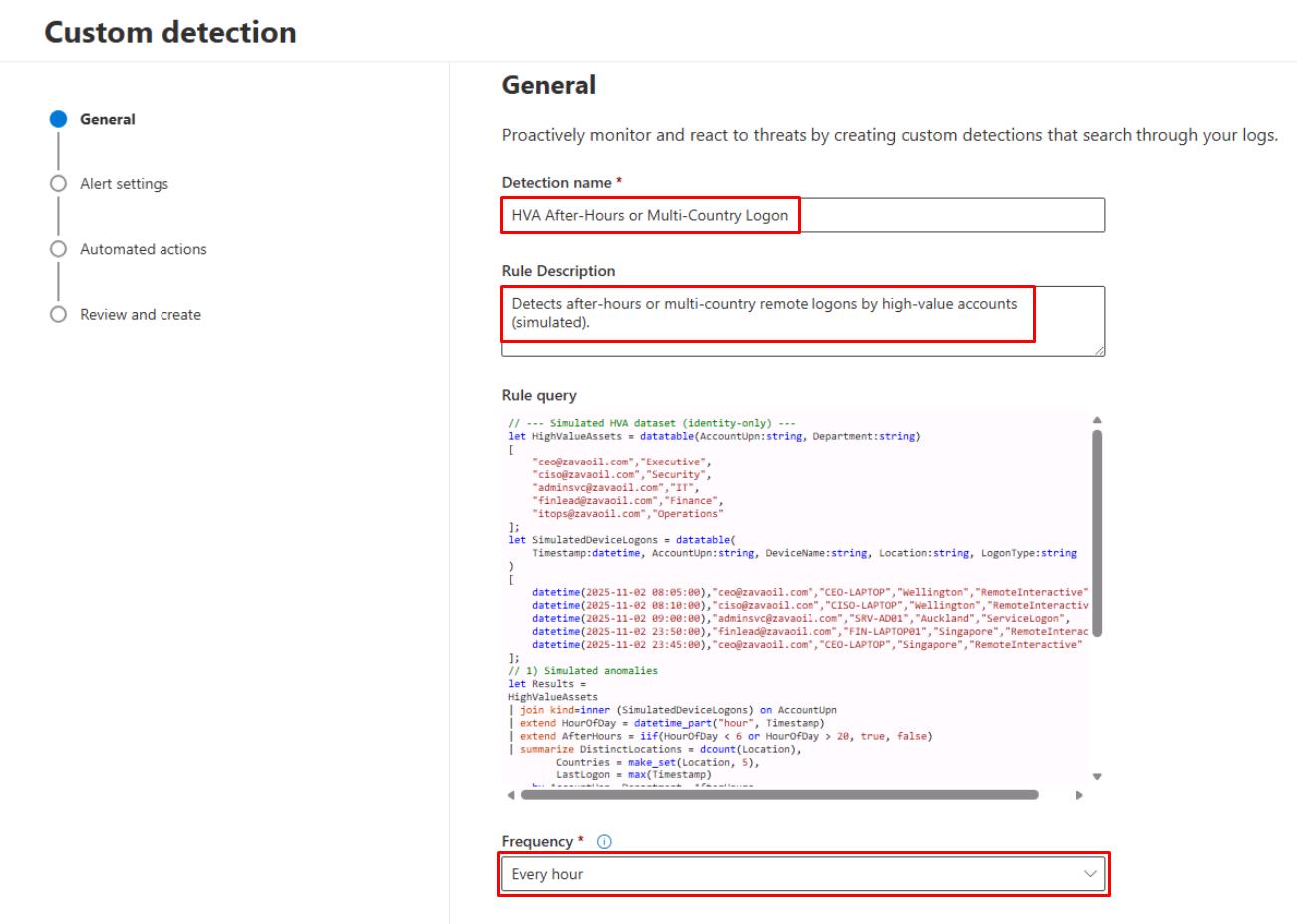
-
At the bottom of the page, select Next.
-
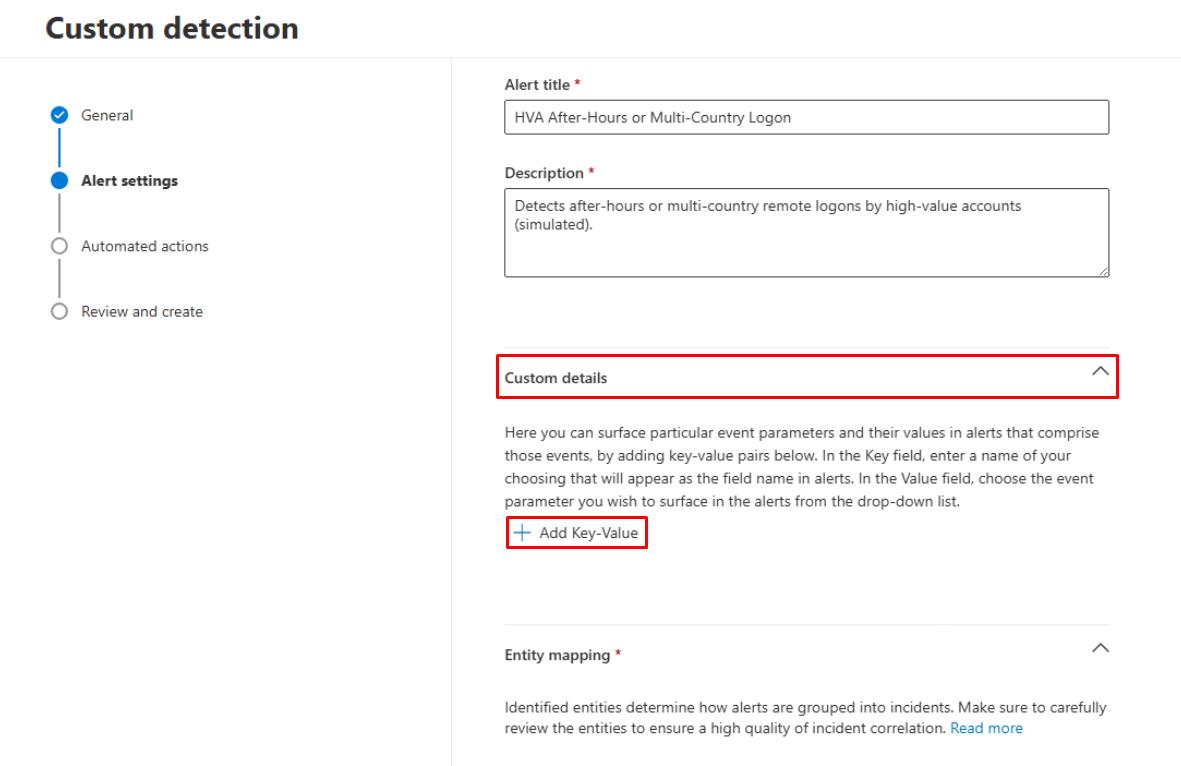
On the Alert settings step, enter the following:
Item Value Alert title HVA After-Hours / Multi-Location Logon Detected (Simulated)Description Detects after-hours or multi-country logons by high-value accounts based on simulated dataset in Advanced Hunting. -
Expand the Custom details section.
-
Select Add Key-Value.
-
For the Key-Value, enter:
Item Value Key AfterHoursParameter AfterHours -
Select Add Key-Value.
-
For the Key-Value, enter:
Item Value Key CountriesParameter Countries 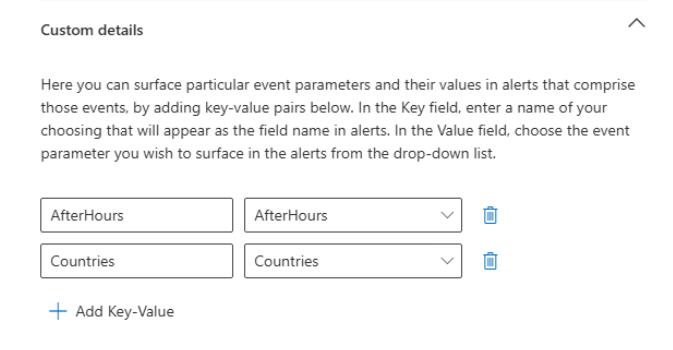
-
-
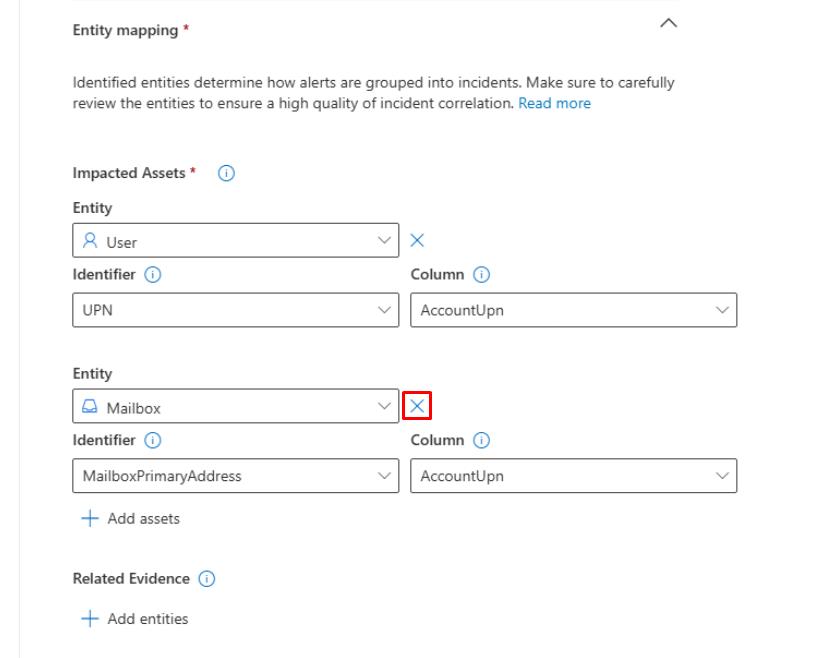
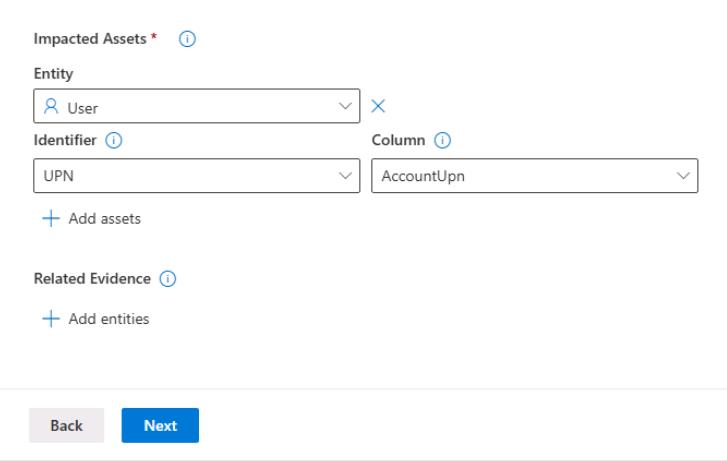
Under the Impacted Assets section:
-
Keep the User entity.
-
Delete the Mailbox entity by selecting the X to the right of the Entity dropdown menu.
-
-
At the bottom of the page, select Next until you reach the Review and create step.
-
Select Submit to save the rule.
SOC Analyst
-
Go to Investigation & response > Incidents & alerts > Incidents.
-
Select any empty space on the line for HVA After-Hours or Multi-Country Logon.
-
At the top of the flyout pane, select Manage incident.
-
Enter the following:
Item Value Severity High Assign to Assign to me Status Resolved Resolved Notes First action taken at [time] - validated false positive/confirmed anomaly.Classification False Positive - Not malicious -
Select Save, then close the flyout pane.
-
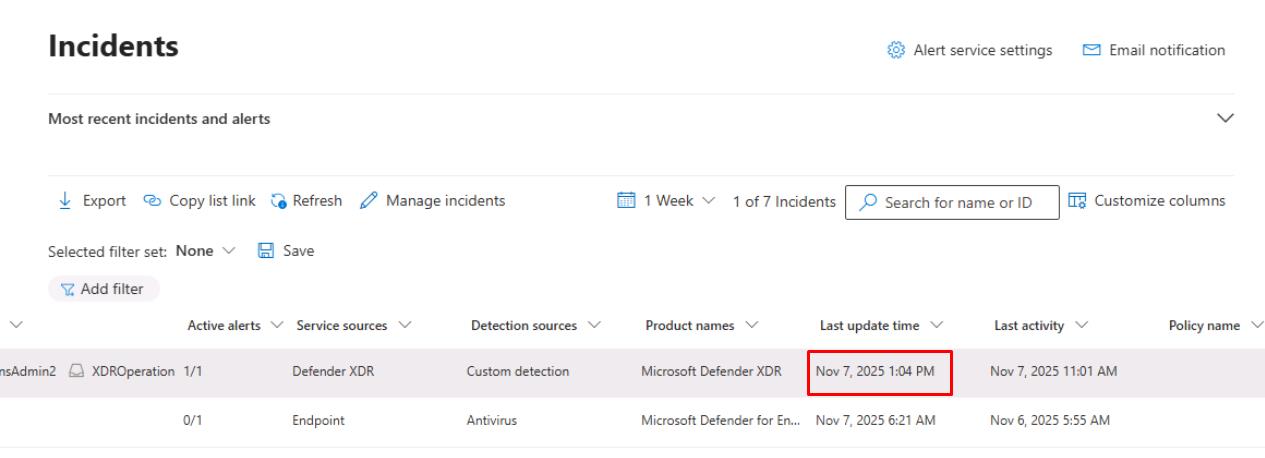
On the table, verify the Last update time column for the incident, which will be used for MTTR metrics.