Task 01: Turn on tamper protection, EDR in block mode, and PUA (pilot scope)
Security Architecture Team
-
In the leftmost pane, go to System > Settings.
-
Select Endpoints.
On the Endpoints page, this will default to the General > Advanced features menu item.
-
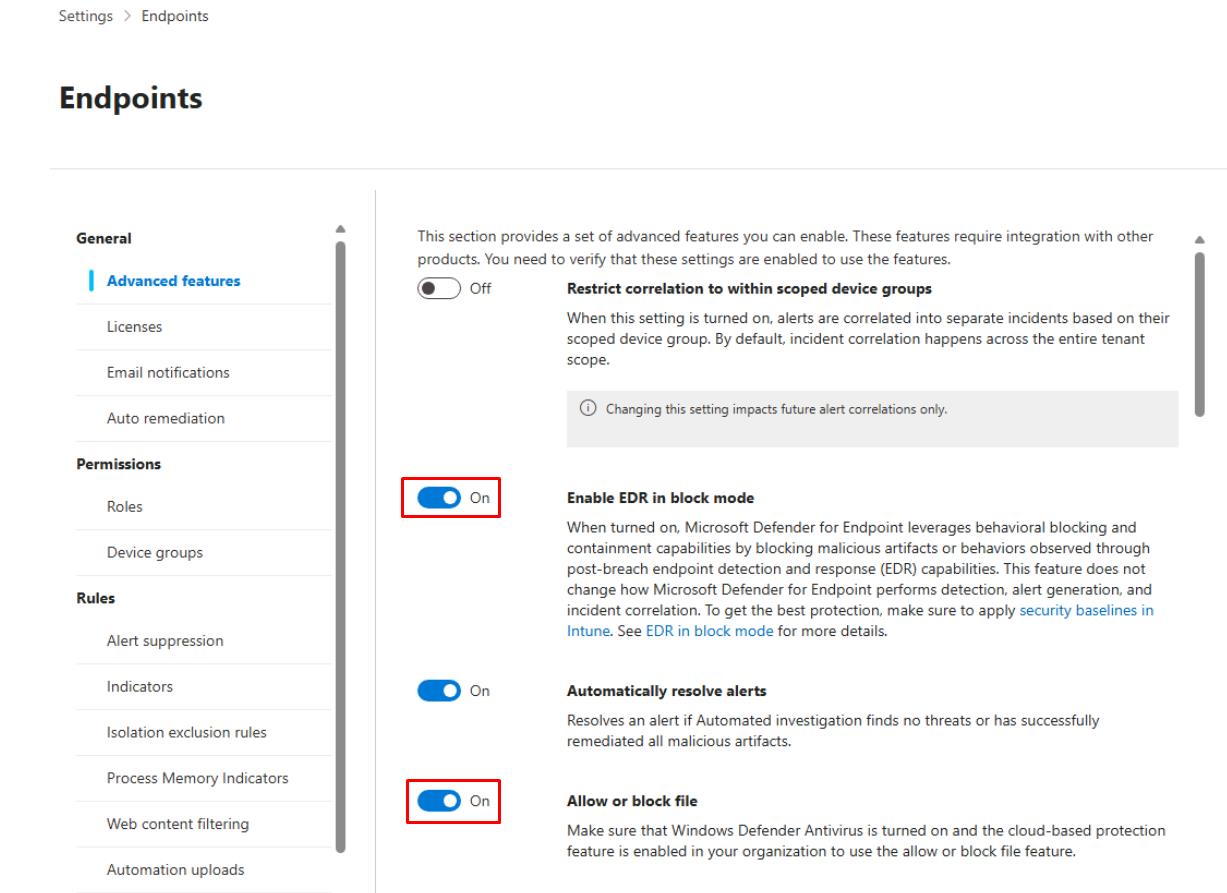
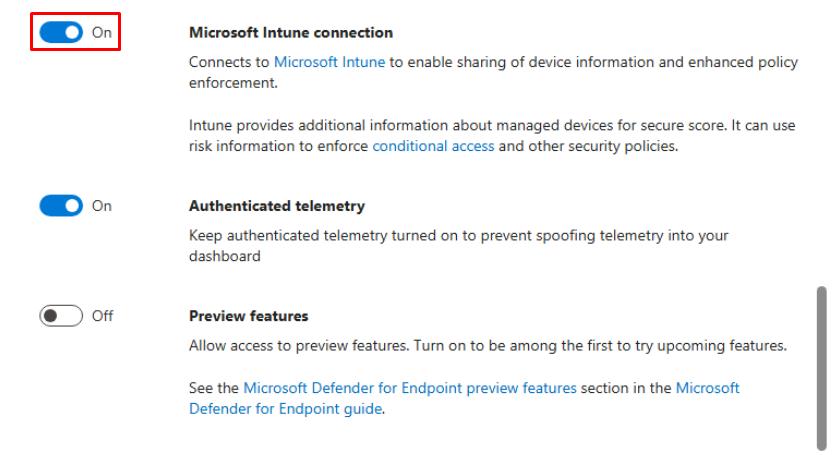
Enable the following settings:
- Enable EDR in block mode
- Allow or block file
- Tamper protection
- Microsoft Intune connection

-
At the bottom of the pane, select Save preferences.
-
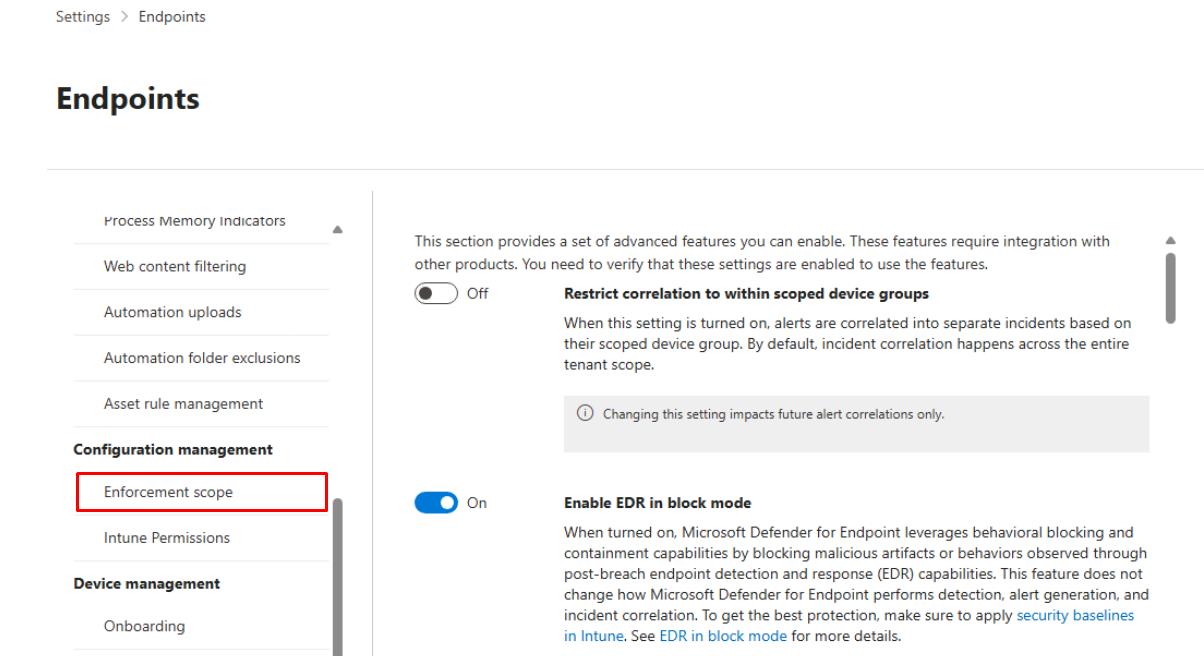
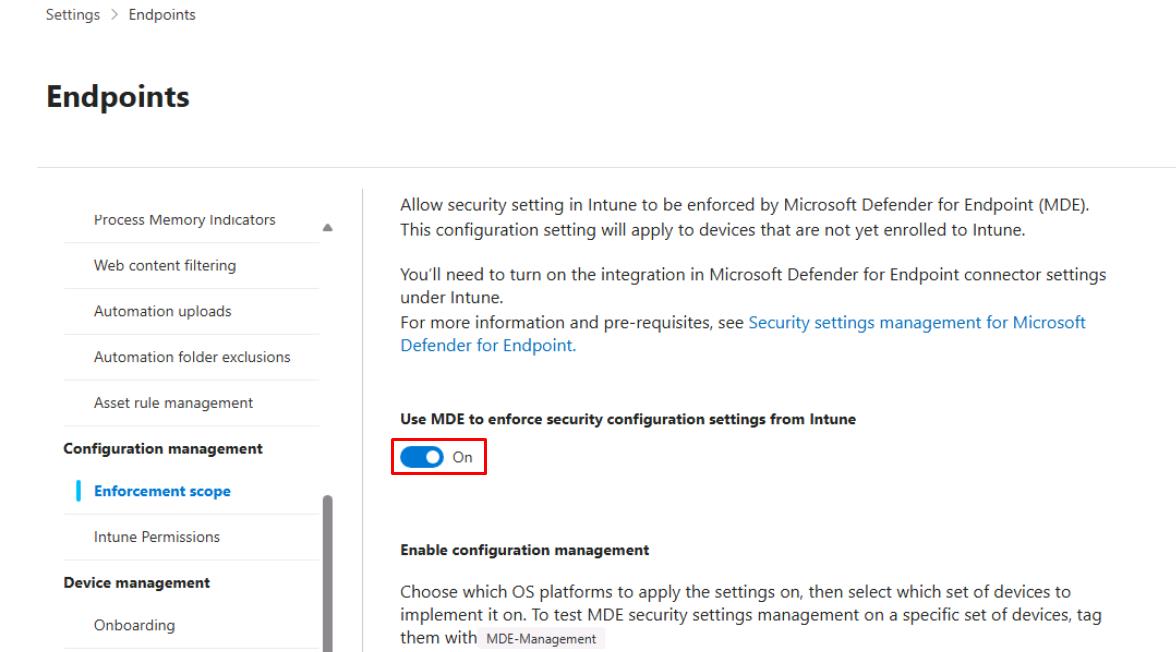
Under the Endpoints page menu, under Configuration management, select Enforcement scope.
-
Turn on Use MDE to enforce security configuration settings from Intune.
-
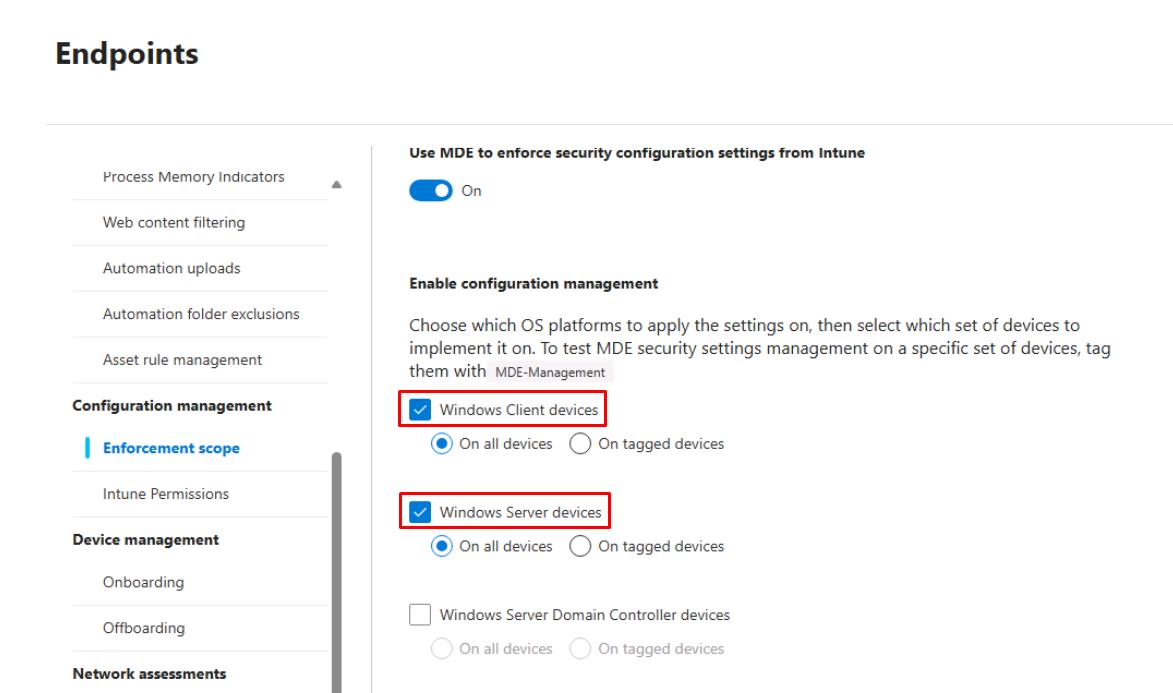
Under Enable configuration management, select Windows Client devices and On all devices.
-
Under the same section, select Windows Server devices and On all devices.
-
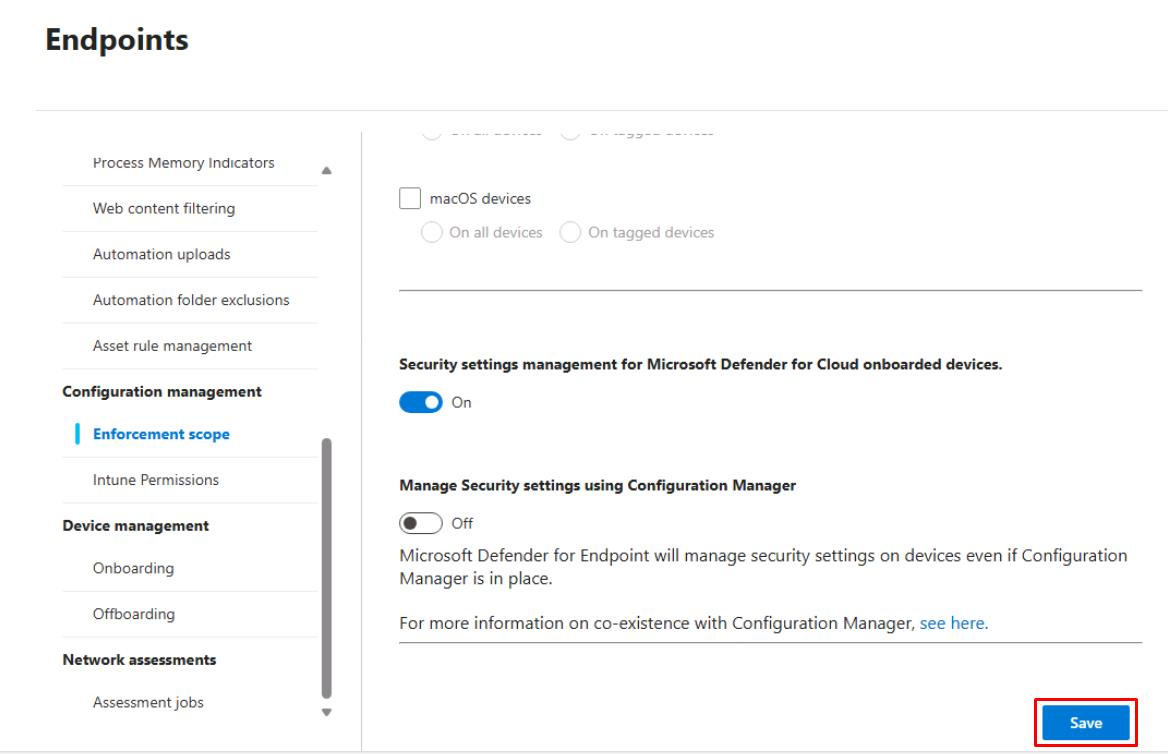
Move to the bottom of the page and select Save.
-
Select Go to Intune, or open a new tab and go to
intune.microsoft.com. -
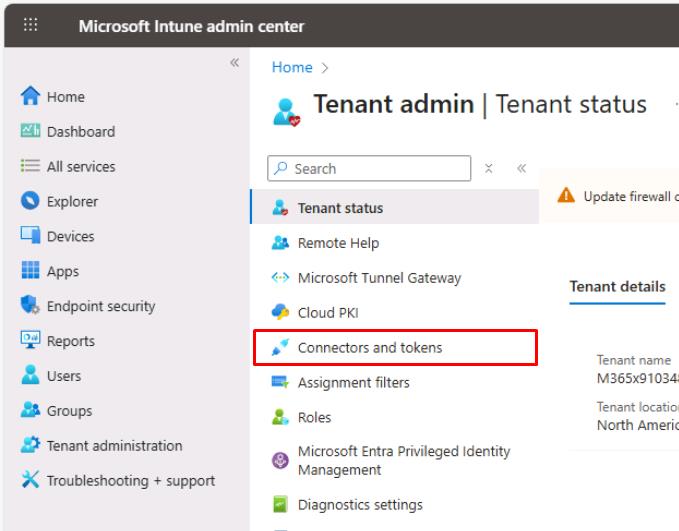
In the leftmost pane, select Tenant administration.
-
In the Tenant admin page menu, select Connectors and tokens.
-
In the Connectors and tokens page menu, under Cross platform, select Microsoft Defender for Endpoint.
-
Turn on Allow Microsoft Defender for Endpoint to enforce Endpoint Security Configurations.
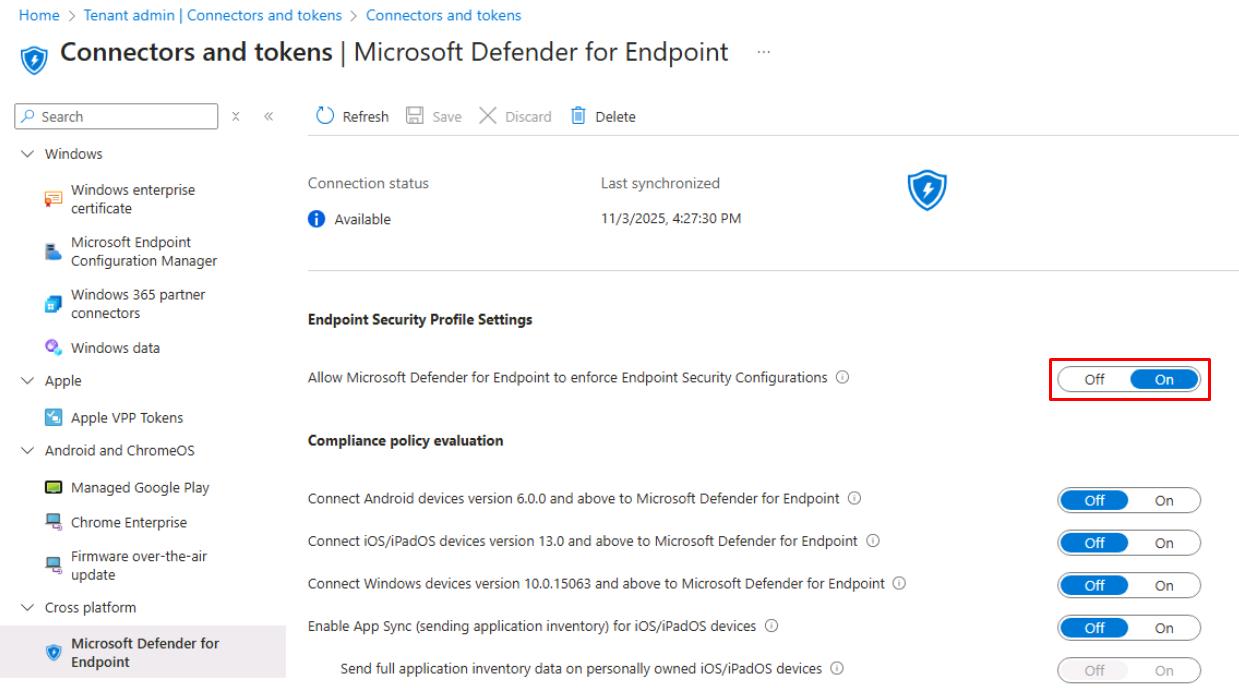
-
On the top bar, select Save.
Please wait 5-10 minutes for the connection to be established between MDE and Intune.
Security Engineering and Administration
-
In the leftmost pane, go to Assets > Devices to see devices in the tenant.
-
In a new tab, go back to
portal.azure.com. -
In Azure’s search box, enter and select your
rg-xdr-labresource group.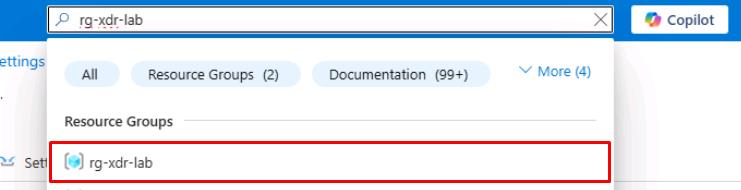
-
Select the winvm-mde VM.
-
On the top bar, select Connect > Connect via Bastion.
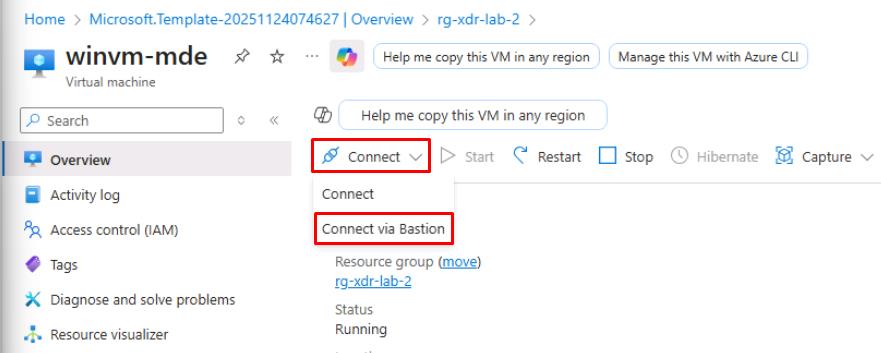
-
On the Bastion page, enter the following credentials:
Item Value Username azureadminPassword P@ssword123! -
Select Connect.
This will open the winwm-mde VM in a new browser tab.
-
In the See text and images copied… dialog, select Allow.
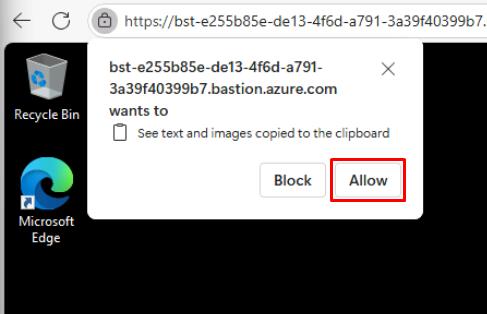
-
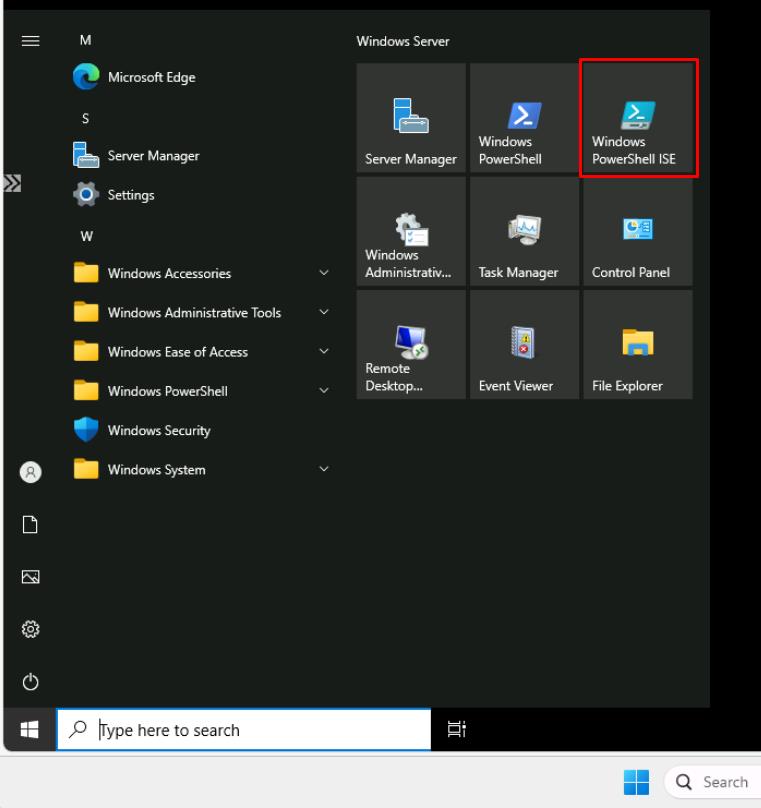
In winvm-mde, open the Start menu, then select Windows PowerShell ISE.
-
Select File > New.
-
On your lab VM (not winvm-mde), go to
C:\LabFiles\E3. -
Right-click ValidateMDEPilot > Edit in Notepad.
-
Use Ctrl+A to select all, then use Ctrl+C to copy.
-
Go back to winvm-mde’s PowerShell ISE window.
-
In the top pane, use Ctrl+V to paste the code.
-
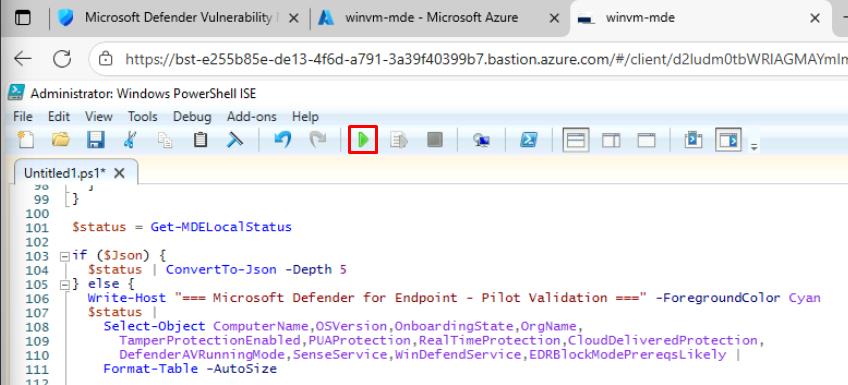
On the top bar, select Run Script.
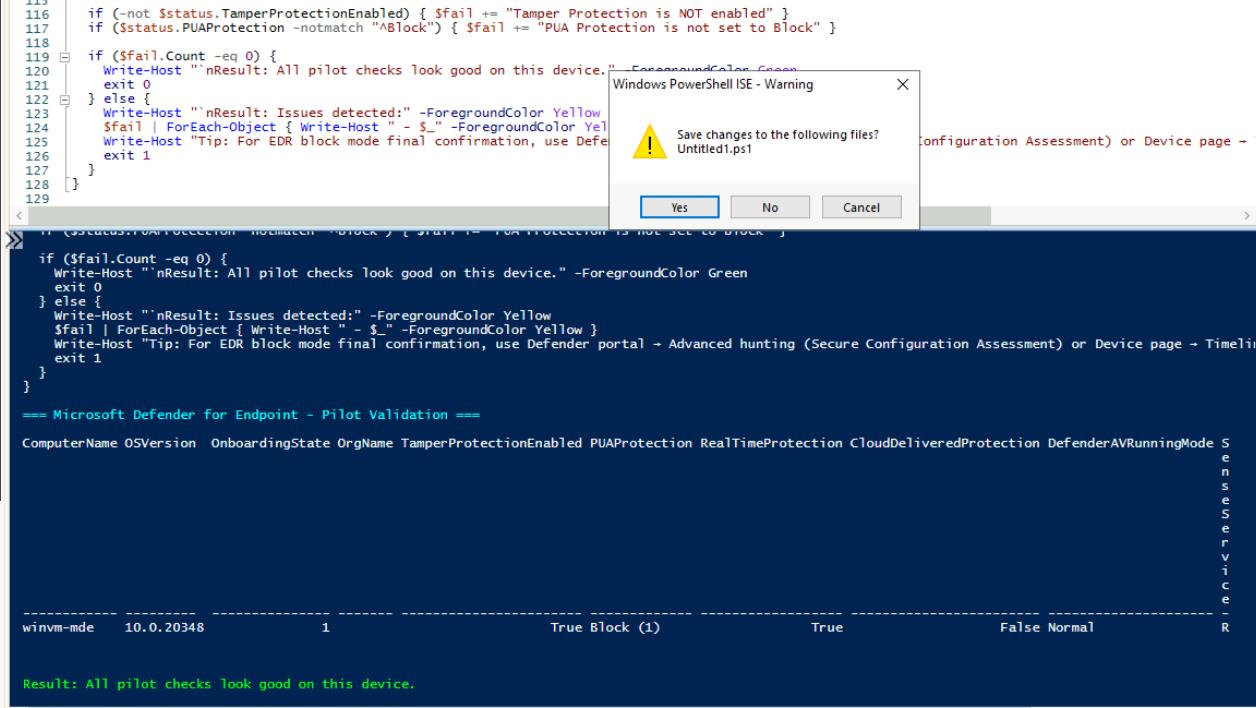
This performs a local health check for Microsoft Defender for Endpoint (MDE). It gathers and displays the device’s onboarding state, organization info, and security configuration (Tamper Protection, PUA protection, Real-time protection, running mode, and MDE services like Sense and WinDefend).
-
In the save prompt, select No. This will close the PowerShell window.
-
Close the winwm-mde Bastion browser tab.
SOC Analyst
-
In the Defender XDR portal’s leftmost pane, select Assets > Devices.
-
Select winvm-mde.
-
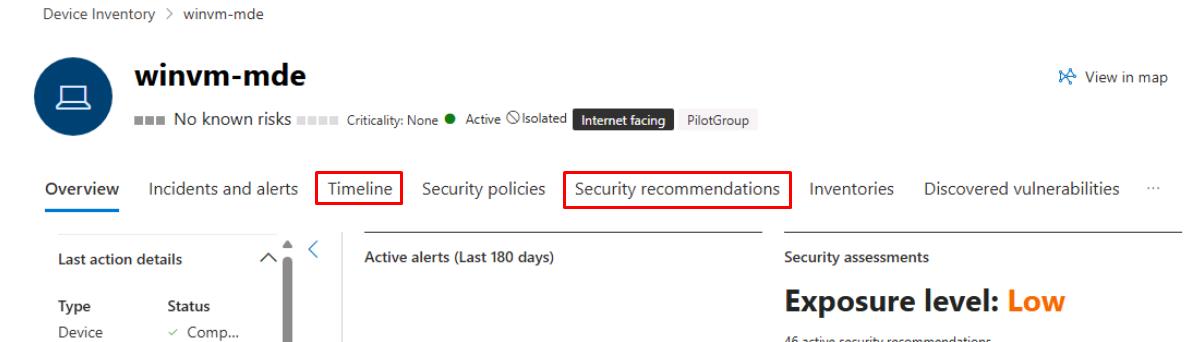
At the top of the page, review the Timeline and Security recommendations tabs to confirm features are active on the device.