Task 05: Root cause analysis and evidence
Security Architecture Team
-
In the leftmost pane, go to Investigate & response > Incidents & alerts > Incidents.
-
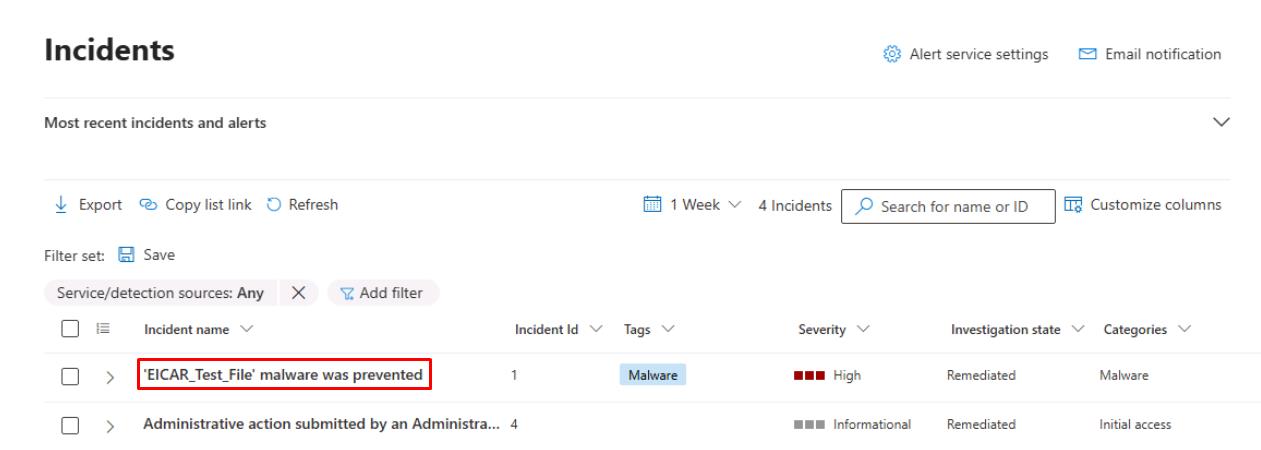
In the table, select the text for ‘EICAR_Test_File’ malware was prevented.
-
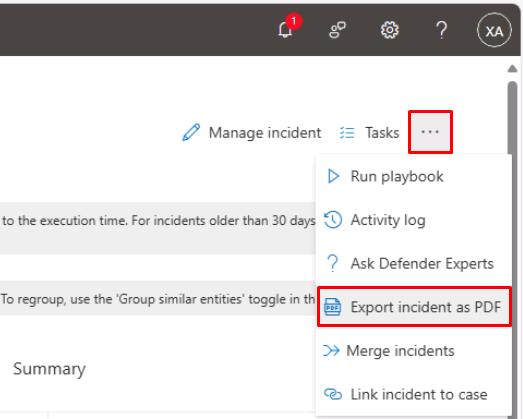
In the upper-right corner of the page, select the ellipsis, then select Export incident as PDF.
-
In the dialog, select Export PDF, then select Download.
Feel free to proceed with saving to the machine.
-
In the same incident, review the Evidence and Response tab.
-
In the upper-right corner of the page, you can select Manage incident to document your findings and Root Cause Analysis (RCA) notes.
Security Engineering and Administration
-
In the leftmost pane, go to Investigate & response > Actions & submissions > Action center.
-
At the top of the page, select the History tab.
-
Select Export.
The SOC Analyst could then export the CSV results of the three KQL queries they executed, and attach the evidence files to the incident record.
SOC Analyst
-
In the leftmost pane, go to Investigation & response > Incidents & alerts > Incidents.
-
Select any empty space on the line for ‘EICAR_Test_File’ malware was prevented.
This will open a flyout pane.
-
At the top of the flyout pane, select Manage incident and verify all the details are filled in.
This is filled out by the Security Architecture team in their task.
-
In the text box below Resolved, you could add a new line for your Root Cause Analysis (RCA) comments including:
- Initial vector
- Propagation pattern
- Controls that failed or succeeded
- Time to first action
- Time to contain
-
Under Incident tag, enter and select
RCA-Complete(Create new).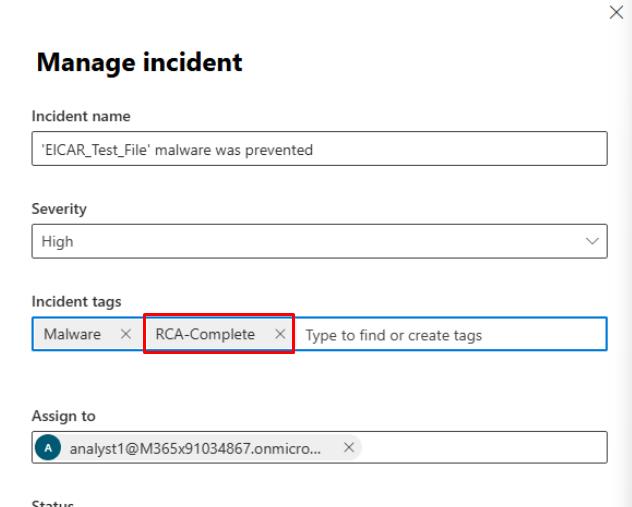
-
Select Save.