Task 01: Measure email protection posture and executive exposure
Security Architecture Team
-
In the leftmost pane, go to Email and Collaboration > Policies & rules.
-
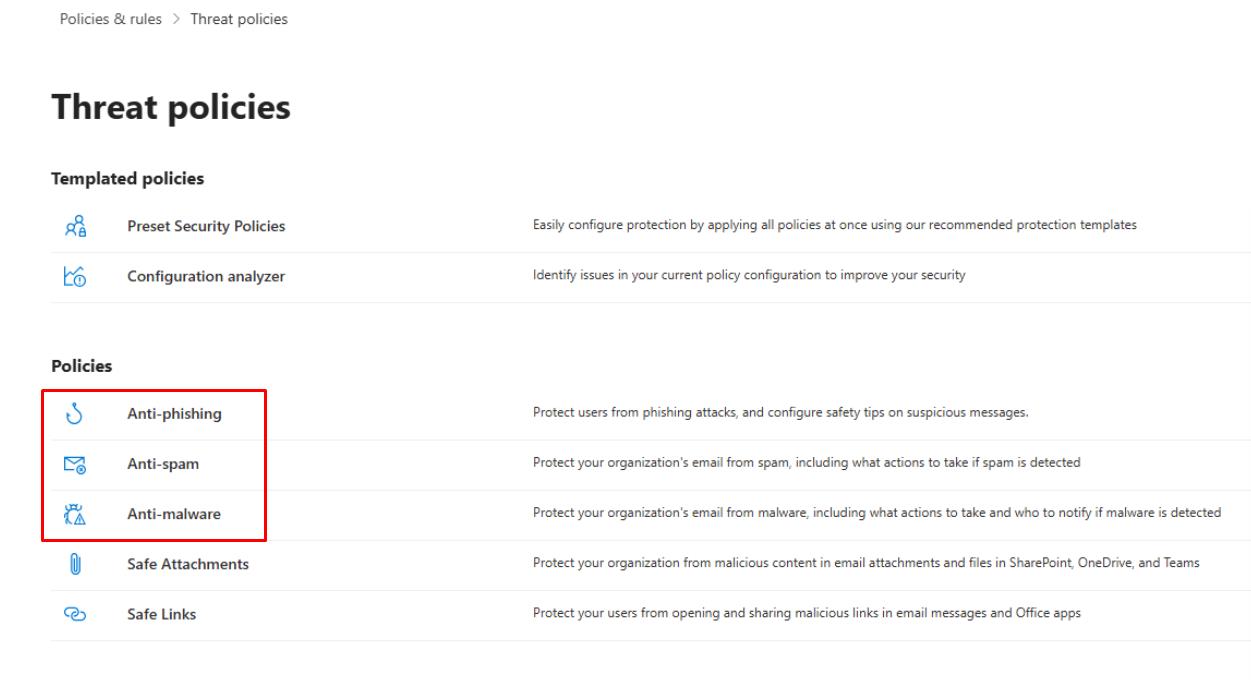
Select Threat policies.
-
Investigate policies related to Anti-phishing, Anti-spam, and Anti-malware.
-
In the leftmost pane, go to Reports.
-
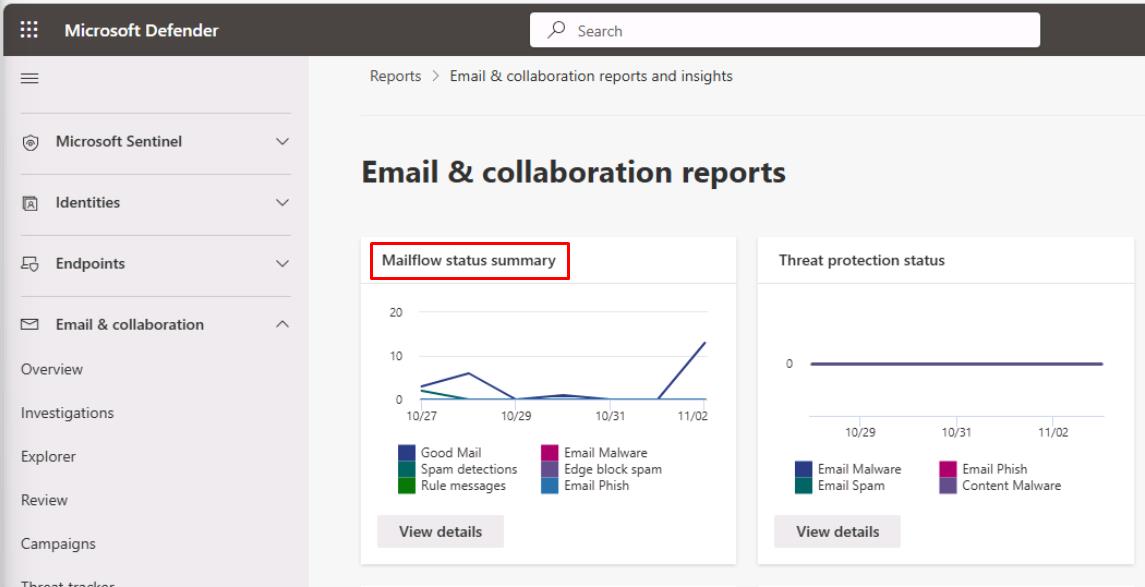
Under Email & collaboration, select Email & collaboration reports.
-
Select Mailflow status summary.
-
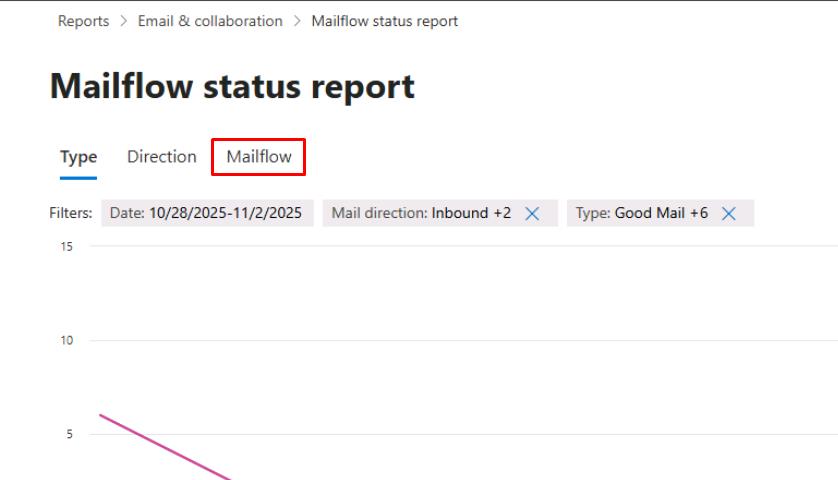
Near the top of the page, select the Mailflow tab.
-
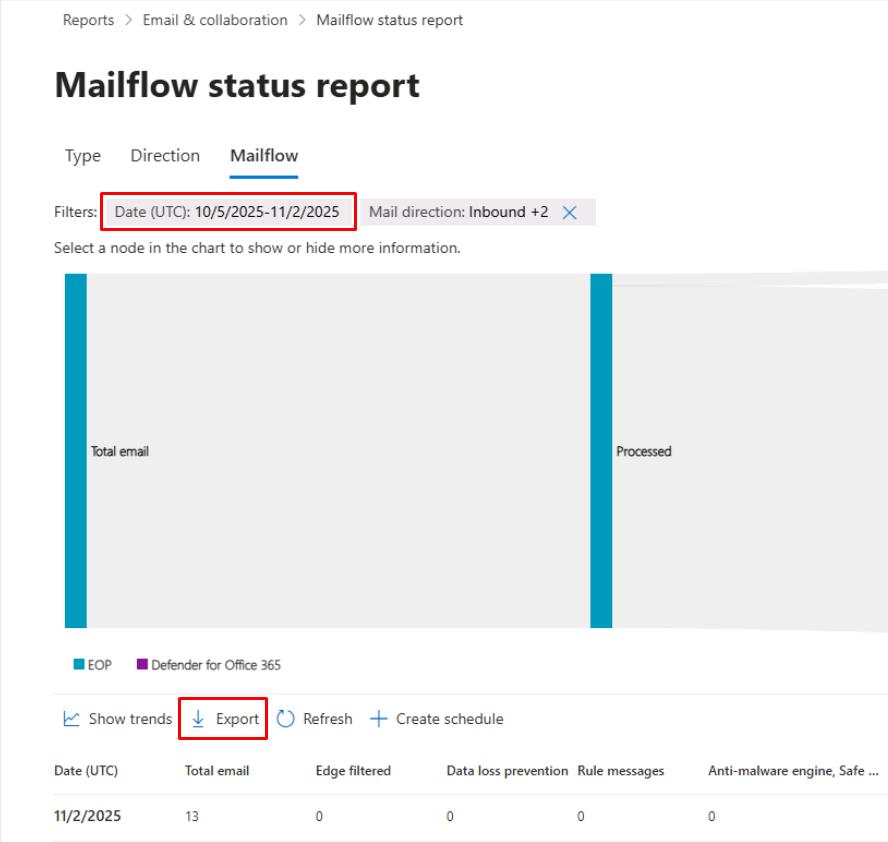
Verify the Filters at the top of the page are capturing the past week.
-
Below the chart, select Export.
-
In the flyout pane, select Export to download the CSV.
-
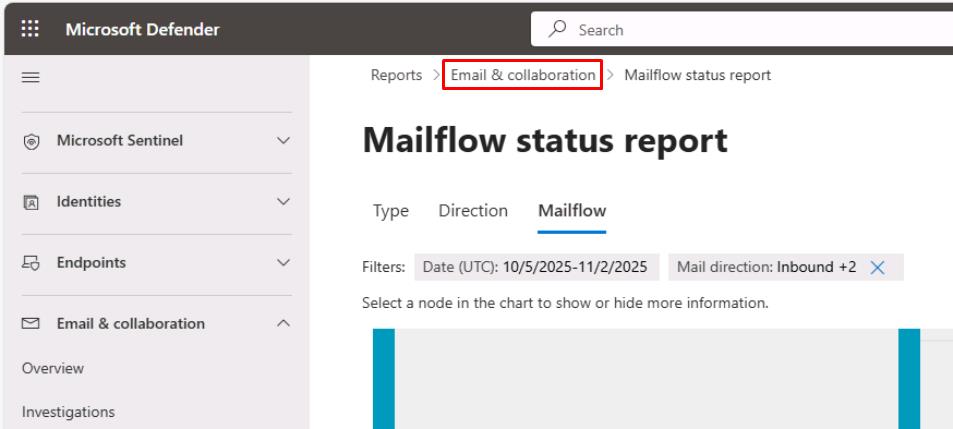
At the top of the page, select the Email & collaboration breadcrumb link.
-
Select Thread protection status.
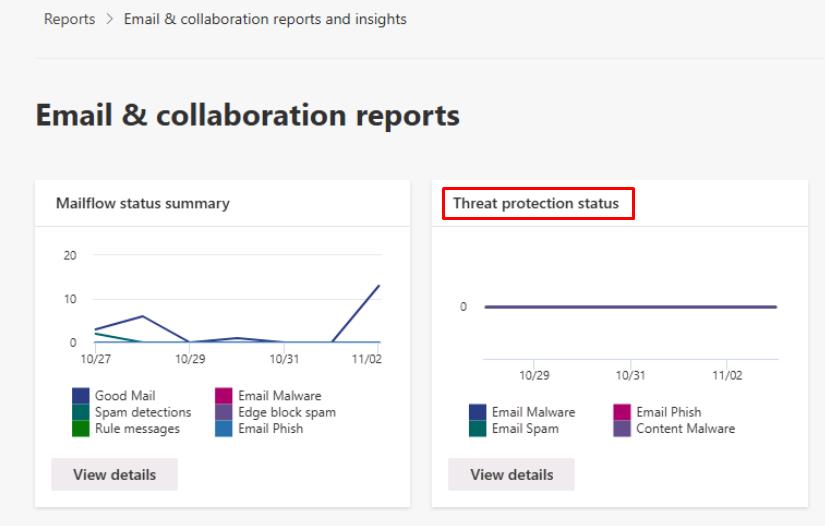
If any data is available, observe information about any threats found prior to email delivery.
-
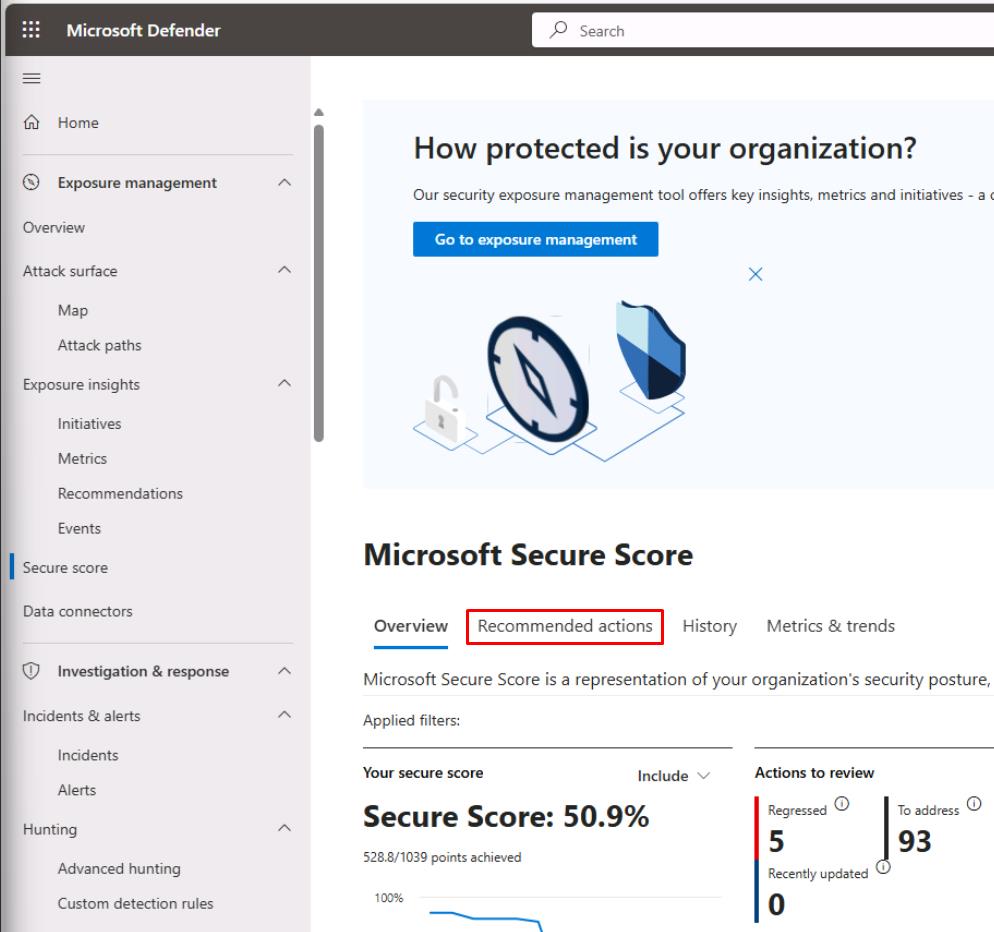
In the leftmost pane, go to Exposure management > Secure score.
-
Near the top of the page, select the Recommended actions tab.
-
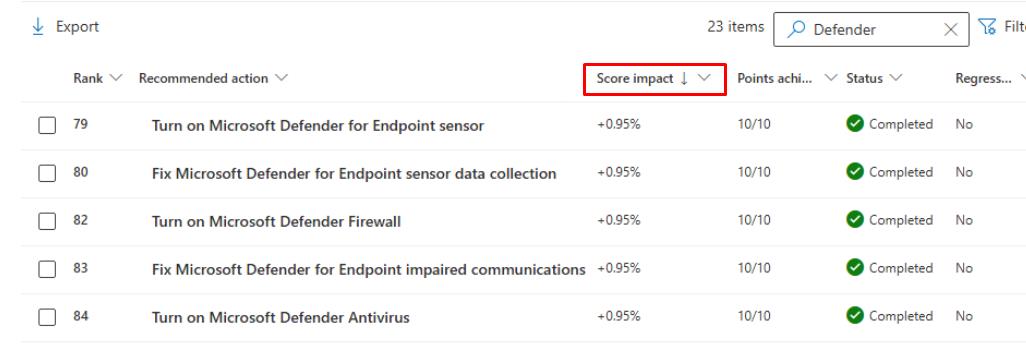
In the upper-right corner of the table’s search box, enter
Defender.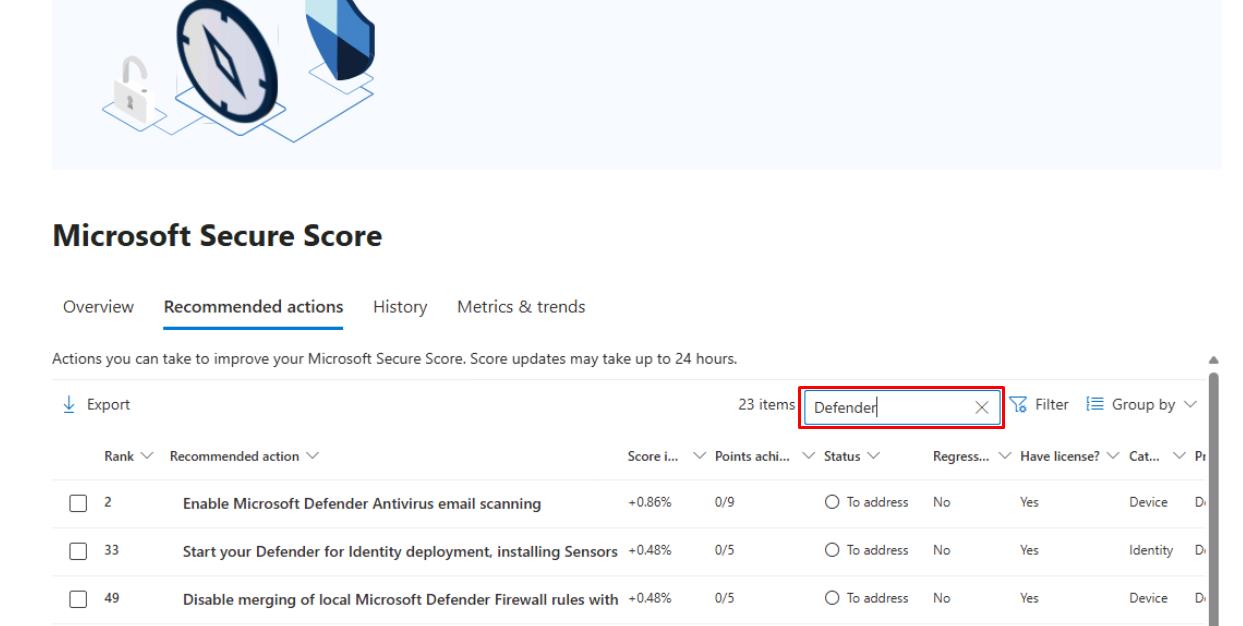
-
Note the top five recommended actions sorted by Score impact in descending order.
Security Engineering and Administration
-
In Microsoft Edge, go back to your Microsoft Defender XDR portal tab, or reopen
security.microsoft.com. -
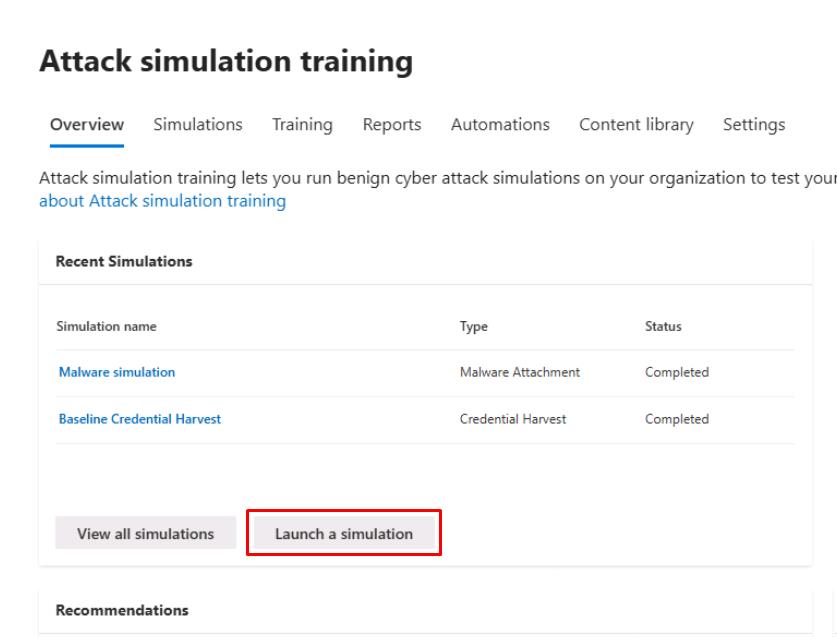
In the leftmost pane, select Email & collaboration > Attack simulation training.
-
Select Launch a simulation.
-
In the wizard, select Malware Attachment, then select Next.
-
For Simulation Name, enter
Test Malware Simulation, then select Next. -
On the Select payload and login page step, search for and select
DocuSign Shared Document, then select Next.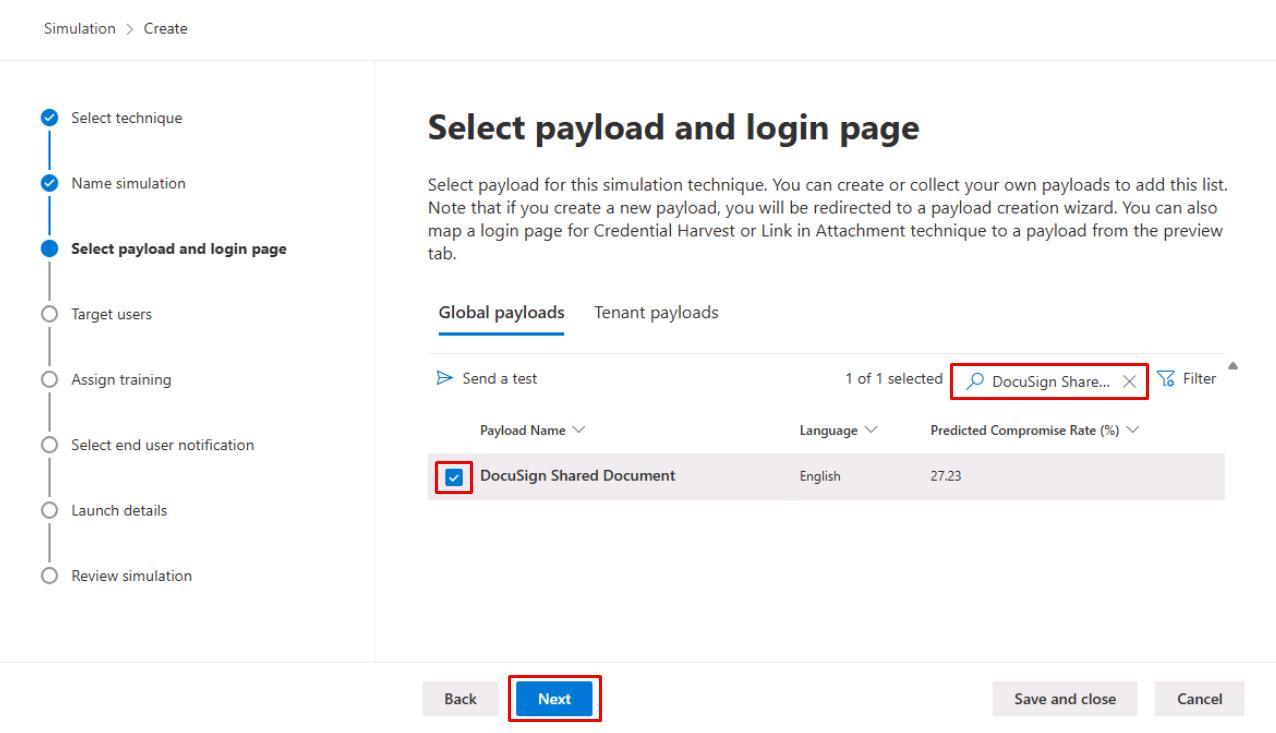
-
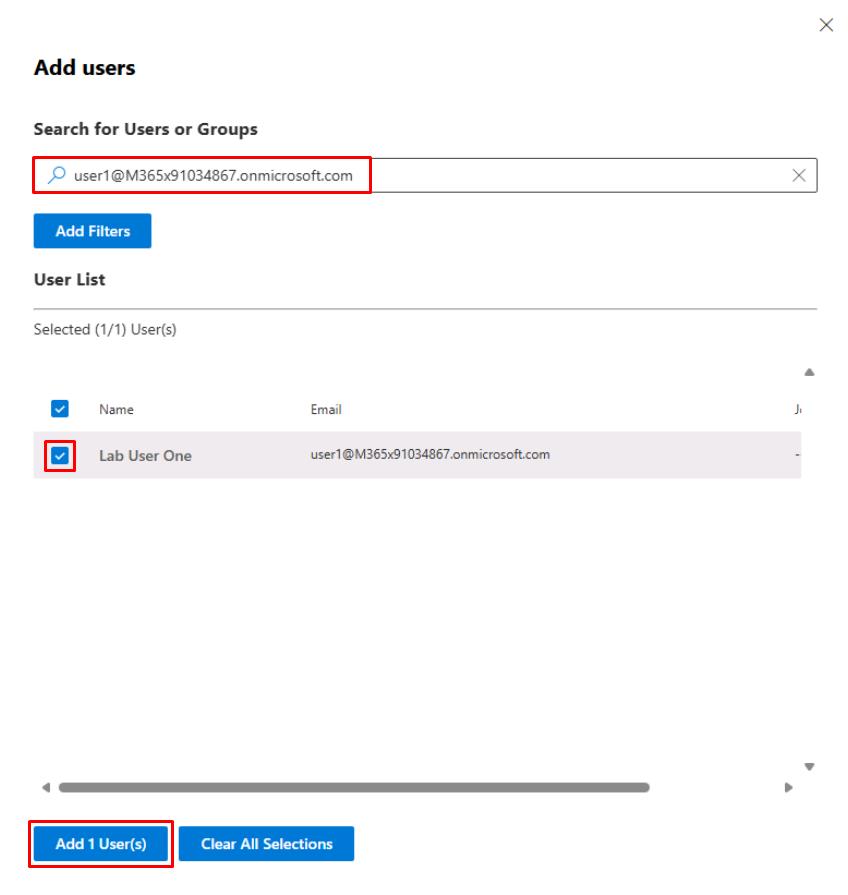
On the Target users step, select Add users.
-
Enter and select
user1@@lab.Variable(userDomain)for the Lab User One account.The user must be licensed to appear on the list.
-
At the bottom of the flyout pane, select Add 1 User(s).
-
Back on the Target users step, select Next.
-
On Exclude users, select Next.
-
On Assign training, select Next.
-
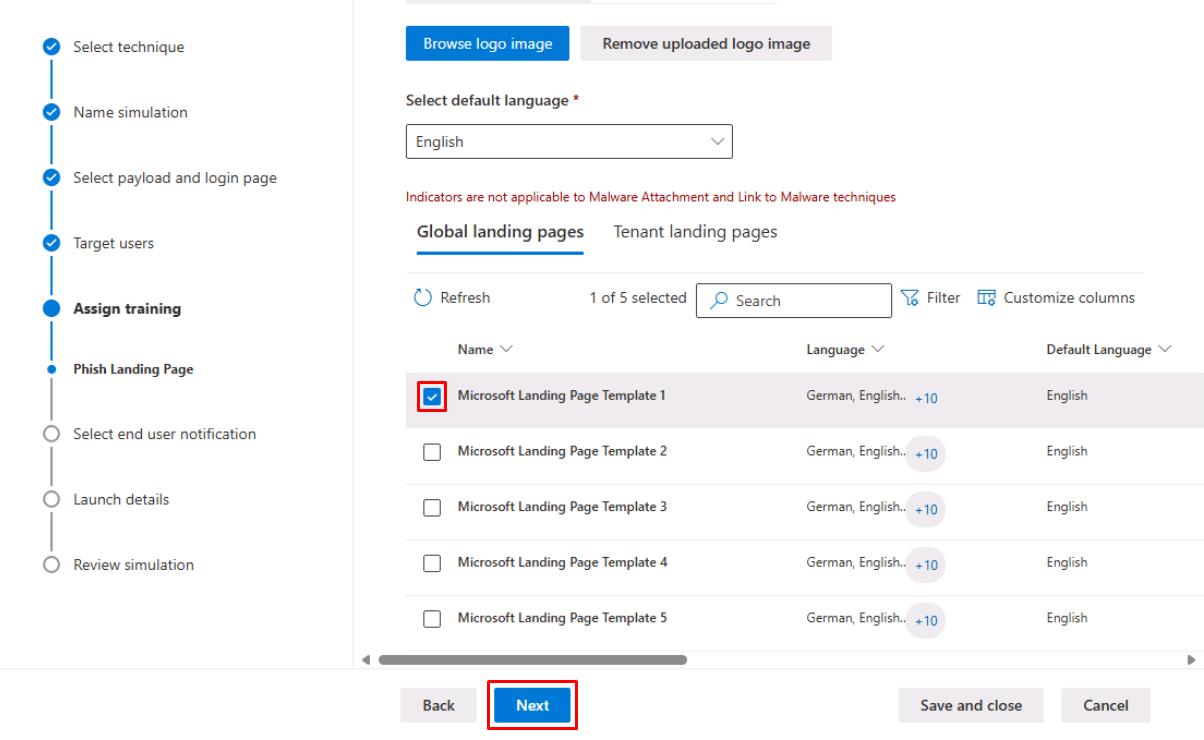
On Phish Landing Page, select Microsoft Landing Page Template 1, then select Next.
-
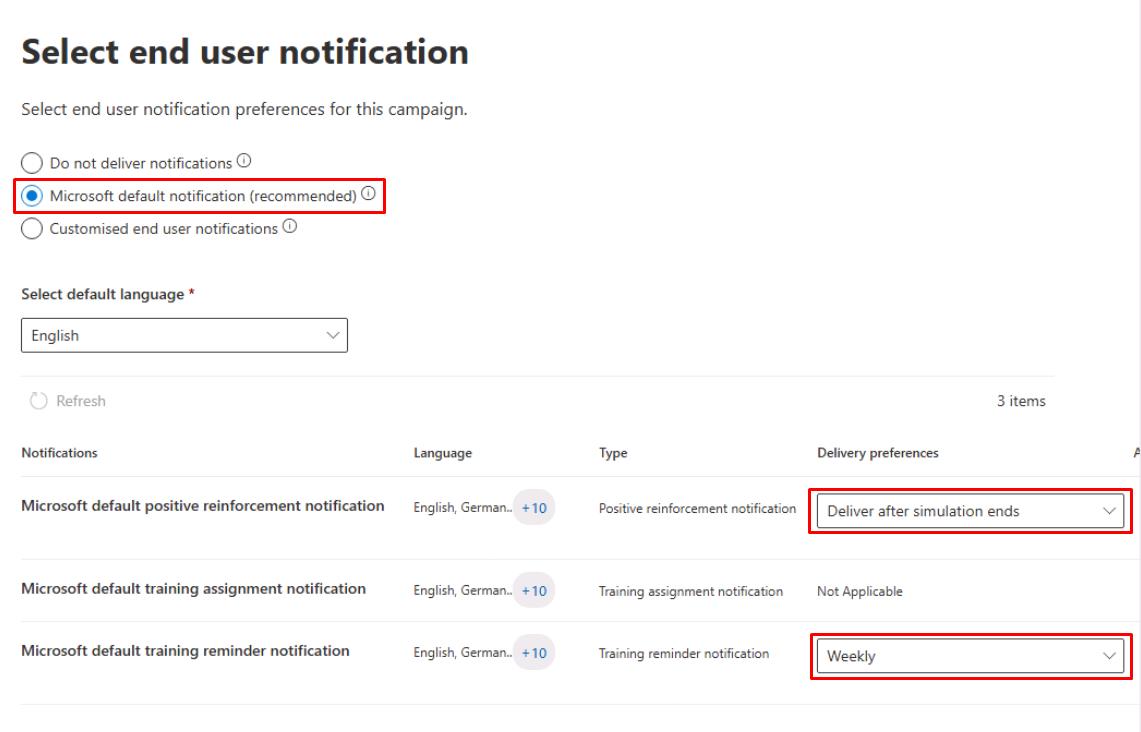
Select Microsoft default notification (recommended).
-
Under the Delivery preference dropdown menu, select the following:
- Deliver after simulation ends
- Weekly
-
Select Next until you reach the Review simulation step.
-
Select Send a test, select Confirm in the dialog, then select Close.
-
Back on the Review simulation step, select Submit, then select Done.
SOC Analyst
-
In Microsoft Edge, go back to your Microsoft Defender XDR portal tab, or reopen
security.microsoft.com. -
In the leftmost pane, go to Investigation & response > Incidents & alerts > Incidents.
-
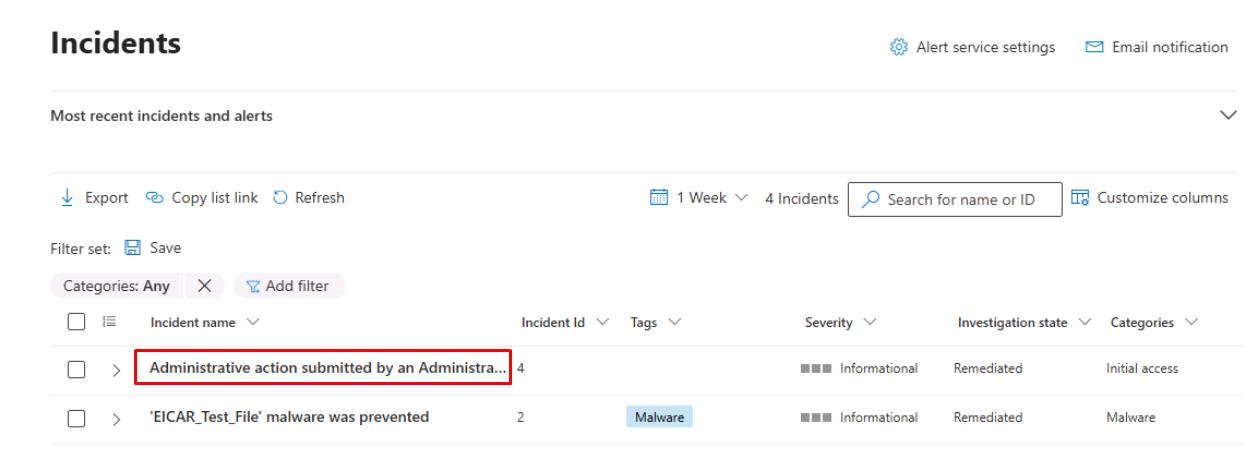
Select the Administrative action submitted by… incident.
-
Review the Attack story tab and impacted entities.
-
Near the top of the page, select the Evidence and Response tab, and make note of the First seen value for reporting.