Task 03: Isolate a test device, run Live Response commands, collect artifacts, then de-isolate
Security Architecture Team
-
Establish when to use full isolation (for example, signs of lateral movement, credential theft, or ransomware spread) versus selective isolation (controlled drills or low-risk investigations).
-
Identify essential business apps (like Teams, Outlook, or service desk tools) that remain functional during selective isolation and add them to the allowed-services list for continuity.
-
Capture isolation criteria, exception rationale, and fallback plans in your security runbook or incident response policy to ensure repeatability and auditor-ready traceability.
Security Engineering and Administration
-
In the Defender XDR portal’s leftmost pane, select Assets > Devices.
-
Select winvm-mde.
-
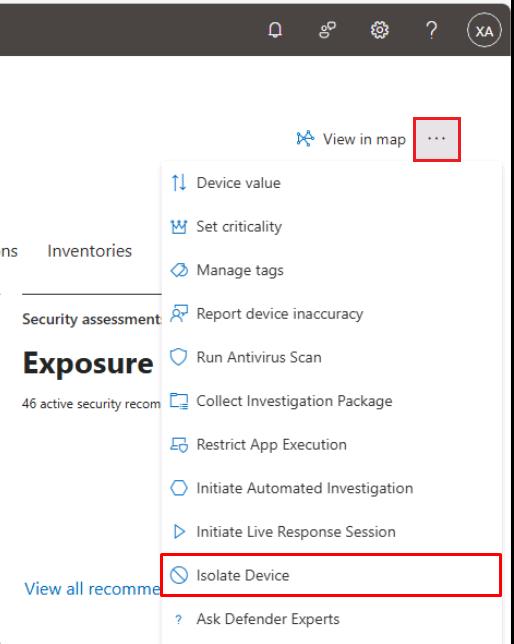
In the upper-right corner of the page, select the ellipsis > Isolate Device.
-
In the dialog, select the checkbox for Allow Outlook, Teams and Skype….
-
Under Comment, enter
Isolate Device, then select Confirm. -
Close the flyout pane.
-
Refresh the page, and under the Last action details section you should see:
Item Value Type Device isolation Status Completed 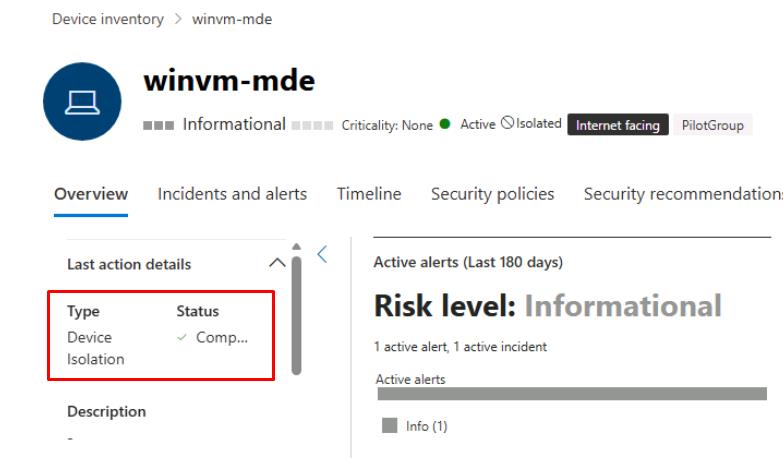
It may take a few minutes to complete.
If you shut down winvm-mde, it will need to be started for this to complete.
-
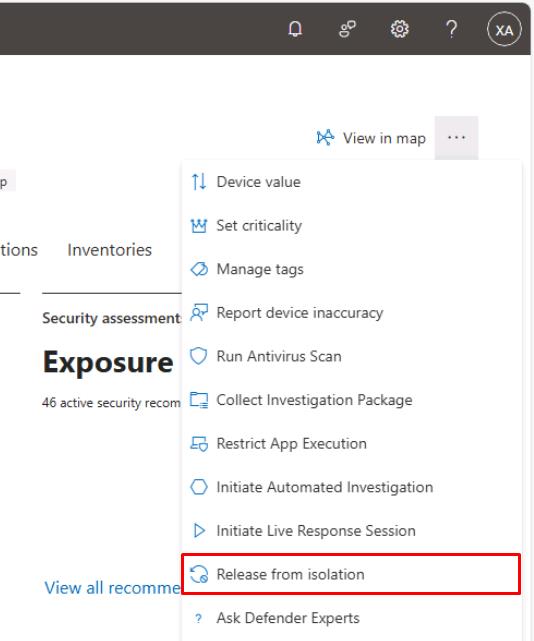
In the upper-right corner of the page, select the ellipsis > Release from isolation.
-
In the dialog’s text box, enter
Release from Isolation, then select Confirm.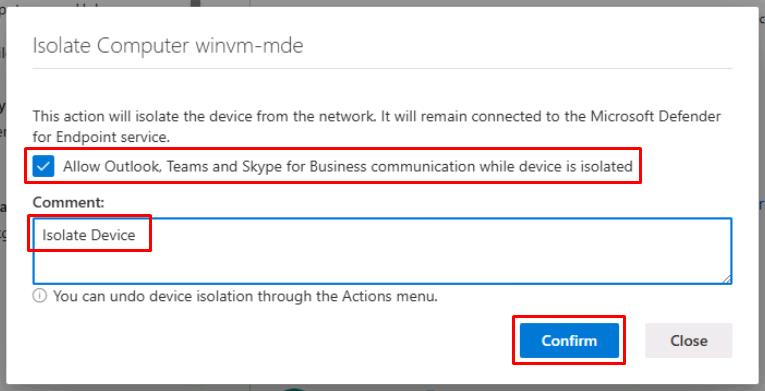
-
Close the flyout pane.
SOC Analyst
-
In the leftmost pane, select Assets > Devices.
-
Select winvm-mde.
-
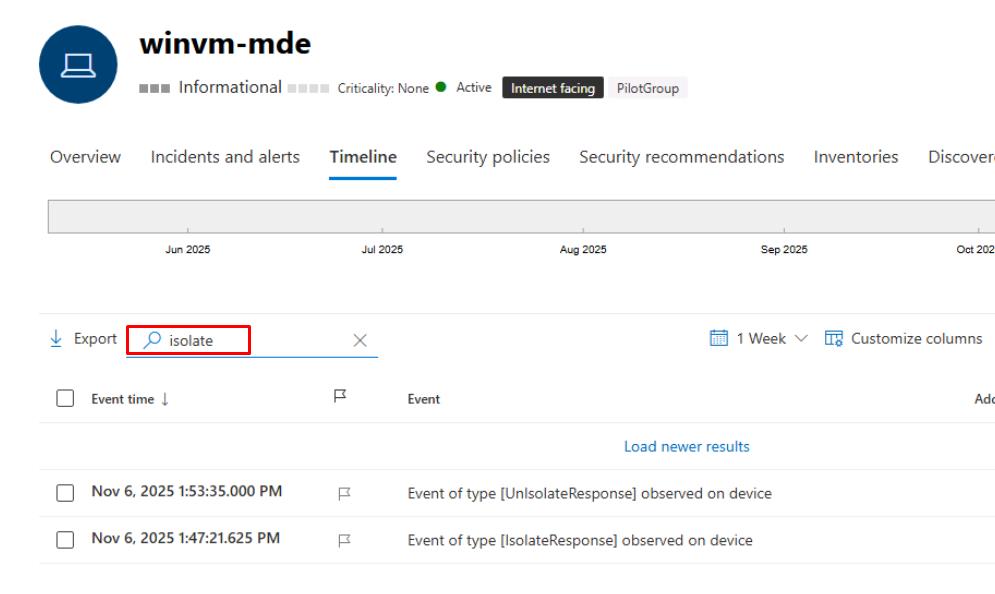
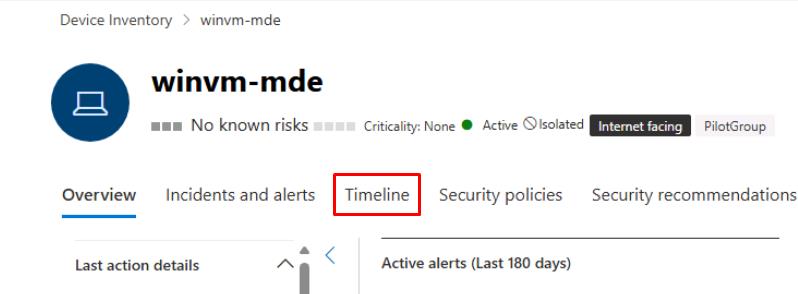
At the top of the page, select the Timeline tab.
-
In the search box above the table, enter
isolate. -
Confirm you see the [IsolateResponse] and [UnIsolateResponse] events.