Task 03: Create and maintain watchlists
Security Architecture Team
-
Identify high-value assets (HVAs) such as executive accounts, privileged admins, or critical devices.
-
Approve identifiers to use:
- Users: AccountUpn or AccountName.
- Devices: DeviceName.
-
Define a naming/versioning convention. For example, HighValueAssets_v1.
-
Set a review cadence, such as the first of every month.
Security Engineering and Administration
-
Go back to your
security.microsoft.comtab. -
In the leftmost pane, go to Investigate & response > Hunting > Advanced hunting.
-
Run the following query, which is fully simulated with data table definitions and join/aggregation:
 // Simulated HVA list and demo logons (self-contained)
 let HighValueAssets = datatable(AccountUpn:string, Department:string)
 [
     "ceo@zavaoil.com", "Executive",
     "ciso@zavaoil.com", "Security",
     "adminsvc@zavaoil.com", "IT",
     "finlead@zavaoil.com", "Finance",
     "itops@zavaoil.com", "Operations"
 ];
 let SimulatedDeviceLogons = datatable(
     AccountUpn:string,
     DeviceName:string,
     LogonTime:datetime,
     Location:string,
     LogonType:string,
     ReportId:string,
     DeviceId:string
 )
 [
     "ceo@zavaoil.com", "CEO-LAPTOP", datetime(2025-11-02T08:05:00Z), "Wellington", "RemoteInteractive", "rpt-001", "dev-001",
     "ciso@zavaoil.com", "CISO-LAPTOP", datetime(2025-11-02T08:10:00Z), "Wellington", "RemoteInteractive", "rpt-002", "dev-002",
     "adminsvc@zavaoil.com", "SRV-AD01", datetime(2025-11-02T09:00:00Z), "Auckland", "ServiceLogon", "rpt-003", "dev-003",
     "finlead@zavaoil.com", "FIN-LAPTOP01", datetime(2025-11-02T09:05:00Z), "Sydney", "RemoteInteractive", "rpt-004", "dev-004",
     "itops@zavaoil.com", "IT-LAPTOP01", datetime(2025-11-02T09:10:00Z), "Wellington", "Interactive", "rpt-005", "dev-005",
     "ceo@zavaoil.com", "CEO-LAPTOP", datetime(2025-11-02T23:45:00Z), "Singapore", "RemoteInteractive", "rpt-006", "dev-001",
     "finlead@zavaoil.com", "FIN-LAPTOP01", datetime(2025-11-02T23:50:00Z), "Singapore", "RemoteInteractive", "rpt-007", "dev-004"
 ];
 HighValueAssets
 | join kind=inner (SimulatedDeviceLogons) on AccountUpn
 | extend HourOfDay = datetime_part("hour", LogonTime)
 | extend AfterHours = iff(HourOfDay < 6 or HourOfDay > 20, 1, 0)
 | summarize
     LogonCount = count(),
     DistinctDevices = dcount(DeviceName),
     DistinctLocations = dcount(Location),
     Locations = make_set(Location, 5),
     FirstSeen = min(LogonTime),
     LastSeen = max(LogonTime),
     AnyAfterHours = max(AfterHours)
     by AccountUpn, Department
 | extend MultiLocation = DistinctLocations > 1
 | extend IsAnomaly = iff(MultiLocation or AnyAfterHours == 1, "YES", "NO")
 | project AccountUpn, Department, LogonCount, DistinctDevices, DistinctLocations, Locations, MultiLocation, AnyAfterHours, IsAnomaly, FirstSeen, LastSeen
 | order by IsAnomaly desc, LogonCount desc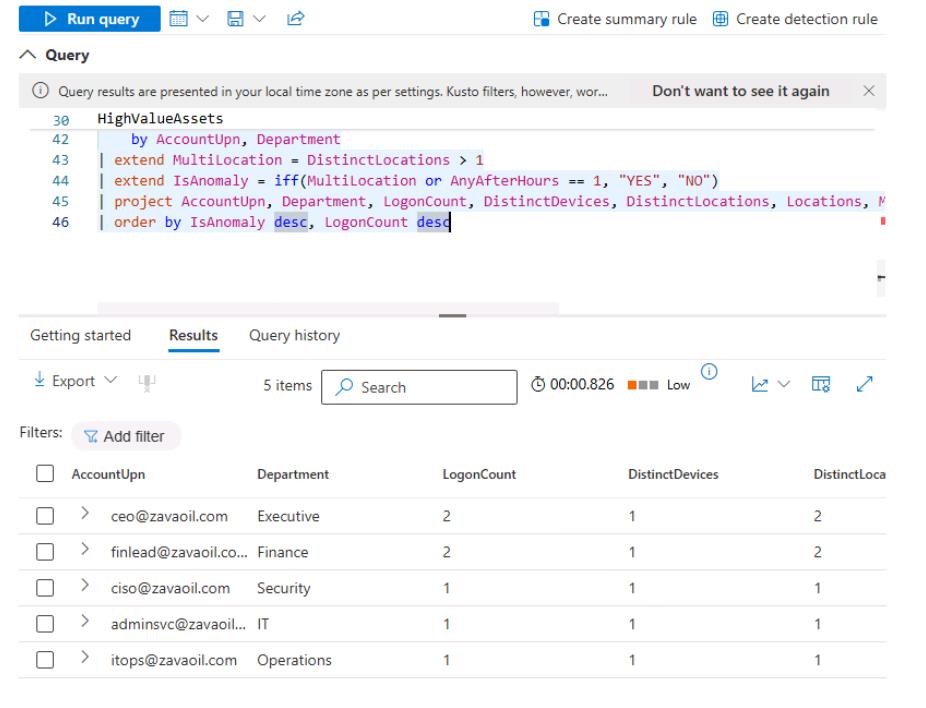
-
Save the query:
-
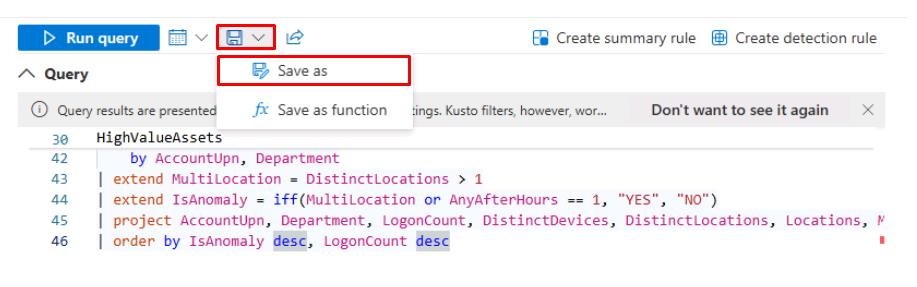
At the top of the Query pane, select the Save icon, and select Save as.
-
In the flyout pane, for Name, enter
Daily_HVA_Logon_Review- Keep the default Location, then select Save.
-
SOC Analyst
-
In the leftmost pane, go to Investigate & response > Hunting > Advanced hunting.
-
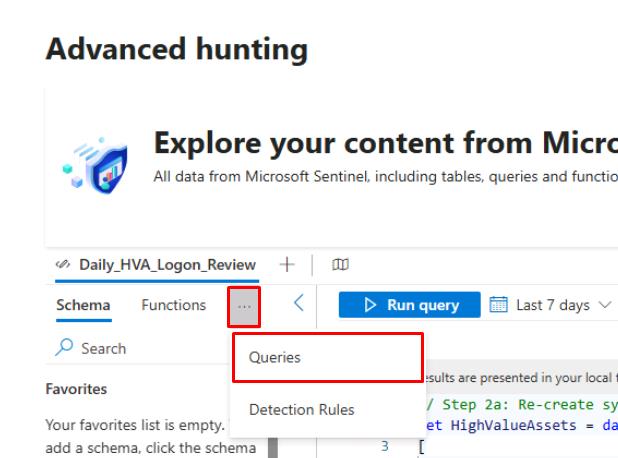
In Advanced hunting, at the top of the left pane, select the ellipsis, then select Queries.
-
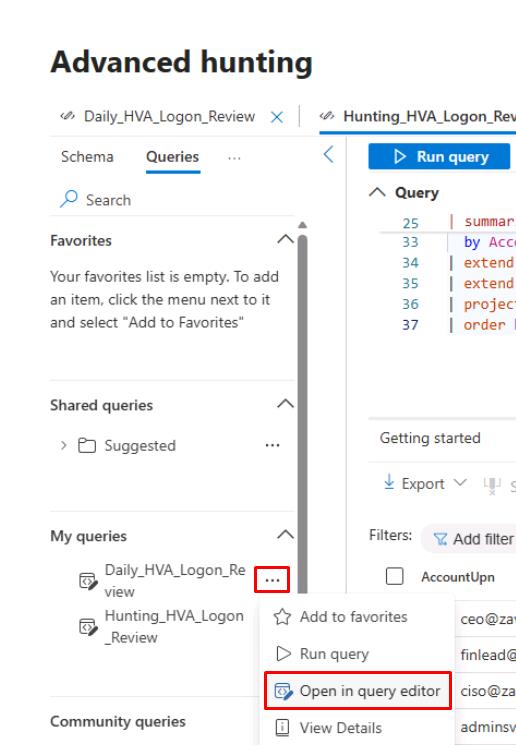
On the line for Daily_HVA_Logon_Review, select the ellipsis, then select Open in query editor.
-
At the top of the Query pane, select Run query.
-
To focus on likely anomalies:
-
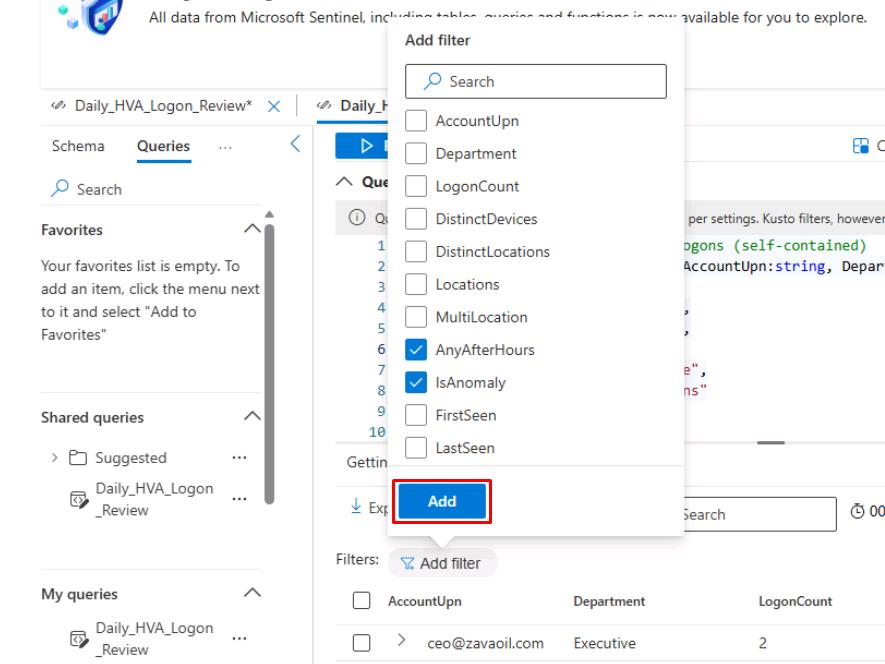
Above the Results table, select Add filter, then select the following:
- AnyAfterHours
- IsAnomaly
-
Select Add.
-
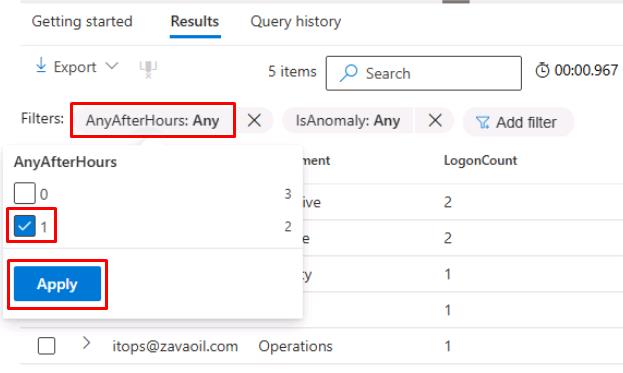
Select the AnyAfterHours filter, select 1, then select Apply.
-
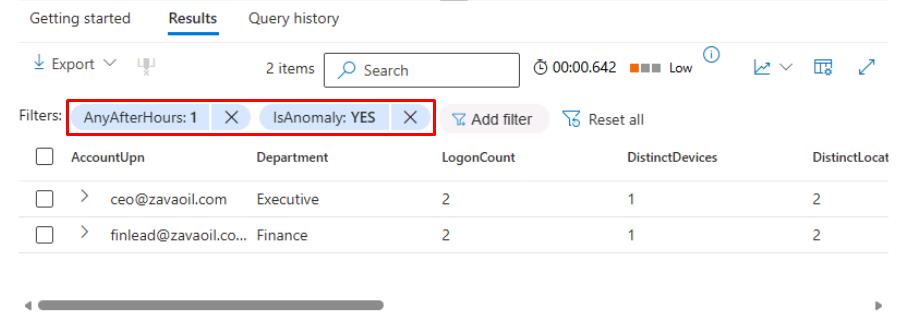
Select the IsAnomaly filter, select YES, then select Apply.
-
Review the returned columns and rows.
-
-
In the upper-left corner of the table, select Export > Download to CSV.
-
In your triage workflow:
-
Check for expected travel/maintenance (calendar, device owner).
-
If confirmed malicious/unexpected, create/attach to an incident: Go to Investigations & response > Incidents & alerts > Create/attach .
-
Add a note: First action time and triage decision.
-
If false positive, close with reason and document in the runbook for tuning.
-
-
Suggested columns to verify in exported CSV:
- AccountUpn
- Location (if simulated) or RemoteIP
- AnyAfterHours
- IsAnomaly
- FirstSeen
- LastSeen
-
Discuss mitigation steps during the SOC huddle.
-