Task 01: Capture Secure Score and Exposure Baseline in Defender XDR
Security Architecture Team
-
In Microsoft Edge, go back to your Microsoft Defender XDR portal tab, or reopen security.microsoft.com.
-
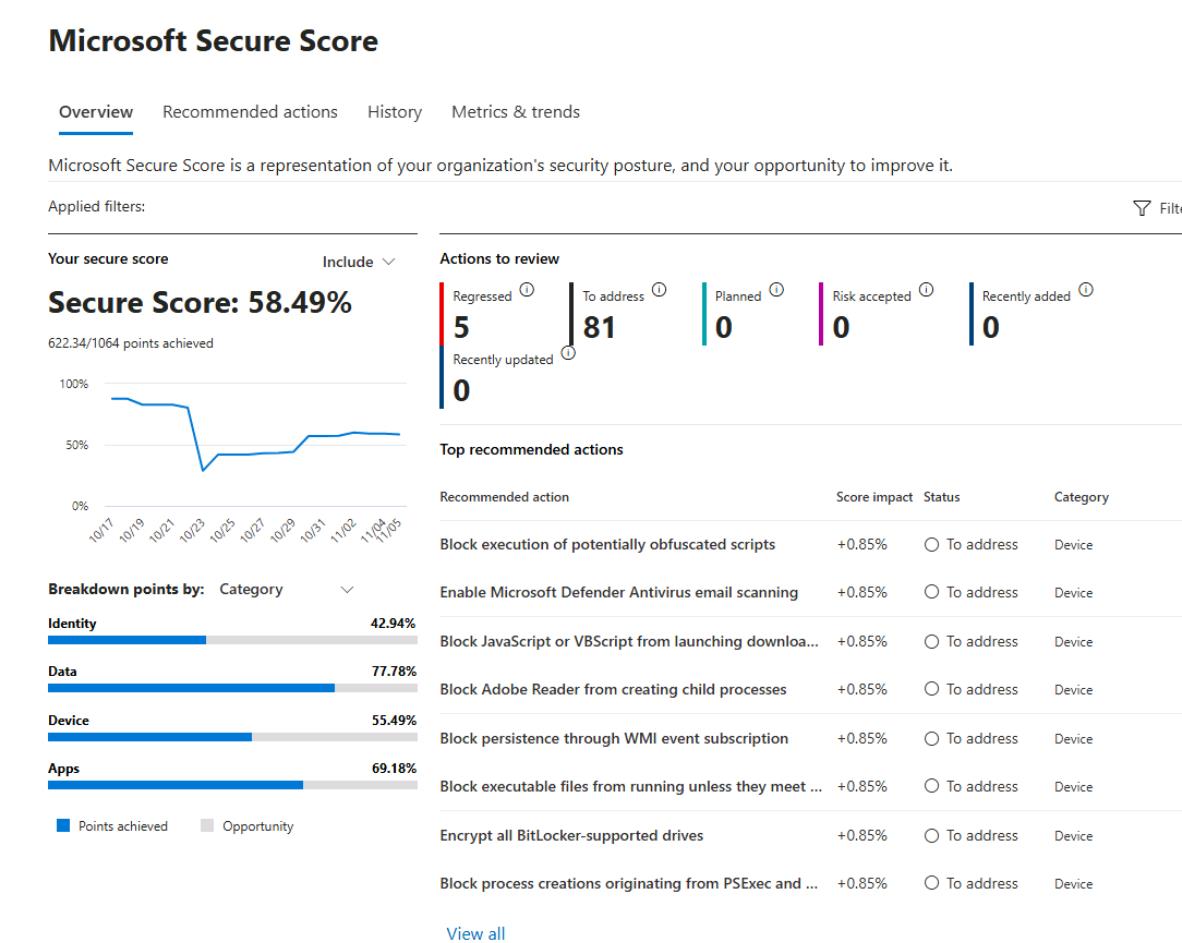
In the leftmost pane, go to Exposure management > Secure score.
-
Observe the overall Microsoft Secure Score and Top recommended actions.
-
In the leftmost pane, go to Exposure management > Overview and observe the results.
-
In the leftmost pane, go to Exposure management > Vulnerability Management > Overview.
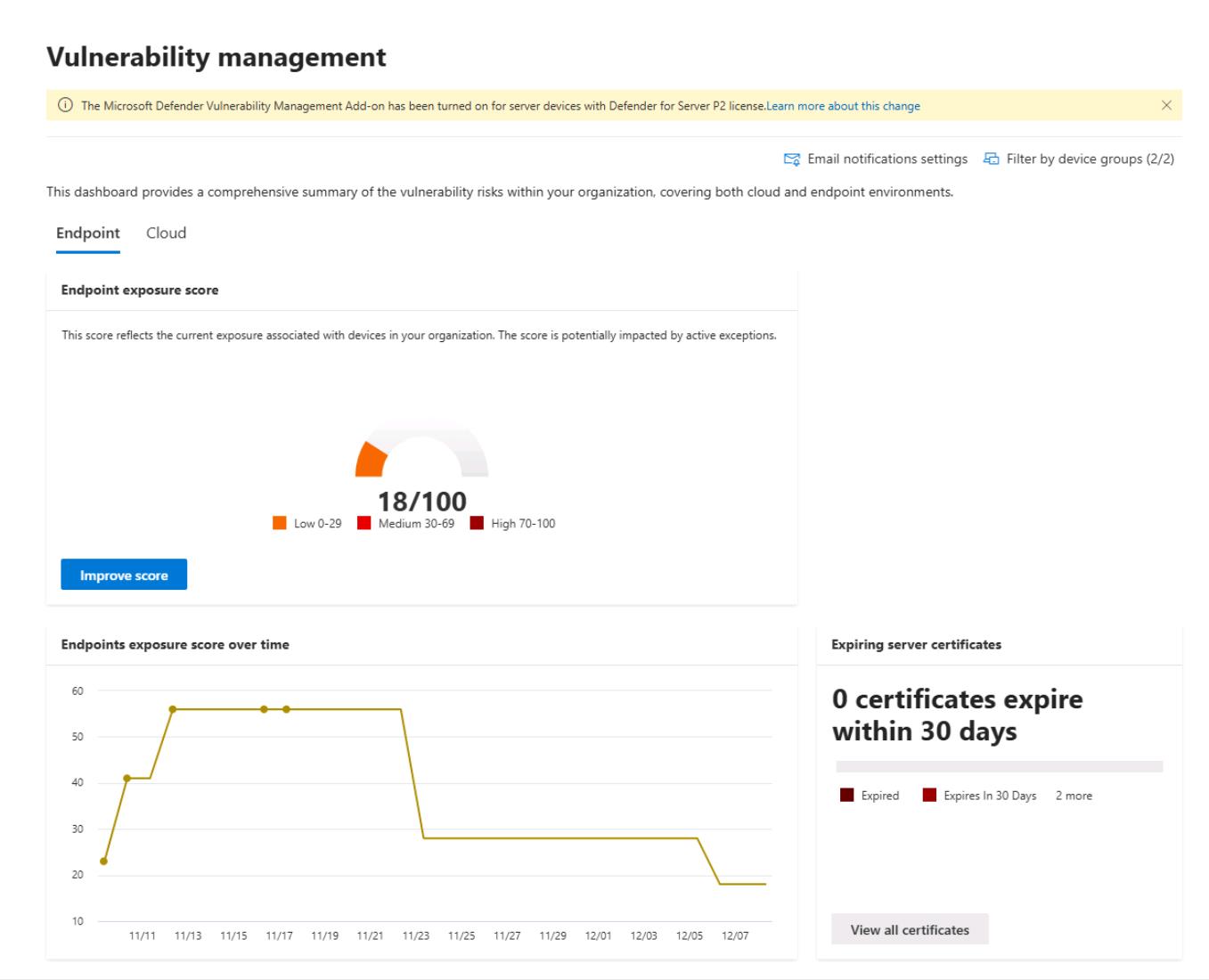
Observe the Endpoint exposure score for the organization, which breaks it down by device impact, top software vulnerabilities, misconfigurations and exposed devices.
-
In the leftmost pane, go to Investigation & response > Incidents & alerts > Incidents.
-
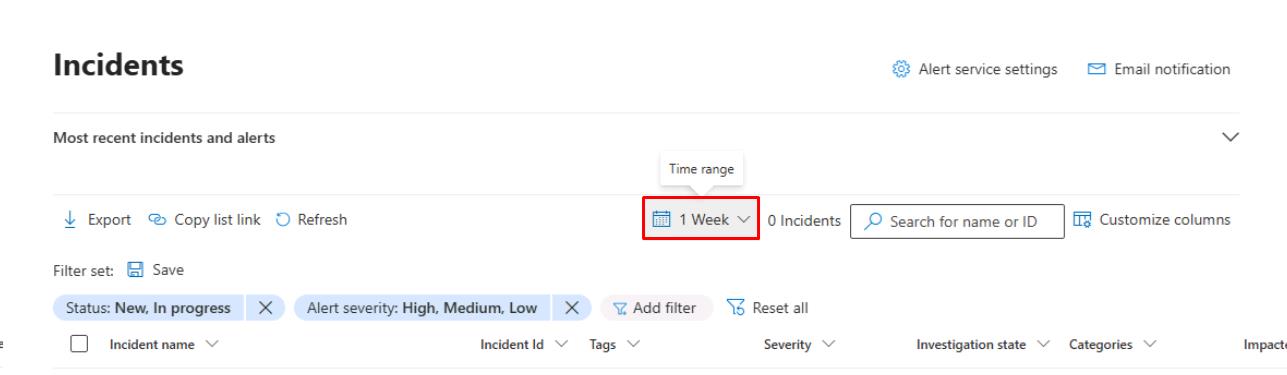
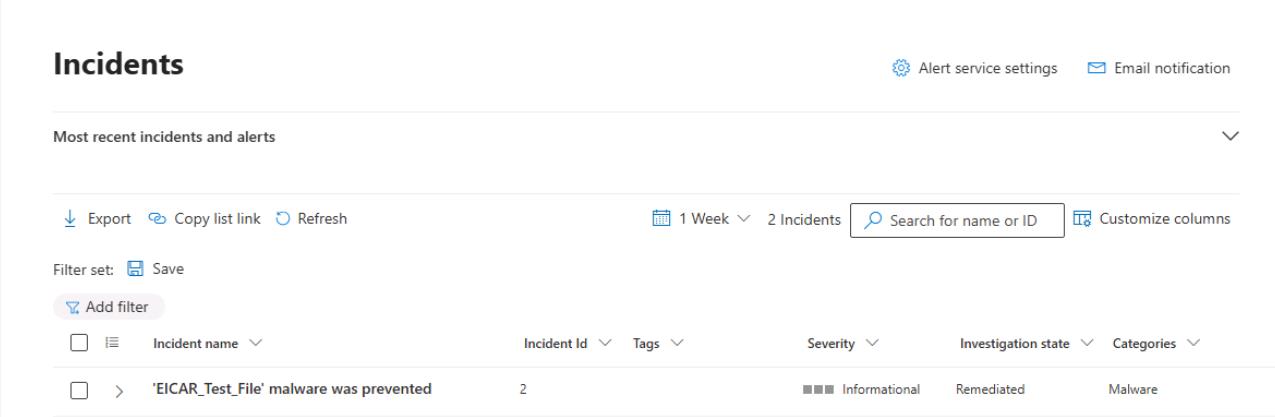
Near the upper-right corner of the table, set the Time range filter to 1 Week.
-
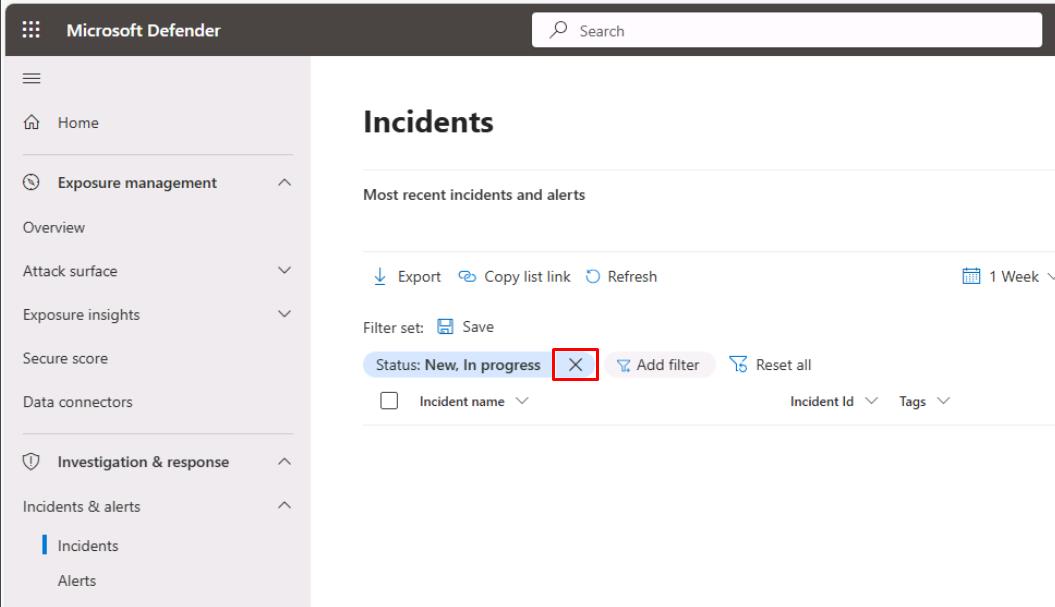
Remove any filters at the top of the table to see the EICAR_Test_File incident from the test you ran from the winvm-mde VM.
-
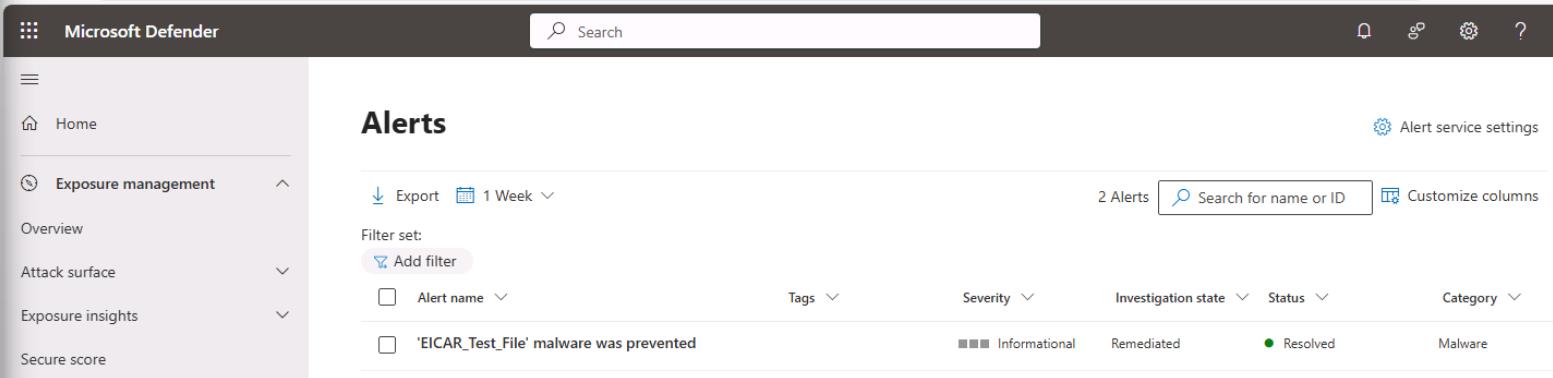
In the leftmost pane, go to Investigation & response > Incidents & alerts > Alerts.
-
Near the upper-right corner of the table, set the Time range filter to 1 Week, and remove any filters.
Security Engineering and Administration
01: Export Microsoft Secure Score & Improvement action
-
Go to
C:\LabFiles\E1. -
Right-click ScriptA > Run with PowerShell.
-
Sign in with your global admin account.
-
On the Permissions requested dialog, select Consent on behalf of your organization, then select Accept.
Exports Microsoft Secure Score and Secure Score control profiles from Graph to timestamped JSON files for offline review.
-
Observe the files it creates in
C:\LabFiles\E1:- SecureScore-[timestamp].json - Contains the current overall Microsoft Secure Score snapshot - total score, maximum possible score, trend history, and contributing control categories.
- SecureScoreControls-[timestamp].json - Lists all Secure Score control profiles with detailed metadata (control ID, title, description, category, weighting, implementation status, and remediation guidance).
02: Create an app registration for future scripts
-
Go back to
C:\LabFiles\E1. -
Right-click CreateAppRegistration > Show more options > Edit.
-
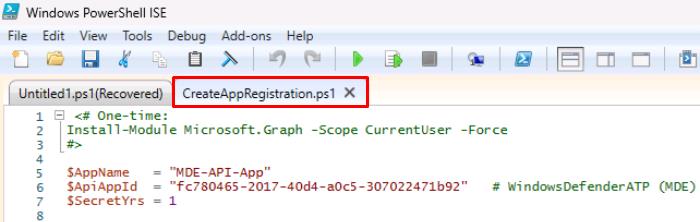
Go back to your Windows PowerShell ISE window and select the CreateAppRegistration.ps1 tab.
-
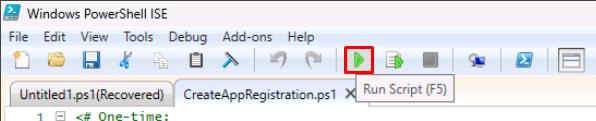
On the top bar, select Run Script.
-
If needed, reauthenticate with your global admin account.
This will create an app registration called MDE-API-App that will be used for various scripts.
-
In the bottom console pane, it will output the app registration details. Fill out the following text boxes with those values.
Item Value TenantId @lab.TextBox(tenantId) ClientId @lab.TextBox(clientId) ClientSecret @lab.TextBox(clientSecret) 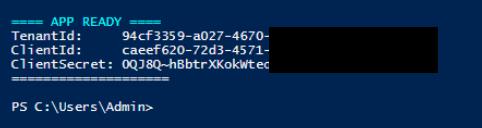
The values entered will be used for reference in future steps.
There will be white spaces on either side of the pasted values in the text box. The script in the next subtask should run fine even without deleting these.
03: Export endpoint exposure using Defender for Endpoint API
-
In PowerShell ISE’s bottom console pane, enter the following to change directories to the required folder:
cd C:\LabFiles\E1
-
In the bottom pane, enter the following to run ScriptB.ps1 with your app registration:
.\ScriptB.ps1 -TenantId "@lab.Variable(tenantId)" -ClientId "@lab.Variable(clientId)" -ClientSecret "@lab.Variable(clientSecret)"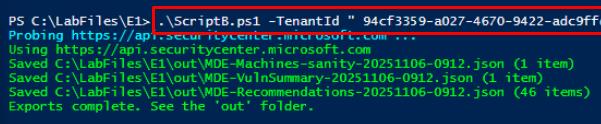
This uses the values you provided from the app registration.
Exports MDE TVM data (machine vulnerabilities, security recommendations, and a machines sanity sample) and optionally bootstraps an app registration with the correct MDE permissions and regional API host discovery.
-
Observe the files it creates in
C:\LabFiles\E1\out:- MDE-Machines-sanity-[timestamp].json - Verifies API connectivity by returning a sample of onboarded devices from Microsoft Defender for Endpoint.
- MDE-Recommendations-[timestamp].json - Contains Threat & Vulnerability Management (TVM) security recommendations for remediation and hardening.
- MDE-VulnSummary-[timestamp].json - Lists device-specific vulnerabilities (CVE IDs, affected software, exposure level, remediation state).
SOC Analyst
-
In Microsoft Edge, go back to your Microsoft Defender XDR portal tab, or reopen
security.microsoft.com. -
In the leftmost pane, go to Investigation & response > Hunting > Advanced hunting.
-
In the Query pane, enter the following KQL, then select Run query at the top:
 // Incidents by service in last 7 days
 let since = ago(7d);
 AlertInfo
 | where Timestamp >= since
 | summarize Alerts=dcount(AlertId) by ServiceSource
 | order by Alerts desc;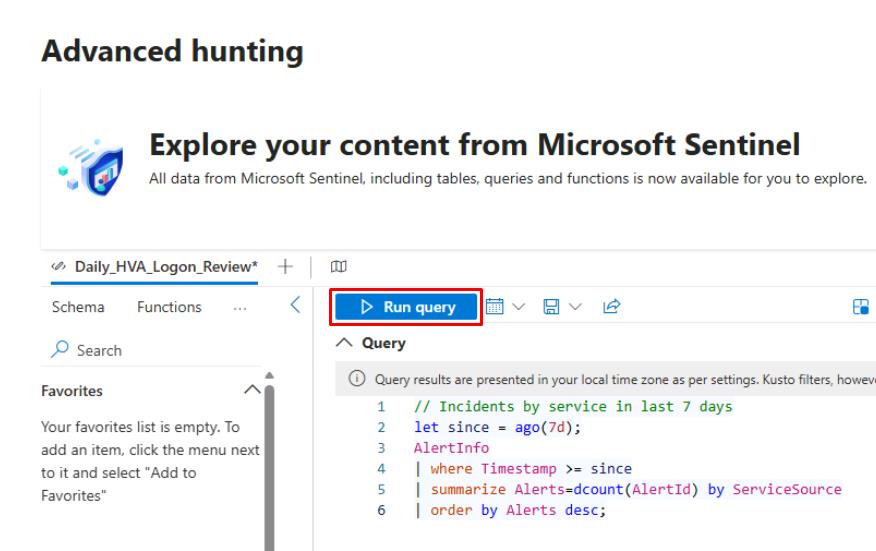
-
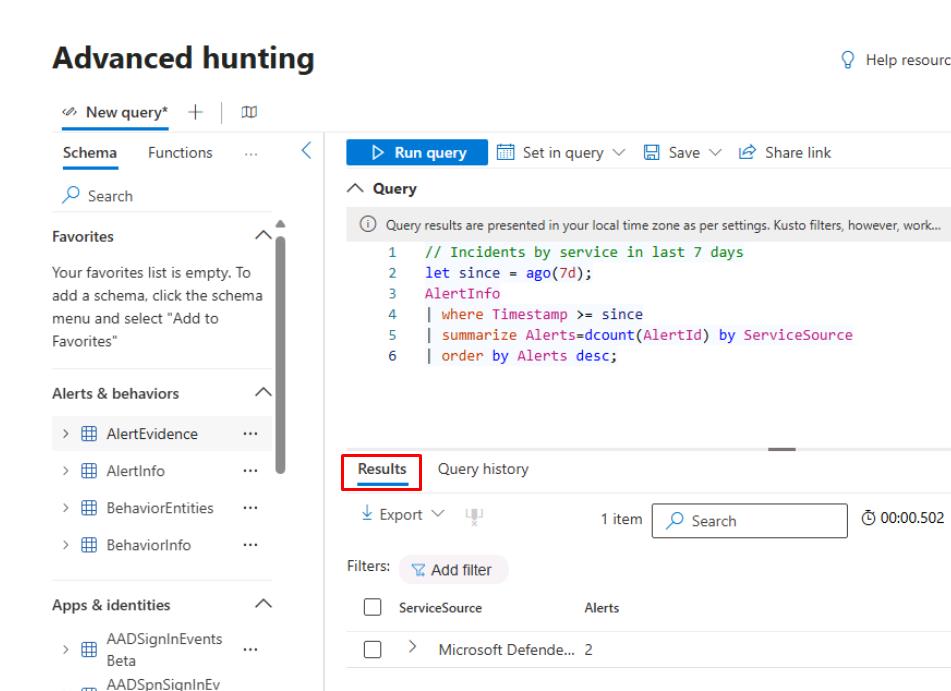
Under the Query editor, select the Results tab.
-
Under the tab, select Export, then select Download to CSV.
This would be part of the package you could provide to the CISO.
-
In the Query pane, replace the query with the following, then select Run query:
 // Endpoint exposure sample (installed vulnerable software)
 DeviceTvmSoftwareVulnerabilities
 | summarize VulnFindings=count(), AffectedDevices=dcount(DeviceId) by CveId
 | top 10 by VulnFindings desc;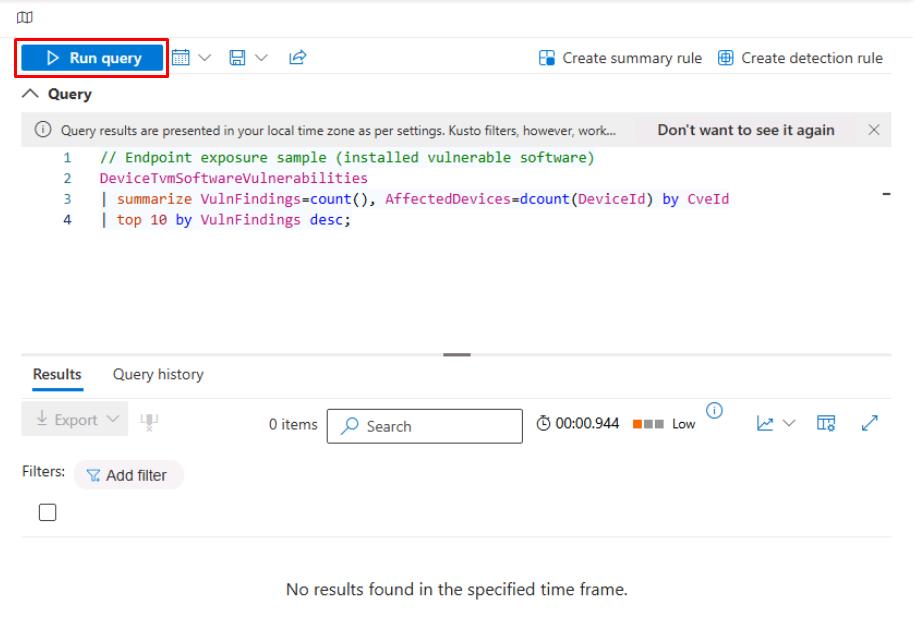
You may not see any results.