Task 04: Turn on Discovery via MDE and tag risky apps
Security Architecture Team
Instruct the team to enable Cloud Discovery via the MDE integration (lightweight) and tag unsanctioned apps with clear guidance for remediation or approval.
Security Engineering and Administration
-
Go back to Microsoft Edge to your Defender XDR portal tab.
-
In the leftmost pane, go to System > Settings.
-
Select Endpoints.
-
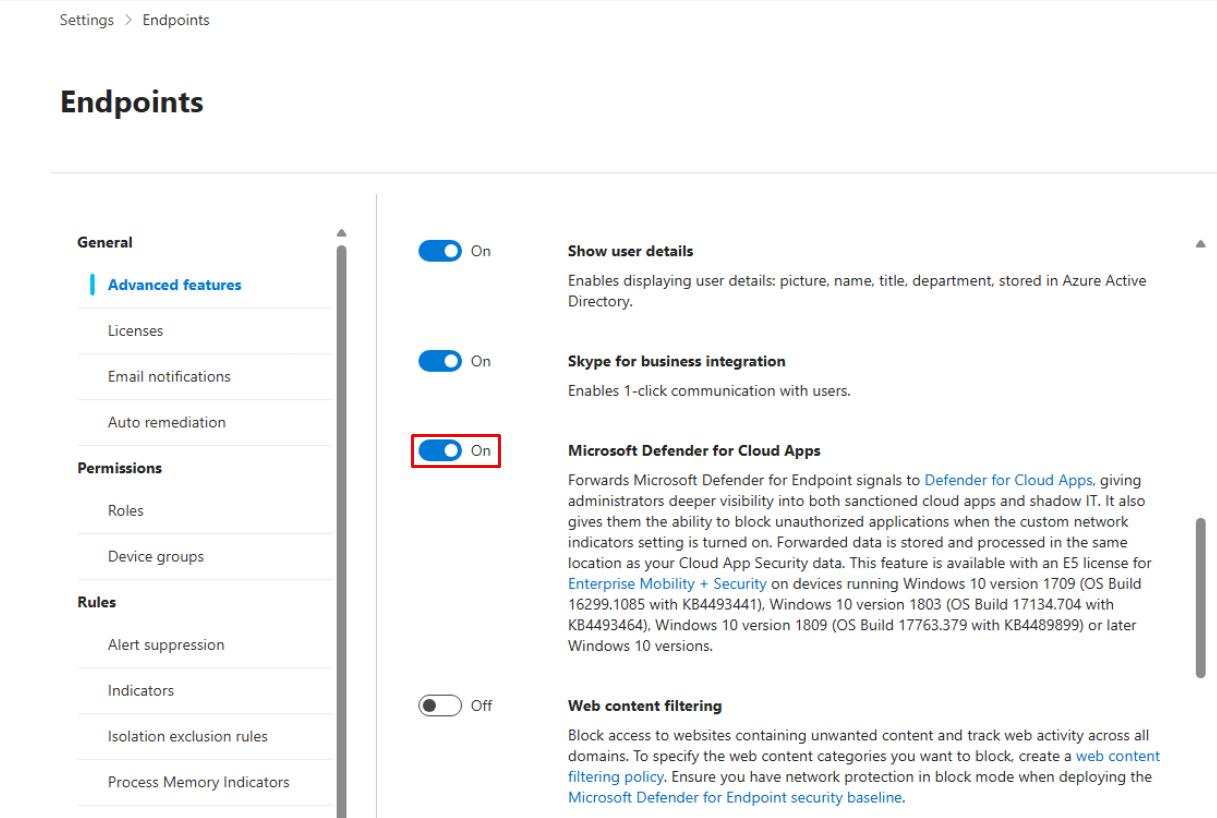
Turn on Microsoft Defender for Cloud Apps.
-
At the bottom of the page, select Save preferences.
-
In the leftmost pane, go to Cloud Apps > Cloud app catalog.
-
In the rightmost column, sort by Risk score.
-
In the table, select Microsoft Skype for Business.
-
At the top of the flyout pane, select Unsanction.
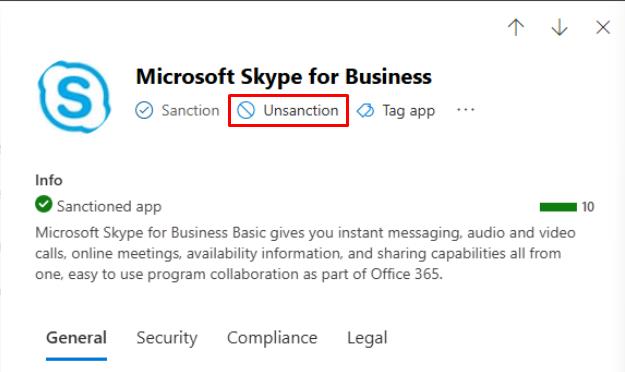
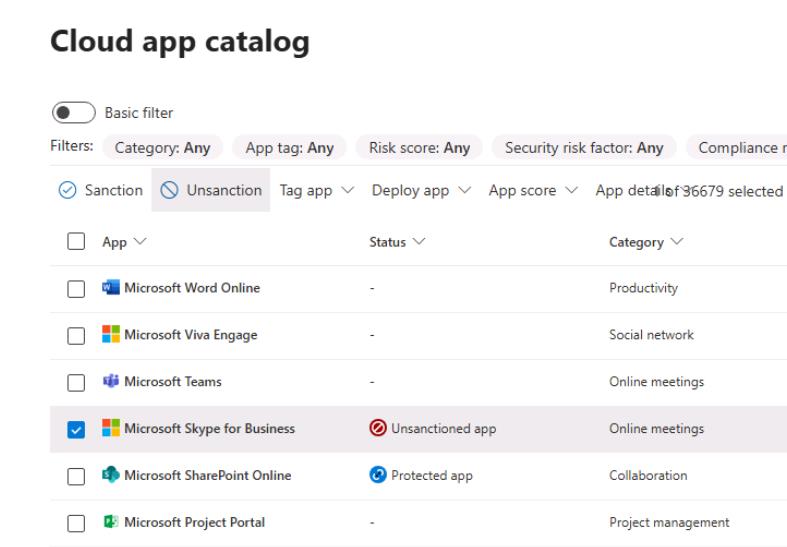
Sanction/Unsanction are governance tags for apps in the Cloud App Catalog:
- Sanctioned = approved or allowed for use.
- Unsanctioned = prohibited; Defender for Cloud Apps can push blocks to your controls (for example, export block lists for proxies/firewalls) and, if integrated with Defender for Endpoint, automatically block access on devices.
SOC Analyst
-
In the leftmost pane, go to Cloud apps > Cloud app catalog.
-
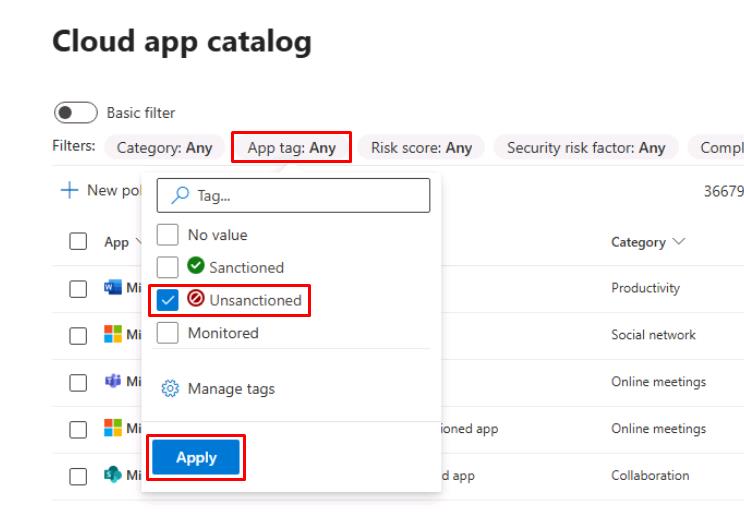
In the top filters, select App tag, select Unsanctioned, then select Apply to observe the results.
-
In the leftmost pane, go to Investigation & response > Hunting > Advanced hunting.
-
Run the following KQL to see any tagged risky applications:
 CloudAppEvents
 | where Timestamp > ago(7d)
 | summarize Events=count(), Users=dcount(AccountObjectId) by ApplicationId, Application
 | top 10 by Events desc;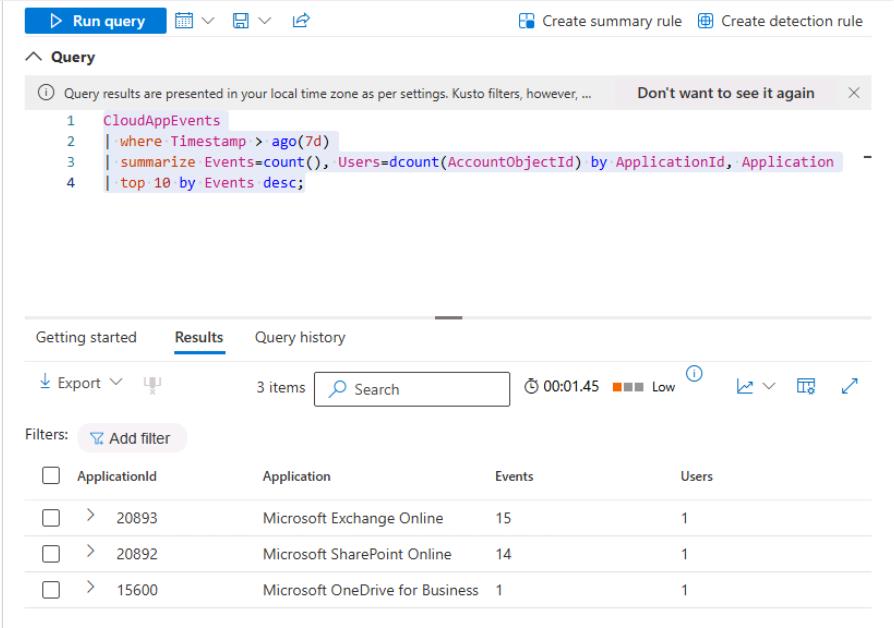
The query looks for cloud app activity within your tenant. Your results will differ.