Task 02: Verify identity sensors and endpoint onboarding health
Security Architecture Team
-
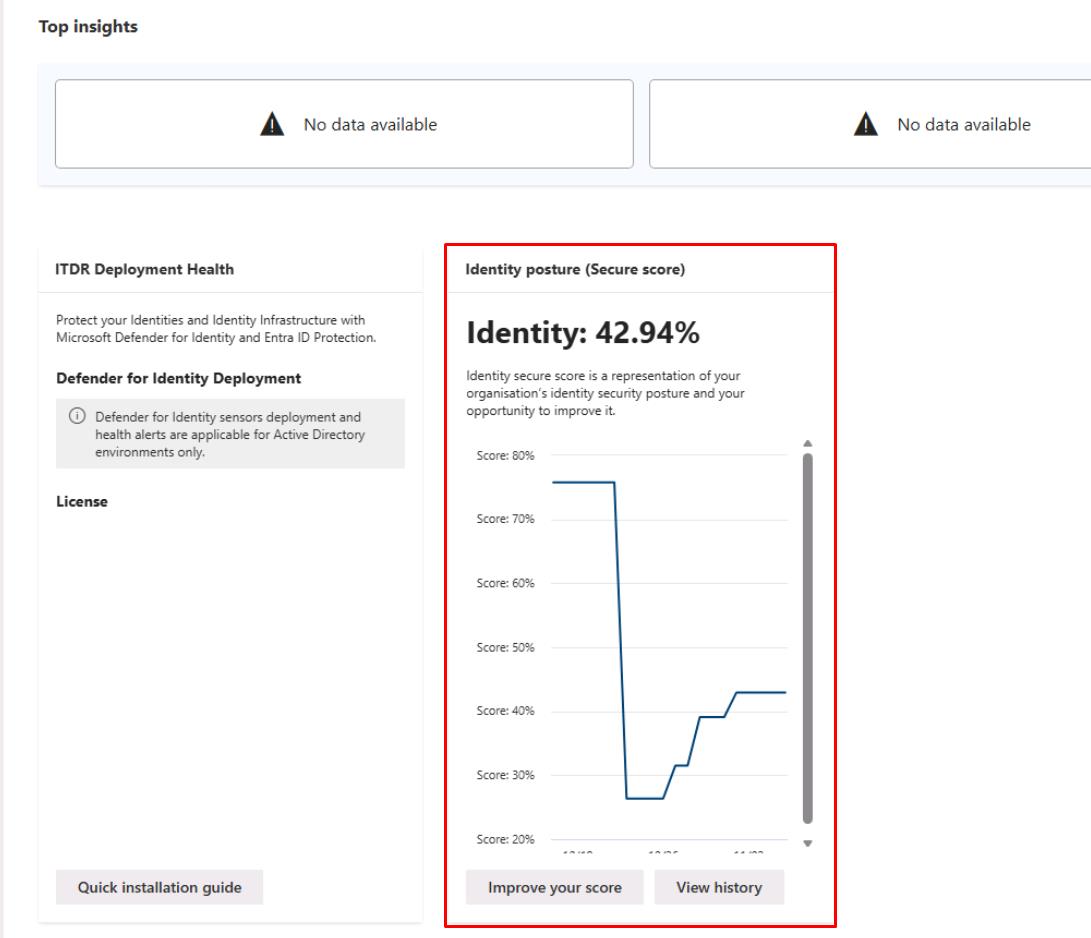
In the leftmost pane, go to Identities > Dashboard.
-
Review the Identity posture (Secure score).
-
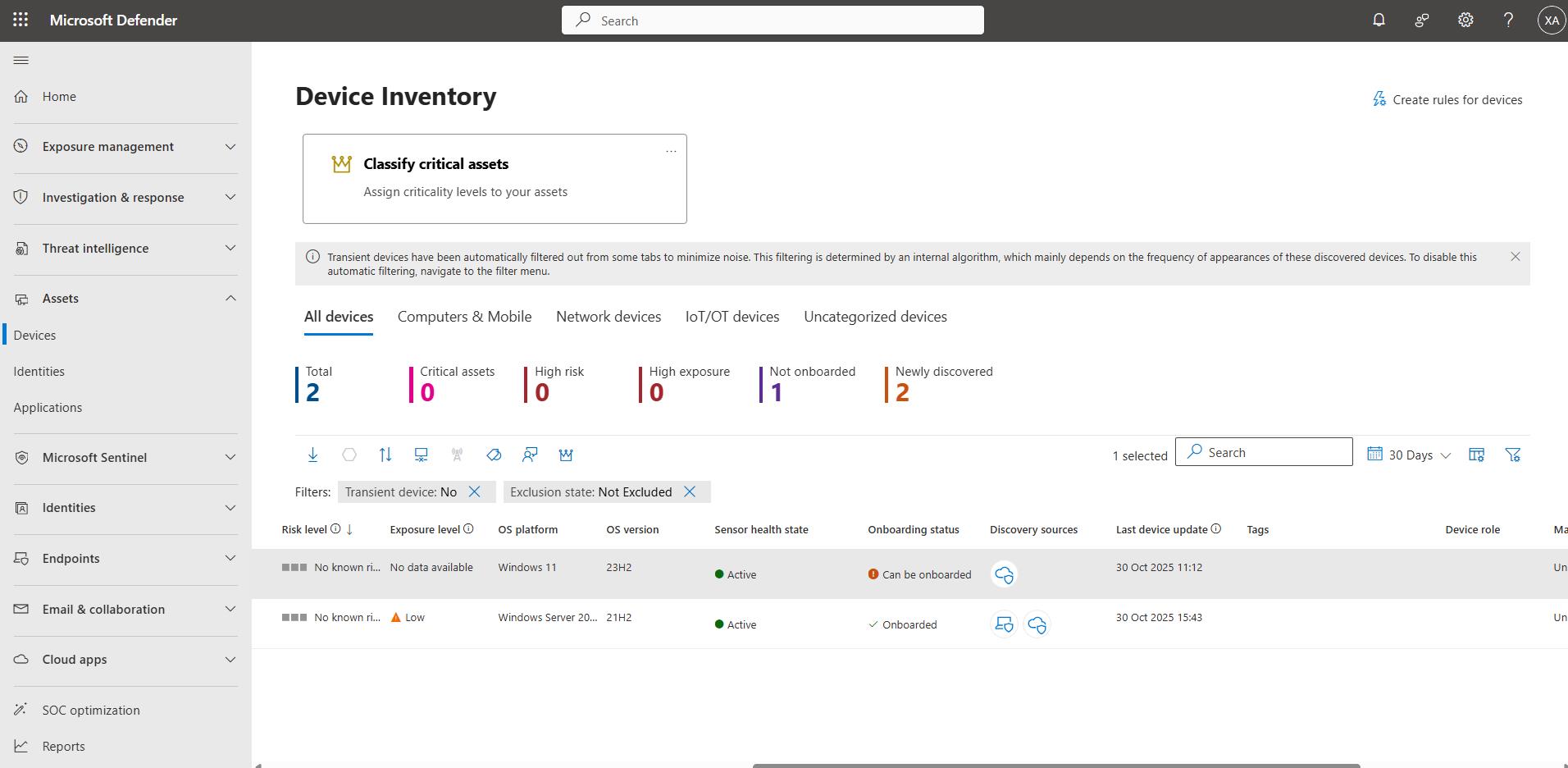
In the leftmost pane, go to Assets > Devices.
-
Note the Onboarding status of the devices, such as the number of devices onboarded versus not onboarded.
Security Engineering and Administration
-
In the bottom pane of PowerShell ISE, run ScriptC.ps1:
.\ScriptC.ps1 -TenantId "@lab.Variable(tenantId)" -ClientId "@lab.Variable(clientId)" -ClientSecret "@lab.Variable(clientSecret)"
This checks Defender for Endpoint device onboarding health.
-
Observe the file it creates in
C:\LabFiles\E1:MDE-Onboarding-Health.csv - Lists all devices with their Defender for Endpoint health, onboarding, risk, and exposure status, enabling quick identification of missing or unhealthy sensors.
SOC Analyst
-
Run the following KQL query to validate sensor and endpoint signal sanity:
 // Endpoint heartbeat sanity (devices seen in the last 24h)
 DeviceInfo
 | where Timestamp > ago(24h)
 | summarize ActiveDevices=dcount(DeviceId);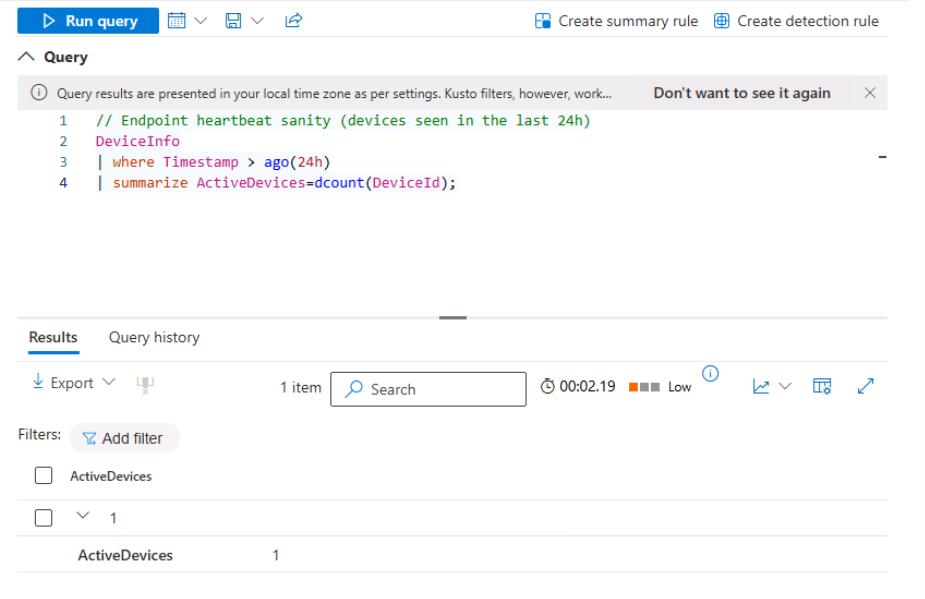
-
Run the following query to verify the identity logon signal:
 DeviceLogonEvents
 | where Timestamp > ago(27d)
 | summarize Logons = count(), Users = dcount(AccountName)
Records how many times a user has signed in to the devices.
-
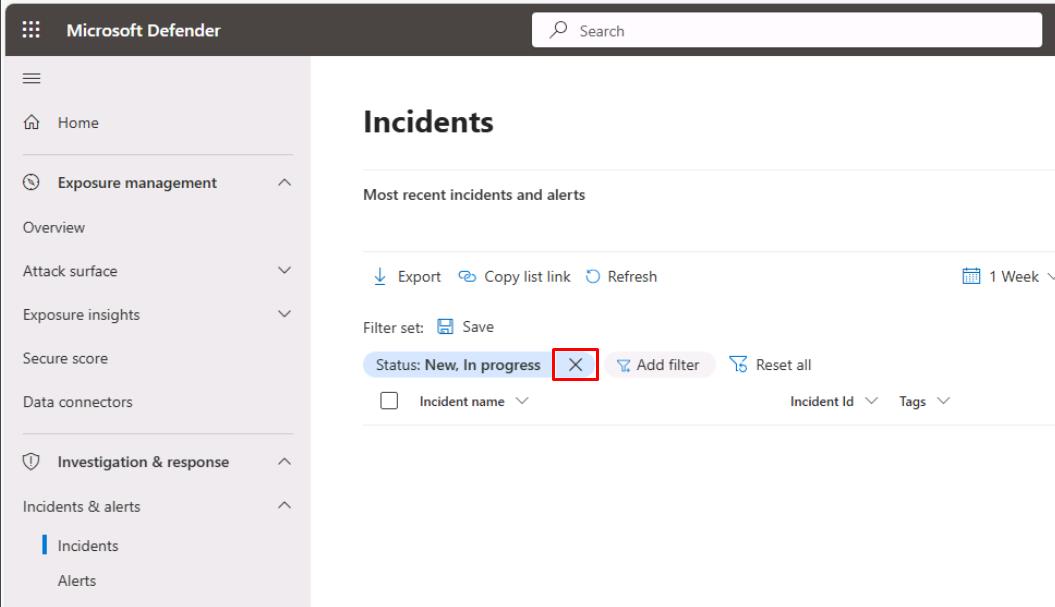
In the leftmost pane, go to Investigation & response > Incidents & alerts > Incidents.
-
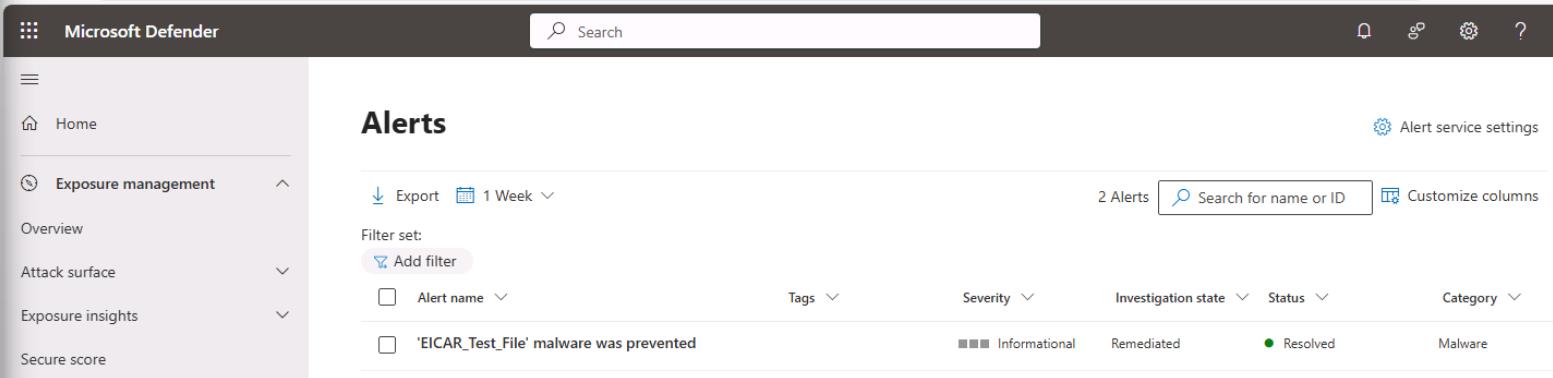
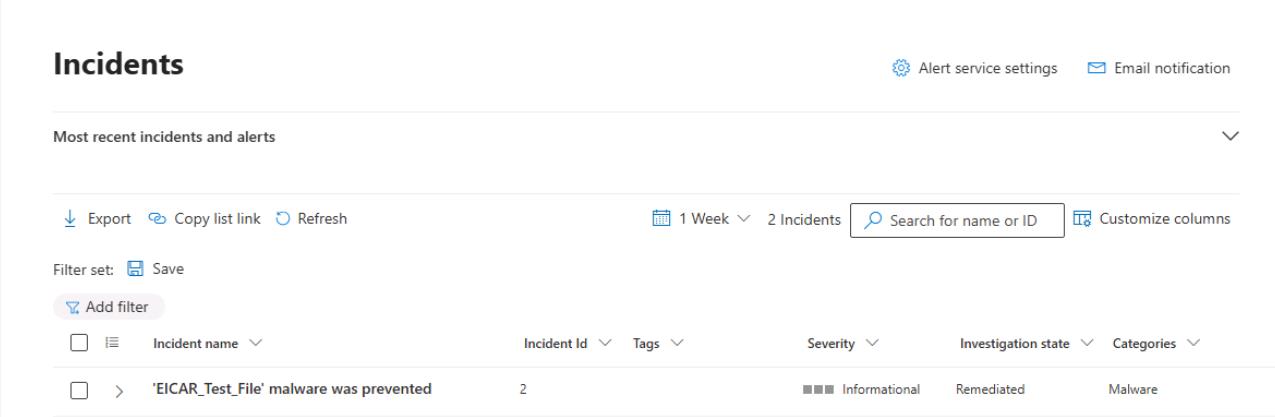
Remove any filters at the top of the table to see the EICAR_Test_File incident.
-
In the leftmost pane, go to Investigation & response > Incidents & alerts > Alerts.
-
On the Alerts page, take the same steps to observe the results.