Task 03: Enforce risk using Conditional Access App Control and real-time session policies
Security Architecture Team
-
In the leftmost pane, go to System > Settings.
-
Select Cloud Apps.
-
Under the Connected apps section, select App Connectors.
-
Ensure Microsoft 365 is connected.
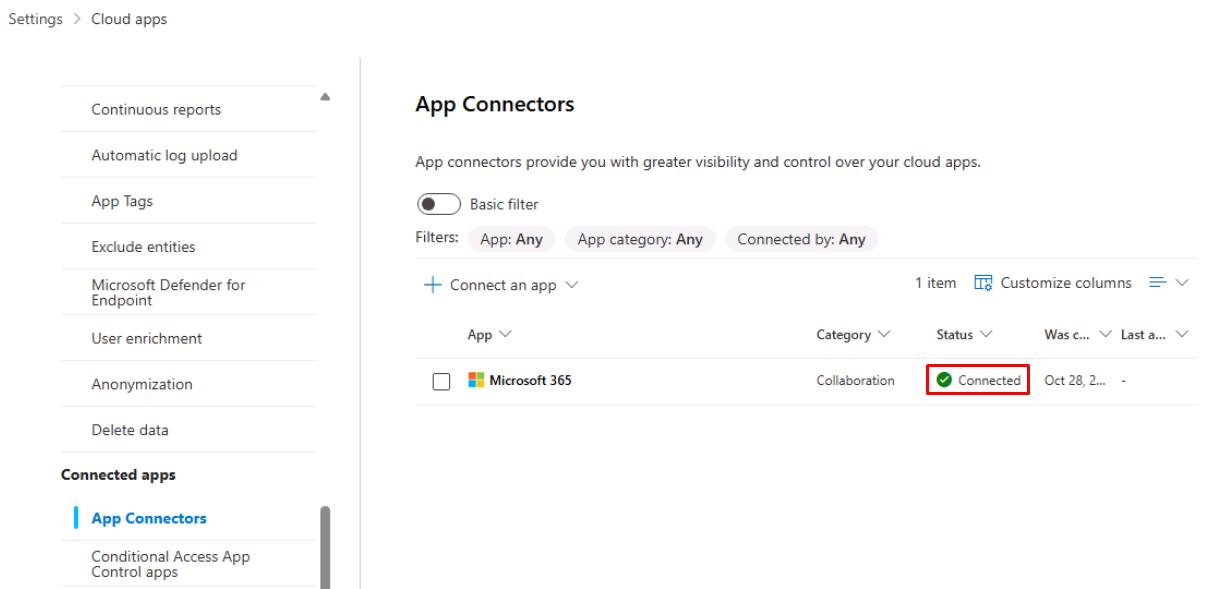
This activates the Cloud Apps engine.
Security Engineering and Administration
01: Create a Conditional Access policy in Entra
-
In a new browser tab, go to the Microsoft Entra admin center.
-
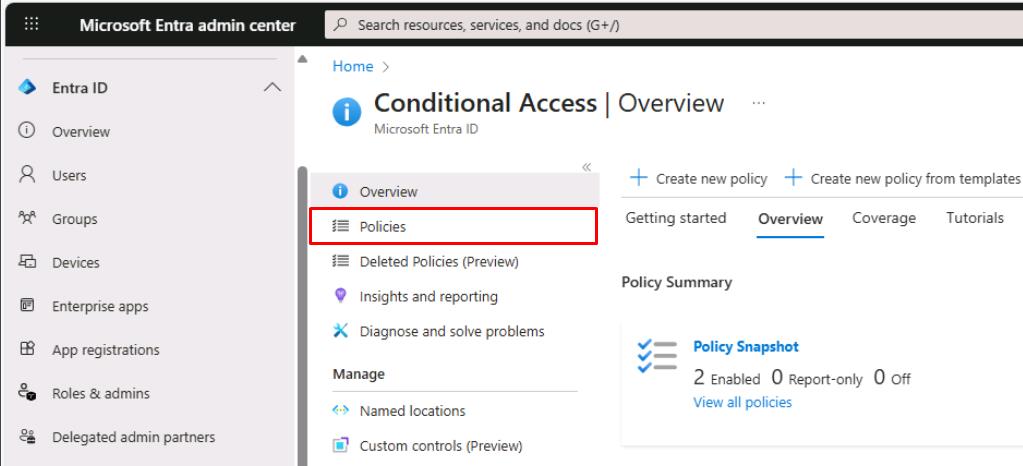
In the leftmost menu, go to Entra ID > Conditional Access.
-
On the Conditional Access page’s menu, select Policies.
-
On the top bar, select New policy.
-
For Name, enter
CA-UseAppControl-LabPolicy -
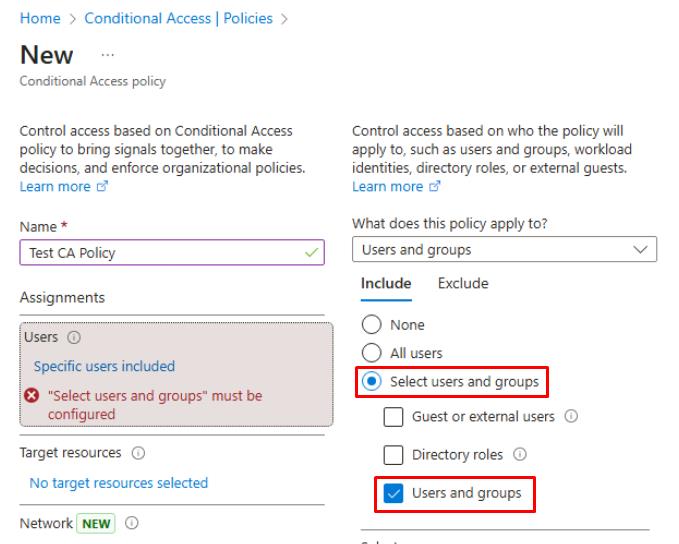
Under Users, select 0 users and groups selected.
-
Under the Include tab, select Select users and groups > Users and groups.
-
In the flyout pane, search for and select
XDR-Pilot-Group. -
At the bottom of the pane, select Select.
-
-
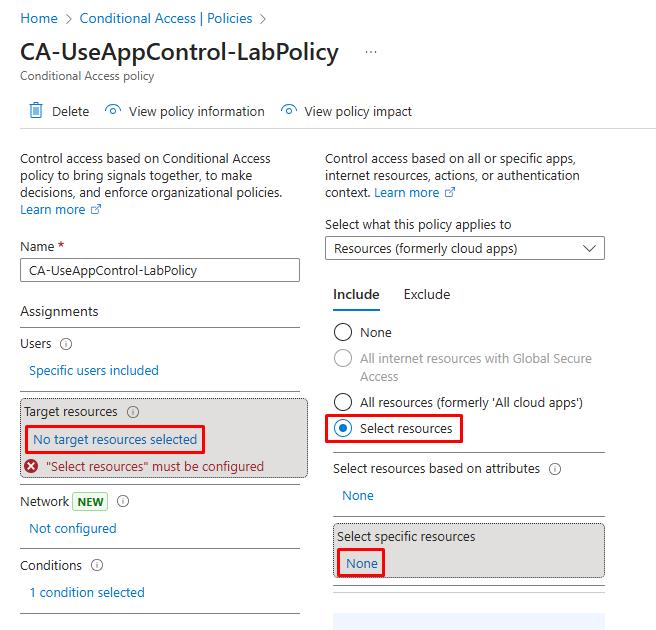
Under Target resources, select No target resources selected.
-
Under the Include tab, select Select resources.
-
Under Select specific resources, select None.
-
In the flyout pane, search for and select
Office 365. -
At the bottom of the flyout pane, select Select.
-
-
Under Conditions, select 0 conditions selected.
-
Under Device platforms, select Not configured.
-
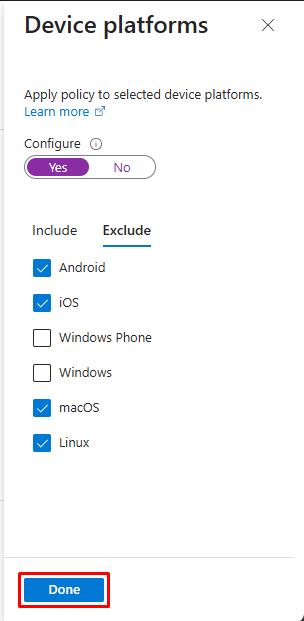
In the flyout pane, under Configure, select Yes.
-
Select the Exclude tab.
-
Select the following checkboxes:
- Android
- iOS
- macOS
- Linux
-
At the bottom of the flyout pane, select Done.
-
-
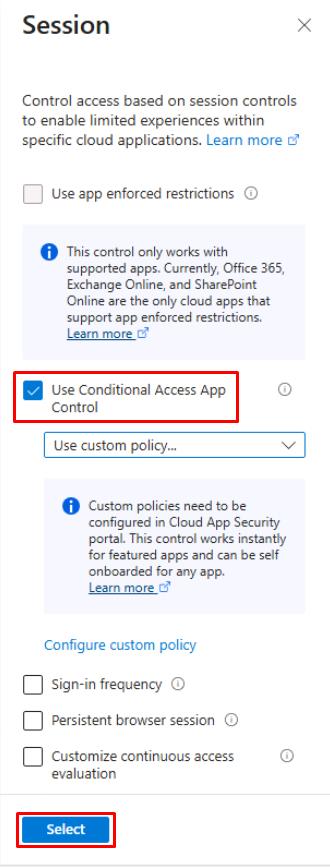
Under Session, select 0 controls selected.
-
In the flyout pane, select Use Conditional Access App Control, then select Select at the bottom.
-
-
Under Enable policy, select On.
In production, you should always test policies in Report-only first.
-
Select Create.
Please wait 5 minutes for the policy to propagate before proceeding.
-
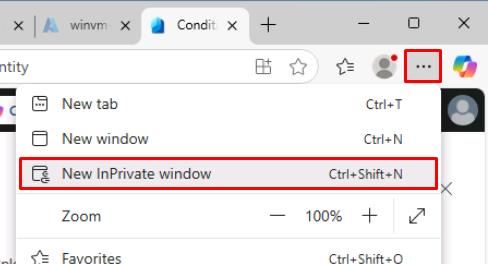
In the upper-right corner of Microsoft Edge, select the ellipsis, then select New InPrivate window.
-
Go to Outlook.
-
Sign in with Lab User One:
Item Value Username user1@@lab.Variable(userDomain)Password P@ssw0rd!2025This is to test the new policy, which will pick up Lab User One’s sign in.
-
Once signed in, you can close the InPrivate window.
02: Create a session policy in Defender XDR
-
In your regular Microsoft Edge window, go back to the Defender XDR portal tab.
-
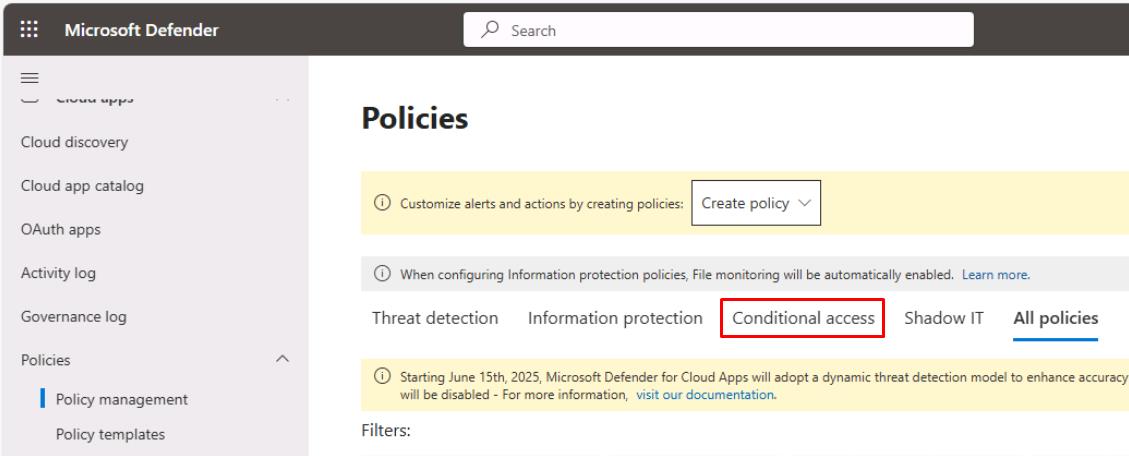
In the leftmost pane, go to Cloud apps > Policies > Policy management.
-
Near the top of the page, select the Conditional access tab.
-
Below the tabs and Filters, select Create policy > Session policy.
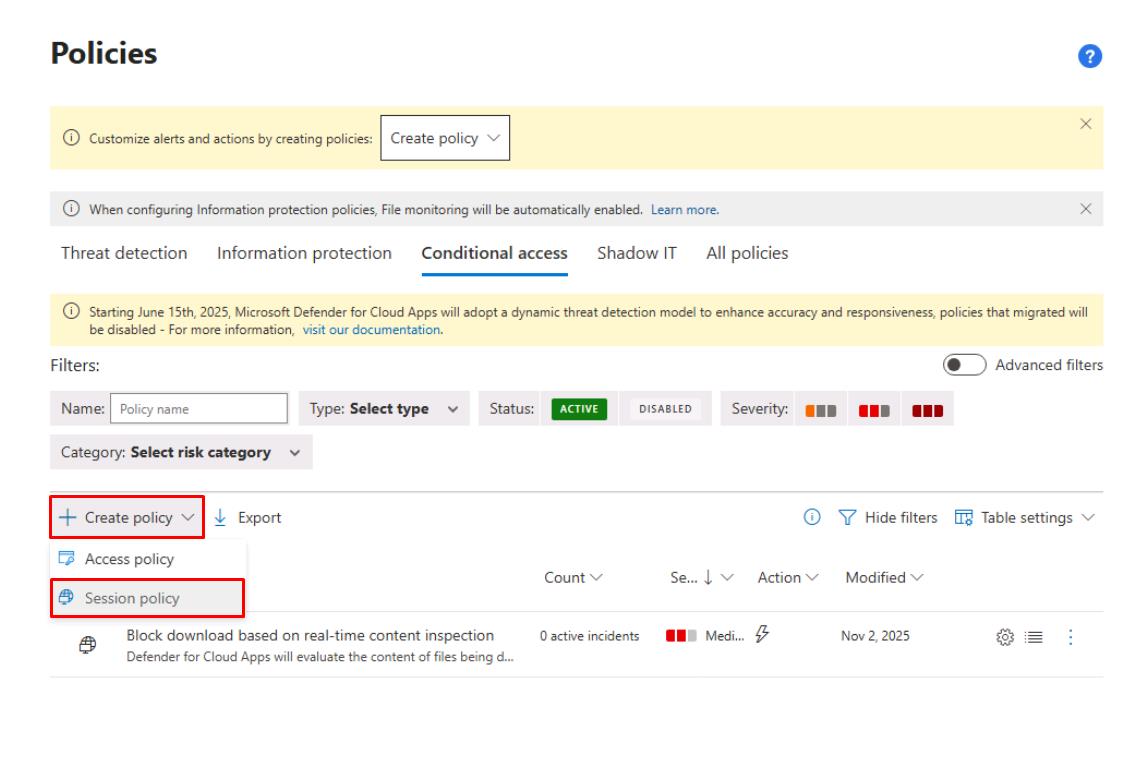
-
Enter the following:
Item Value Policy name Block download based on real-time content inspectionCategory DLP Session control type Control file download (with inspection) 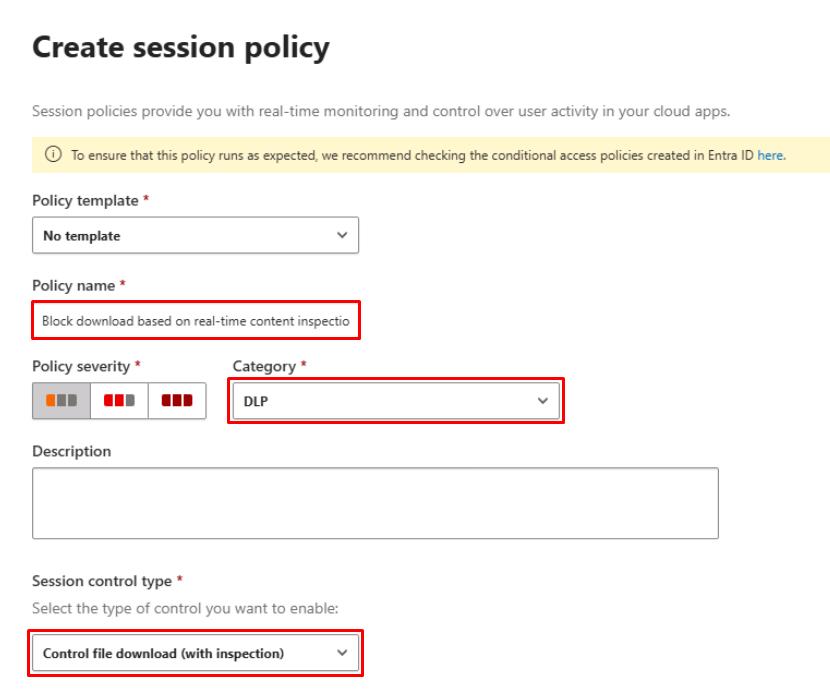
If fields are not grayed out:
- You can proceed to the next steps even if you see an error at the top saying Conditional Access not found.
If fields are grayed out:
- While it can pick up your sign in to Lab User One within minutes, it can take up to 20 minutes before it allows you to fill in the fields.
- Periodically go back and try Create policy > Session policy.
-
Under Activities matching all of the following, select :
- Device, Tag, equals, Intune compliant
-
Select the X to the left of the row of any other default filter.
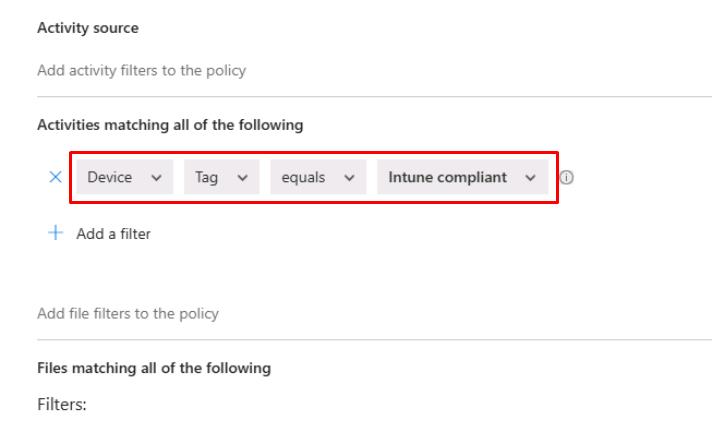
-
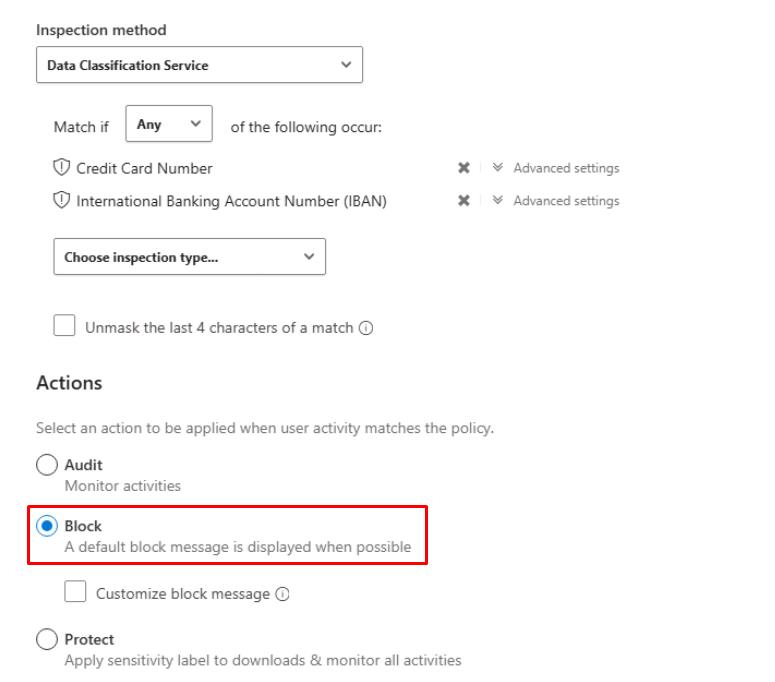
Select the Inspection Method dropdown menu > Data Classification Service.
-
Select the Choose inspection type dropdown menu > Sensitive information type.
-
Search for and select the checkbox for:
Credit Card NumberIBAN
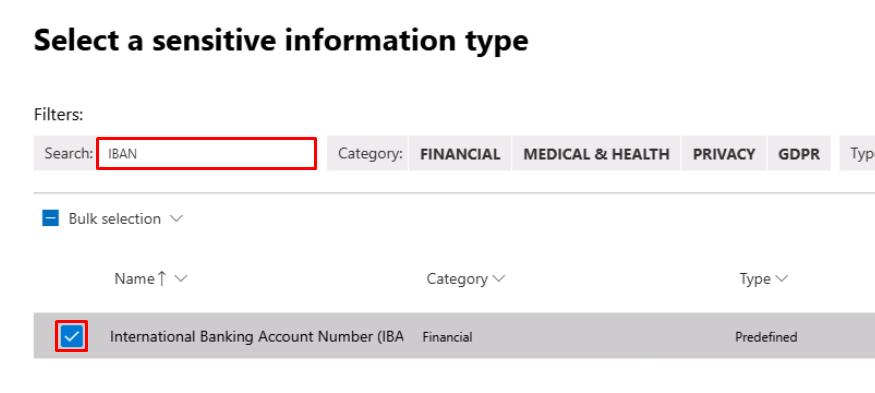
-
In the upper-right corner of the dialog, select Done.
-
-
Under Actions, select Block.
-
At the bottom of the page, select Create.
Session policies in Cloud Apps are enforced by the reverse proxy behind Conditional Access App Control.
SOC Analyst
-
In the leftmost pane, go to Investigation & response > Hunting > Advanced hunting.
-
Run the following KQL query:
 CloudAppEvents
 | where Timestamp >= ago(24h)
 | where AuditSource in ("Defender for Cloud Apps session control", "Defender for Cloud Apps access control")
 | project Timestamp, AccountId, Application, ActivityType,
         SessionId = tostring(SessionData.InLineSessionId),
         AuditSource, IPAddress, OSPlatform, UserAgent
 | order by Timestamp desc
The query lists all user actions from the past 24 hours that passed through a Defender for Cloud Apps session or access controls, helping you confirm which sessions were governed by Conditional Access App Control.
It outputs timestamp, user, app, activity type, session ID, source, and device information (IP, OS, browser), giving analysts visibility to who accessed which cloud app, from where, and under what session control context.