Task 01: Incident triage and assignment
Security Architecture Team
-
In the Defender XDR portal’s leftmost pane, go to Investigation & response > Incidents & alerts > Incidents.
-
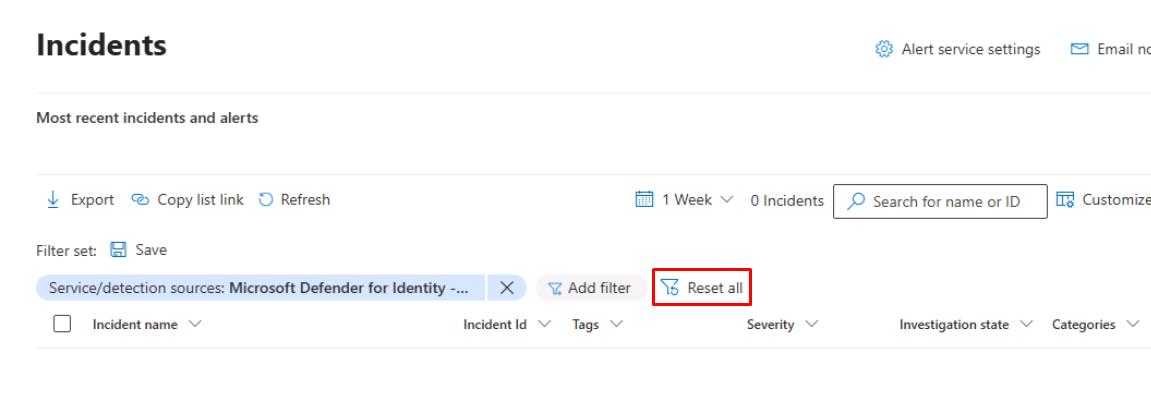
At the top of the table, select Reset all to clear any filters.
-
Select any empty space on the line for ‘EICAR_Test_File’ malware was prevented.
This will open a flyout pane.
-
At the top of the flyout pane, select Manage incident.
-
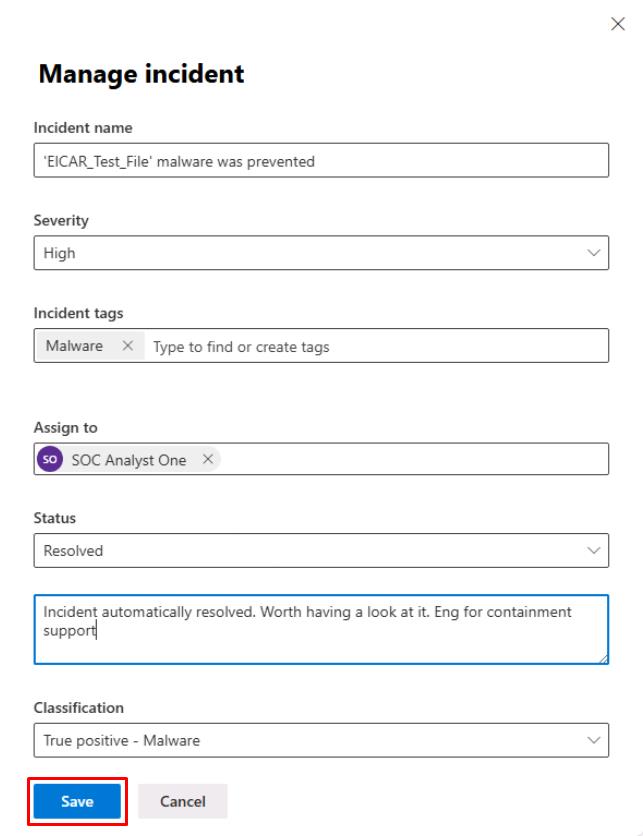
Update the following details:
Item Value Severity High Incident tags Malware(Create new)Assign to analyst1@@lab.Variable(userDomain)Classification True positive - Malware Status Resolved -
In the text box below Resolved, enter:
Incident automatically resolved. Worth having a look at it. Eng for containment support -
Select Save.
Security Engineering and Administration
-
In the Defender XDR portal’s leftmost pane, go to Investigation & response > Incidents & alerts > Incidents.
-
At the top of the table, select Reset all to clear any filters.
-
In the table, select the text for ‘EICAR_Test_File’ malware was prevented.
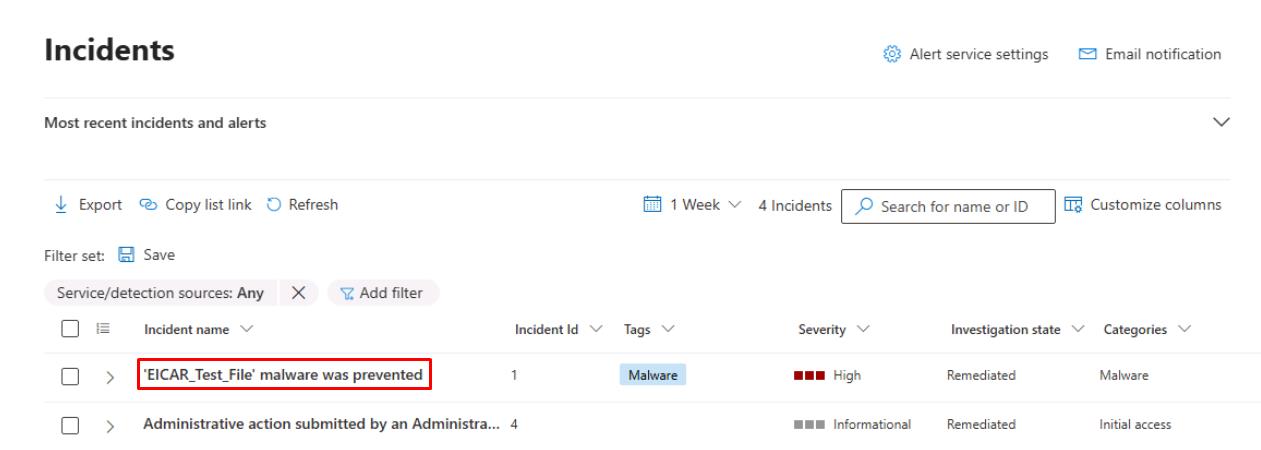
This will open its incident page and display the Attack story.
-
Review impacted assets, entities, and all active alerts related to the incident.
-
Select the Evidence and Response tab to review remediation evidence.
-
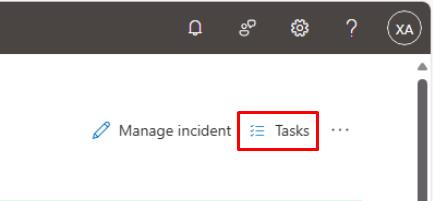
In the upper-right corner of the page, you can select Tasks to add a task for the SOC Analyst to perform additional investigation.
SOC Analyst
-
In the Defender XDR portal’s leftmost pane, go to Investigation & response > Incidents & alerts > Incidents.
-
At the top of the table, select Reset all to clear any filters.
-
In the table, select the text for ‘EICAR_Test_File’ malware was prevented.
This will open its incident page and display the Attack story.
-
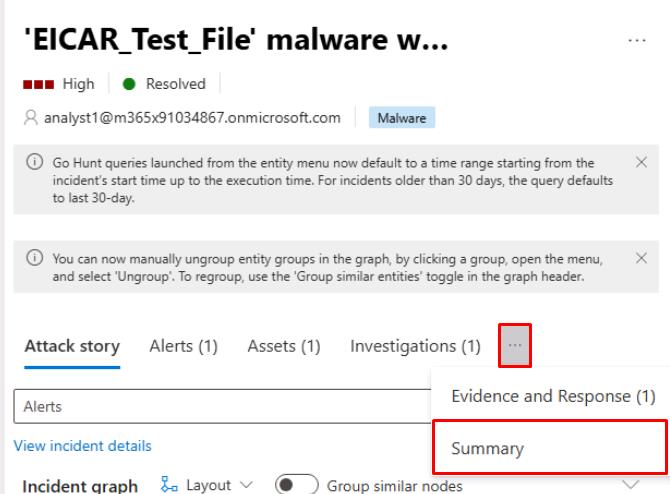
Near the top of the page, select the Summary tab.
Depending on window size, you may need to select the ellipsis to see the option.
-
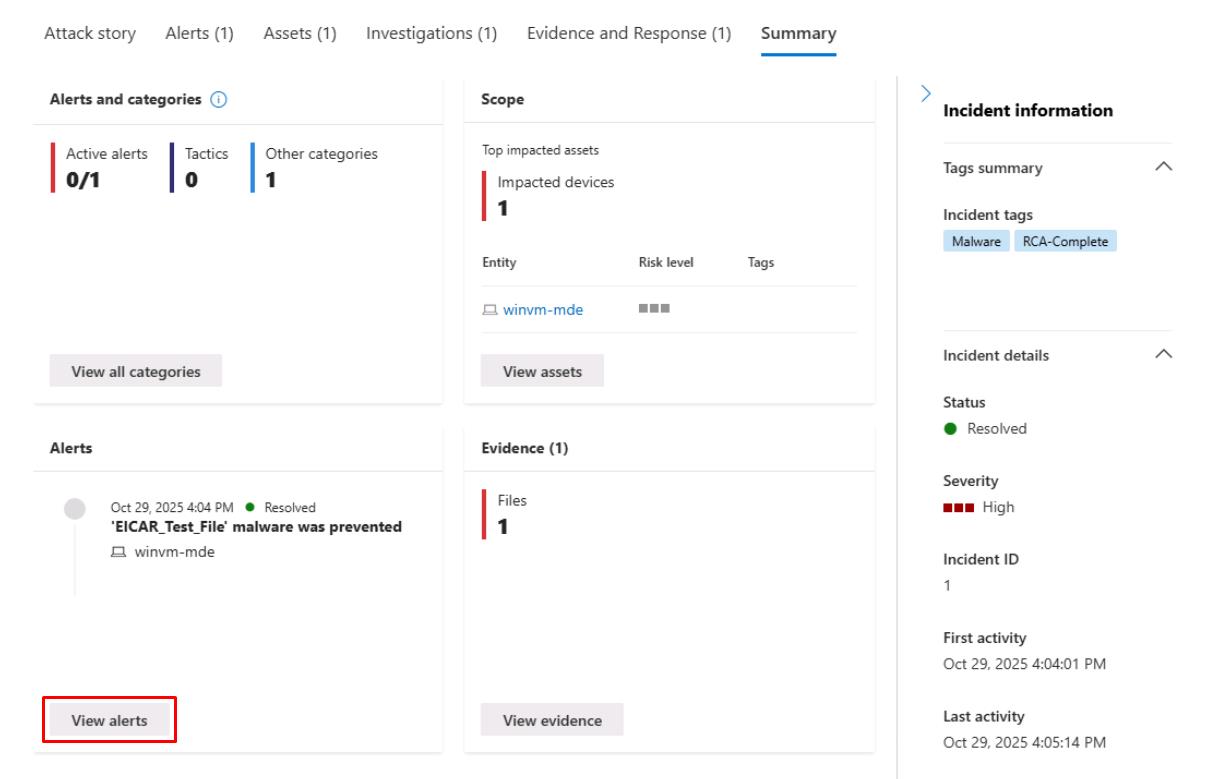
Under the Alerts tile, select View alerts.
-
In the flyout pane, select the name of the alert.
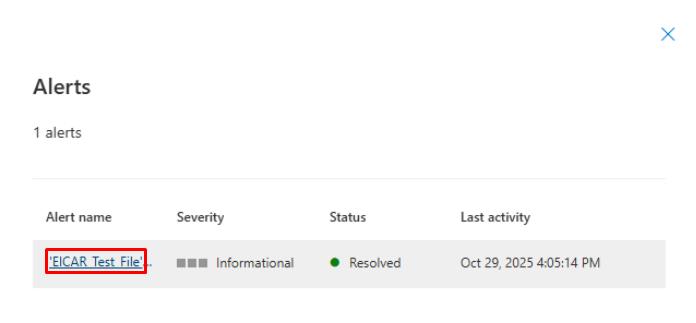
This will open a new page.
-
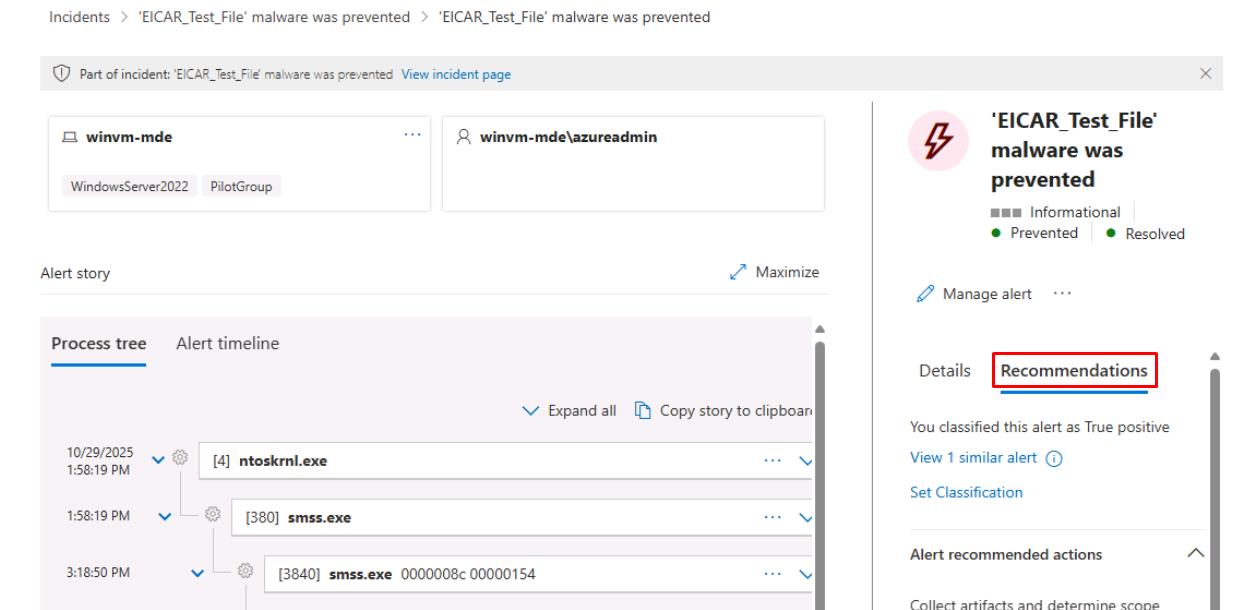
In the rightmost pane, select the Recommendations tab and review the contents.
-
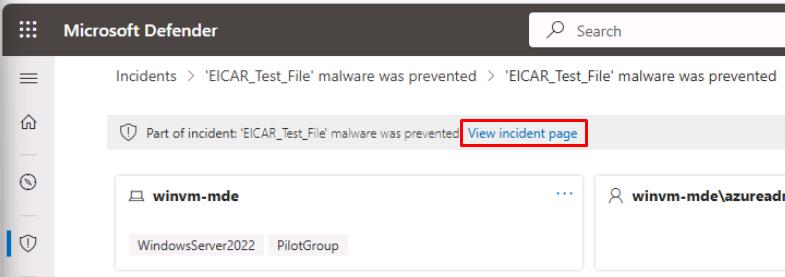
Near the upper-left corner of the page, select View incident page to go back.